Display
Here the the various icons and different state displays are explained in depth.
Rover

The display on the FPL in rover mode will show the following:
- A142 - Bluetooth MAC address used during pairing to identify the device. This is also printed on the side of the device as part of the Device ID.
- Battery Gauge - Relative level of battery capacity remaining from 100% (three bars) to nearly exhausted (no bars).
- Cross Hair - Estimated horizontal positional accuracy of the device in meters. A single cross hair icon indicates a standard 3D fix; a blinking double cross hair icon indicates RTK Float; a solid double cross hair icon indicates an RTK Fix.
- Satellite Dish - Satellites in view. Used as a general indicator of how well the device is receiving GNSS signals. This varies between 20 to 40 satellites.
- Spinning Circle - This animated icon indicates the system is running.

As devices are connected, and corrections are received, the display will indicate additional information:
- A142 - Bluetooth MAC address used during pairing to identify the device. This is also printed on the side of the device as part of the Device ID.
- Bluetooth Symbol - A remote device is currently connected to the FPL over Bluetooth.
- Down Arrow - Correction data is detected. This is a good indicator that RTCM is correctly being received.
- Battery Gauge - Relative level of battery capacity remaining from 100% (three bars) to nearly exhausted (no bars).
- Double Cross-Hair - Estimated horizontal positional accuracy of the device in meters. A solid double cross hair icon indicates an RTK Fix.
- Satellite Dish - Satellites in view. Used as a general indicator of how well the device is receiving GNSS signals. This varies between 20 to 40 satellites. A satellite dish with a 'P' indicates PPP reception is enabled.
- Bluetooth Symbol in Lower Right Corner - Corrections can come from a variety of sources. This icon indicates the corrections being used by the GNSS receiver. In this case, corrections over Bluetooth are being used.
- Document - This animated icon indicates data is being logged to microSD.
Logging

The FPL can log various messages to microSD. Different messages can be enabled for different intents. This icon will change indicating the source currently being used.
- Circle - No microSD card is detected / no logging enabled.
- Document with Lines - The FPL is logging the default set of NMEA messages.
- Document with C - The FPL is logging a custom, user selected set of messages.
- Document with P - The FPL is logging the default set of NMEA and RTCM messages needed for post processing.
See the Message Rate Configuration section for information about how to log different messages.
Correction Source

The FPL can receive corrections from a variety of sources. It will use the corrections from the highest prioritized source (see Correction Priorities for more information). This icon will change indicating the source currently being used.
- Handheld Radio - An external radio is providing corrections.
- Sideways Half Circles - The ESP-NOW radio is providing corrections.
- Broadcast Tower - The LoRa radio is providing corrections.
- Bluetooth - The Bluetooth radio is providing corrections.
- USB - A USB connection radio is providing corrections.
- Double Diamond - An NTRIP Client is providing corrections.
- P Sign - The PPP HAS/B2b system is providing corrections.
Base

- A142 - Bluetooth MAC address used during pairing to identify the device. This is also printed on the side of the device as part of the Device ID.
- WiFi Symbol - WiFi is running. This icon will blink while a connection is being attempted and will be solid when WiFi is connected.
- Fort - Indicates the device is in fixed base mode. A flag icon indicates the device surveyed-in the base.
- Battery Gauge - Relative level of battery capacity remaining from 100% (three bars) to nearly exhausted (no bars).
- Xmitting - Indicates the device is successfully transmitting RTCM over the available interfaces. This includes ESP-NOW, TCP, LoRa, and any serial connections, it excludes NTRIP Server.
- RTCM - A count of RTCM sentences transmitted. Used as a heath indicator: it should generally increase every second.
- Satellite Dish - Satellites in view. Used as a general indicator of how well the device is receiving GNSS signals. This varies between 20 to 40 satellites.
- IP Address - Once a device is connected to WiFi, its IP address will be shown. This is helpful when using a TCP Client to connect to the device.
- Spinning Circle - This animated icon indicates the system is running.
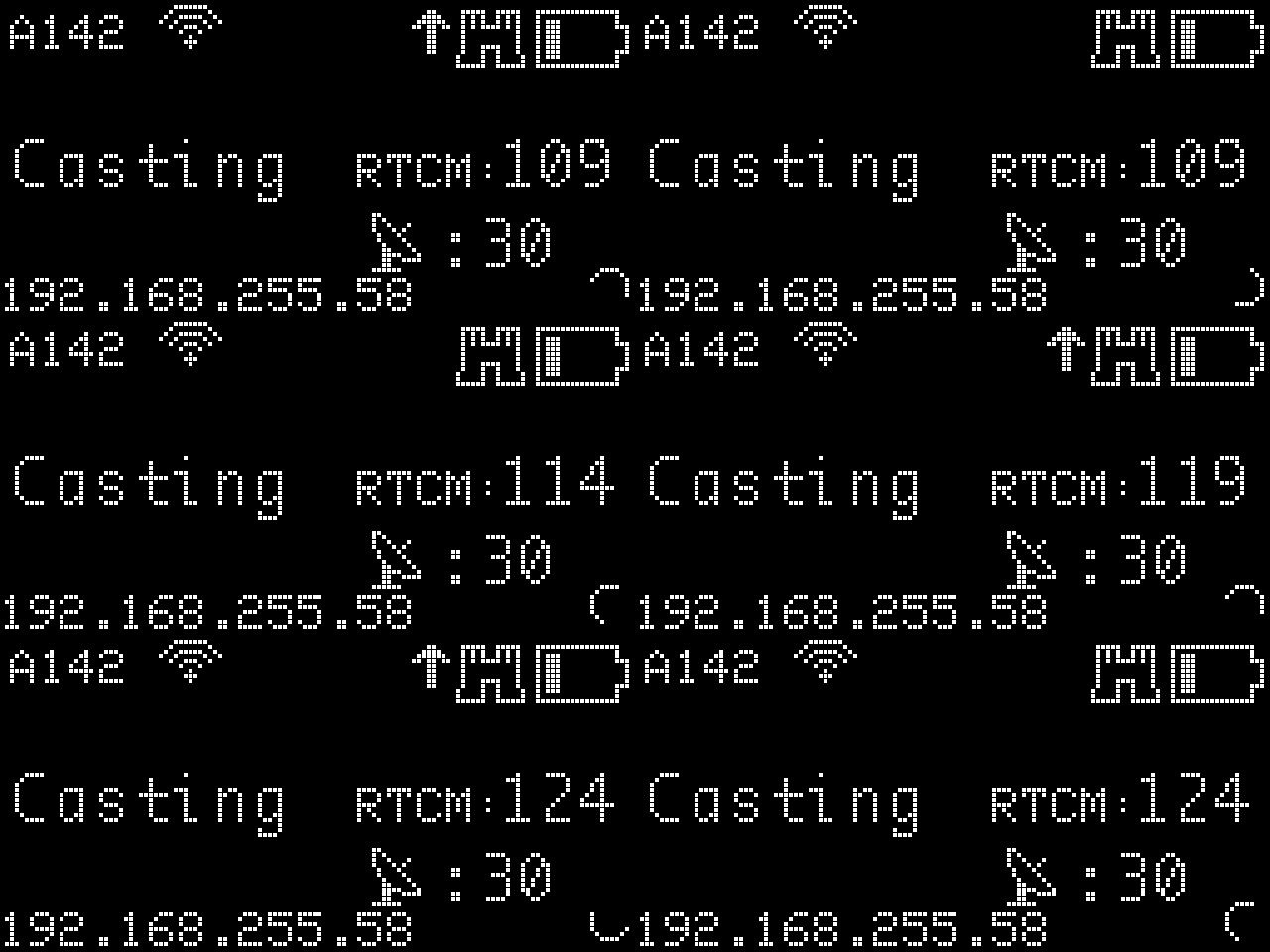
- A142 - Bluetooth MAC address used during pairing to identify the device. This is also printed on the side of the device as part of the Device ID.
- WiFi Symbol - WiFi is running. This icon will blink while a connection is being attempted and will be solid when WiFi is connected.
- Up Arrow - Correction data is sent. This is a good indicator that RTCM is correctly being uploaded.
- Fort - Indicates the device is in fixed base mode. A flag icon indicates the device surveyed-in the base.
- Battery Gauge - Relative level of battery capacity remaining from 100% (three bars) to nearly exhausted (no bars).
- Casting - Indicates the device is successfully connected to a Caster over WiFi. This is what to expect to see when the NTRIP Server is successfully running.
- RTCM - A count of RTCM sentences transmitted. Used as a heath indicator: it should generally increase every second.
- Satellite Dish - Satellites in view. Used as a general indicator of how well the device is receiving GNSS signals. This varies between 20 to 40 satellites.
- IP Address - Once a device is connected to WiFi, its IP address will be shown. This is helpful when using a TCP Client to connect to the device.
- Spinning Circle - This animated icon indicates the system is running.
Type

The FPL can enter base mode in Fixed or Survey-In. This icon will change indicating the base type currently being used.
- Fort - The base is using fixed coordinates.
- Flag - The base is using surveyed-in coordinates.
Menu

Pressing either button will open the menu system. Pressing the (Fn) button will move down; pressing the () power button will select the menu item. The menu will timeout and exit if no entry is made.
- Base - Enter Base mode as it has been configured.
- BaseCast - Override the base configuration and enter Base Casting mode.
- BaseAssist - Override the base configuration and enter Base Assist mode.
- Rover - Enter Rover mode as it has been configured.
- Config - Enter Configuration mode.

- E-Pair - Enter ESP-NOW pairing mode.
- 0_Aplin - Any named profiles will be shown on the menu list. This allows a user to quickly switch entire system configurations for different work sites.
- Exit - Exit the menu system.
Configuration

Once a device is put into configuration mode the display will show the SSID being broadcast as well as the IP address. By default, the FPL will broadcast an access point called RTK Config ###### with the IP address 192.168.4.1.

If Configure Mode is set to WiFi the FPL will attempt to connect to the given WiFi network. If a connection is made, its SSID will be shown along with the IP address that was issued to the FPL.