SW Maps
The best mobile app that we’ve found is the powerful, free, and easy-to-use SW Maps by Softwel. It is compatible with Android and iOS, either phone or tablet with Bluetooth. What makes SW Maps truly powerful is its built-in NTRIP client. This is a fancy way of saying that we’ll be showing you how to get RTCM correction data over the cellular network.
Make sure the FPL is switched on and operating in Rover mode. Also, make sure that Bluetooth is enabled in the settings of your mobile device.
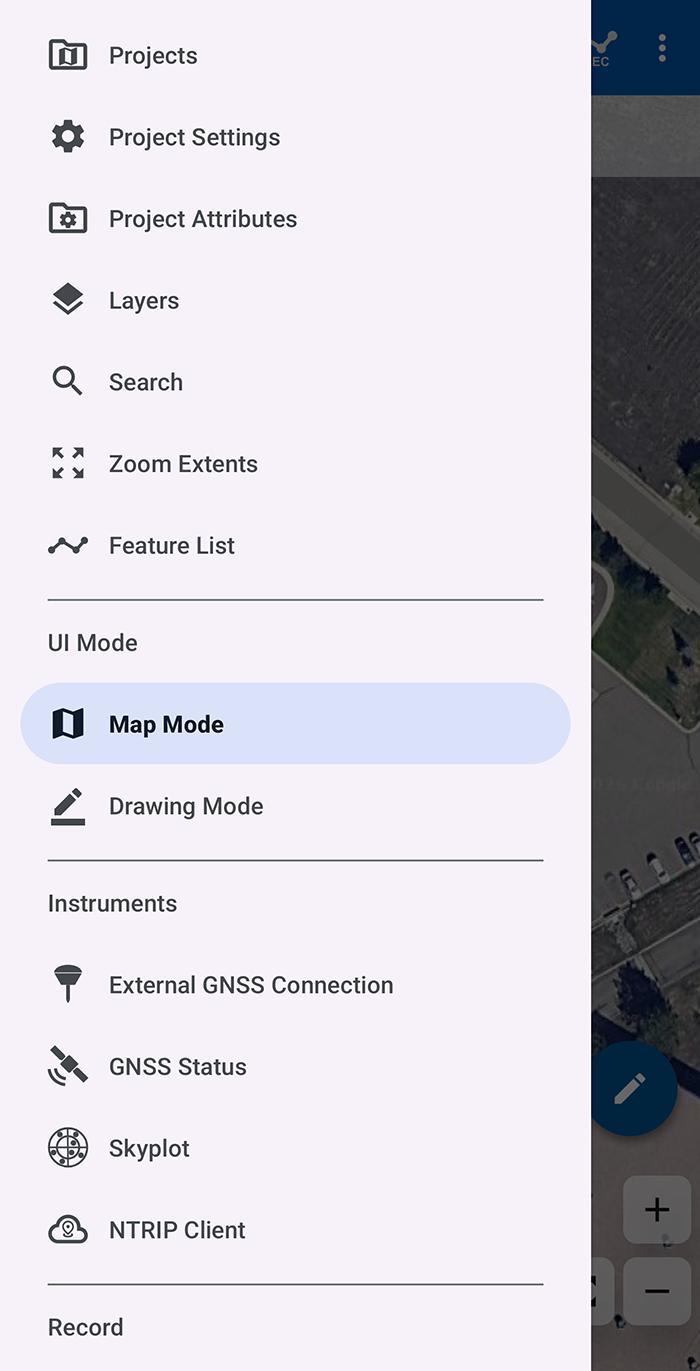
Click on the () SW Map logo to open main menu; then, select External GNSS Connection menu under Instruments. Otherwise, select the () survey pole icon from the main display.
The (External) GNSS Connection menu displays a list of available devices that the app can connect to. Select Bluetooth LE option from the Connection Mode drop-down menu to see a list of available Bluetooth devices. If you don't see your device listed, click on the () refresh icon to rescan for devices.
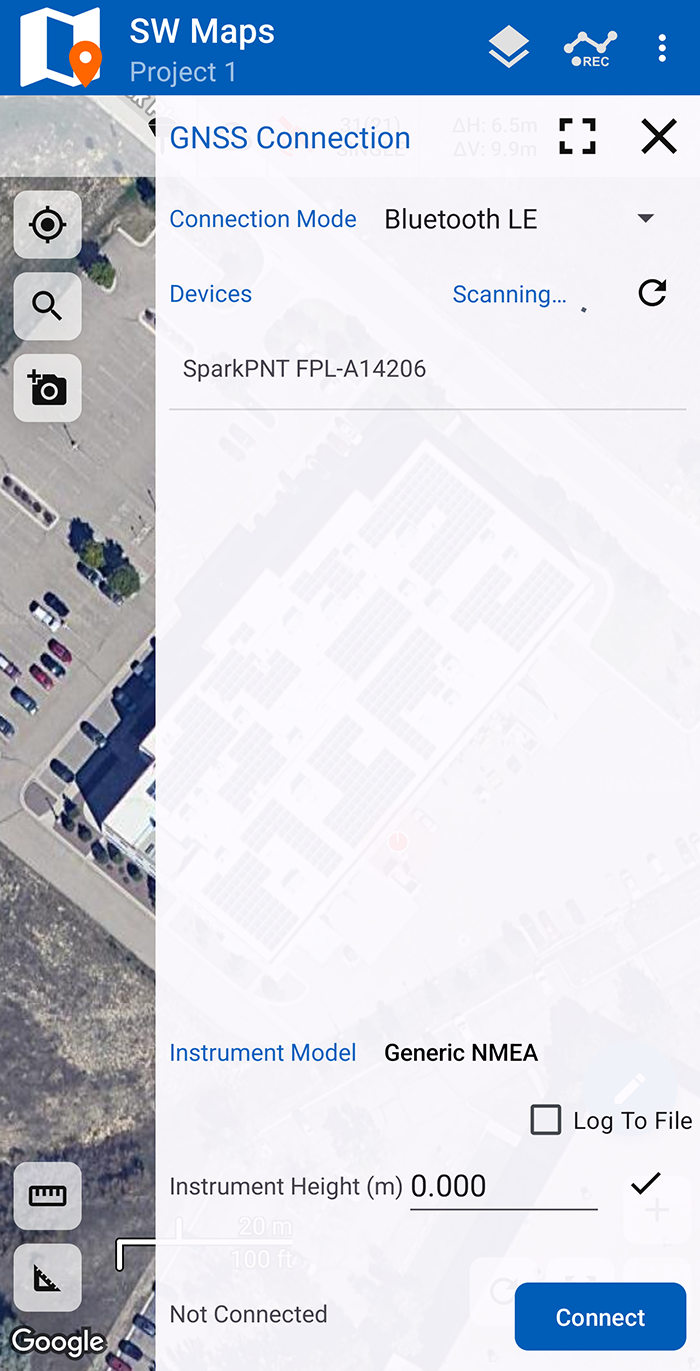
Bluetooth LE devices listed in the GNSS Connection menu.
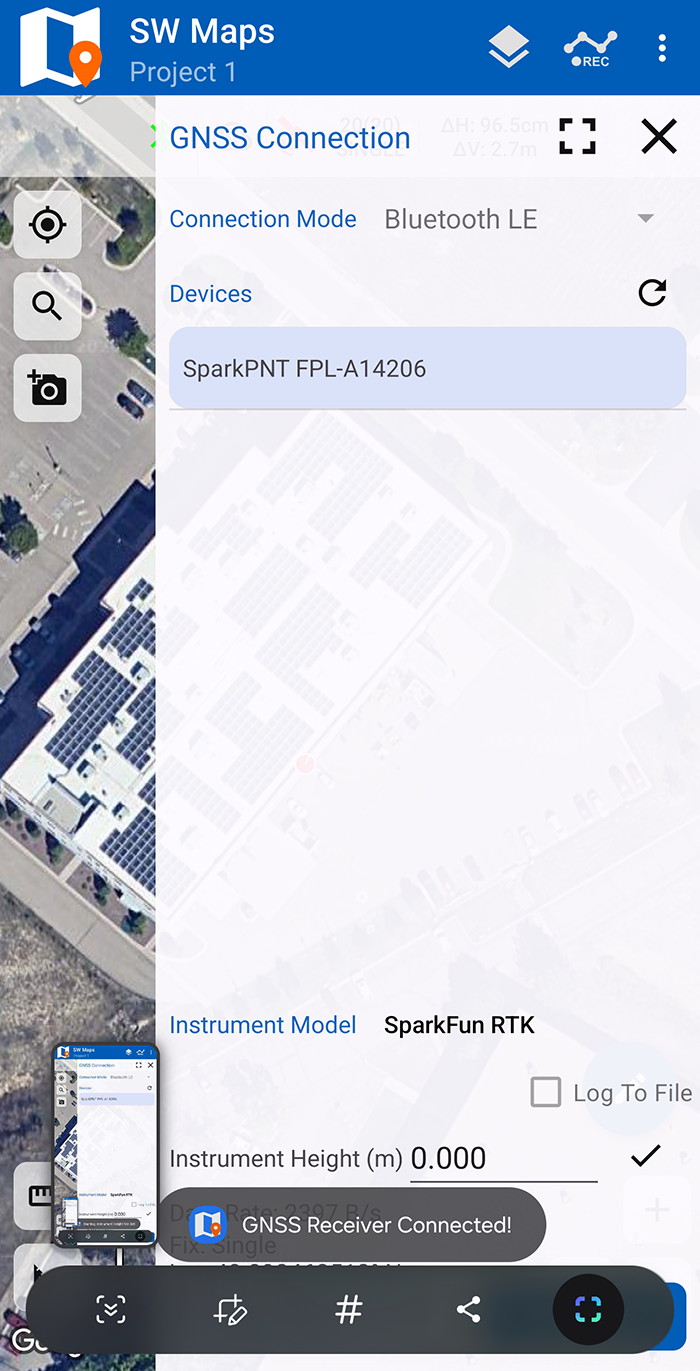
Select SparkPNT FPL-###### from the listed devices and change the Instrument Model to SparkFun RTK. Then, click on the Connect button to connect to the FPL. Assuming this process takes a few seconds, you should immediately have a location fix displayed next to the Disconnect.
If you are taking height measurements (altitude) in addition to position (lat/long) be sure to enter the height of your antenna off the ground including any ARP offsets of your antenna (this should be printed on the side).
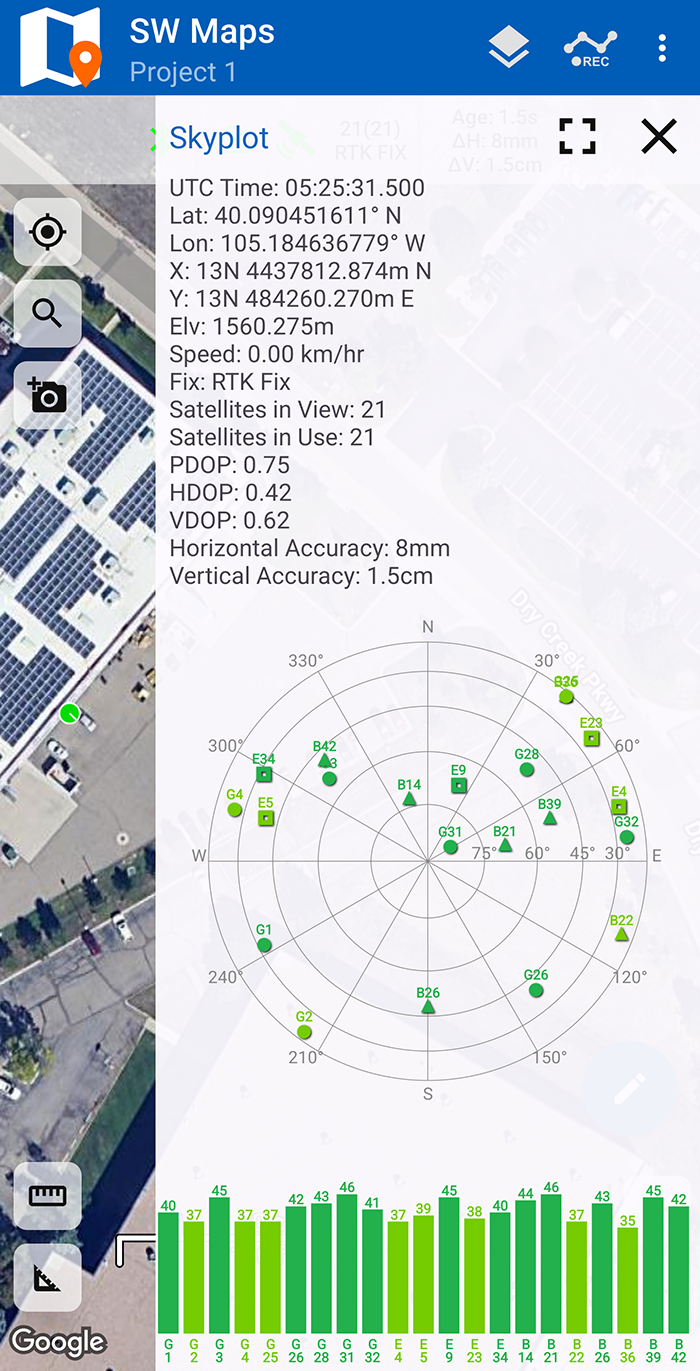
You can open the GNSS Status sub-menu from the main menu to view the current data. This menu is also accessible by clicking on the () satellite icon from the main display.
NTRIP Client
If you're not using a serial radio to connect a Base to a Rover for your correction data, we'll need to send RTCM correction data from the phone back to the FPL so that it can improve its fix accuracy. This is the amazing power of the SparkPNT products and SW Maps. Your phone can be the radio link! From the main SW Maps menu select the () cloud with a pin icon to open the NTRIP Client menu.
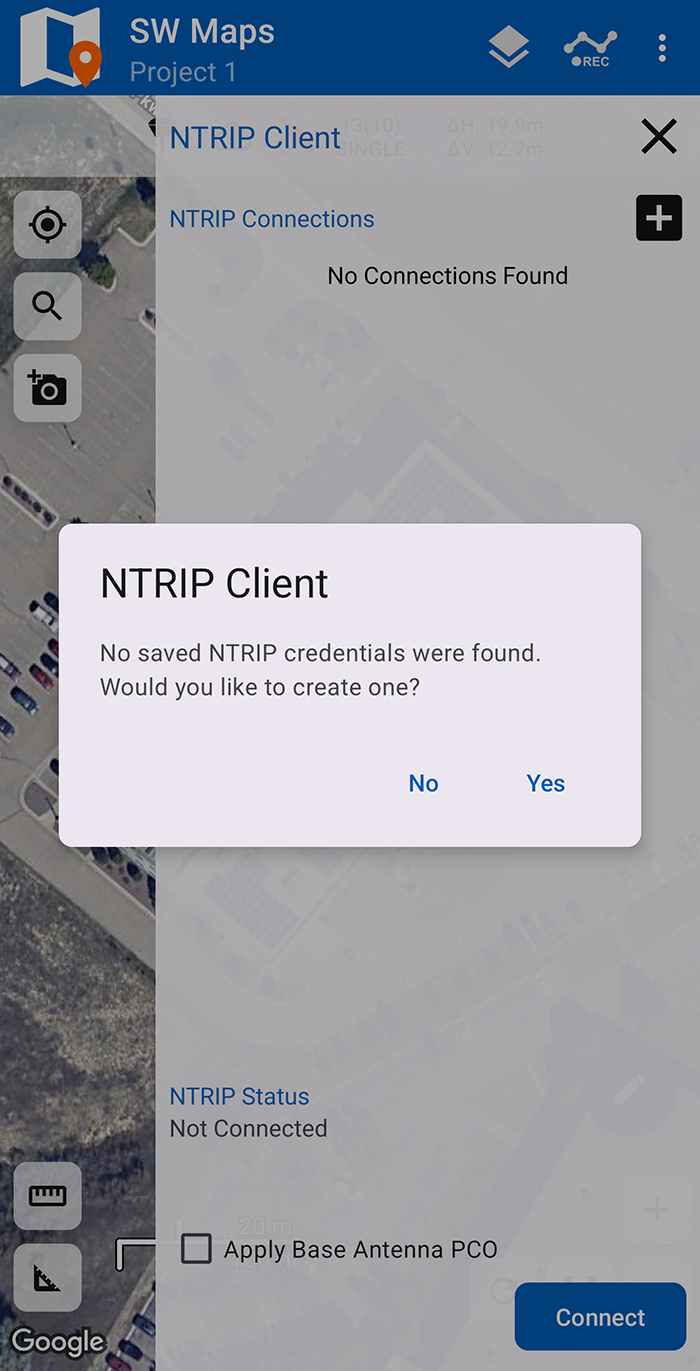
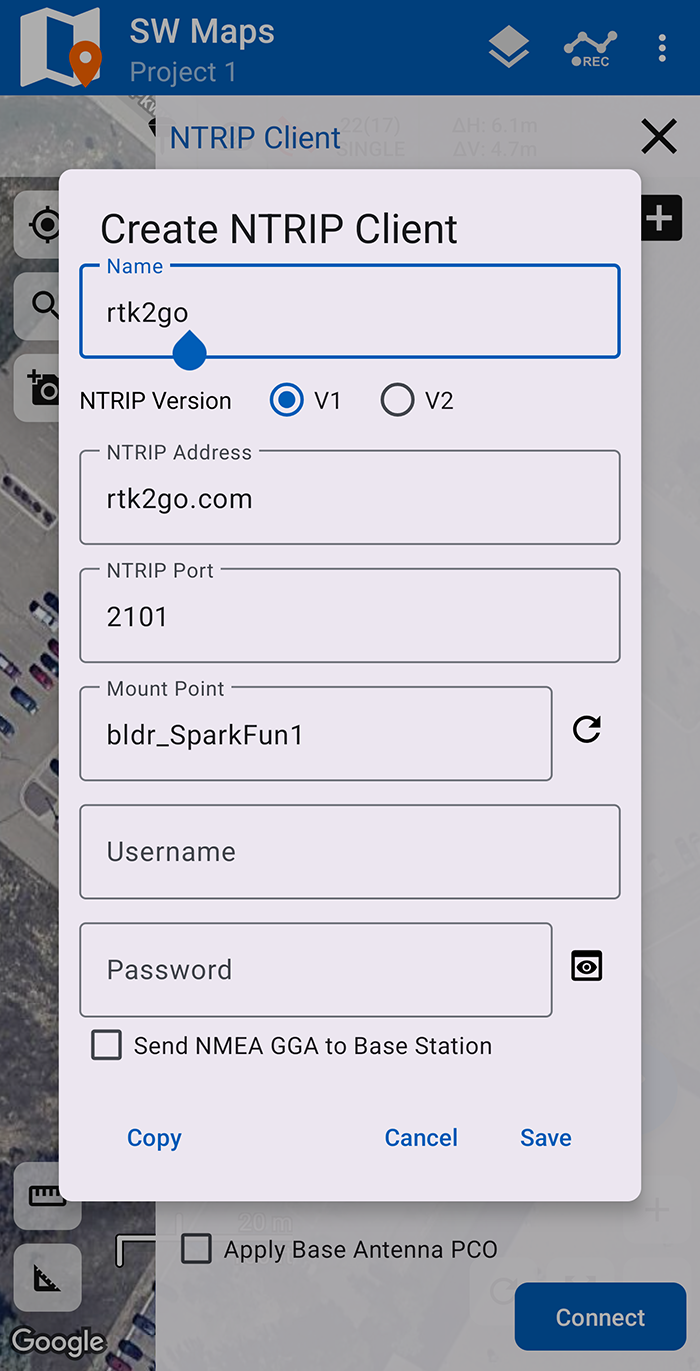
If this is your first time creating an NTRIP connection, you will be prompted to create one, click on the Yes button. Otherwise, click on the () plus icon next to NTRIP Connections, to create a new connection. Enter your NTRIP Caster credentials and Save.
Users may need to select a Mount Point. After the Address and Port have been configured, click on the () refresh icon to access the list of available mount points. Some service may also require the Username and Password credentials to be configured, before the list of mount points can be accessed.
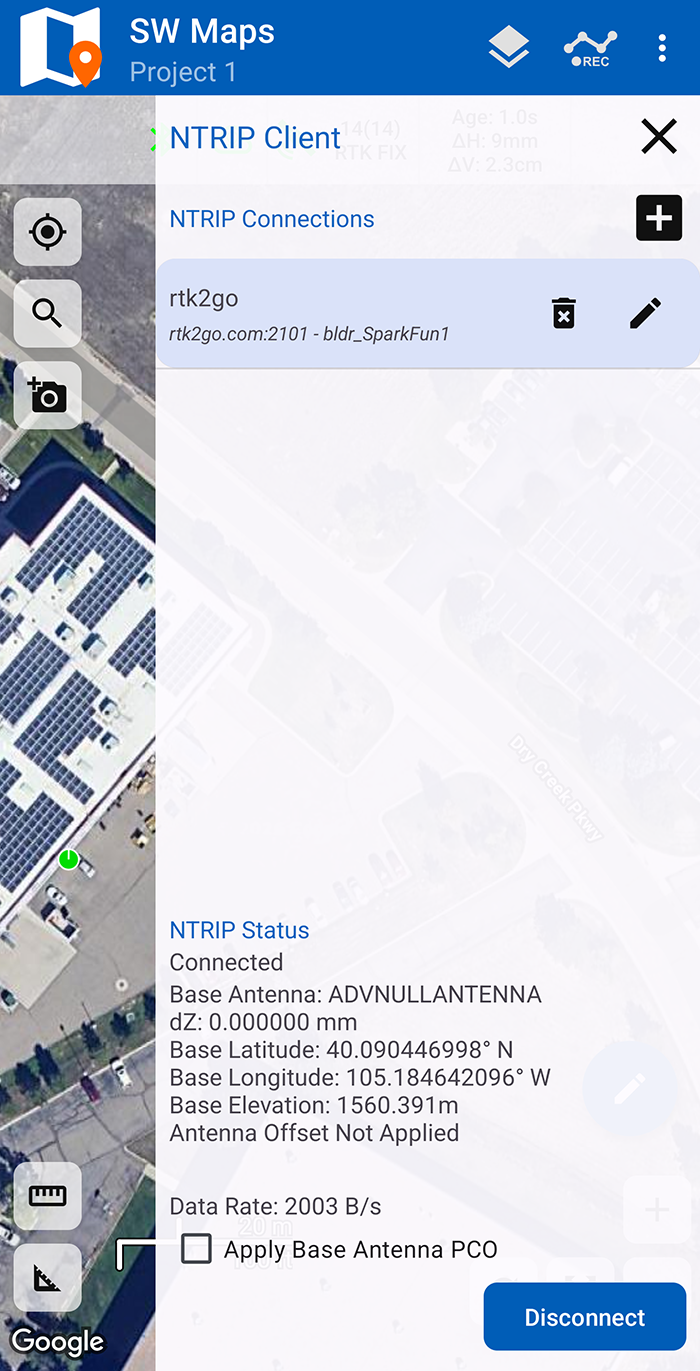
Once save, click on the Connect button to connect to the NTRIP caster and pass the corrections to the FPL. You will see bytes begin to transfer from your phone to the FPL. Within a few seconds, the FPL should go from ~300mm accuracy to 14mm. Pretty nifty, no?
Can't connect or see a GNSS Receiver Not Connected! message, make sure that the FPL is still connected over Bluetooth in the External GNSS Connection menu. Reconnecting to the FPL, should enable the NTRIP Connection option.
Close the NTRIP Client menu and on the main display, the () survey pole and () cloud with a pin icons should be green indicating that SW Maps is connected to the FPL and the NTRIP caster. The () satellite icon and position indicator will turn green once an RTK fix has been established.
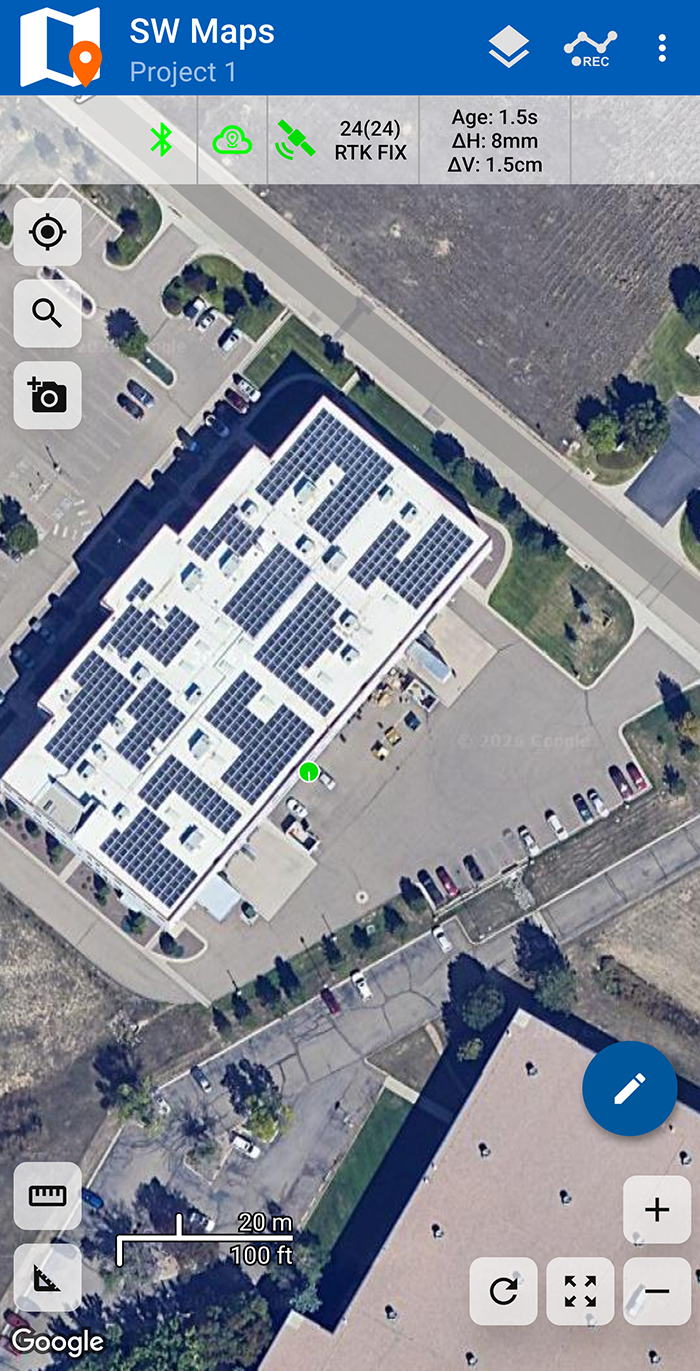
Just for fun, move rover monopole around. You'll see your location accurately reflected in SW Maps. Millimeter location precision is a truly staggering thing.