Firmware Updates
There are two firmware components on each device. The firmware for the GNSS receiver and the firmware for the device.
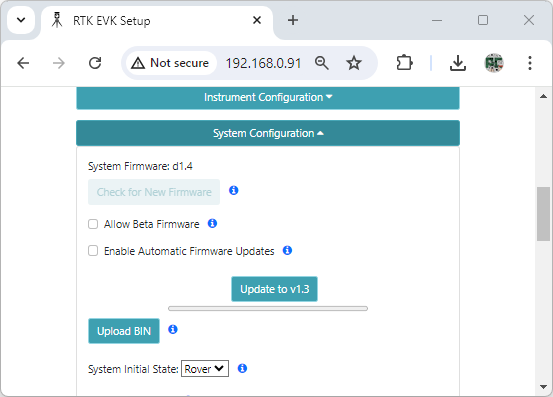
SparkPNT will release new firmware to add and improve functionality for users. The firmware can be upgraded through an internet connection using the OTA method. However, this does require that a WiFi connection be configured on the device.
The Firmware Update menu allows users to check for and install updates. Turning on Automatic firmware updates will cause the device to periodically check and install updates when they become available. This can be helpful for remote stations that cannot have manual interventions.
Updating ESP32 Firmware
The ESP32 firmware is the main firmware in all RTK devices. The firmware version number is displayed in a variety of places:
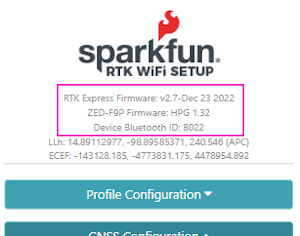
The firmware is shown at the top of the WiFi config page.
From time to time new versions of the RTK Everywhere firmware are released to update functions or add new features. For most users, firmware can be upgraded over WiFi using the OTA method.
- OTA Method: Connect over WiFi to download the latest firmware over-the-air. This can be done using the WiFi AP Config Mode, but also requires a local WiFi network.
- WiFi Method: Load the firmware over WiFi when the device is in WiFi AP Config Mode.
Updating Firmware Over-The-Air
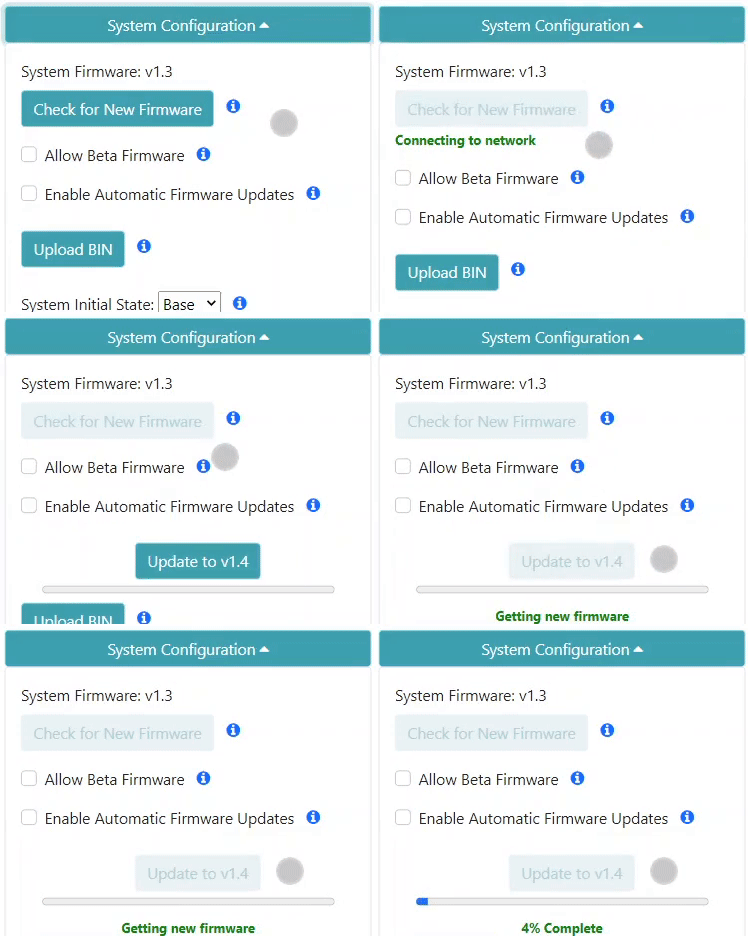
Firmware can be updated in the System Configuration section of the WiFi Config page. Automatic firmware updates is supported over WiFi, which makes checking and upgrading a unit simple. The polling period is specified in minutes and defaults to once a day. The automatic firmware update only checks for and installs the latest firmware release:
- Older released versions (continual upgrade)
- Locally built versions (newer or older, restore to released version)
Updating Firmware From WiFi
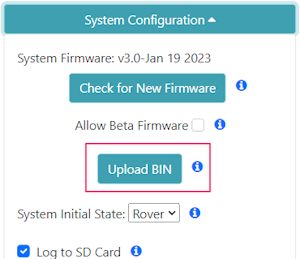
Firmware may be manually uploaded to the unit by clicking on Upload BIN, selecting the binary such as RTK_Surveyor_Firmware_v3_x.bin and pressing upload. The unit will automatically reset once the firmware upload is complete.
Updating mosaic-X5 Firmware
The mosaic-X5 is the GNSS receiver used in the FPM. The following video describes how to update the firmware on the mosaic-X5.
-
Download the latest firmware released by Septentrio, listed on their product page for the mosaic-X5 module.
warningCurrently, the RTK Everywhere firmware for the FPM does not support the latest firmware release from Septentrio. In
v4.15.0Septentrio has added a security features with designated user credentials and is not simple to integrate with the existing code base. Therefore, we recommend that users remain onv4.14.10.1for the time being. -
Download and install the USB drivers to access the internal web server:
- On Linux, the standard Linux CDC-ACM driver is suitable
- On a Windows PC, the USB driver for the mosaic-X5 will need to be installed through two methods:
- Installed with Septentrio's RxTools software suite
- Install the USB driver that is available from the mass-storage device, which appears when the SparkPNT FPM is initially connected to the computer
-
With the USB driver installed, connect to the USB-C port of the FPM. The mosaic-X5 module supports Ethernet-over-USB and host an internal web server to configure the device.
- The default IP address allocated for the Ethernet-over-USB interface is
192.168.3.1and can be accessed from any web browser
- The default IP address allocated for the Ethernet-over-USB interface is
-
Navigate to the Admin tab and select Upgrade from the drop-down menu
-
Click on Choose File to browse your computer and select the downloaded firmware file
- Navigate to the downloaded folder, extract/unzip the files, open the
firmwarefolder, and select the*.suffile
- Navigate to the downloaded folder, extract/unzip the files, open the
-
Hit the start upgrade button, a dialog box will display the progress of the upgrade
- Once completed, an
Upgrade successfulmessage will appear
- Once completed, an
-
To verify the update, navigate to the Admin tab and click About
- The new firmware version should be displayed