Survey Master
Survey Master by ComNam / SinoGNSS is an Android-based option. The download location can vary so google Survey Master ComNav Download if the link above fails. Download the zip file, send the APK file to a phone and install the program.
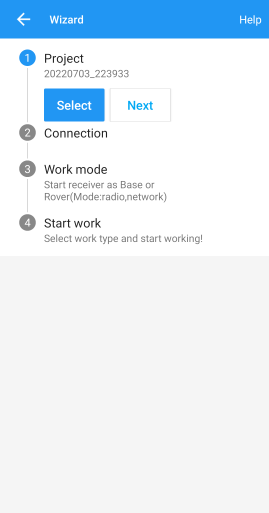
By default, a wizard will guide you through the setup. The Project step will ask you for the name of the project, the datum, etc.
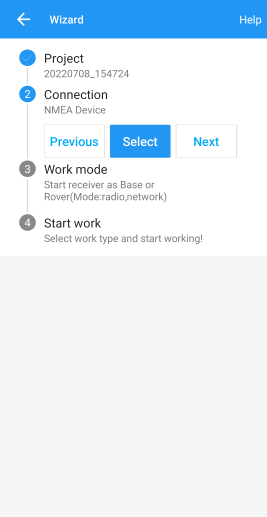
Next select your connection.
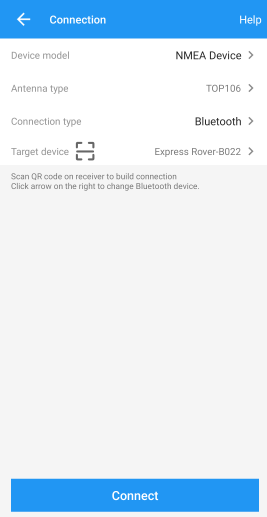
For the Device Model select NMEA Device.
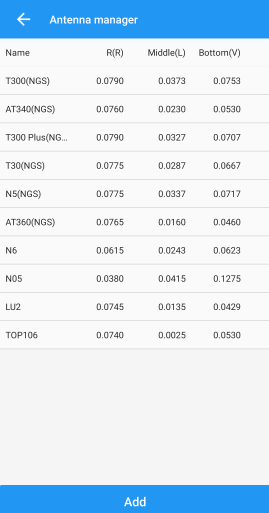
If you are just getting started, use one of the default antenna types. If you are attempting to get sub-centimeter accuracy, enter the parameters of your antenna and add it. Above are the NGS-certified parameters for the TOP106 antenna.
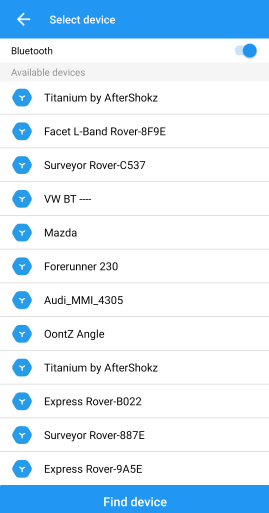
Click the Target Device option to get a list of available Bluetooth devices. Make sure your RTK product is on and you should see the device. In this example Express Rover-B022 was chosen.
To finish, click Connect. You should see the Bluetooth MAC address on your RTK product change to the Bluetooth icon indicating a connection is established.
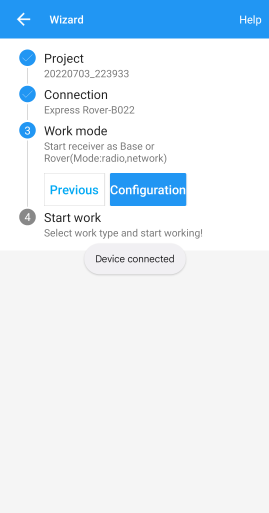
Next is configuring the Work mode of the device. The step is where we set up our NTRIP correction source.

Click Add to create a new work mode.
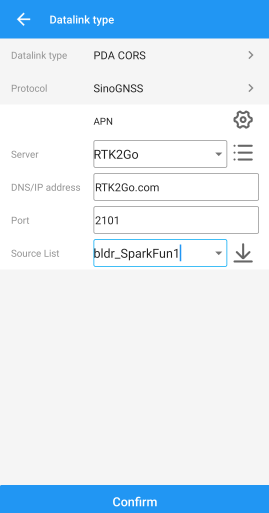
Shown above, we configure the NTRIP Client. Survey Master calls this the SinoGNSS Protocol. Click on the three bars to the right of Server to enter a new NTRIP connection.
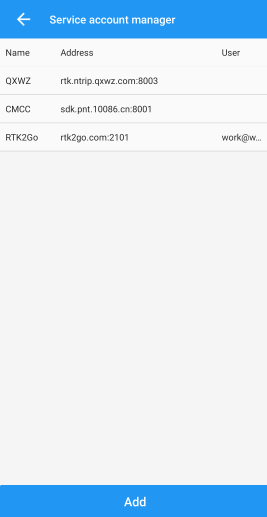
Here you can add different NTRIP Caster providers. If you're using RTK2Go be sure to enter your contact email into the user name.
Return to the Datalink type window and select the Server you just entered. Re-enter the server address and port for your NTRIP Caster. Once complete, click on the down-pointing arrow. This will ping the Caster and obtain the mount point table. Select your mount point.
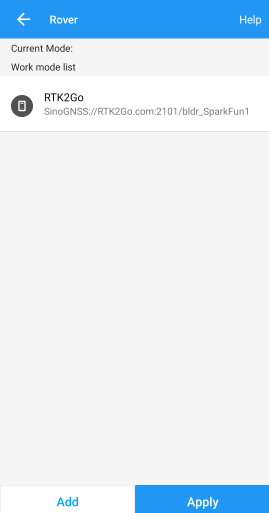
Select the newly created work mode and press the Apply button.
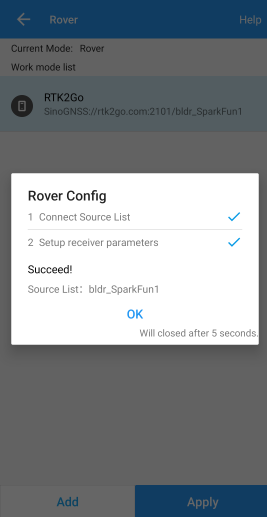
Survey Master will attempt to connect to your specified RTK corrections source (NTRIP Caster). Upon success, you will be located on the Project menu.
Survey Master expects more NMEA sentences than most GIS software. If available, all of the following NMEA messages must be enabled on the RTK device to correctly communicate with Survey Master.
- GGA
- GLL
- GRS
- GSA
- GST
- GSV
- RMC
- VTG
- ZDA
To configure the NMEA messages, access the RTK device through a WiFi connection and access the configuration webpage from a browser using the rtk.local URL address.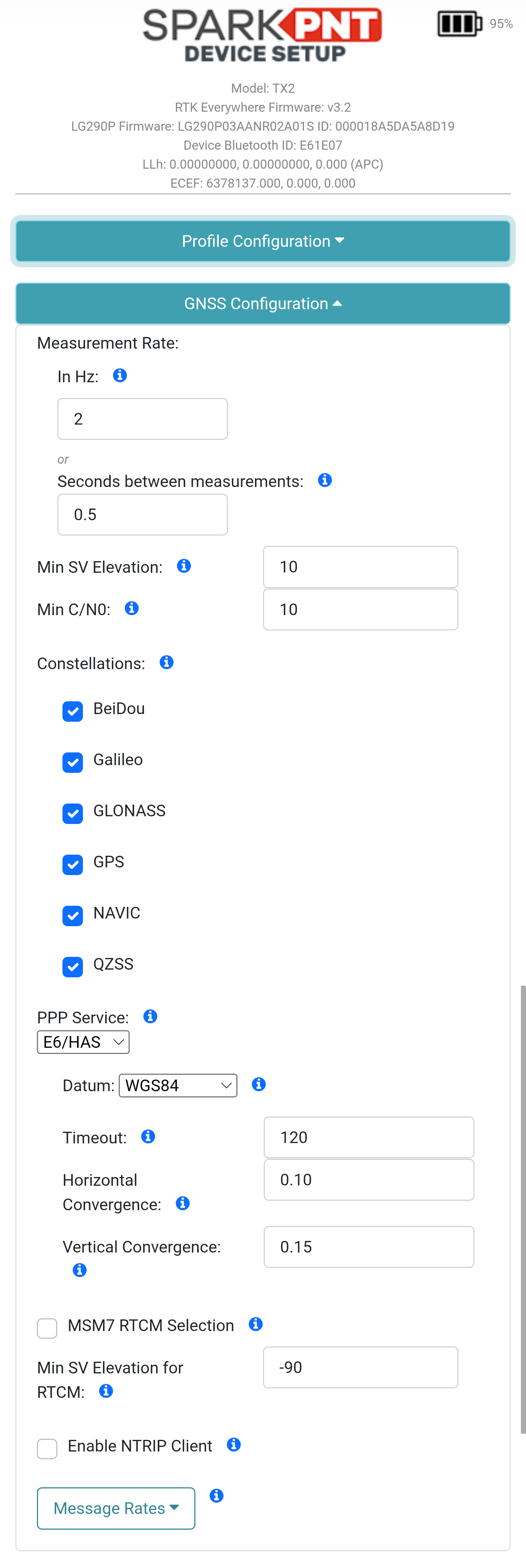
GNSS Configurations menu.
Open the GNSS Configuration drop-down menu. At the bottom of the menu, open the Message Rates drop-down menu.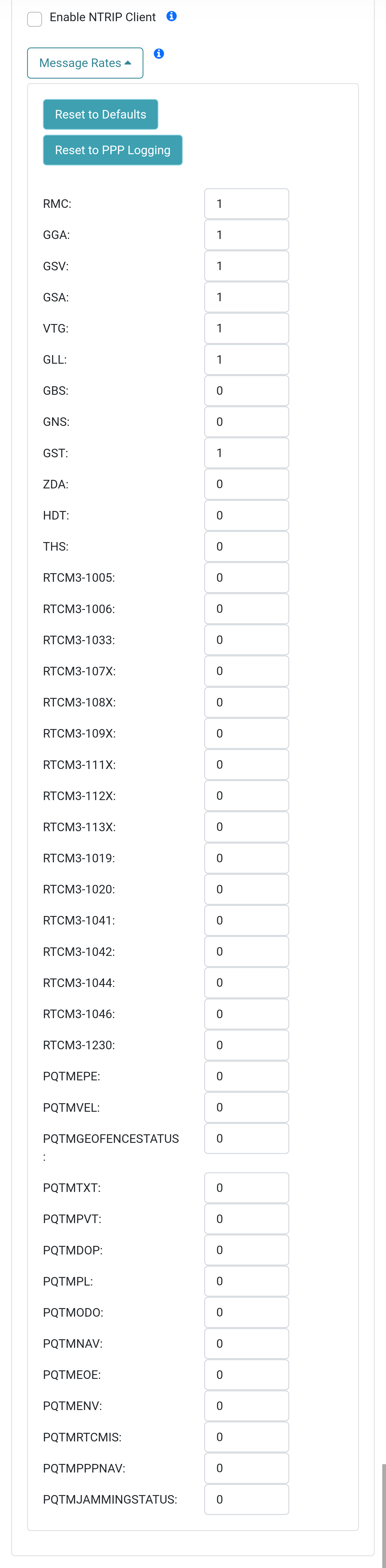
In the Message Rates sub-menu, enable the following messages to a rate of 1:
- GGA
- GLL
- GRS
- GSA
- GST
- GSV
- RMC
- VTG
- ZDA
Scroll to the bottom of the configuration webpage and click the Save Configuration button. Once the Success : All Saved message appears, click the Exit and Reset button. Now we may return to Survey Master.
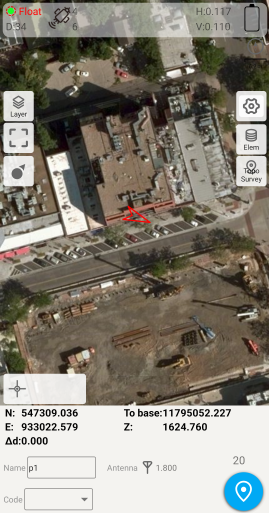
Click on the Survey menu and then Topo Survey. Above we can see a device with RTK float, and 117mm horizontal positional accuracy.
Survey Master parses the GxGSV sentence improperly and will only indicate GPS satellites even though the fix solution is using all satellites.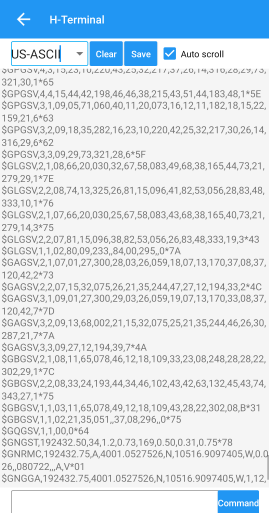
To verify the NMEA sentences are being delivered correctly, Survey Master has a built-in tool. Select the Device > Rover > More > H-Terminal.