SW Maps
The best mobile app that we’ve found is the powerful, free, and easy-to-use SW Maps by Softwel. It is compatible with Android and iOS, either phone or tablet with Bluetooth. What makes SW Maps truly powerful is its built-in NTRIP client. This is a fancy way of saying that we’ll be showing you how to get RTCM correction data over the cellular network.
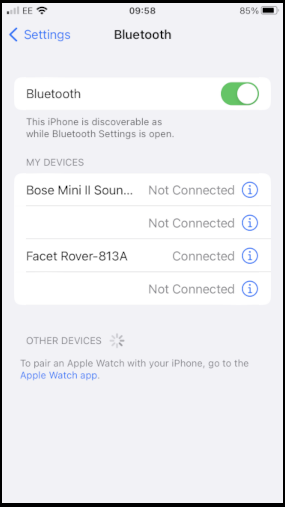
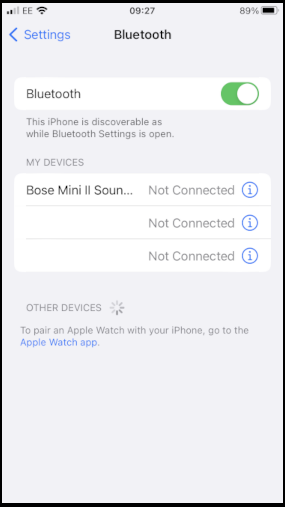
Make sure the FPX is switched on and operating in Rover mode. Also, make sure that Bluetooth is enabled in the settings of your mobile device.
The FPX may not appear in the OTHER DEVICES list. That is OK.
Open SWMaps.
Open or continue a Project if desired.
SWMaps will show your approximate location based on your iOS device's location.
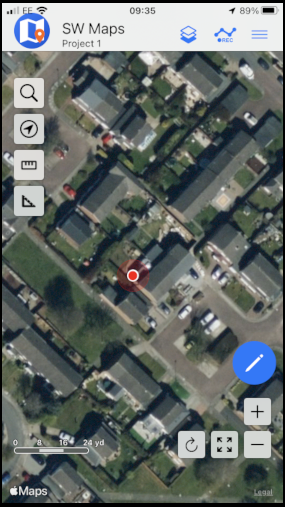
Press the SWMaps icon at the top left of the screen to open the menu.
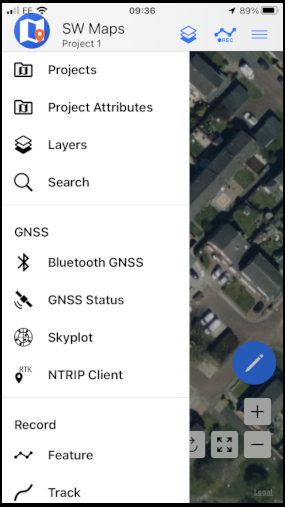
Select Bluetooth GNSS.
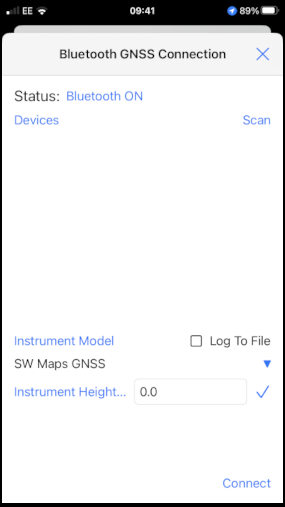
Set the Instrument Model to Generic NMEA (Bluetooth LE).
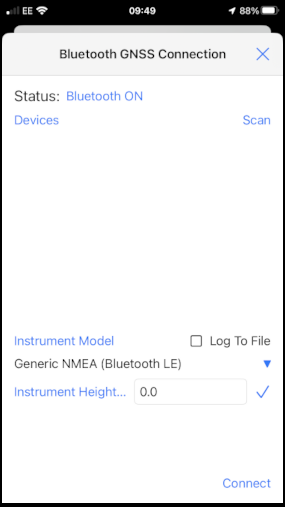
Press Scan and your RTK device should appear.
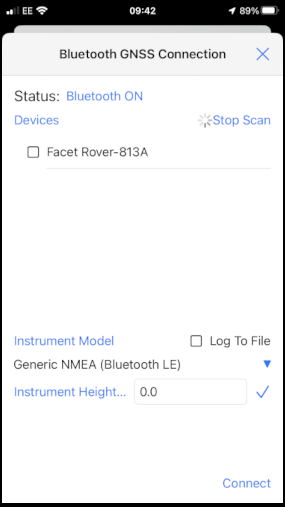
Select (tick) the RTK device and press Connect.
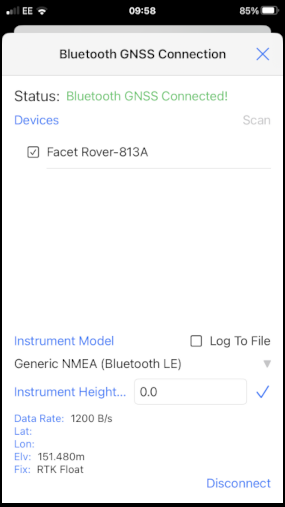
Close the menu and your RTK location will be displayed on the map.
You can now use the other features of SWMaps, including the built-in NTRIP Client.
Re-open the menu and select NTRIP Client.
Enter the details for your NTRIP Caster - as shown in the SWMaps section above.
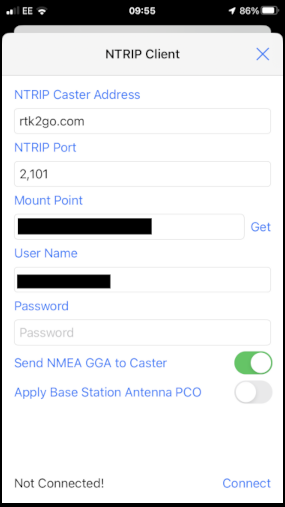
Click Connect
At this point, you should see a Bluetooth Pairing Request. Select Pair to pair your RTK with your iOS device.
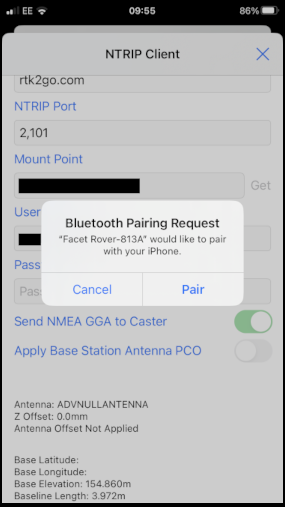
SWMaps will now receive NTRIP correction data from the caster and push it to your RTK over Bluetooth BLE.
From the SWMaps menu, open GNSS Status to see your position, fix type and accuracy.
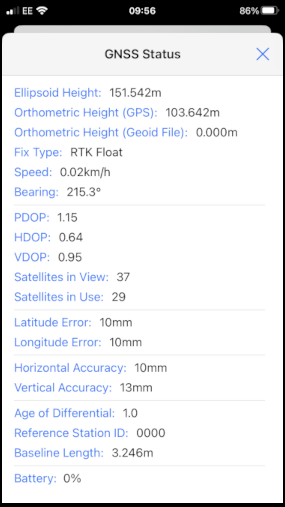
If you return to the iOS Bluetooth Settings, you will see that your iOS and RTK devices are now paired.