Firmware Update
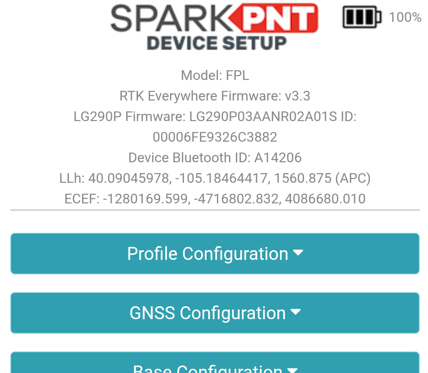
SparkPNT releases new firmware to improve or fix the functions and subsystems of the SparkPNT FPL-T. These firmware releases will update either the device's primary controller; or the subsystems for the GNSS receiver and LoRa radio. The firmware versions are displayed in the configuration header.
Users can check out the SparkFun_RTK_Everywhere_Firmware GitHub repository for the firmware releases and changes. Additionally, the firmware files from each release is archived in the SparkFun_RTK_Everywhere_Firmware_Binaries GitHub repository.
Updating ESP32 Firmware
The ESP32 runs off our open-source RTK Everywhere firmware, which is used in all of our GNSS RTK devices. The version of this firmware, is listed in a variety of places:
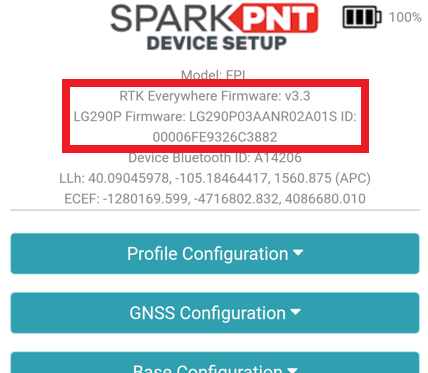
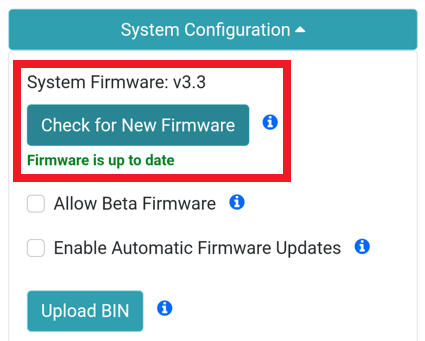
Most of our firmware releases will update functions or add new features. To check for the most current versions, follow the Check for New Firmware section of the Configuration Settings guide. Most users will upgrade the firmware through the web configuration interface.
- OTA Method: Connects to a WiFi network to download the latest firmware from the internet. This can be done using the WiFi AP Config Mode, but also requires a local WiFi network with an internet connection.
- WiFi Method: Uploads the firmware directly from a mobile device, using the WiFi AP Config Mode.
- Reprogram the ESP32: Reprograms the ESP32, using the FPL-T's USB interface. This method is primarliy used for a device failure, when the firmware needs to be restored with the default settings.
Over-The-Air
With the Over-The-Air (OTA) method, the FPL-T will use the local WiFi network to check the internet for new firmware. If new version is available, it will automatically download the firmware file from the internet and update itself. Users can also enable this process to run automatically, to keep their device(s) updated.
- Connect to the FPL-T with the web configuration interface
- Make sure that a WiFi network has been configured in the settings
- Navigate to the System Configuration setting, where the firmware can be updated
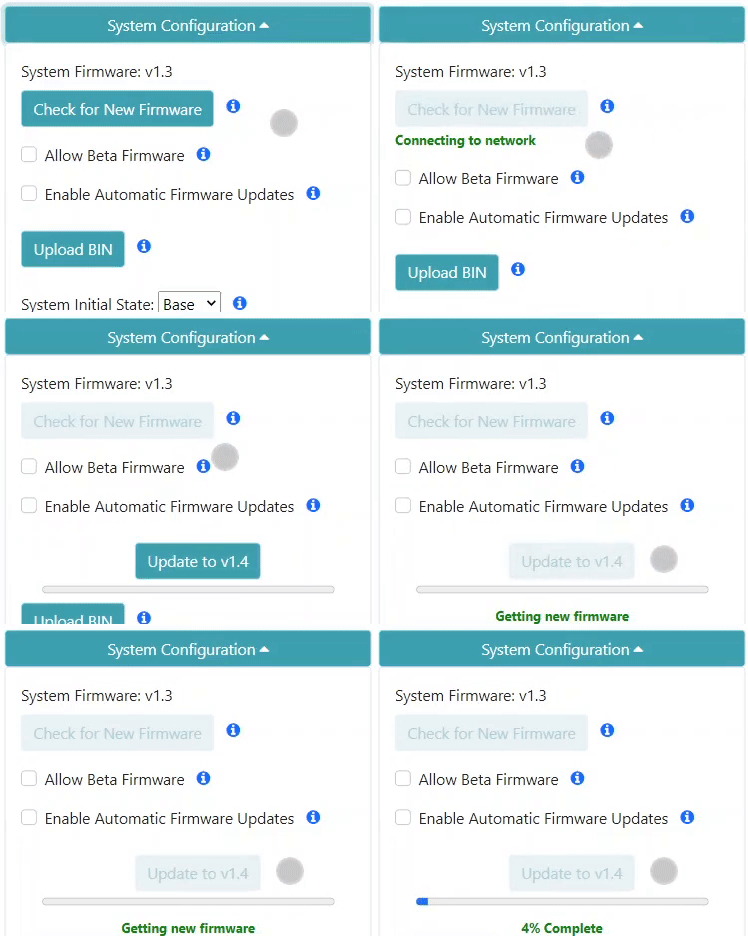
Updating the firmware via WiFi config page - Click on the Check for New Firmware button. The FPL-T will connect to the internet, through the configured WiFi network. Then it will check for the latest firmware releases, excluding the release candidates.
- If a new firmware version is available, an Update to version number button will appear.
- Click the button to begin the OTA update process. The FPL-T will download the latest firmware binary and update the firmware to the ESP32.
To enable automatic updates, select the Enable Automatic Firmware Updates option. Then click the Save Configuration button at the bottom of the webpage, to save this configuration change.
Automatic firmware updates are supported over WiFi, which makes checking and upgrading a unit simple. The polling period is specified in minutes and defaults to once a day.
The OTA update method only checks for and installs the latest firmware release; it cannot be used to restore a firmware release or revert to an older firmware release.
Upload from WiFi
The upload from WiFi method, is for users who already have the firmware binary file downloaded on their computer or mobile device. Then, using the WiFi connection to access the FPL-T configuration menu, they will upload the firmware file from their computer or mobile device.
- Connect to the FPL-T with the web configuration interface
- Navigate to the System Configuration setting, where the firmware can be updated
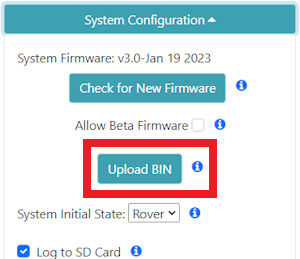
- The firmware is uploaded to the unit by clicking on Upload BIN button.
- In the dialog box, locate and select the firmware binary file (i.e.
RTK_Surveyor_Firmware_vx_x.bin) from your device. - Click the Ok button to begin the upload sequence. This will transfer the firmware file from the computer or mobile device to the FPL-T, through the WiFi connection, where the FPL-T will automatically update the firmware itself.
- The unit will automatically reset once the firmware upload is complete.
Reprogram the ESP32
This method is a more involved process, but it can be used in emergencies to restore the firmware when the FPL-T is bricked, frozen, or unresponsive. The firmware will be uploaded directly to the ESP32 through its serial interface; effectively, reprogramming the module. There are a variety of ways to perform this; however, our RTK Firmware Uploader tool is the simplest.
Reprogramming the ESP32 with the RTK Firmware Uploader
- Connect the SparkPNT FPL-T to a computer with a USB cable.
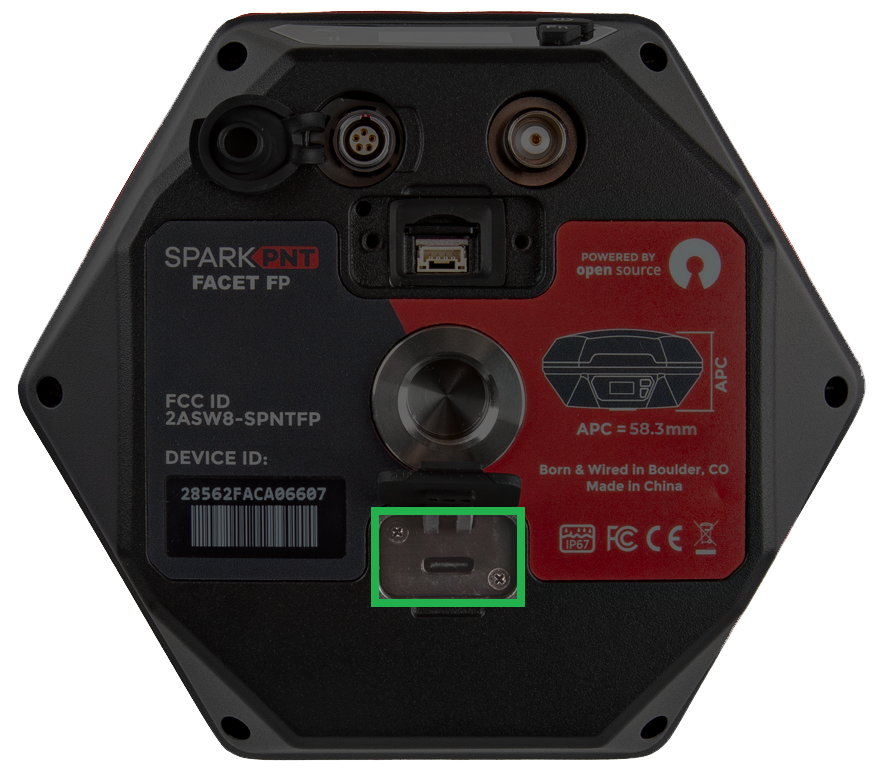
Users can access the USB-C port under the rubber cover on the bottom of the FPL-T When connecting to the USB interface of the SparkPNT FPL-T to a computer, the device should automatically be detected as two COM ports. If the ports are not detected then users will need to install a USB driver to access the data or configure any settings.
USB DriverThe USB drivers for the CH342 USB-to-Serial converter can be downloaded below:
- Windows: Download the
CH343SER.EXE - MacOS: Download the
CH341SER_MAC.ZIP - Linux: A USB driver is not required for most Linux based operating systems
- Windows: Download the
- Install the RTK Firmware Uploader tool. The program can be downloaded from the release page, with additional instructions provided in the
README.mdfile. - Download the firmware's binary file. All of our firmware releases can be downloaded from the
SparkFun_RTK_Everywhere_Firmware_BinariesGitHub repository. - Open the program and connect to the FPL-T. Select Channel B of the CH342, in the
COM Portmenu.
Selecting the serial port for the ESP32 tipThe baud rate can be left at the default setting.
- Click on the Browse button to select the firmware binary file you'd like to install.
- Click the Upload Firmware button to reprogram the ESP32
To restore the firmware to the factory default settings, select the Erase Flash option from the Extras drop-down menu. This will completely erase the flash memory, including the LittleFS file system.
Erase Flash option
Updating the Subsystems
Before users can update the GNSS receiver or LoRa module of the FPL-T, users will need to reconfigure the UART connection to those subsystems. This can only be changed with the SparkPNT FPL-T's serial interface's configuration menu.
The mosaic-X5 GNSS receiver doesn't require the UART connection; users can upload the firmware directly through its web server, using the USB interface.
Update Mode Configuration
To reconfigure the UART connection for the GNSS receiver or LoRa module, users will need to access the serial interface of the SparkPNT FPL-T with a terminal emulator.
- Connect the SparkPNT FPL-T to a computer with a USB cable.
Users can access the USB-C port under the rubber cover on the bottom of the FPL-T When connecting to the USB interface of the SparkPNT FPL-T to a computer, the device should automatically be detected as two COM ports. If the ports are not detected then users will need to install a USB driver to access the data or configure any settings.
USB DriverThe USB drivers for the CH342 USB-to-Serial converter can be downloaded below:
- Windows: Download the
CH343SER.EXE - MacOS: Download the
CH341SER_MAC.ZIP - Linux: A USB driver is not required for most Linux based operating systems
- Windows: Download the
- Install your preferred terminal emulator.
- Connect to the FPL-T with your preferred terminal emulator. Select Channel B of the CH342 and use a baud rate of 115200bps. When connected properly, users should see the unit's status messages.
Example - Status Messages
Messages - Device StatusSTATE_ROVER_NOT_STARTED --> STATE_ROVER_CONFIG_WAITBatt (89%): Voltage: 8.05V Discharging: 7.53%/hrRover Accuracy (m): 0.000, SIV: 0 GNSS State: No FixRover configuredSTATE_ROVER_CONFIG_WAIT --> STATE_ROVER_NO_FIXLoRa radio configured for receivingRover Accuracy (m): 0.000, SIV: 0 GNSS State: No FixBatt (89%): Voltage: 8.05V Discharging: 7.37%/hrRover Accuracy (m): 0.000, SIV: 0 GNSS State: No FixRover Accuracy (m): 0.000, SIV: 0 GNSS State: No FixBatt (89%): Voltage: 8.05V Discharging: 7.27%/hrRover Accuracy (m): 0.000, SIV: 0 GNSS State: No FixRover Accuracy (m): 0.000, SIV: 0 GNSS State: No Fix - Access the serial configuration's Main menu by sending any character through the terminal emulator. The screen of the FPL-T, should display
Serial Config.
Serial Configdisplayed on the screen of the FPL-TtipIf the GNSS output is enabled, users need to send the
+++character combination to enter the Serial Configuration menu. - From the Main menu, send the
scharacter to select theConfigure Systemoption and enter the System Configuration menu.Example - Main Menu Options
Menu: Main1) Configure GNSS Receiver2) Configure GNSS Messages3) Configure Base4) Configure Ports5) Configure Logging6) Configure WiFi7) Configure TCP/UDPf) Firmware Updatei) Configure Corrections Prioritiesp) Configure PointPerfectr) Configure Radioss) Configure Systemu) Configure User Profiles+) Enter Command line modex) Exit - From the System Configuration menu, send the
hcharacter to select theDebug hardwareoption and enter the Hardware Debug menu.Example - System Configuration Menu Options
Menu: System----- Mode Switch -----Mode: RoverA) Switch to Base mode using Base AssistB) Switch to Base modeC) Switch to Base Caster modeR) Switch to Rover modeW) Switch to Web Config modeS) Shut down----- Settings -----a) Automatic device reboot in minutes: Disabledb) Set Bluetooth Mode: Dualc) Shutdown if not charging: Disabledd) Debug softwaree) Echo User Input: Ong) Enable Beeper: Enabledh) Debug hardwarel) Debug LFS and SD card filesn) Debug networko) Configure operationp) Configure periodic print messagesr) Reset all settings to defaultu) Printed measurement units: metersz) Set time zone offset: 00:00:00~) Setup button: Enabledx) Exit - Send the characters for the associated subsystem options:
- LoRa Radio
- Send
17to select theSTM32 direct connect for LoRa firmware upgradeoption and enter the LoRa update mode. - This will switch Channel B of the CH342 to the UART interface to the STM32 LoRa module.
- Send
- GNSS Receiver
- Send
13to select theGNSS direct connect for firmware updateoption and enter the GNSS update mode. - This will switch Channel A of the CH342 to the
UART1port of the GNSS Flex module, the primary UART interface for the GNSS receiver.
warningThis is not required for the mosaic-X5. The firmware can be uploaded through its web server on the USB interface.
- Send
Example - Hardware Debug Menu Options
Menu: Hardware Debug1) Print battery status messages: Enabled3) Print RTC resyncs: Disabled4) Print log file messages: Disabled5) Print log file status: Enabled7) Print SD and UART buffer sizes: Disabled9) Print GNSS Debugging: Disabled10) Print Correction Debugging: Disabled11) Print Tilt/IMU Debugging: Disabled12) Print Tilt/IMU Compensation Debugging: Disabled13) GNSS direct connect for firmware update14) PSRAM (online): Enabled15) Print ESP-NOW Debugging: Disabled16) Print LoRa Debugging: Disabled17) STM32 direct connect for LoRa firmware upgrade18) Display littleFS stats19) Print CLI Debugging: Disabled20) Delay between CLI LIST prints over BLE: 50ms21) Double-Tap Interval: 250ms22) Print GNSS Config Debugging: Disabled23) Reset GNSS Config24) EA Protocol name: com.sparkfun.rtk25) RTCM buffer debugging: Disabled26) STM32 direct connect for LoRa RX testing27) STM32 dedicated LoRa TX testinge) Erase LittleFSr) Force system resetx) Exit - LoRa Radio
- The FPL-T will restart and enter the update mode for the chosen subsystem. Proceed to the instructions, in the following sections, to update the firmware for the associated subsystem.
Example - LoRa Update Mode
Response Messages - LoRa PassthroughSTM32 passthrough mode has been recorded to LittleFS. Device will now reset.ets Jul 29 2019 12:21:46Before restarting, users should see the message above confirming the selected option.

LoRa update message on the screen of the FPL-T Once the FPL-T restarts, the display will show the message above and provide the following instructions in the terminal:
Response Messages - Update InstructionsEntering STM32 direct connect for firmware updateDisconnect this terminal connectionUse 'STM32CubeProgrammer' to update the firmware:Baudrate: 57600bps. Parity: None. RTS/DTR: HighPress the power button to return to normal operationExample - GNSS Update Mode
Response Messages - GNSS PassthroughGNSS passthrough mode has been recorded to LittleFS. Device will now reset.ets Jul 29 2019 12:21:46Before restarting, users should see the message above confirming the selected option.

GNSS update message displayed on the screen of the FPL-T Once the FPL-T restarts, the display will show the message above and provide the following instructions in the terminal:
Response Messages - Update Instructions for LG290PEntering GNSS direct connect for firmware update and configurationUse the GNSS manufacturer software to update the firmware via CH342 Channel AWith QGNSS:Open Tools / Firmware UpdateSelect the .pkg firmware fileOn the top tool bar, click "Reboot" (blue circle-back icon)Then click the green arrow to start the Firmware UpdateHit R to reset the GNSS manually if needed - after starting the UpdateInitial baudrate: 460800bpsPress the power button or hit any key (except R) to return to normal operationResponse Messages - Update Instructions for ZED-X20PEntering GNSS direct connect for firmware update and configurationUse the GNSS manufacturer software to update the firmware via CH342 Channel AHit R to reset the GNSS manually if neededInitial baudrate: 230400bpsPress the power button or hit any key (except R) to return to normal operationResponse Messages - DisconnectExiting GNSS direct connectRestarting...warningPlease, keep this terminal open for the GNSS update proccess. It will be required to restart the GNSS receiver.
- Press the () power button to exit from the update mode and restart the FPL-T .
Example - Startup Messages
Messages - Startup SequenceJul 29 2019 12:21:46rst:0xc (SW_CPU_RESET),boot:0x17 (SPI_FAST_FLASH_BOOT)configsip: 153911750, SPIWP:0xeeclk_drv:0x00,q_drv:0x00,d_drv:0x00,cs0_drv:0x00,hd_drv:0x00,wp_drv:0x00mode:DIO, clock div:1load:0x3fff0030,len:4832load:0x40078000,len:16460load:0x40080400,len:4load:0x40080404,len:3504entry 0x400805ccE (1219) esp_cor��fVW}���͡� No core dump partition found!E (1219) esp_core_dump_flash: No core dump partition found!28:56:2F:AC:9E:DC - wifiMACAddress28:56:2F:AC:9E:DE - btMACAddress28:56:2F:AC:9E:DF - ethernetMACAddress=======================Board ADC ID (mV): 2233=======================LittleFS StartedUsing profile #0PSRAM Size (bytes): 2097152I2C Devices:0x0B - BQ40Z50 Battery Pack Manager / Fuel gauge0x10 - Authentication Coprocessor0x21 - PCA9554 GPIO Expander with Interrupt (Facet FP)0x3C - SSD1306 OLED Driver (Facet FP)GPIO Expander for switches configuration completeDisplay started================SparkPNT FP <Firmware Version>================Profile 'Profile1' loadedGNSS <GNSS Receiver Model> online<GNSS Receiver Model> version: <Firmware Version> 2025/12/12 11:21:01Fuel gauge configuration completeNo GNSS date/time available for system RTC.Authentication coprocessor onlineBluetooth SPP and BLE broadcasting as: SparkPNT <FP Model>-<Serial Number>STATE_ROVER_NOT_STARTED --> STATE_ROVER_CONFIG_WAITRover Accuracy (m): 0.000, SIV: 0 GNSS State: No FixRover configuredSTATE_ROVER_CONFIG_WAIT --> STATE_ROVER_NO_FIXBatt (89%): Voltage: 8.06V Discharging: 6.97%/hrLoRa radio configured for receivingRover Accuracy (m): 0.000, SIV: 0 GNSS State: No FixBatt (89%): Voltage: 8.06V Discharging: 6.99%/hrRover Accuracy (m): 0.000, SIV: 0 GNSS State: No FixRover Accuracy (m): 0.000, SIV: 0 GNSS State: No FixBatt (89%): Voltage: 8.06V Discharging: 6.99%/hrRover Accuracy (m): 0.000, SIV: 0 GNSS State: No Fix
Update the LoRa Radio
To update the firmware for the STM32 LoRa module, users will need to install the STM32CubeProgrammer, download the LoRa firmware file, and reconfigure the FPL-T into the LoRa update mode.
- The device should be operating in the LoRa update mode at 57600bps, and ready to be programmed.
note
Don't forget to close/disconnect the terminal used to configure the LoRa update mode. That UART port is used to program to the STM32 LoRa module.
- Download the latest STM32 LoRa binary file from the
SparkFun_RTK_Everywhere_Firmware_BinariesGitHub repository. - Download and install STM32CubeProgrammer.
warning
Users will need to create an account to download the software from the STMicroelectronics website.
- Open STM32CubeProgrammer.
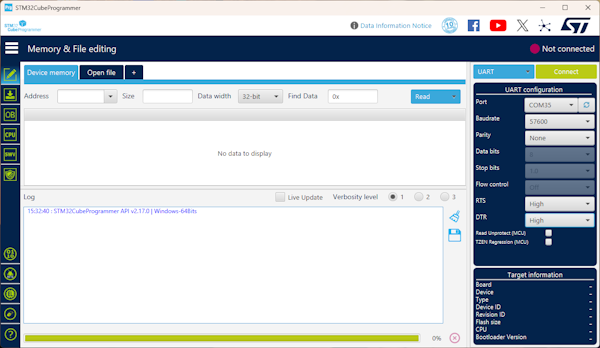
- Select
UARTfrom the drop-down menu (blue box) as the programming interface and select the Port associated with Channel B of the CH342. Then, configure the following UART settings: Baudrate to57600, Parity toNone, along with the RTS and DTR toHigh.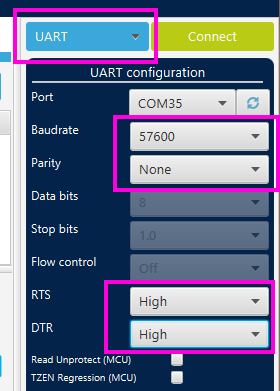 Option - Read Unprotected
Do not enable the
Read Unprotectedoption. This setting writes to fuse bits and if there is a problem with serial communication, it can lead to an inoperable bootloader. The device can be repaired, but only at SparkPNT (we have to use an ST-Link to reprogram the fuse bits over the SWD interface).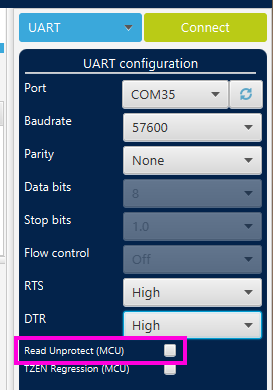
- Click the Connect button.
- Once connected, select the Erasing & Programming menu from the left side-bar.
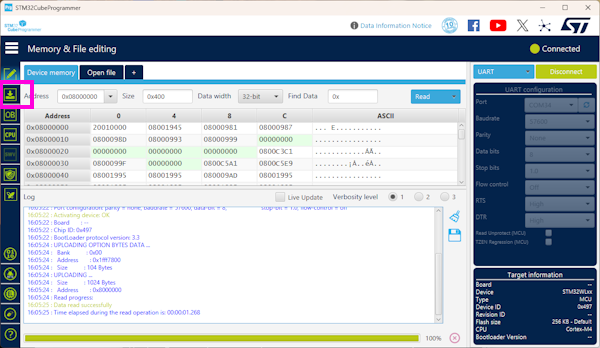
- Click the Browse button to select the downloaded binary file. Then, click the Start Programming button to upload the firmware to the STM32 LoRa module.
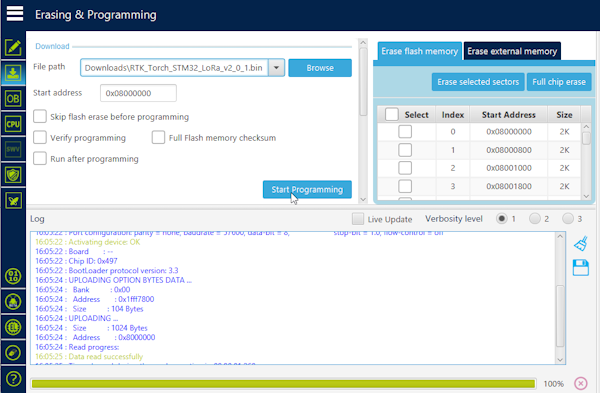
- After a few seconds, programming will complete and a dialog message will pop up.

- Click the Disconnect button to close the COM port connection.

- Press and release the () power button to exit the LoRa update mode and restart the device.
Update the LG290P Firmware
To update the LG290P GNSS receiver, users will need to install the QGNSS v2.x software, download the GNSS firmware file, and reconfigure the FPL-T into the GNSS update mode.
- The device should be operating in the GNSS update mode at 460800bps, and ready to be programmed.
- Download the latest LG290P firmware file from the
SparkFun_RTK_Everywhere_Firmware_BinariesGitHub repository. - Download and install QGNSS v2.x. QGNSS is the software created by Quectel to configure and view output from their GNSS modules.
- Open QGNSS and connect to your device by, selecting LG290P(03) from the drop-down menu for Model. Then, select Channel A of the CH342, set the baud rate to 460800, and press
OKto connect to the FPL-T.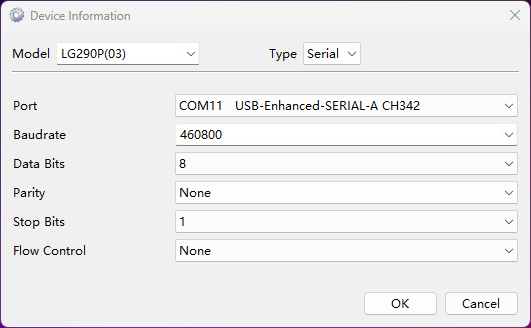
Select the model, COM port, and baud rate tipIf the baud rate doesn't work, users may need to reconfigure the baud rate of the LG290P to the default settings.
- To upload firmware to the LG290P, navigate from the Tools drop-down menu and select the Firmware Update option (Tools > Firmware Update).

Open the Firmware Update tool - Select the firmware file to upload, by clicking on the button. (This should be the
*.pkgfile that was downloaded in Step 2.)
Select the firmware file - Press the start arrow in the Firmware Update window.

Start the Firmware Update Process - Before the firmware can be uploaded, the LG290P must be reset to synchronize the module with the firmware upload process. To reset the LG290P, send the
rcharacter in the terminal emulator used to configure the GNSS update mode. - The update process takes a little over a minute. Once completed, close QGNSS.
- Press and release the () power button to exit the GNSS update mode and restart the device.