Settings - Enable Hotspot
A Personal Hotspot uses the cellular data connection of an iPhone or iPad (Wi-Fi + Cellular) to create a temporary, portable Wi-Fi network that other devices can use to connect to the internet. You can enable it in your phone's settings and share your mobile data connection with laptops, tablets, or other devices.
Personal Hotspot Settings
The Personal Hotspot feature can be enabled and configured from the device settings.
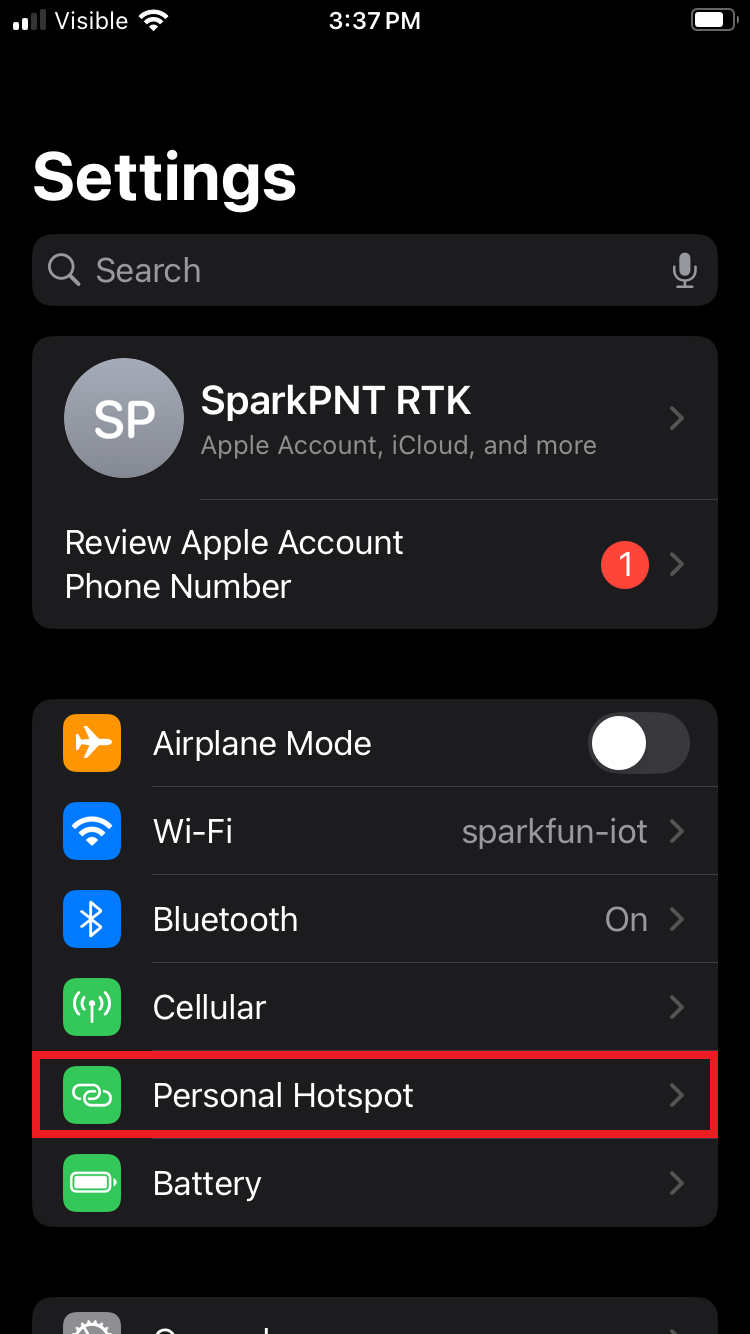
On your iPhone or iPad, open the Settings then select the Personal Hotspot option (or tap Cellular, then Personal Hotspot).
Network Credentials
In the Peronal Hotspot settings, users should be able to configure the network credentials of the feature.
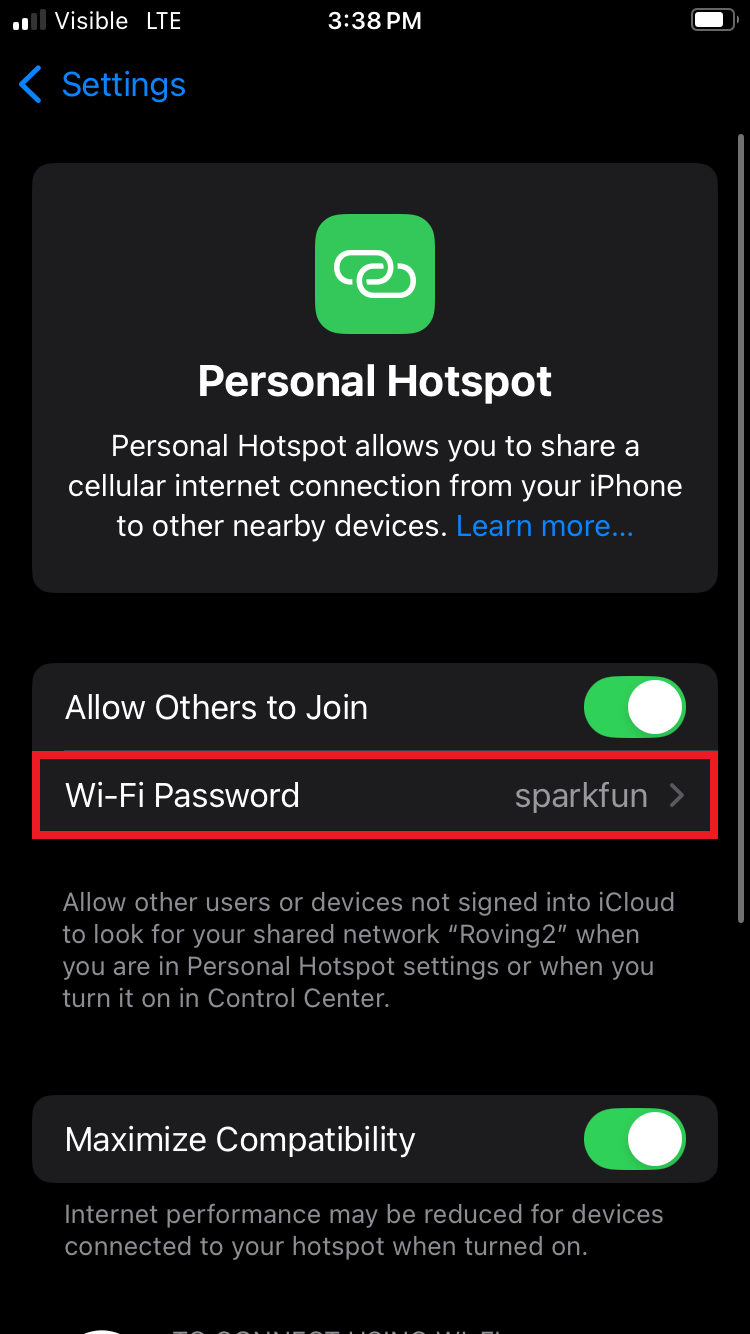
- To change the password for the Personal Hotspot, tap Wi-Fi Password and enter a password at least eight characters long. Use only ASCII characters, which include the uppercase and lowercase letters of the English alphabet, numbers 0 through 9, and some punctuation marks.
- To change the name of the Personal Hotspot, change the name of the device providing the hotspot go back to the Settings menu, tap General, tap About, then tap Name.
Users may need to temporarily enable the hotspot feature to determine its service set identifier (SSID).
2.4GHz Compatibility
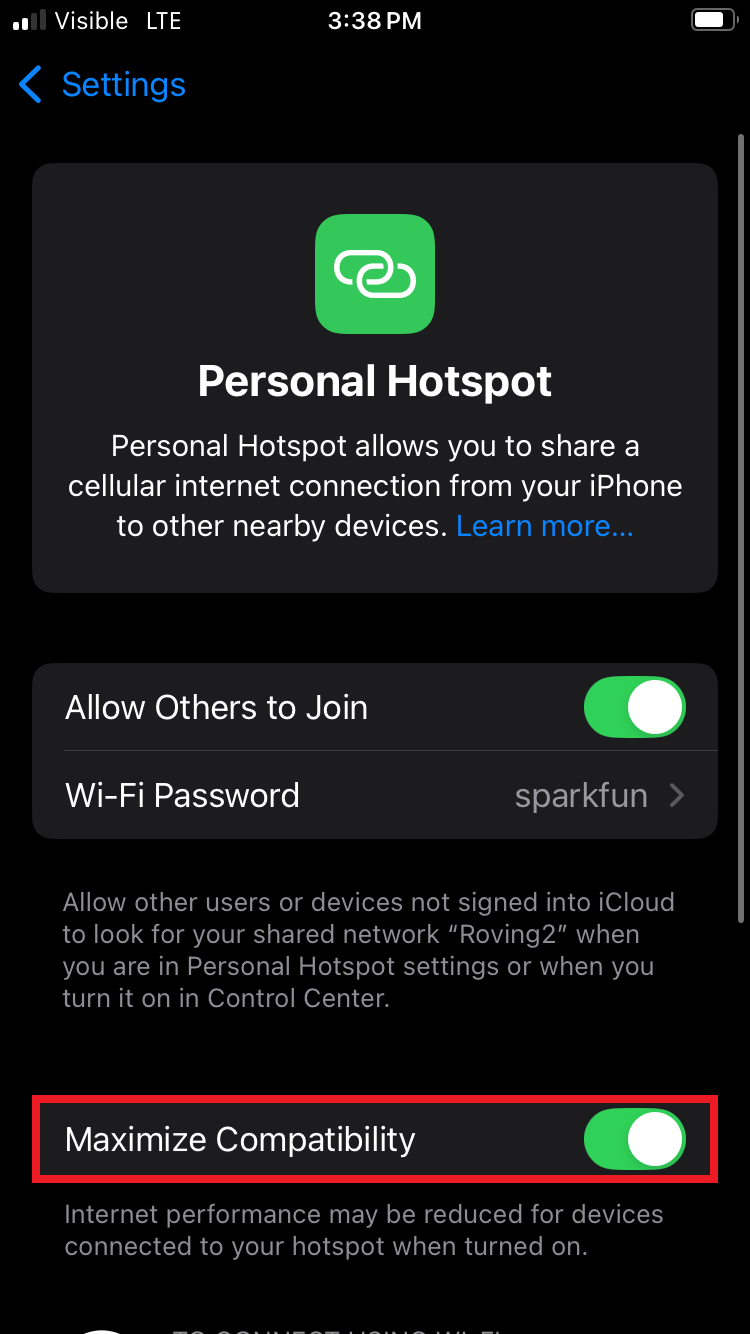
For iOS devices, the Personal Hotspot feature defaults to the 5GHz frequency band for higher speed and bandwidth. However, the FPL-T can only utilize the 2.4GHz frequency band. Therefore, users will need to enable the Maximize Compatibility setting.
Enable Hotspot
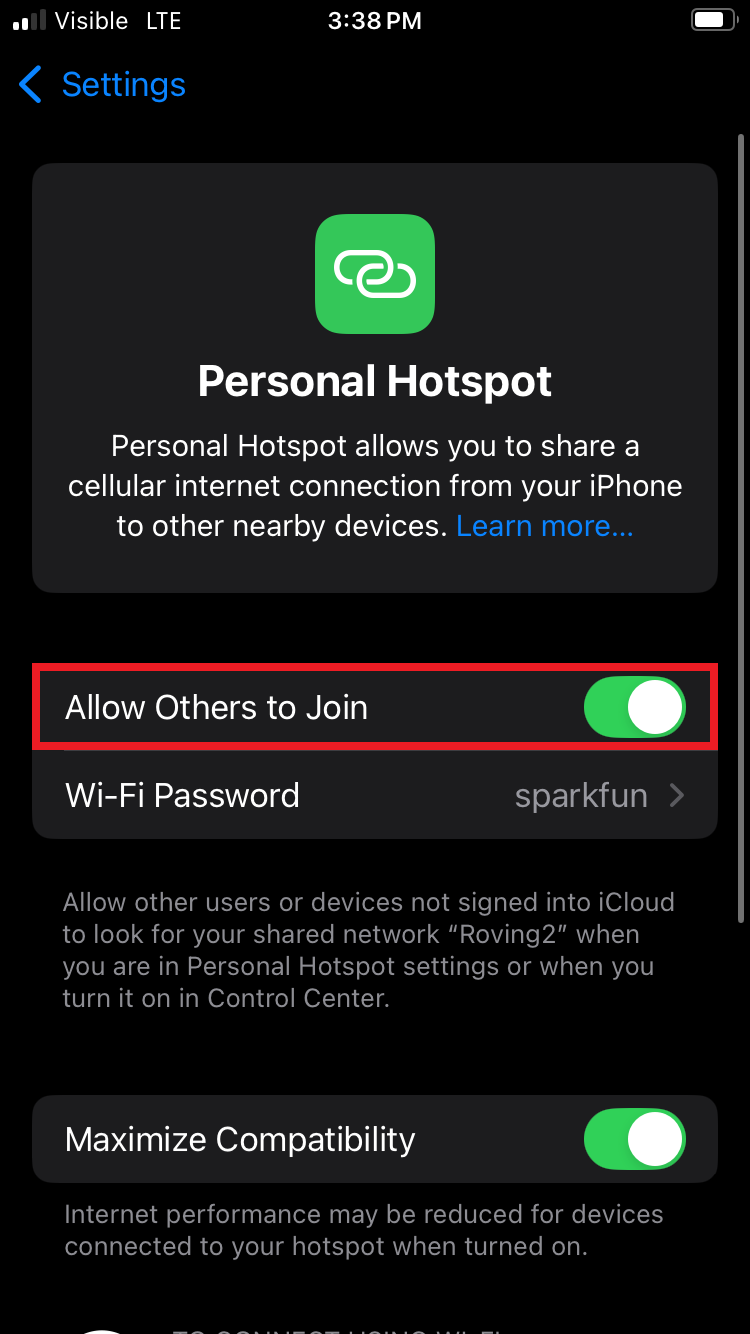
To enable the personal hotspot feature, enable the Allow Others to Join setting. Once enabled, a WiFi access point will be created for other devices to connect with the iPhone or iPad and utilize its cellular network for internet access.
- Don't forget to disable this feature when not in use to reduce your mobile device's power consumption, load on the processor, and risk of additional data charges.
- Please be aware this feature relies on the cellular carrier's data service. Therefore, in rural or remote locations this feature may be unavailable or severly limited.
When connecting a device to the Personal Hotspot, remain on this screen until the connection has completed.