ArcGIS Field Maps
Unfortunately, this app does not provide a built-in NTRIP client to access and relay RTK corrections to the FPM-T. Additionally, this app can only connect to Bluetooth devices. Luckily, we have a work around for this type of situation.
Another GIS app can be utilized to provide the NTRIP corrections in the background; while utilizing this app to record your data. For this workaround, we recommend the SW Maps app. It provides an NTRIP client and can emulate its location as an additional Bluetooth device.
Follow the SW Maps section, for detailed instructions on the app installation, connecting the FPM-T, and adding an NTRIP client.
Before proceeding below and opening Field Maps, please install the SW Maps app.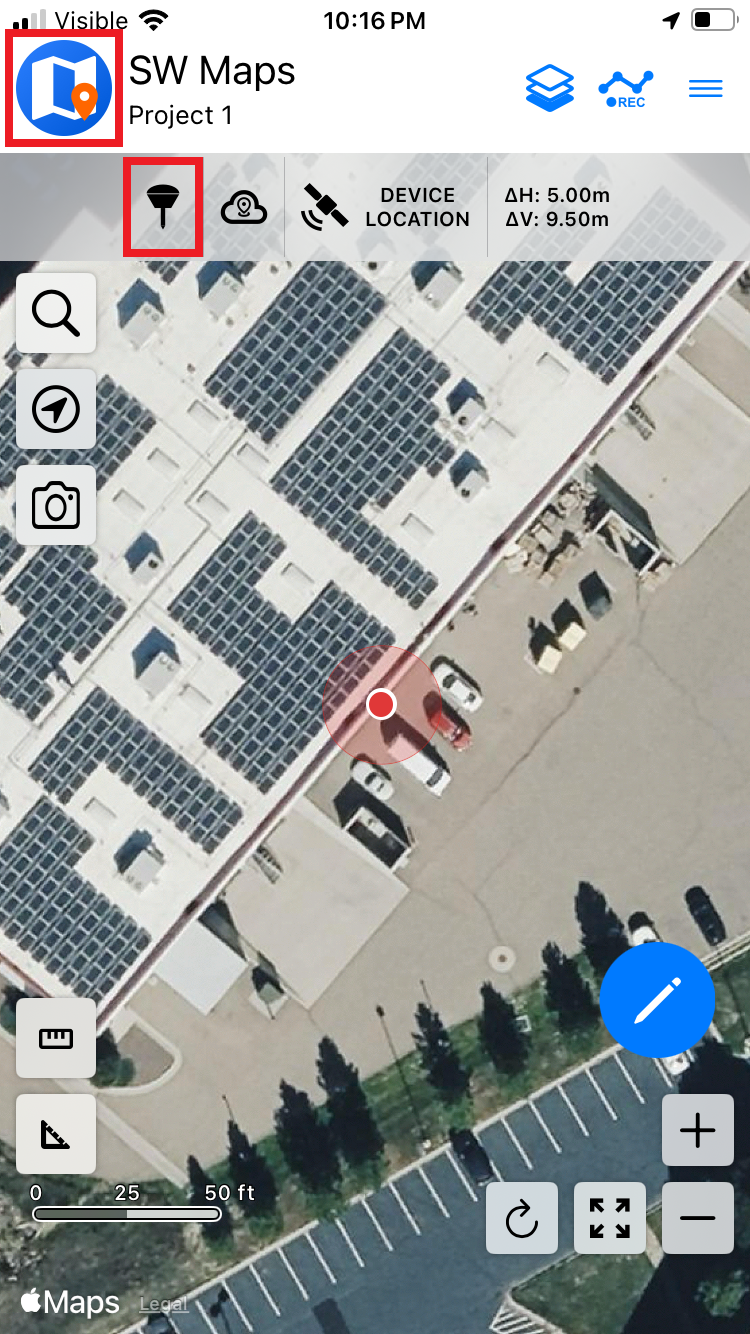
Open SW Maps and click on the receiver icon to connect to the FPM-T.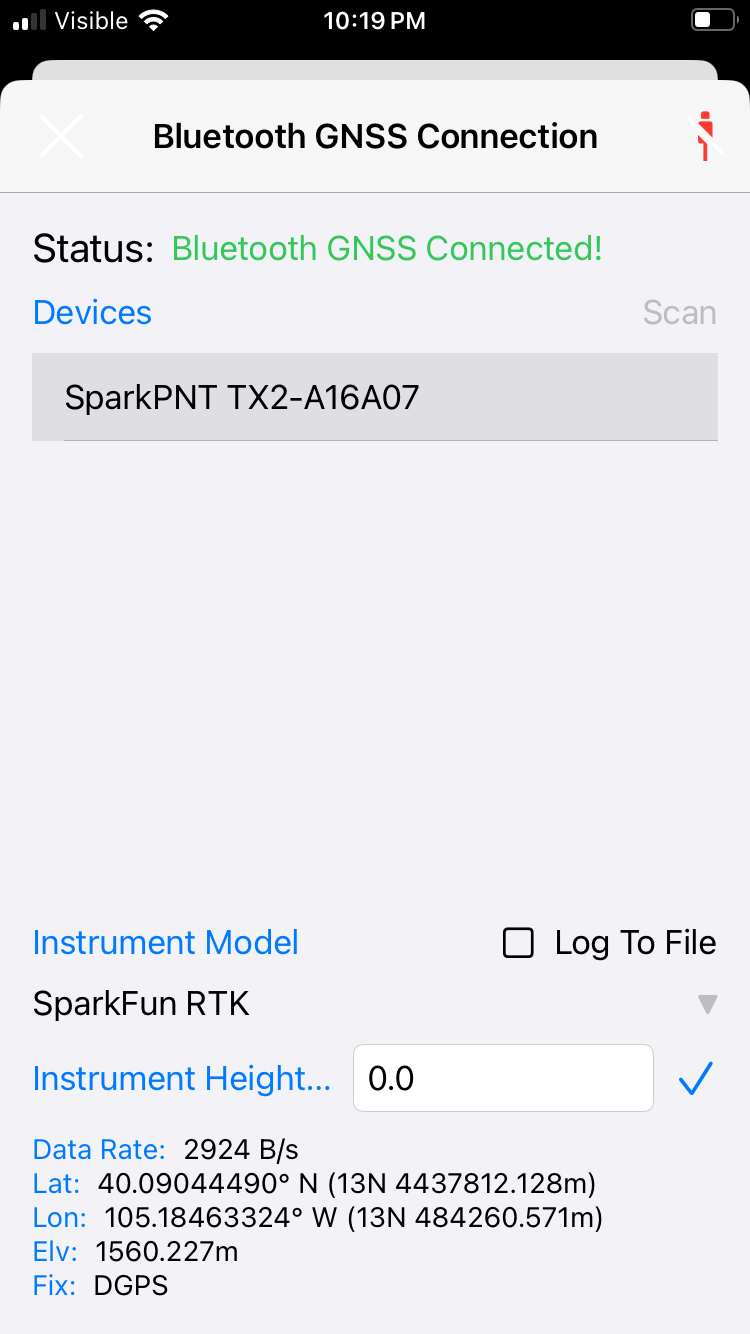
Click the Scan button and connect to the FPM-T. If multiple SparkPNT devices are detected, look at the device ID printed on the outside of the device. The last six characters of the device ID will be broadcast as part of the device name.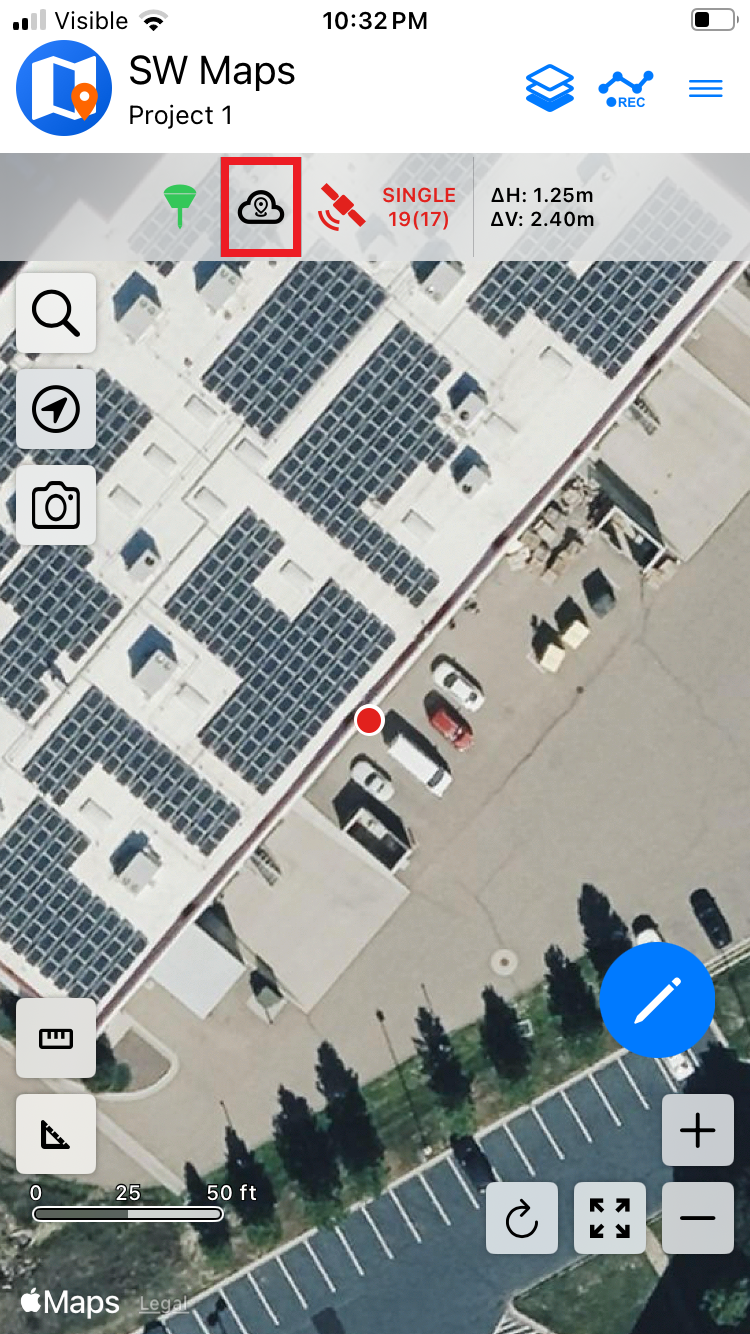
Once connected, close the device settings and click on the cloud icon to open the NTRIP Client settings.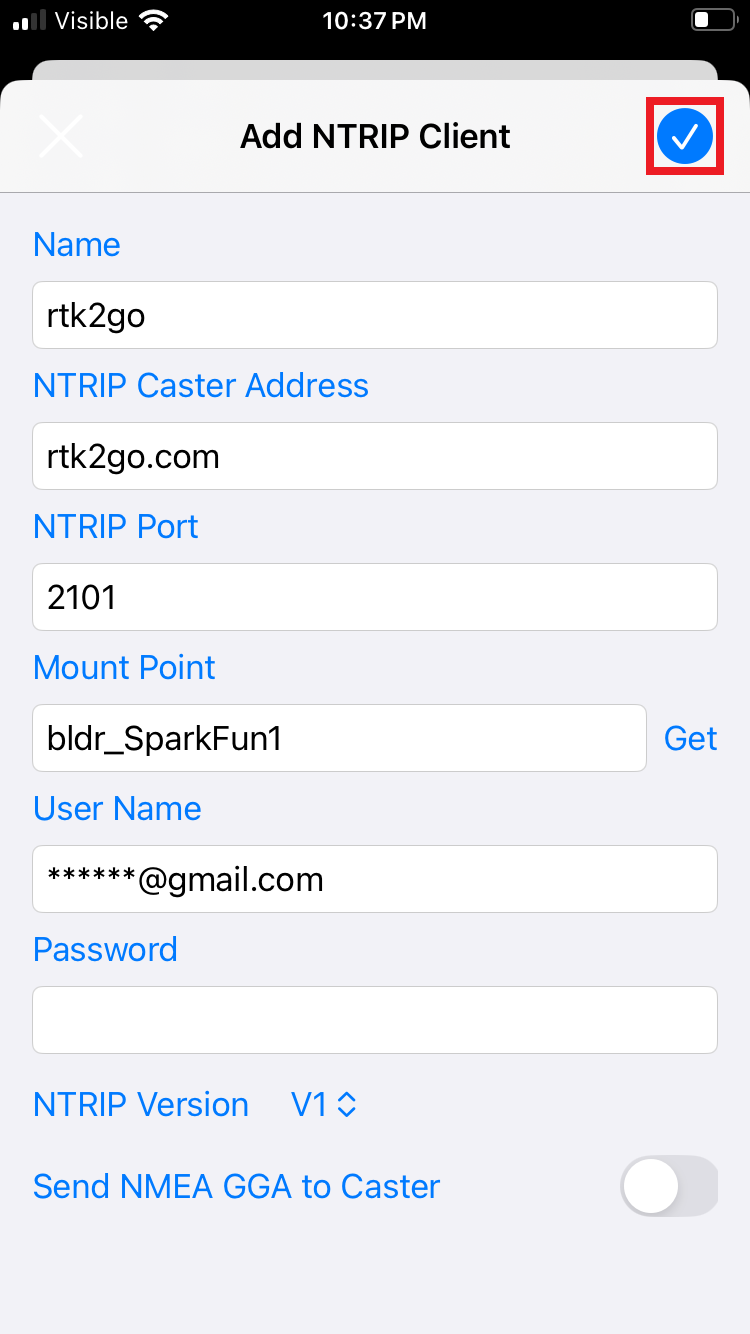
Enter the credentials for the NTRIP Caster and click the the check mark icon to save the configuration. All correction services should be compatible, shown are the settings used for the free RTK2Go NTRIP caster.
Please refer to the Correction Sources section for a list of other NTRIP casters. This includes ublox's PointPerfect Flex service, which provides PPP-RTK corrections for regions of the Americas, Europe, Asia, and Australia. Contact us to setup a PointPerfect Flex subscription for only $15/month.
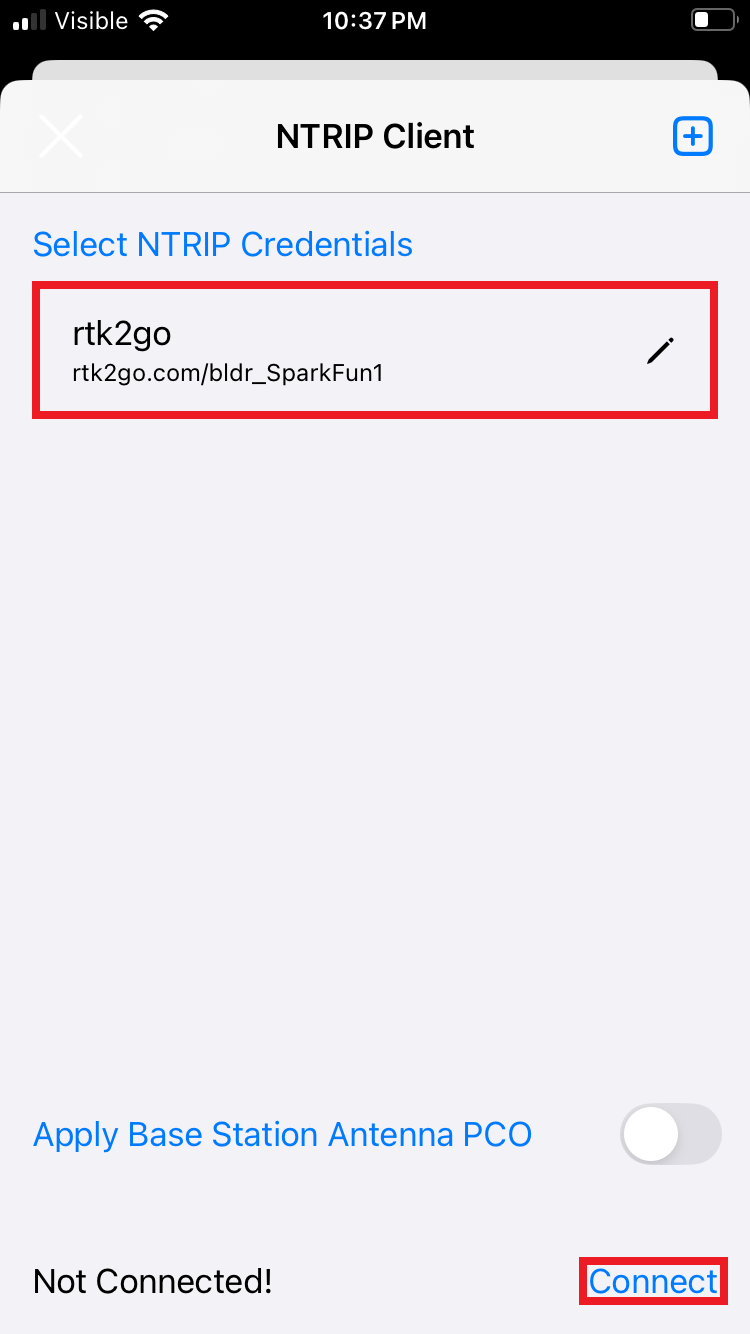
Once the credentials are entered, click on the Connect button. Confirm the data rate is more than 0 bytes per second, then close the settings to return to the main window.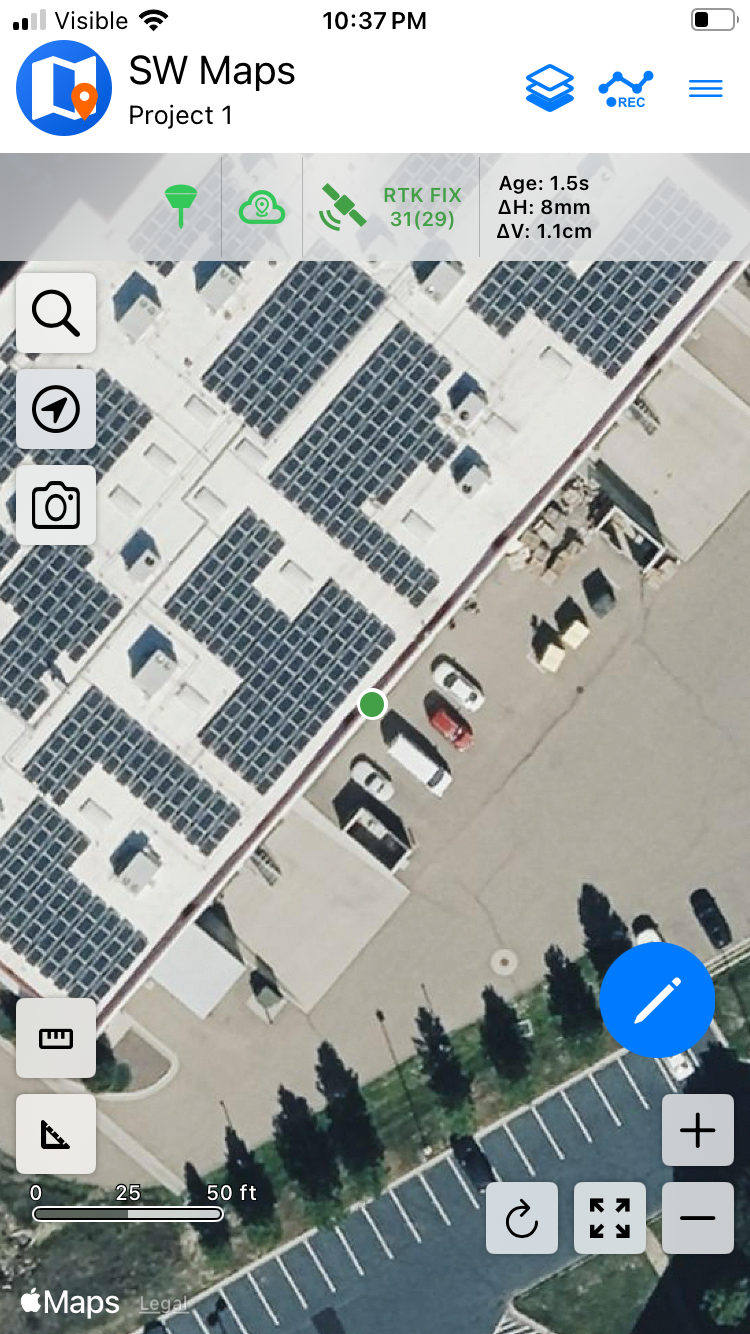
Above, we see the device has achieved an RTK Fix with 8mm horizontal accuracy.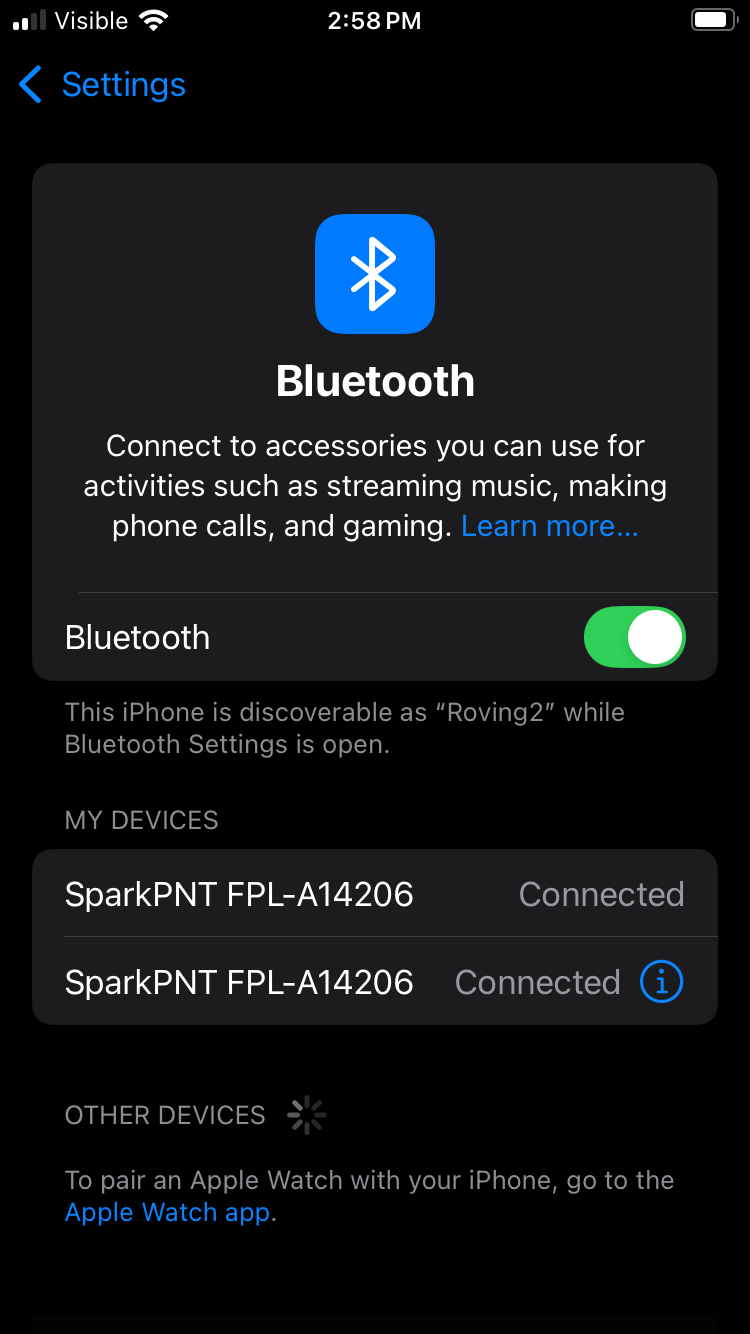
Open Bluetooth settings and connect to the second SparkPNT device. The first listing represents the connection to SW Maps over BLE. The second listing is for connecting over Bluetooth Classic (completed over MFi).
With the NTRIP client in SW Maps setup, connect to the second SparkPNT Bluetooth device in ArcGIS Field Maps as the location provider.
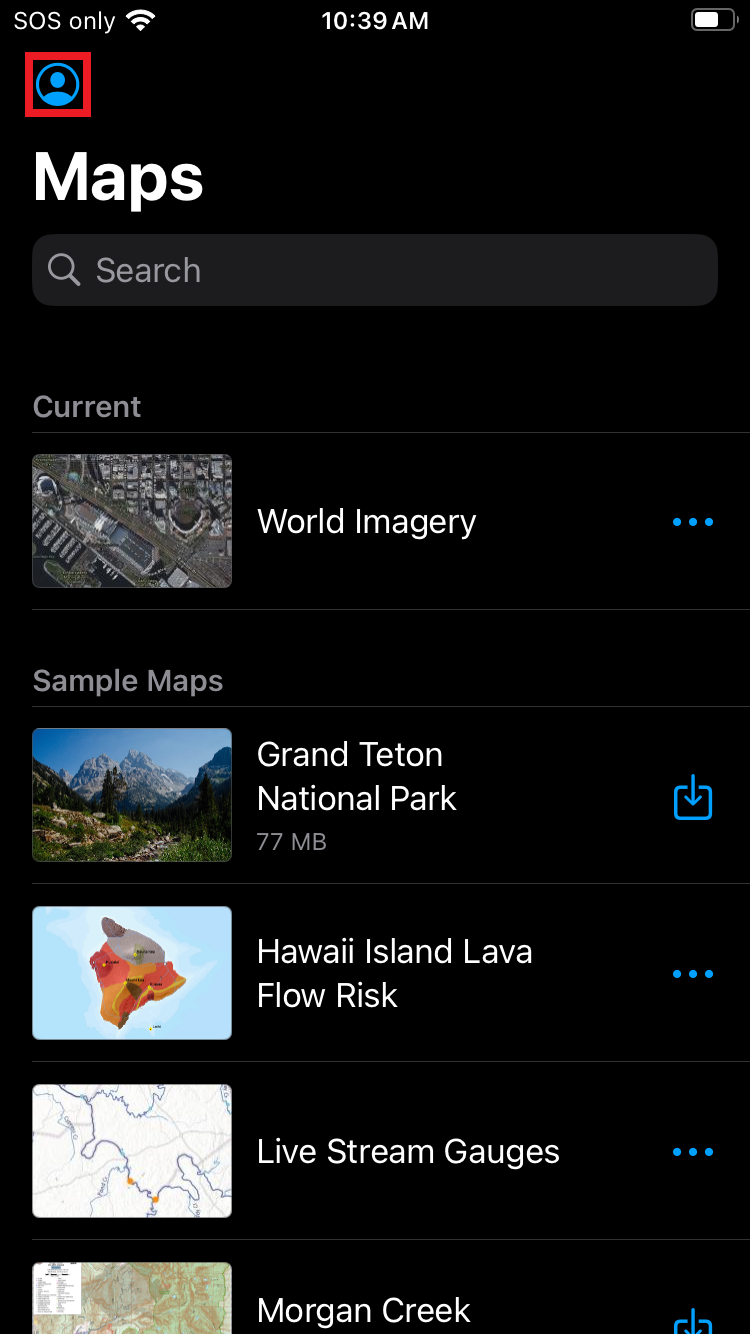
Open Field Maps. Click on the Profile icon.
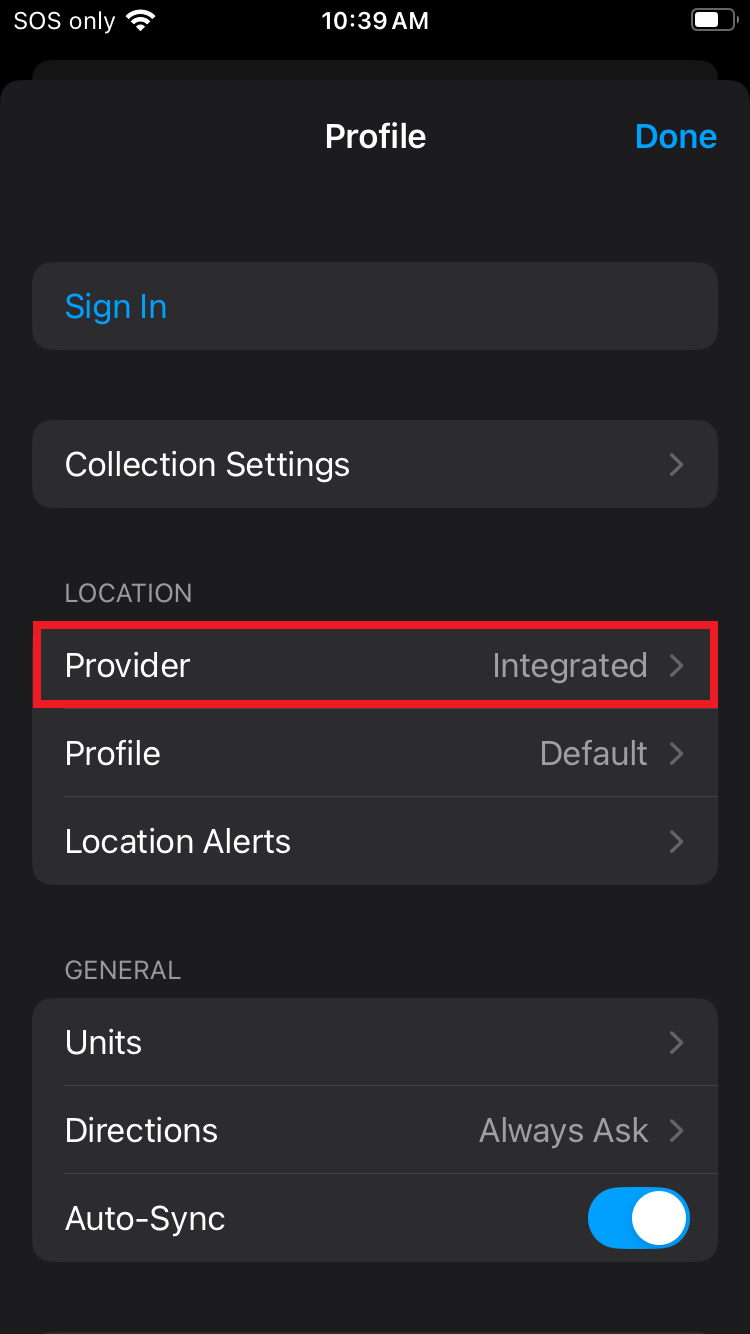
Click on the Provider to change it.
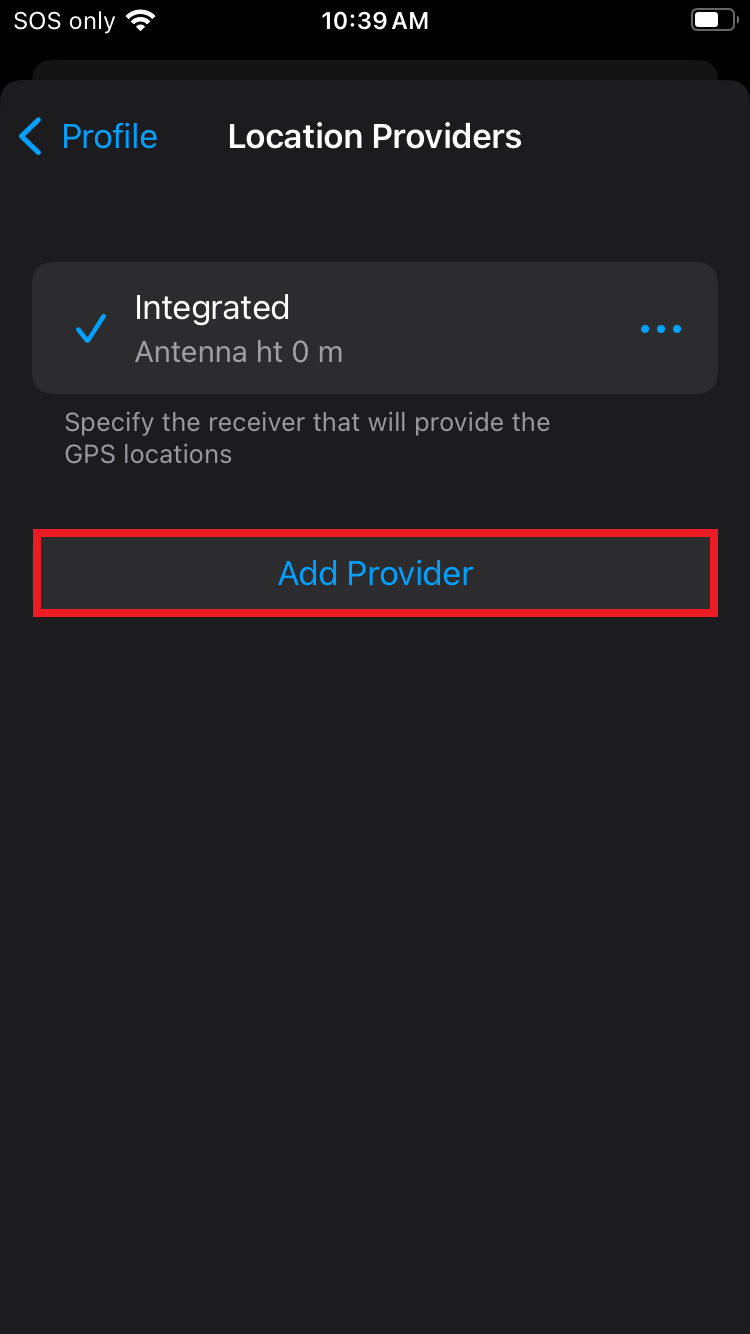
Above, select Add a provider.
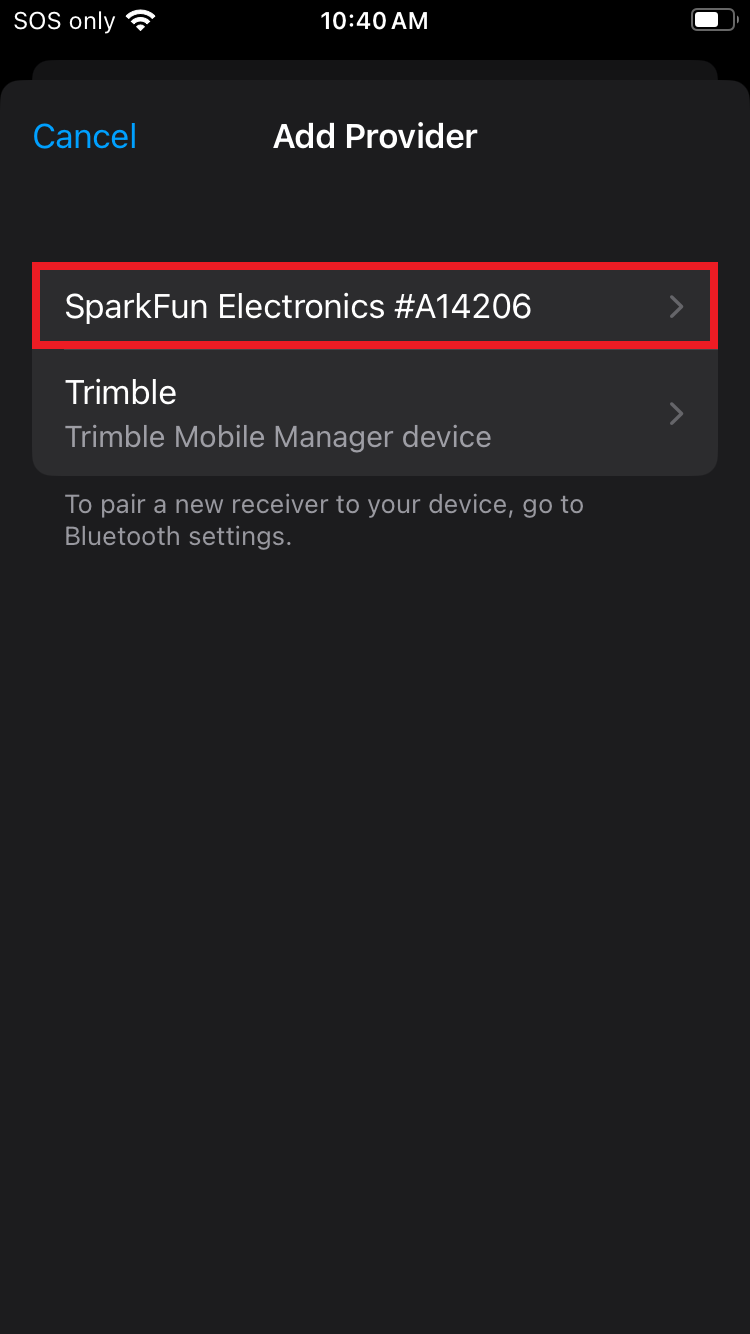
Above, select the SparkFun Electronics #XXXXXX provider type.
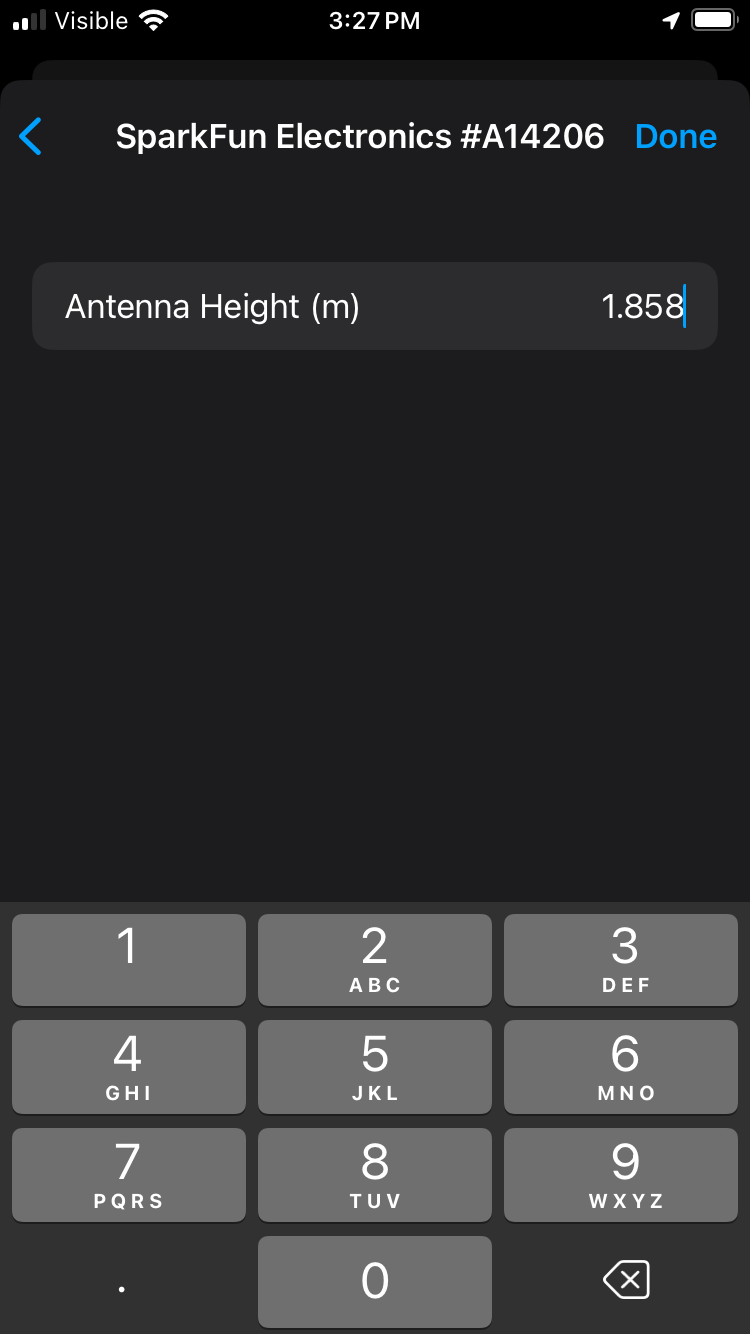
On this step, take your time entering the antenna height information. This value, in meters, is the combined value of the pole length that will be used (1.8m is common) plus the antenna phase center (APC) of the FPM-T. Above, the total length is entered with a 1.8m pole + 58.3mm APC = 1.858m. If your antenna height is entered incorrectly, the vertical component of your location recordings will be inaccurate. Click Done once complete.
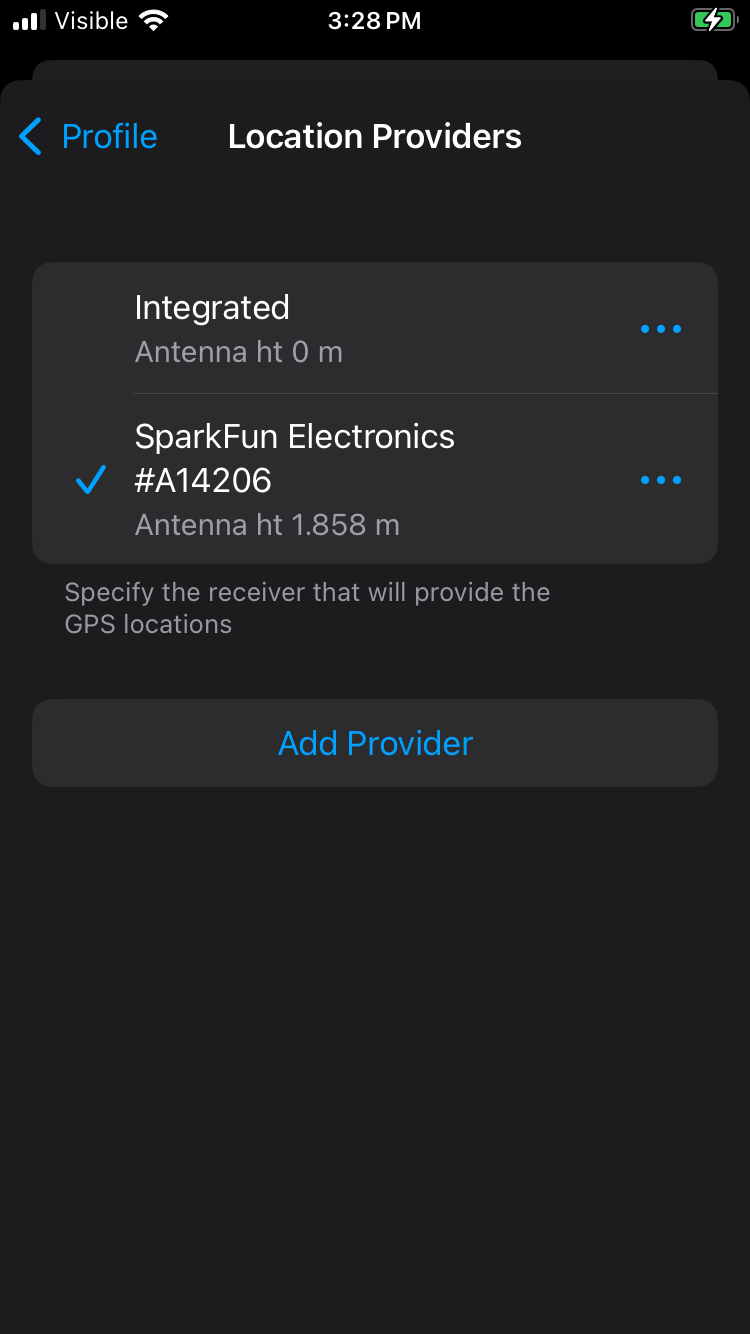
Select the SparkFun Electronics #XXXXXX provider.
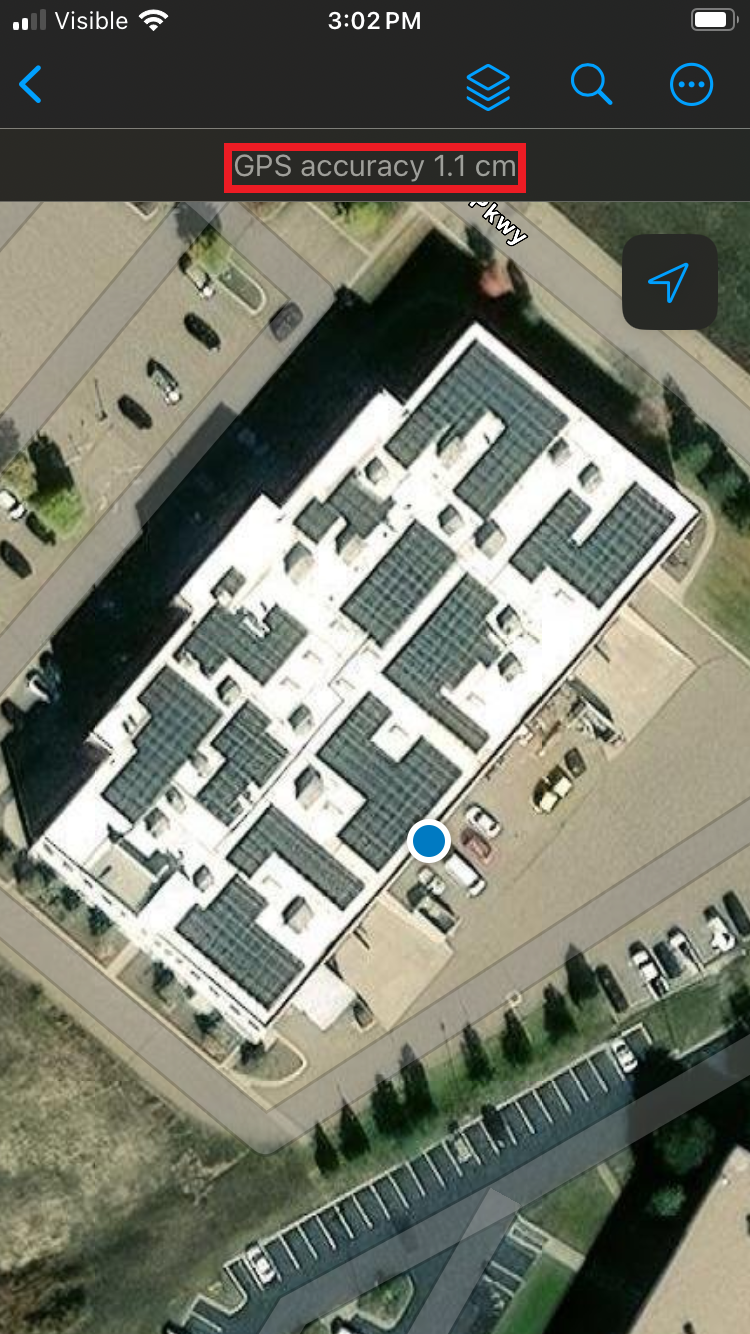
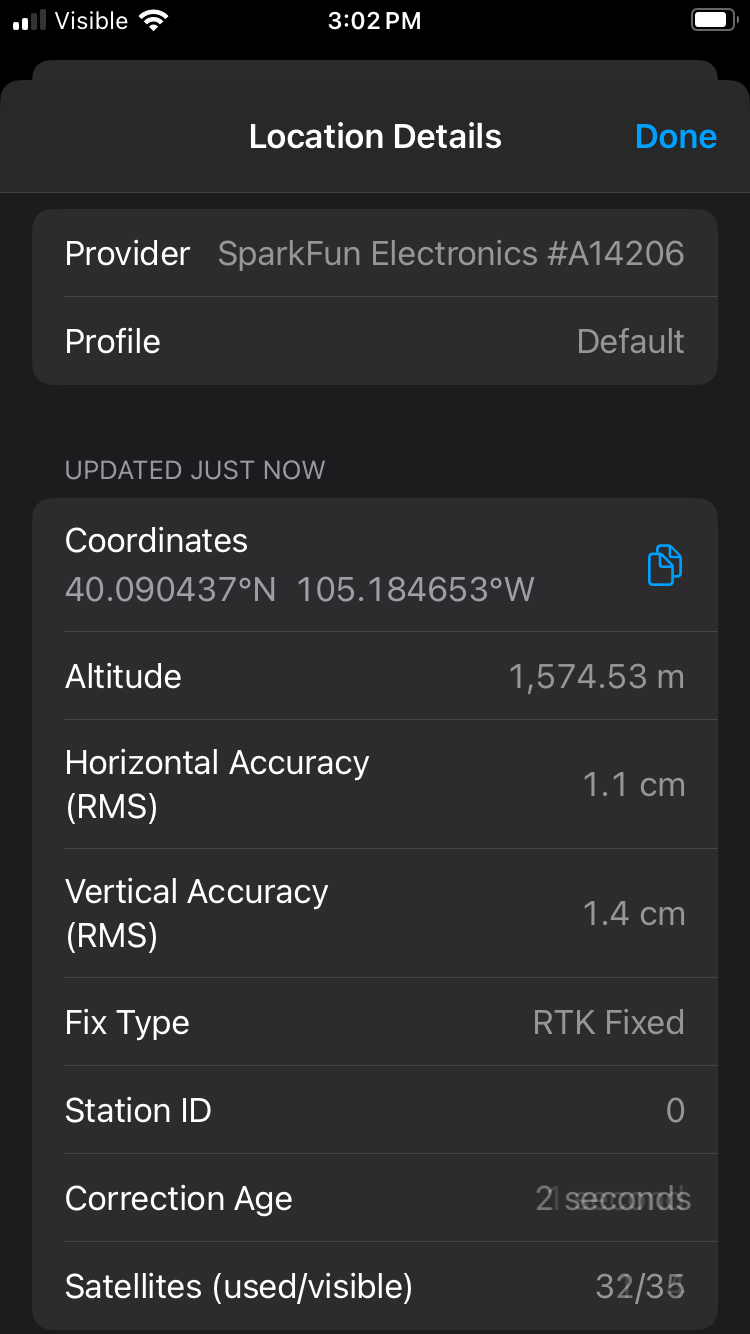
Return to the home screen and open 'World Imagery'. Confirm the device is reporting ~1 to 2cm GPS accuracy. For more information, click on the position accuracy to open the location details. Otherwise, you can now commence with work.