Connectivity
In order to get corrections or configure the device, users will need to connect the device with their phone.
Bluetooth
To provide RTK corrections from an NTRIP caster (or server), view the device's position in real-time, and/or manage datapoints, it is best to utilize a 3rd party app on a mobile device. Users can then, pair the FPM to their mobile device with a Bluetooth connection.
For a Bluetooth connection, follow these steps:
-
Power the device on.
- Hold the () power button for more than 3 seconds. It will beep once, indicating it has turned on.
-
The Bluetooth icon () will blink indicating it is ready for a connection.
-
On your mobile device, connect to the Bluetooth device named
SparkPNT FPM-######; where,######is the last six characters of the device's ID labeled on the bottom of the device.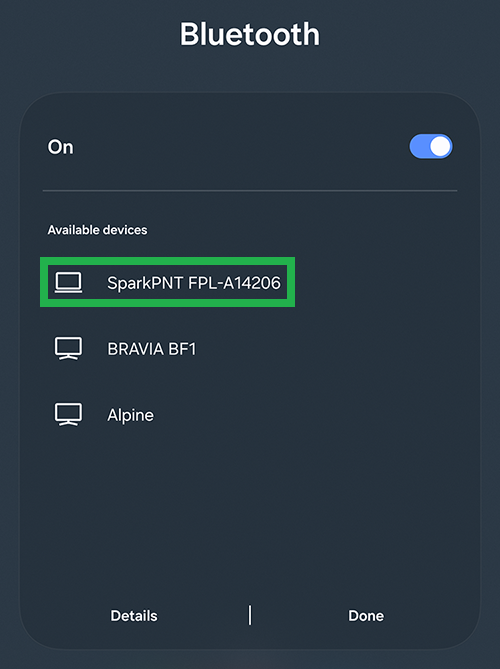
Pairing from an Android device. 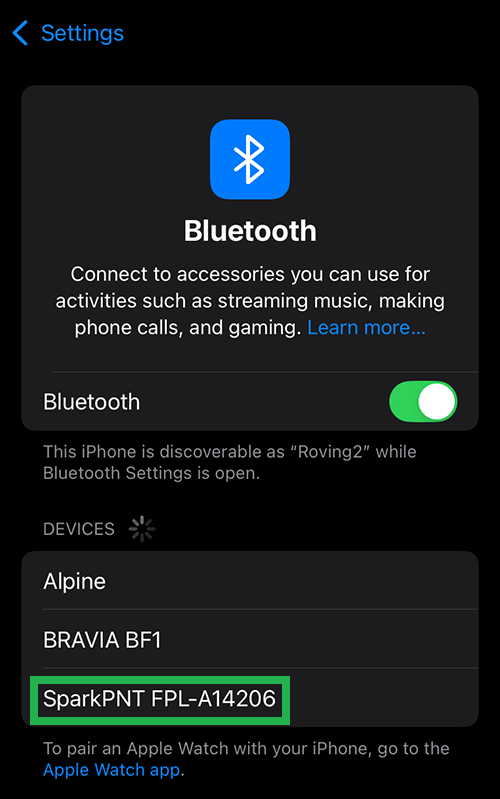
Pairing from an iOS device. -
Once paired, you be able to access the device in your favorite GIS app.
WiFi
To change the configuration settings of the FPM, it is easiest to connect to the device's WiFi access point and pull-up the configuration webpage. Once connected, users can access the configuration webpage from a browser using the https://rtk.local URL address.
To get into browser configuration, follow these steps:
-
Power the device on.
- Hold the () power button for more than 3 seconds. It will beep once, indicating it has turned on.
-
From the main screen, press the (Fn) function button once to open the navigation menu.
-
Press the (Fn) function button to navigate down until
Configis highlighted on the menu of the OLED display.
A device in Access Point configuration mode -
Press the () power button to select the menu item. The device should display the
SSID: RTK Config ######and the associated IP address.
A device in Access Point configuration mode -
On your mobile device, connect to the WiFi network named
RTK Config-######. Upon connecting, your phone may warn you that the WiFi network is not connected to the internet. This is normal; stay connected and open a browser.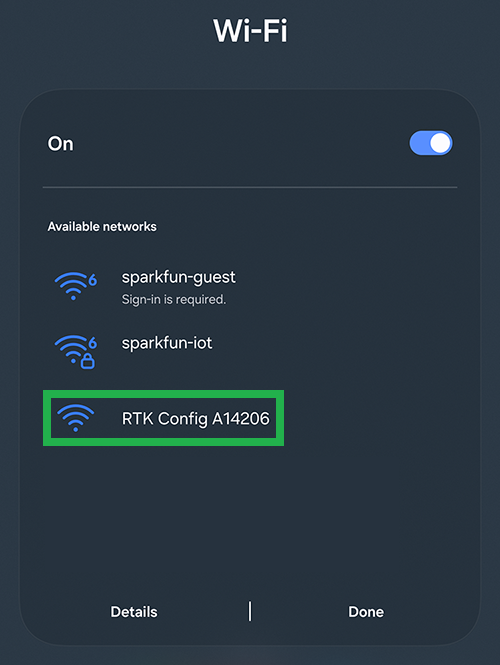
Connecting from an Android device. 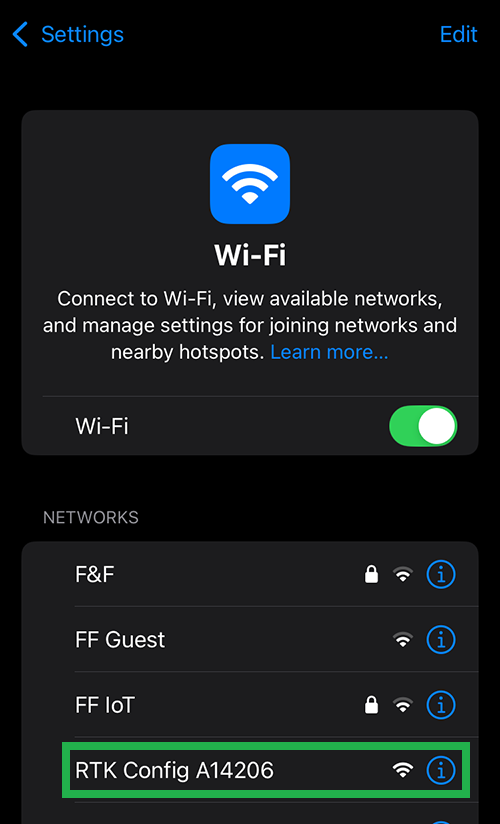
Connecting from an iOS device. warningIf you have problems, try disabling mobile/cellular data on your mobile device. The device or browser might be using the cellular connection for its internet access; however, we want to disable this setting to ensure that your mobile device remains on the WiFi access point for the browser.
-
Once the browser is opened, you should be automatically re-directed to the configuration webpage. If not, open a browser (Chrome is preferred) and type
http://rtk.localinto the address bar.http://rtk.local/http://rtk.local/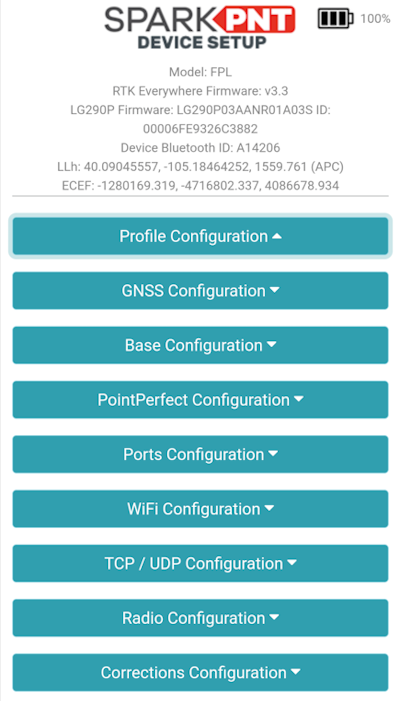
Browser with rtk.localwebpage.