Settings - Enable Hotspot
A mobile hotspot uses the cellular data connection of a mobile device (cellphone, tablet, laptop, etc.) to create a temporary, portable Wi-Fi network that other devices can use to connect to the internet. You can enable it in your device's settings and share your mobile data connection with laptops, tablets, or other devices.
The operating system of each Android device will vary by the model and manufacturer. Therefore, it is recommended that users look up the instructions to enable and configure the settings of the mobile hotspot feature for their specific device. Below, we have linked a general guide for Android devices along guides for some popular phone models:
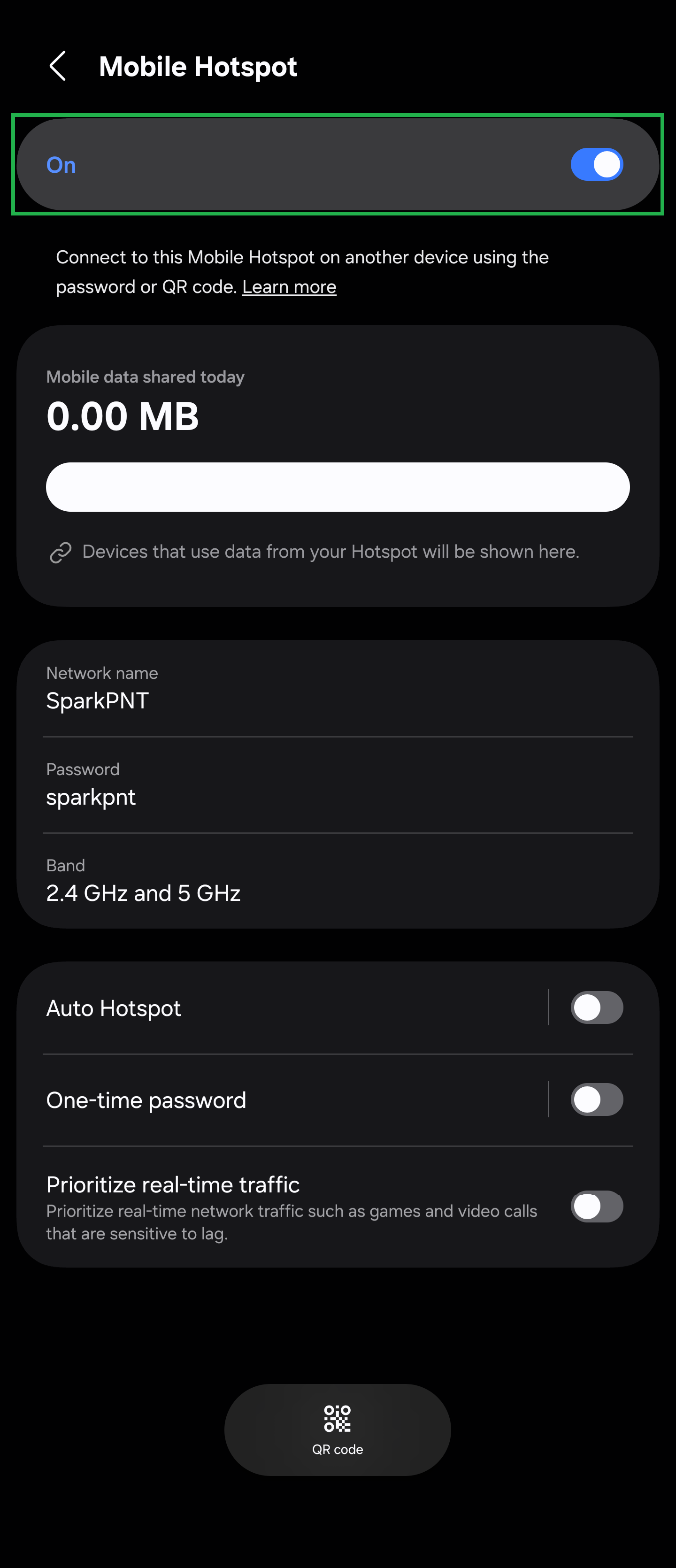
As an example, the instructions and screenshots below are from a Samsung Galaxy S-series phone.
Mobile Hotspot Settings
On your mobile device, navigate to the mobile hotspot settings from the device settings.
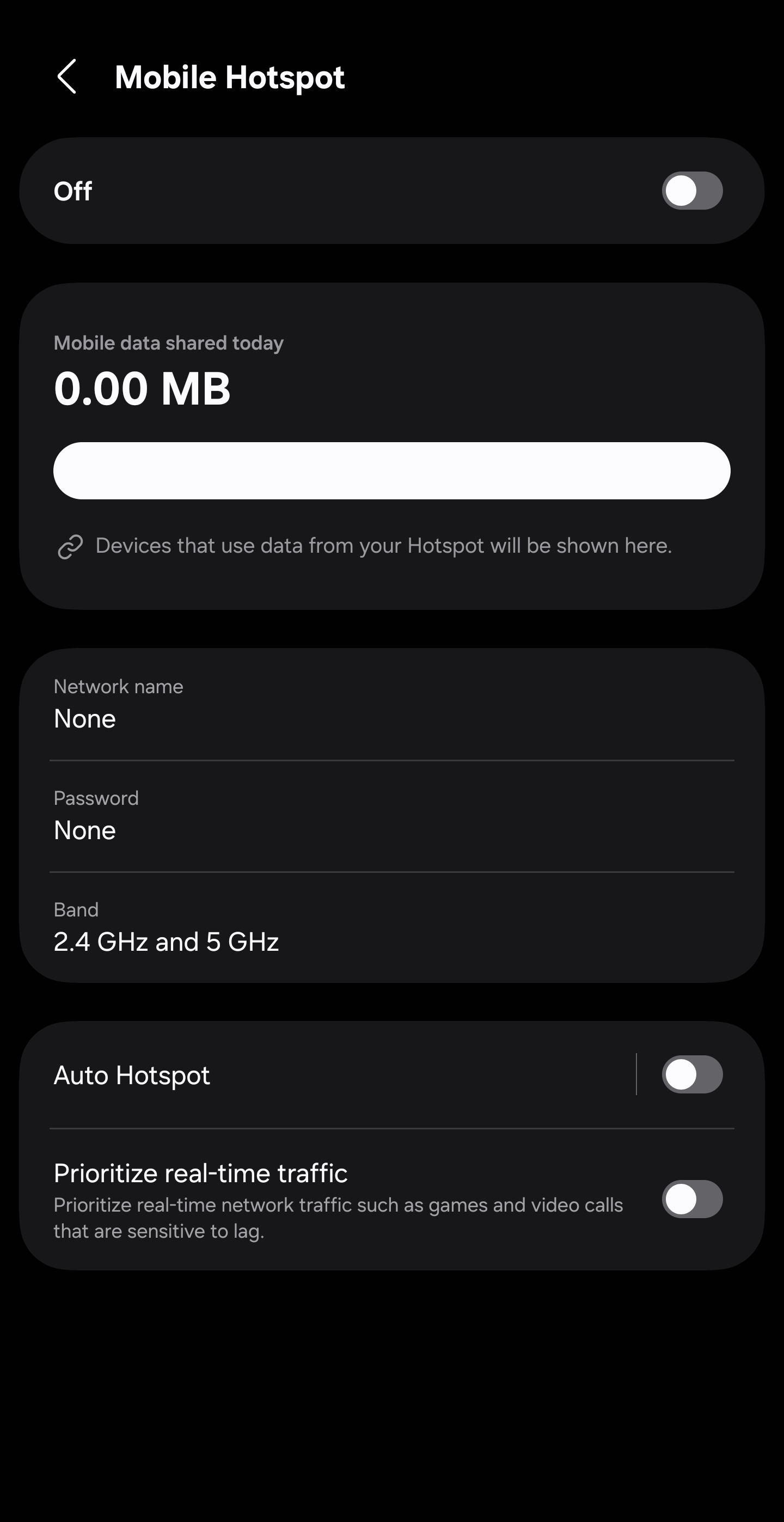
For the Samsung Galaxy, open the device Settings menu. From here, users can locate the mobile hotspot settings by:
- Selecting the Connections > Mobile Hotspot and Tethering > Mobile Hotspot options
- Alternatively, users can also enter
mobile hotspotinto the search bar and selecting the setting from the results
Network Credentials
In the mobile hotspot settings, users should be able to configure the network credentials of the feature.
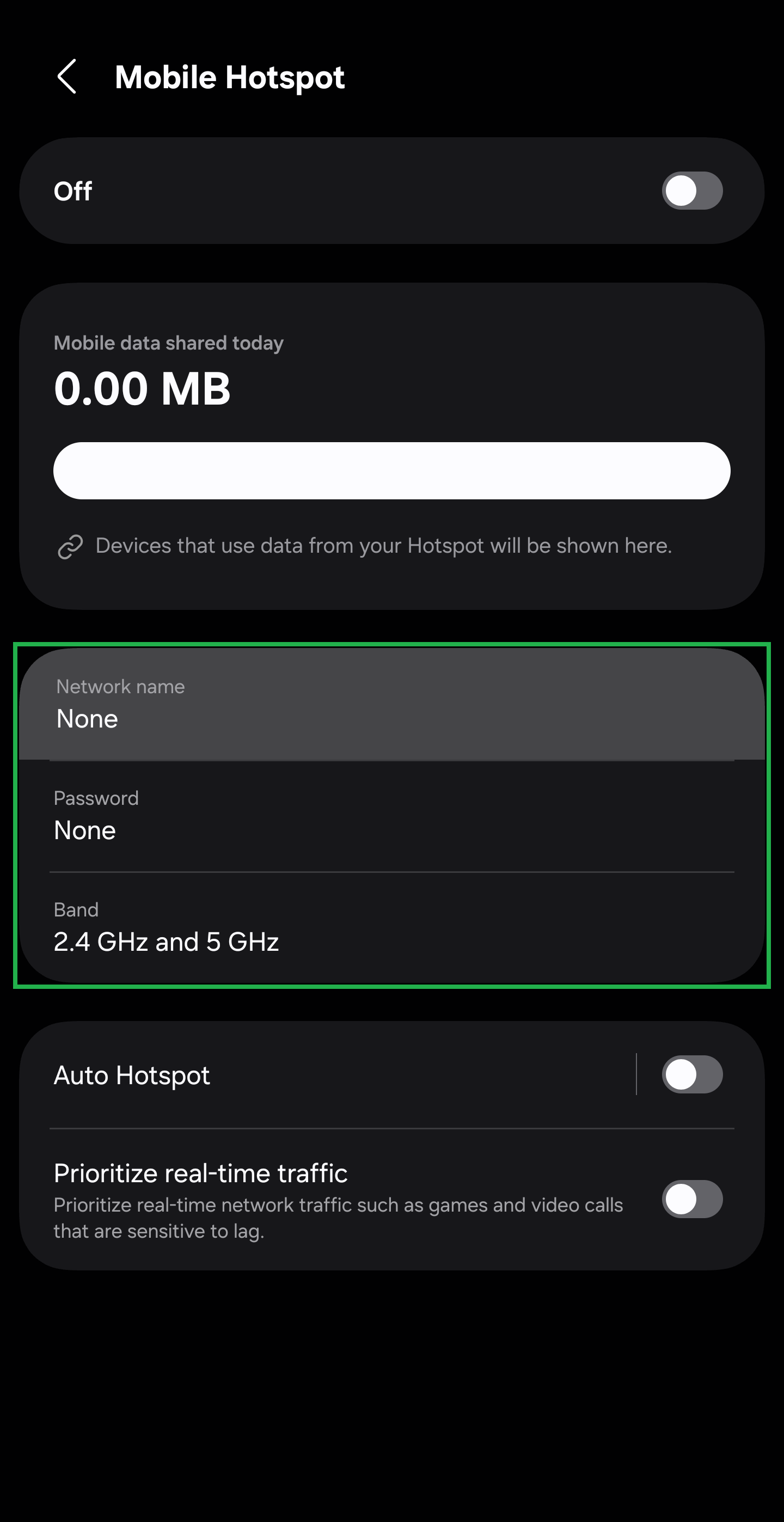
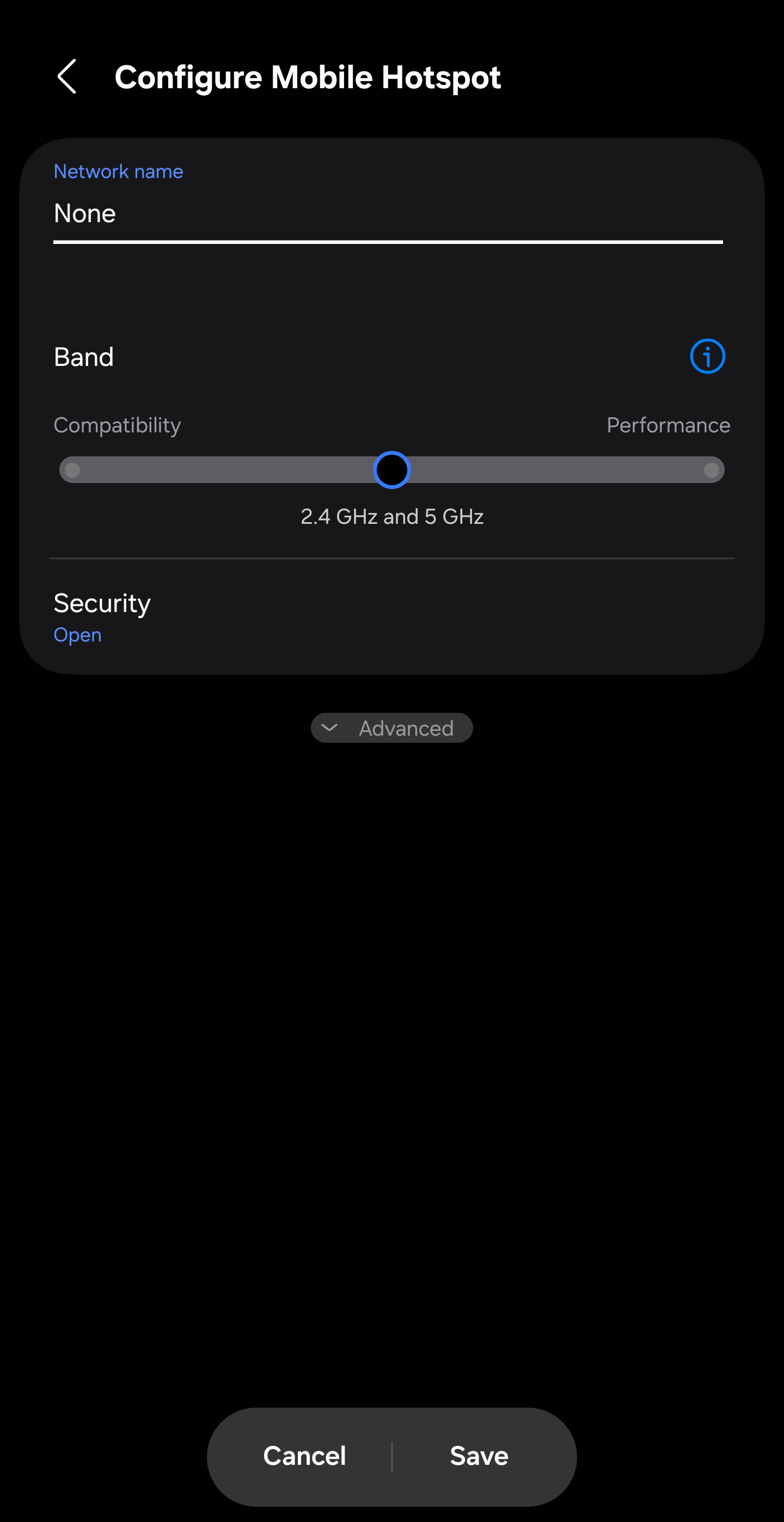
Tap the information section to provide the network settings:
- Network name: The name or SSID of the hotspot
- Password: The password for the hotspot
- To change the password for the hotspot, tap Wi-Fi Password and enter a password at least eight characters long
- Use only ASCII characters, which include the uppercase and lowercase letters of the English alphabet, numbers 0 through 9, and some punctuation marks
- To change the password for the hotspot, tap Wi-Fi Password and enter a password at least eight characters long
- Band: Sets the frequency band(s) for your hotspot
- 2.4Ghz is compatible with most devices
- For compatiblity with the FPX-T, ensure that 2.4GHz band is enabled
- 5Ghz provides faster speeds and more bandwidth at a reduced range
- 2.4Ghz is compatible with most devices
- Security: The hotspot's password security level
- For compatiblity with the FPX-T, we recommend using WPA2-Personal or WPA2-PSK
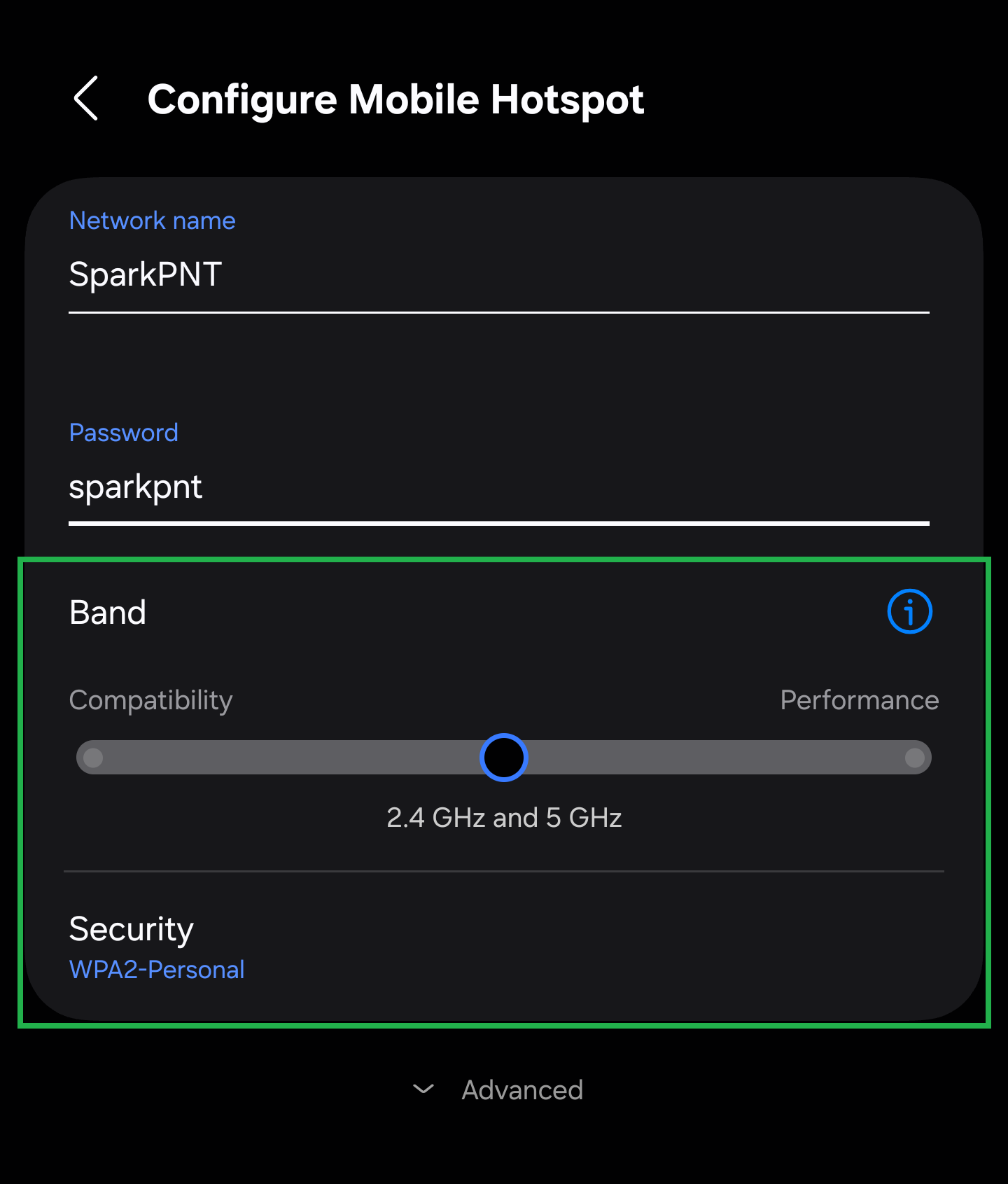
For compatiblity with the FPX-T, ensure that 2.4GHz band is enabled. While the FPX-T can handle most password security encryptions, we recommend using WPA2-Personal.
Click Save, when done.
Enable Hotspot
Once the network credentials have been configured, enable the mobile hotspot feature. A WiFi access point will be created for other devices to connect with, which will utilize the mobile device's cellular network for internet access.
- Don't forget to disable this feature when not in use to reduce your mobile device's power consumption, load on the processor, and risk of additional data charges.
- Please be aware this feature relies on the cellular carrier's data service. Therefore, in rural or remote locations this feature may be unavailable or severly limited.
Users may need to disable any Data Saving features or settings on their device before the mobile hotspot feature can be enabled.