SW Maps
The best mobile app that we’ve found is the powerful, free, and easy-to-use SW Maps by Softwel. It is compatible with Android and iOS, either phone or tablet with Bluetooth. What makes SW Maps truly powerful is its built-in NTRIP client. This is a fancy way of saying that we’ll be showing you how to get RTCM correction data over the cellular network.
For more details about the app, please refer to their user manual.
Getting Started
Make sure the FPX is switched on and operating in Rover mode. Also, make sure that Bluetooth is enabled in the settings of your mobile device. Users should also have the FPX already paired with their mobile device.
After opening SWMaps, open or continue a project if desired. SWMaps will show your approximate location based on your device's integrated GNSS receiver.
Connect a Device
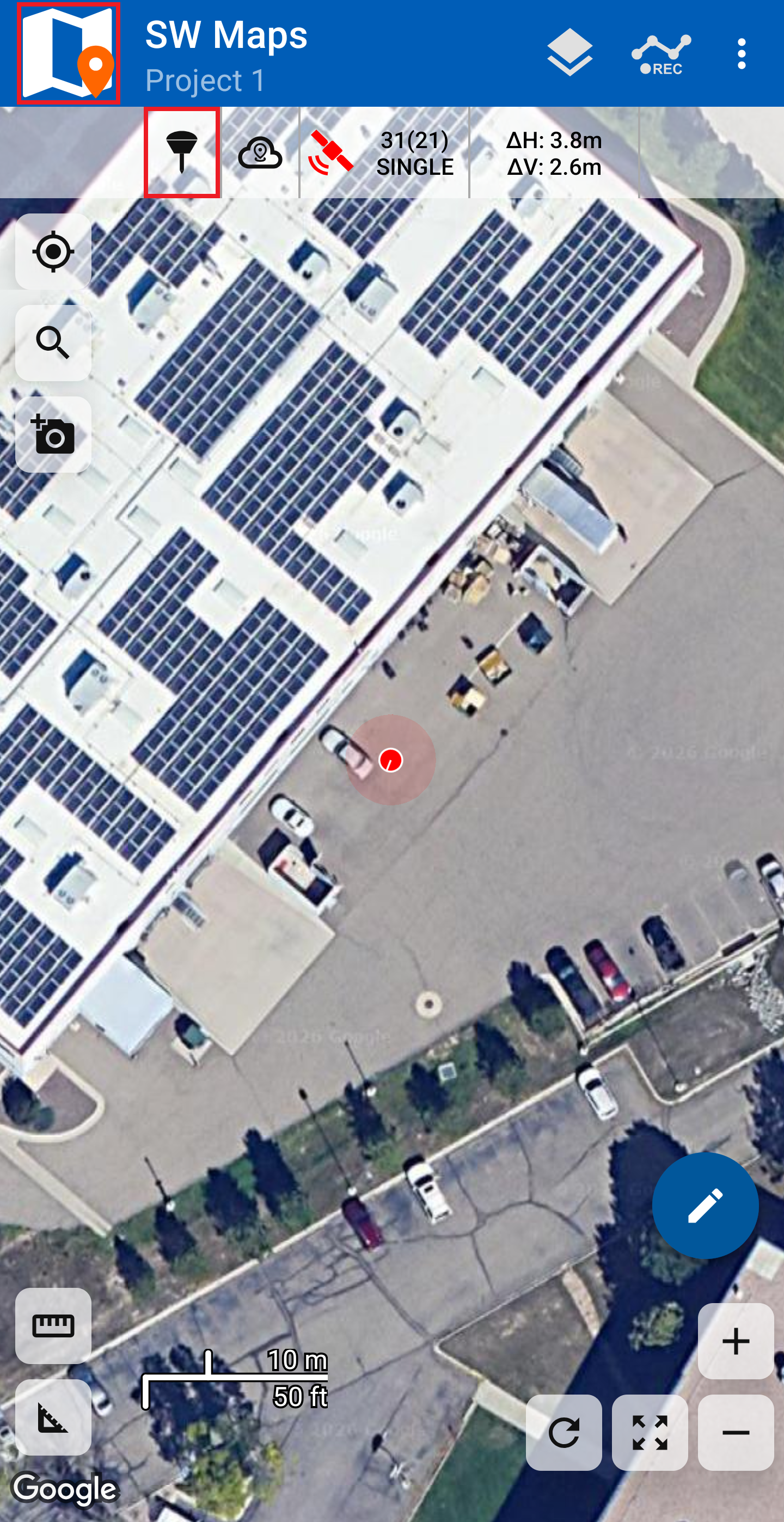
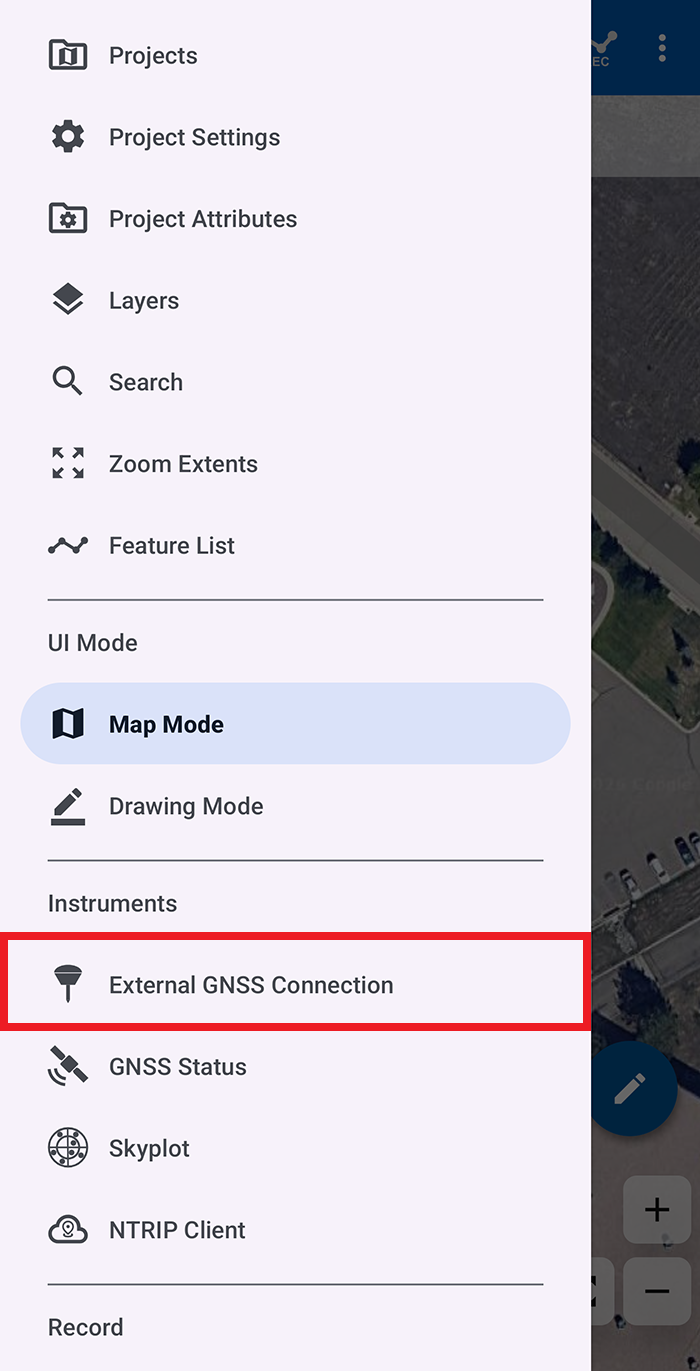
To connect to the FPX press the () survey pole icon at the top of the screen to open the GNSS Connection menu. Otherwise, users can also acess this menu by clicking on the () SW Map logo to open main menu; then, select External GNSS Connection menu under the Instruments section.
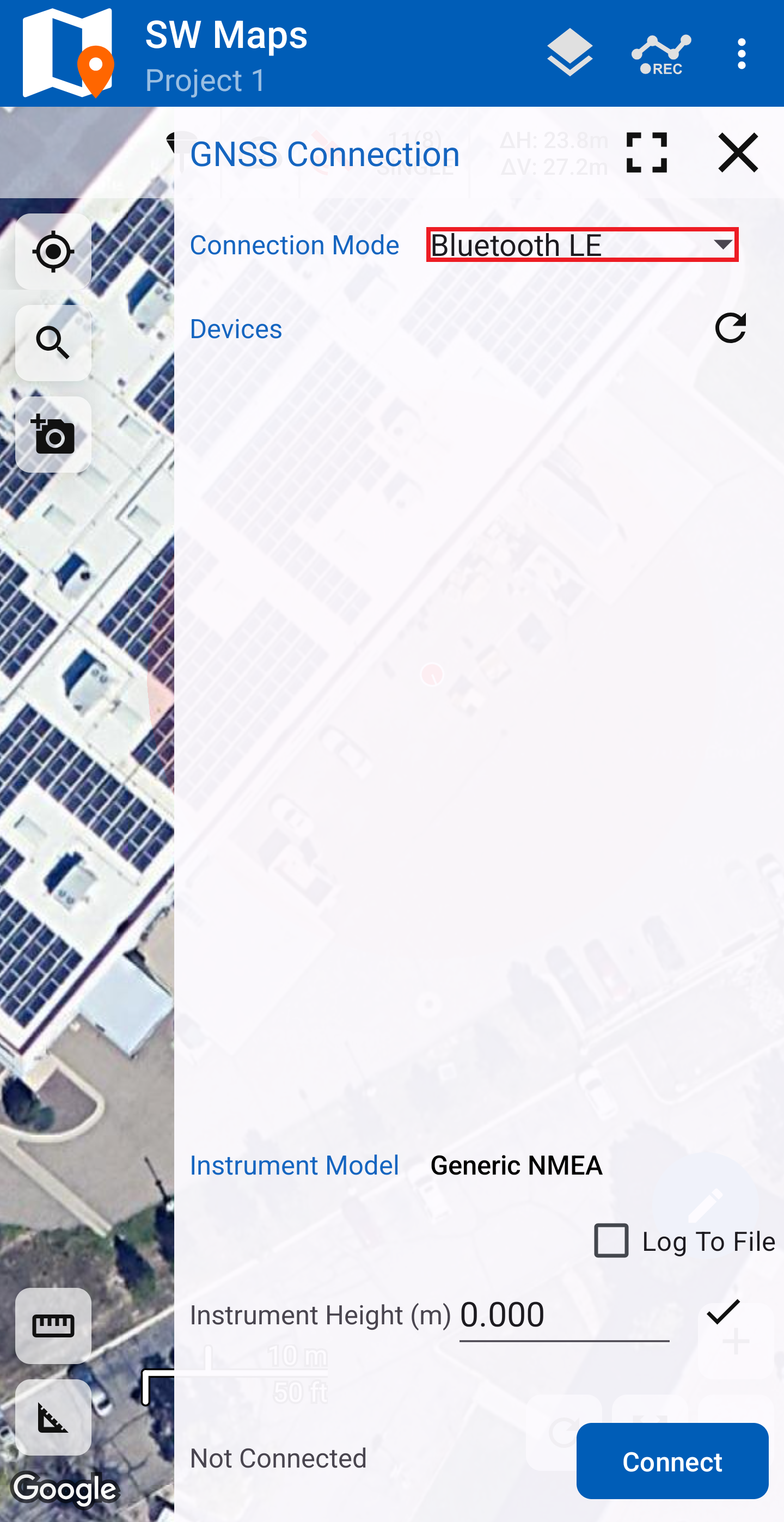
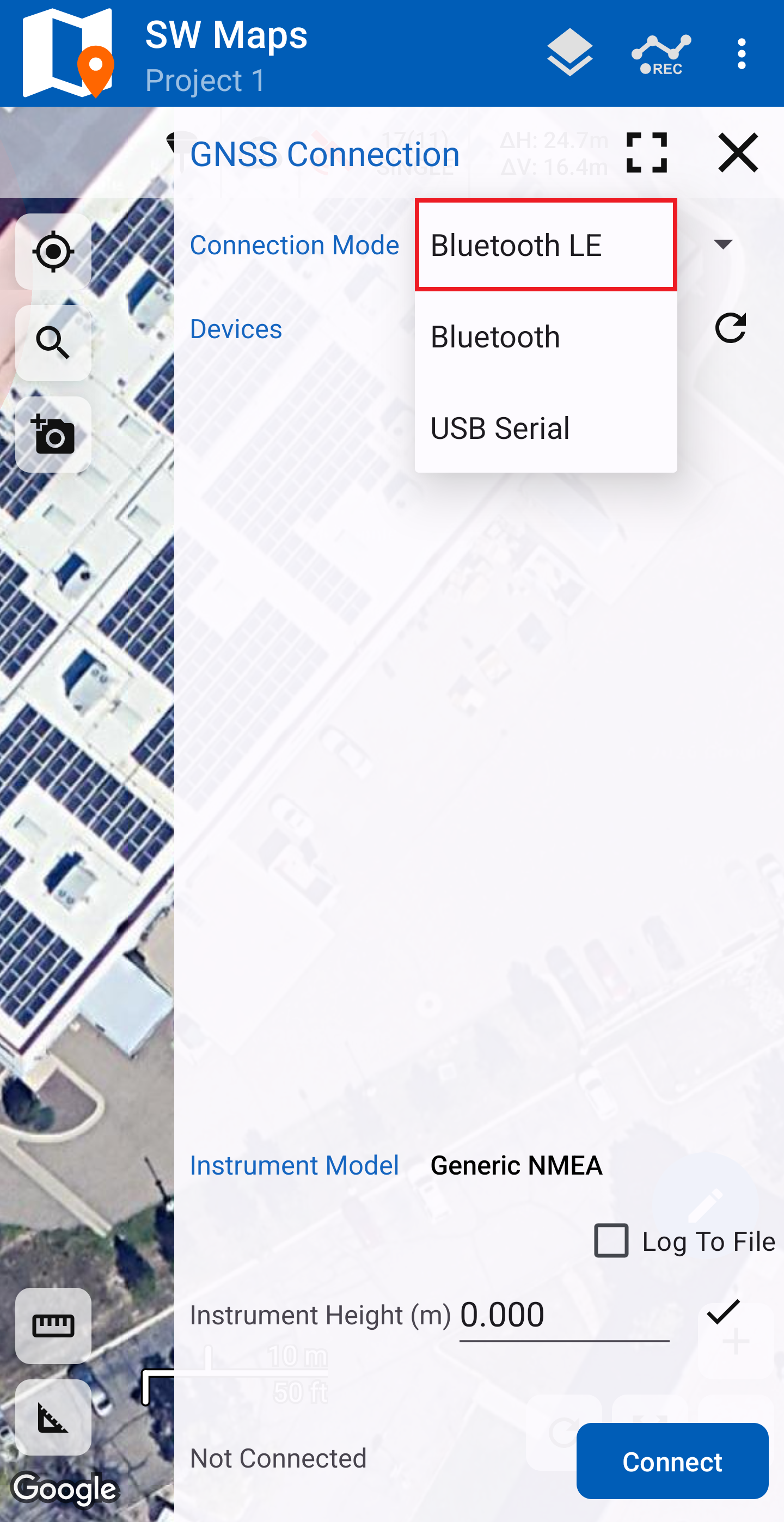
Bluetooth LE connection mode
The (External) GNSS Connection menu displays a list of available devices that the app can connect to. Select Bluetooth LE option from the Connection Mode drop-down menu to see a list of available Bluetooth devices.
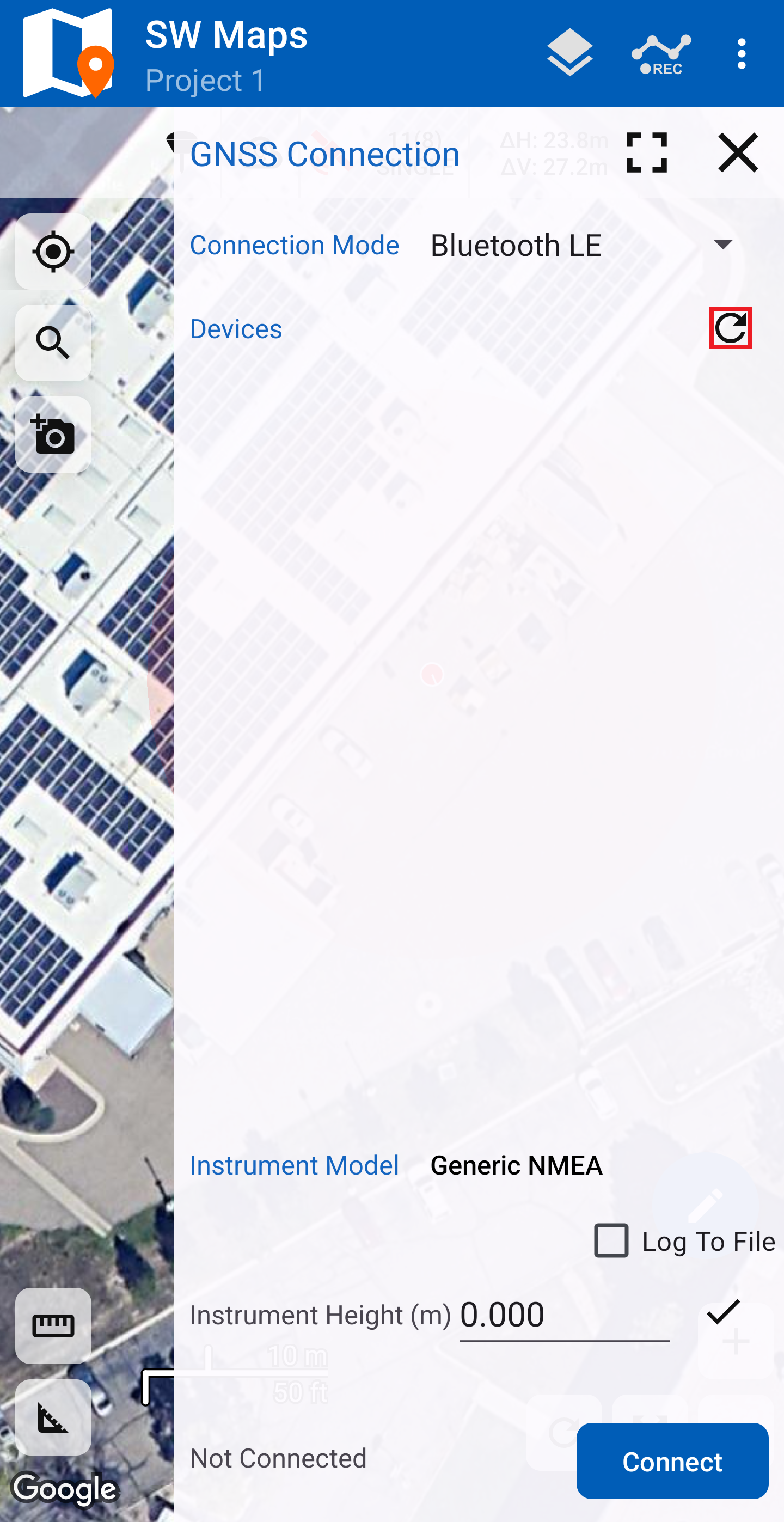
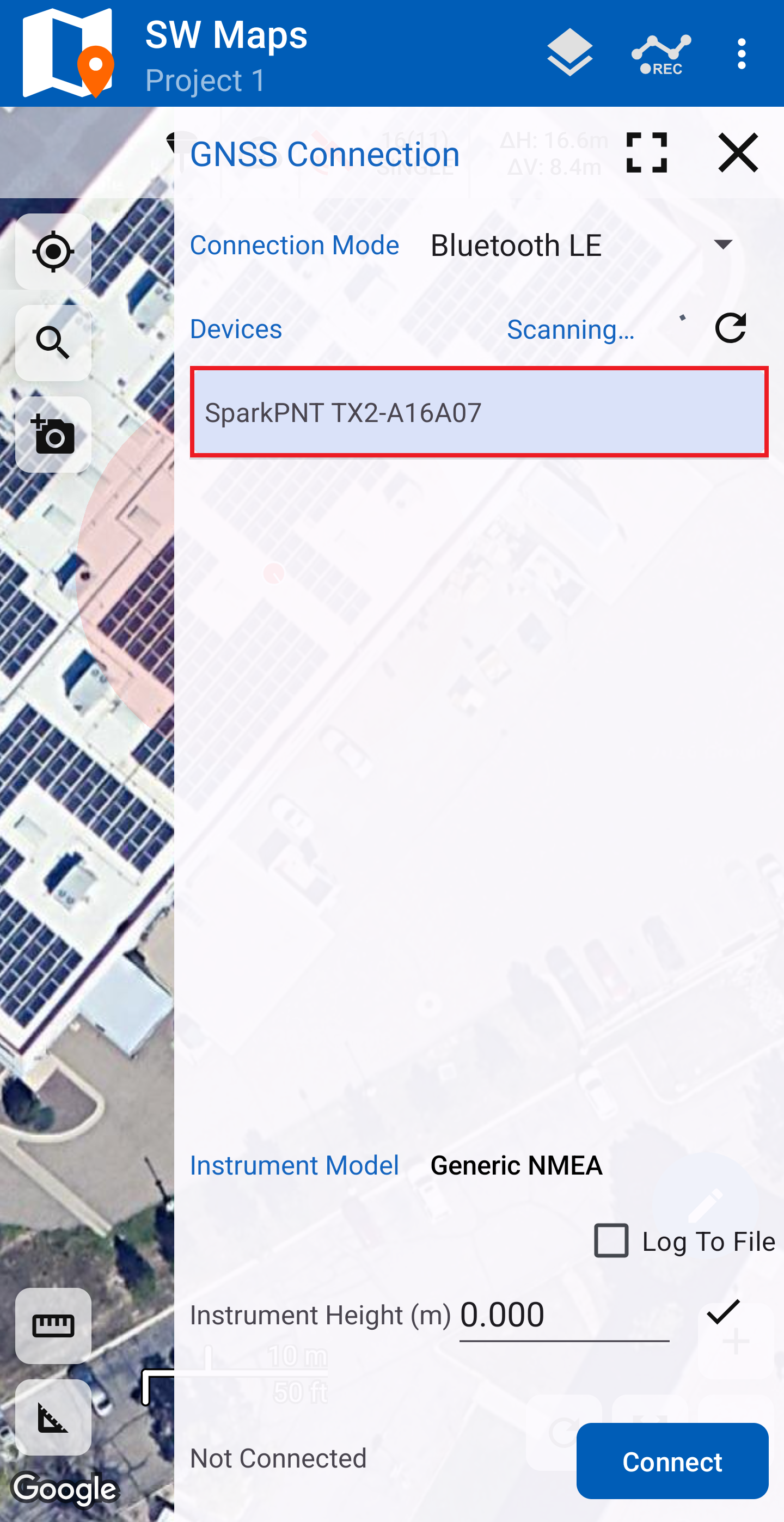
Click on the () refresh button and SparkPNT FPX-###### should appear in the list. If you don't see the FPX listed, double check the mobile device's Bluetooth connection and rescan for devices by clicking on the () refresh button.
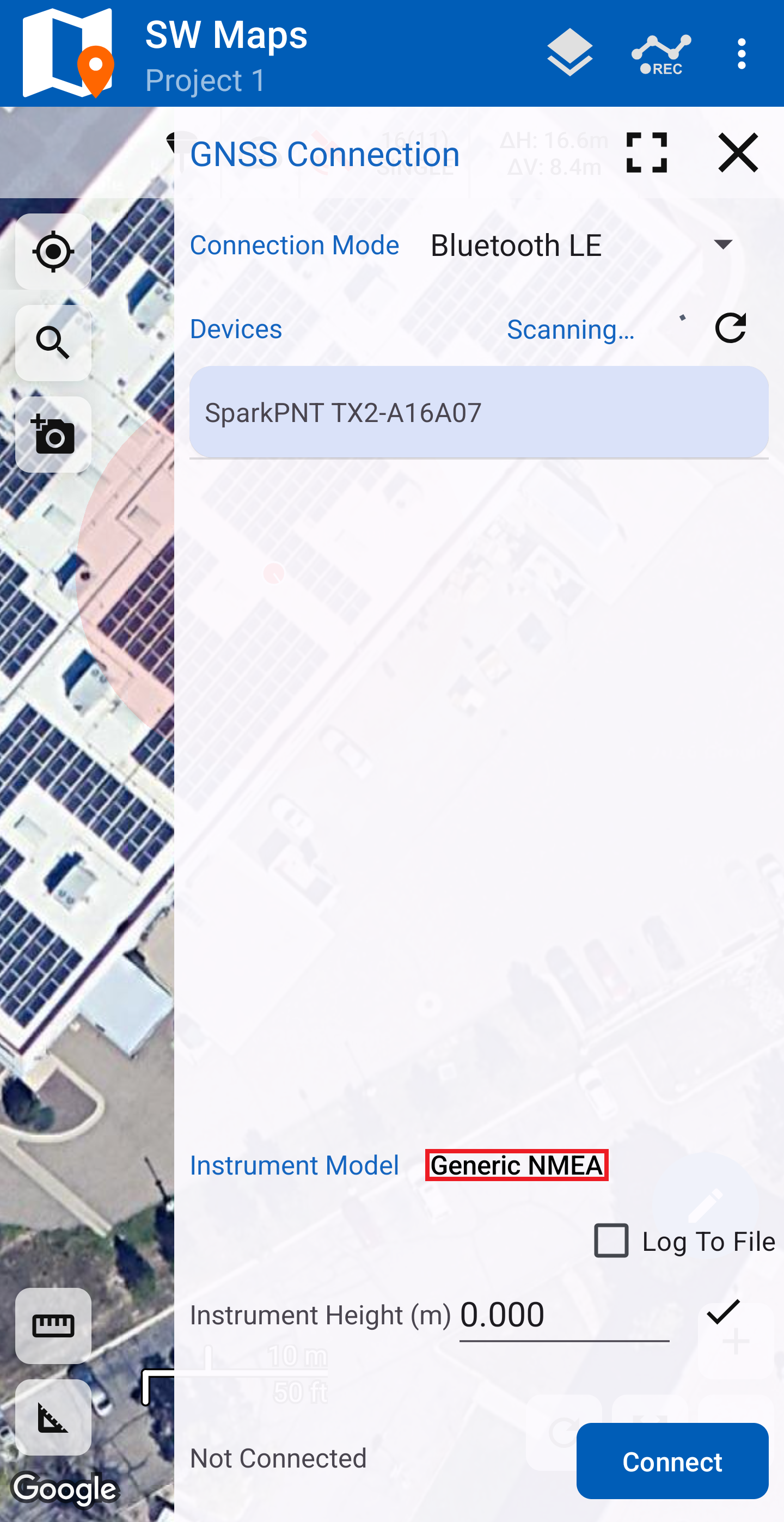
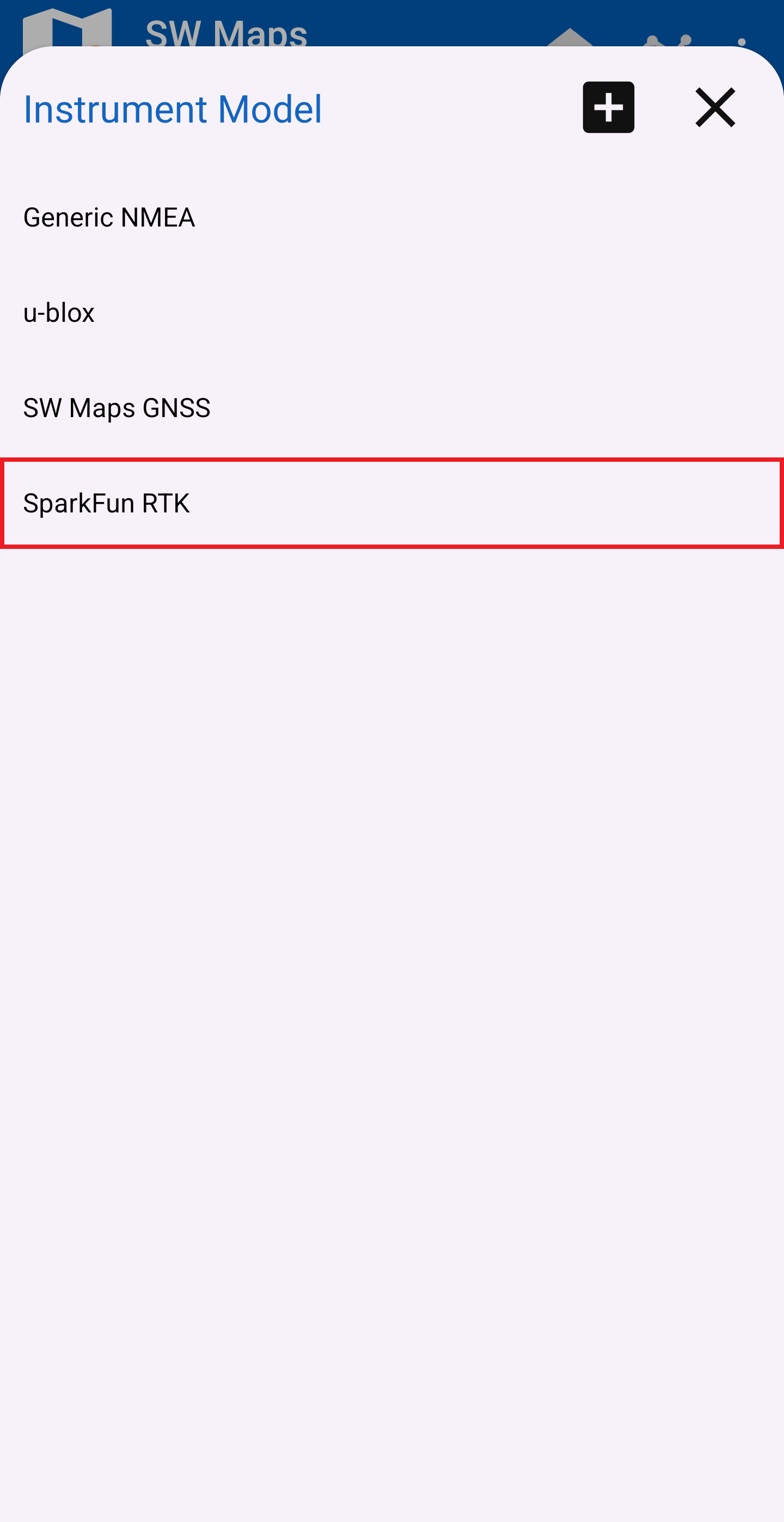
SparkFun RTK
Select SparkPNT FPX-###### from the listed devices. Then, click on the drop-down menu for Instrument Model and select SparkFun RTK.
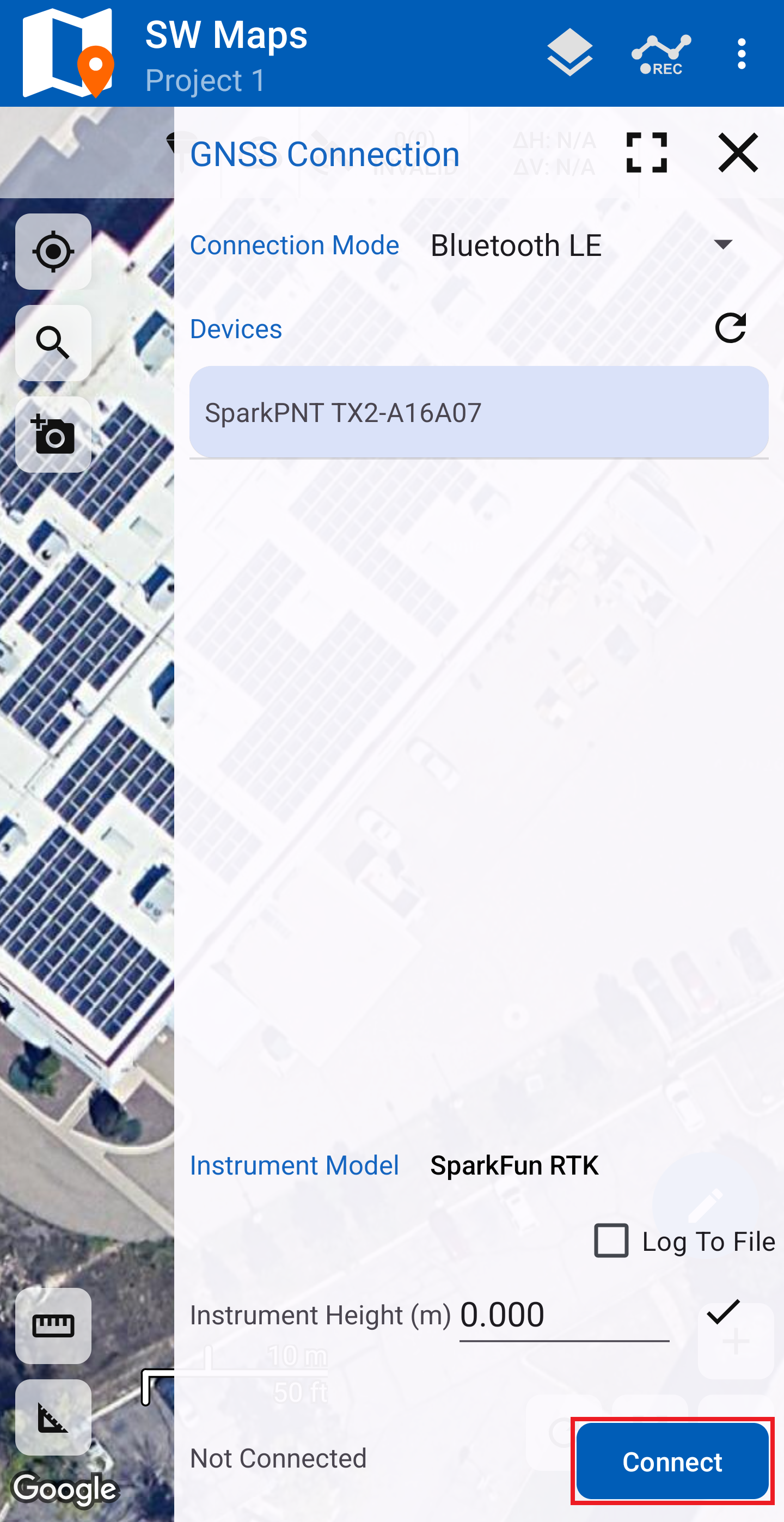
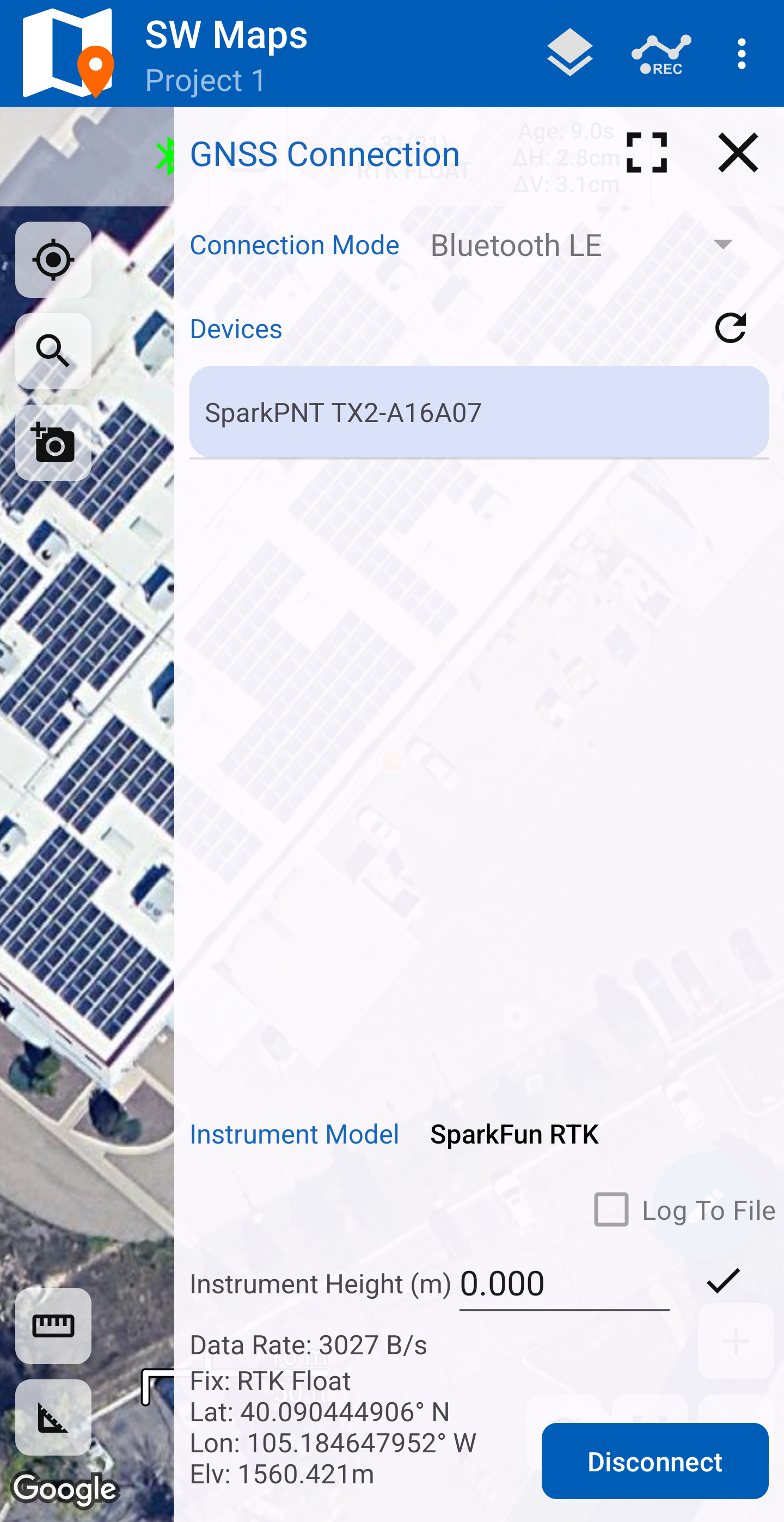
If you are taking height measurements (altitude) in addition to position (lat/long) be sure to enter the Instrument Height (m) of your antenna. See ARP and NRP for more information.
Depending on your use case, the instrument height can also be configured. Otherwise, click on the Connect button. Assuming the FPX is outside, you should immediately have a location fix displayed next to the Disconnect.
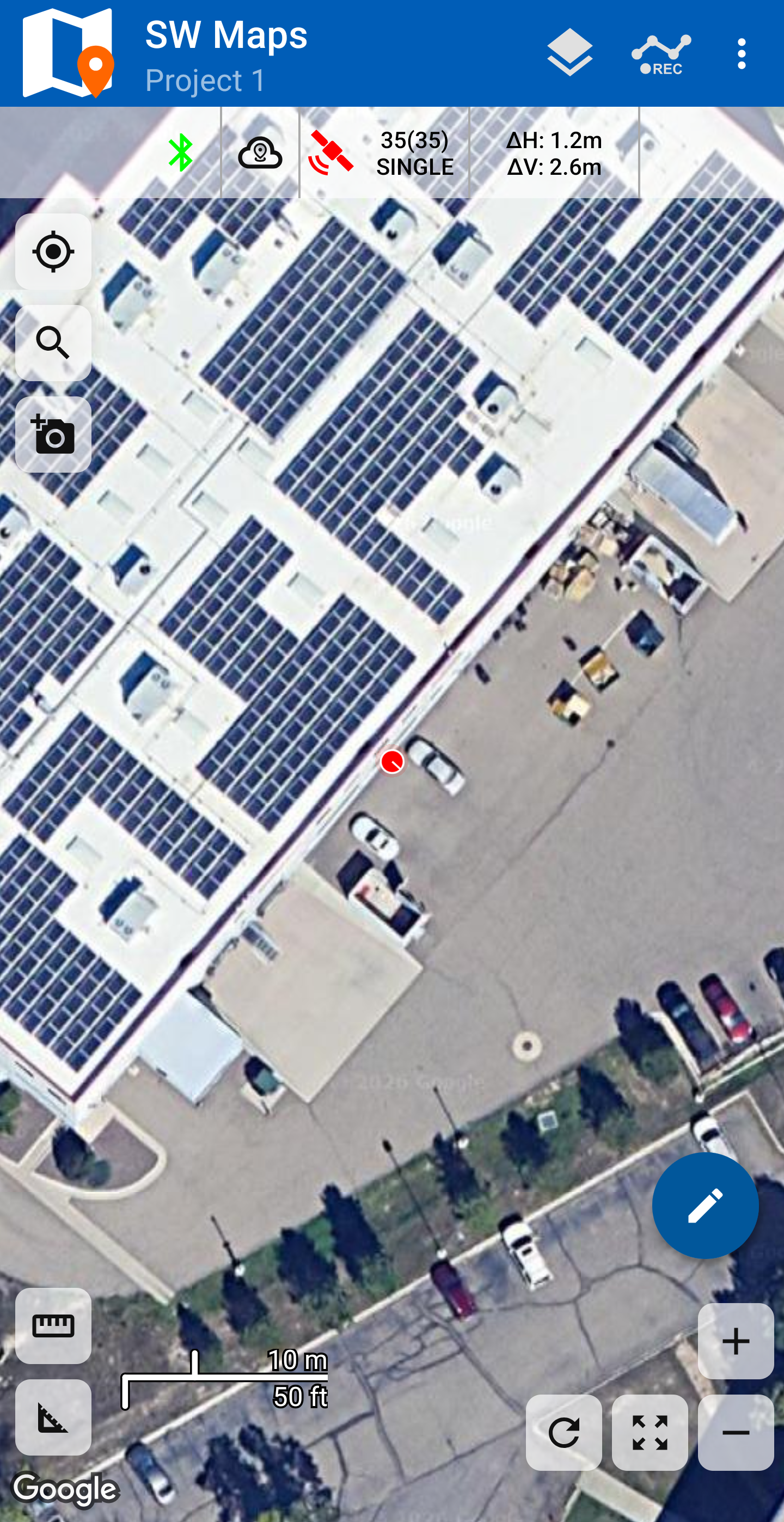
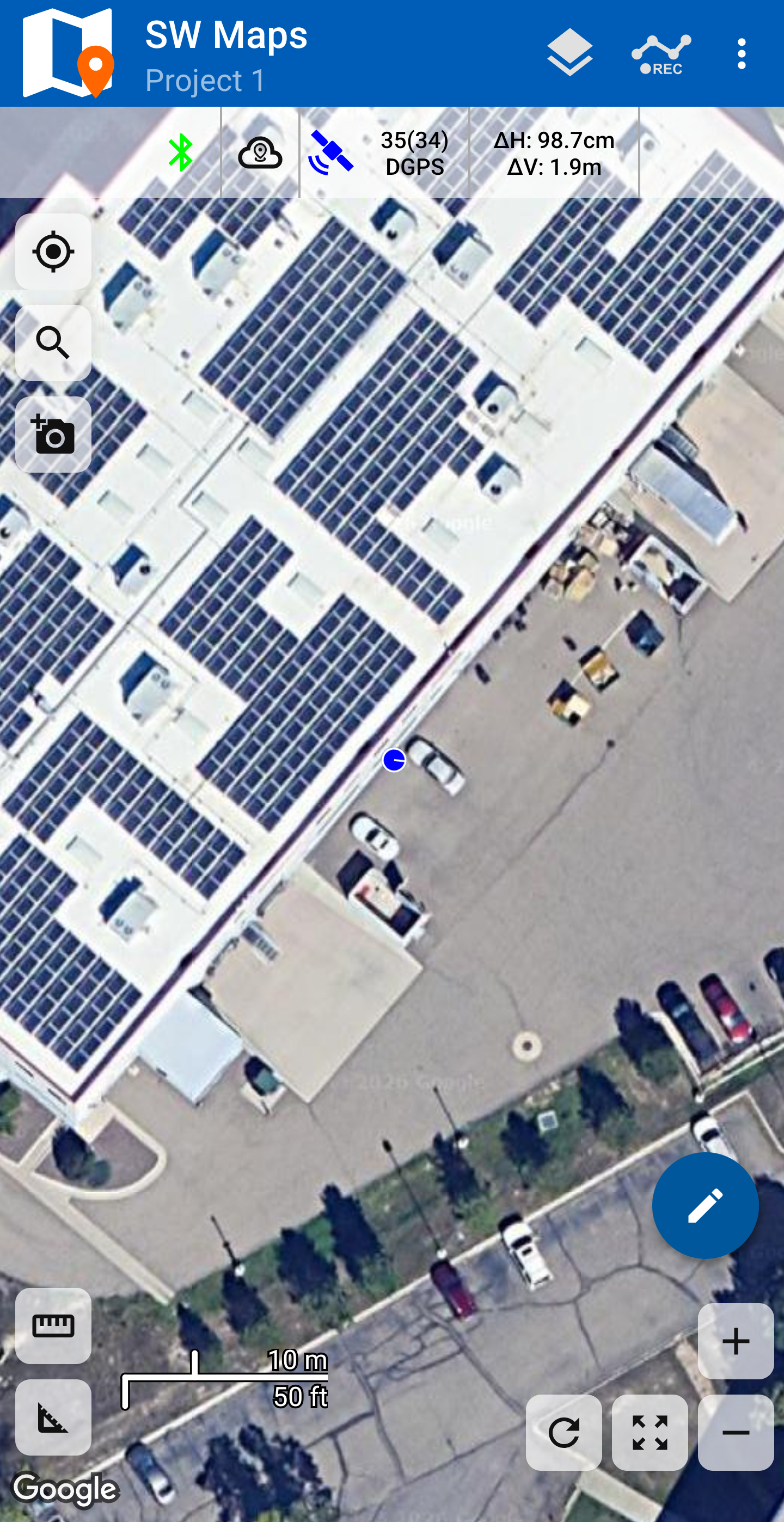
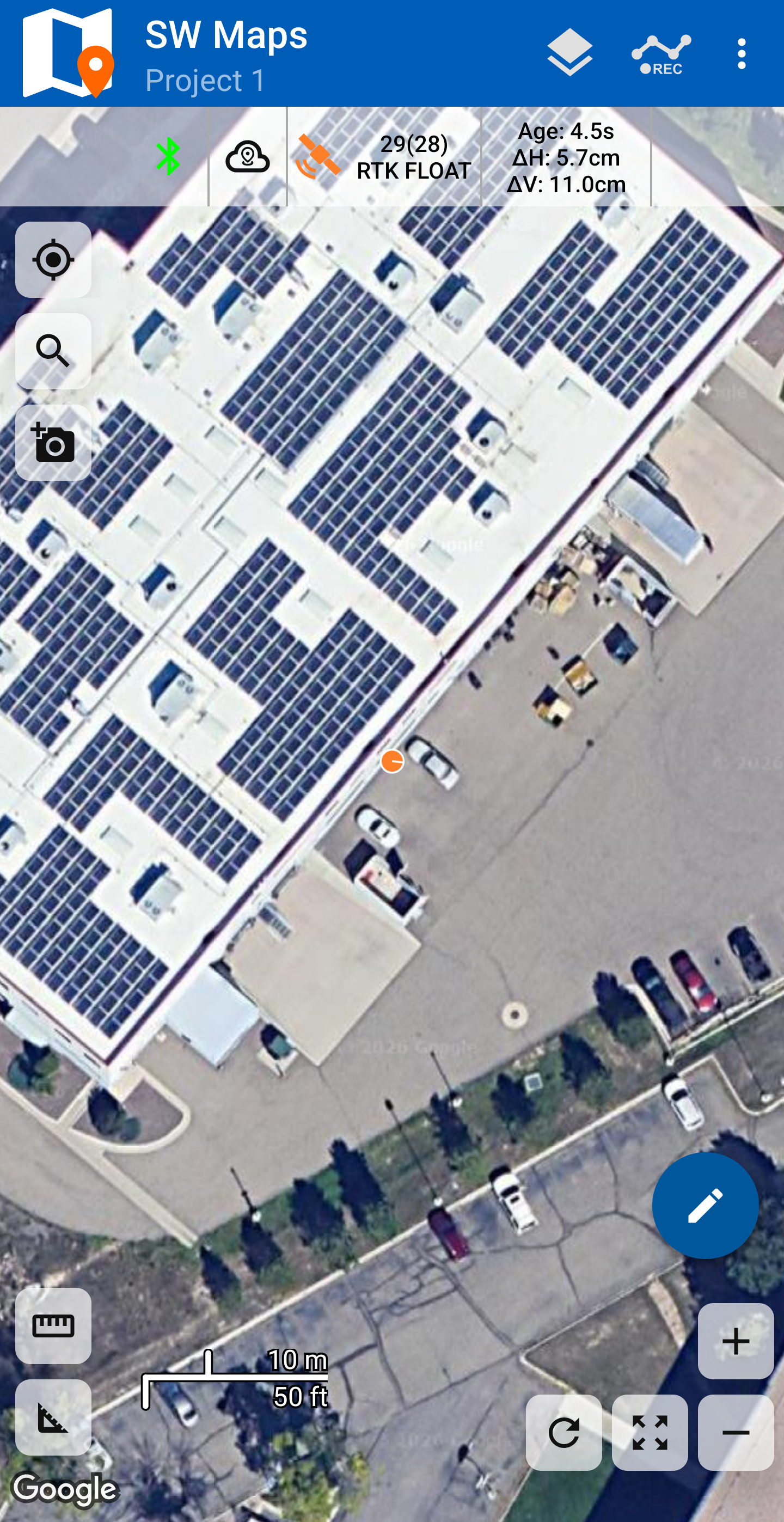
Close the GNSS Connection menu and your location will be displayed on the map. The () will change color based on the quality of the reported location.
NTRIP Client
We'll need to send RTCM correction data from the phone back to the FPX so that it can improve its fix accuracy. This is the amazing power of the SparkPNT products and SW Maps.
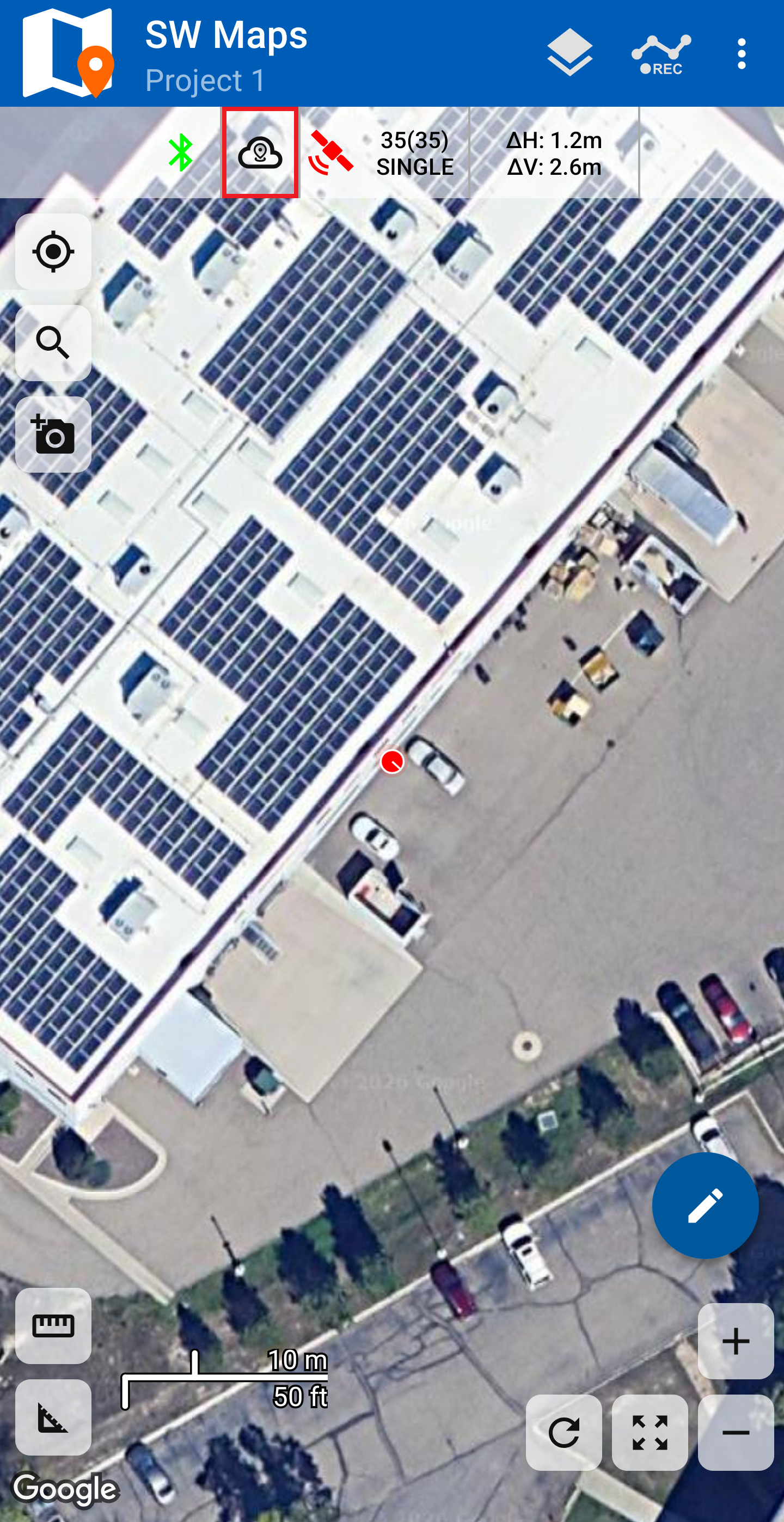
From the main screen of SW Maps, select the () cloud with a pin icon to open the NTRIP Client menu.
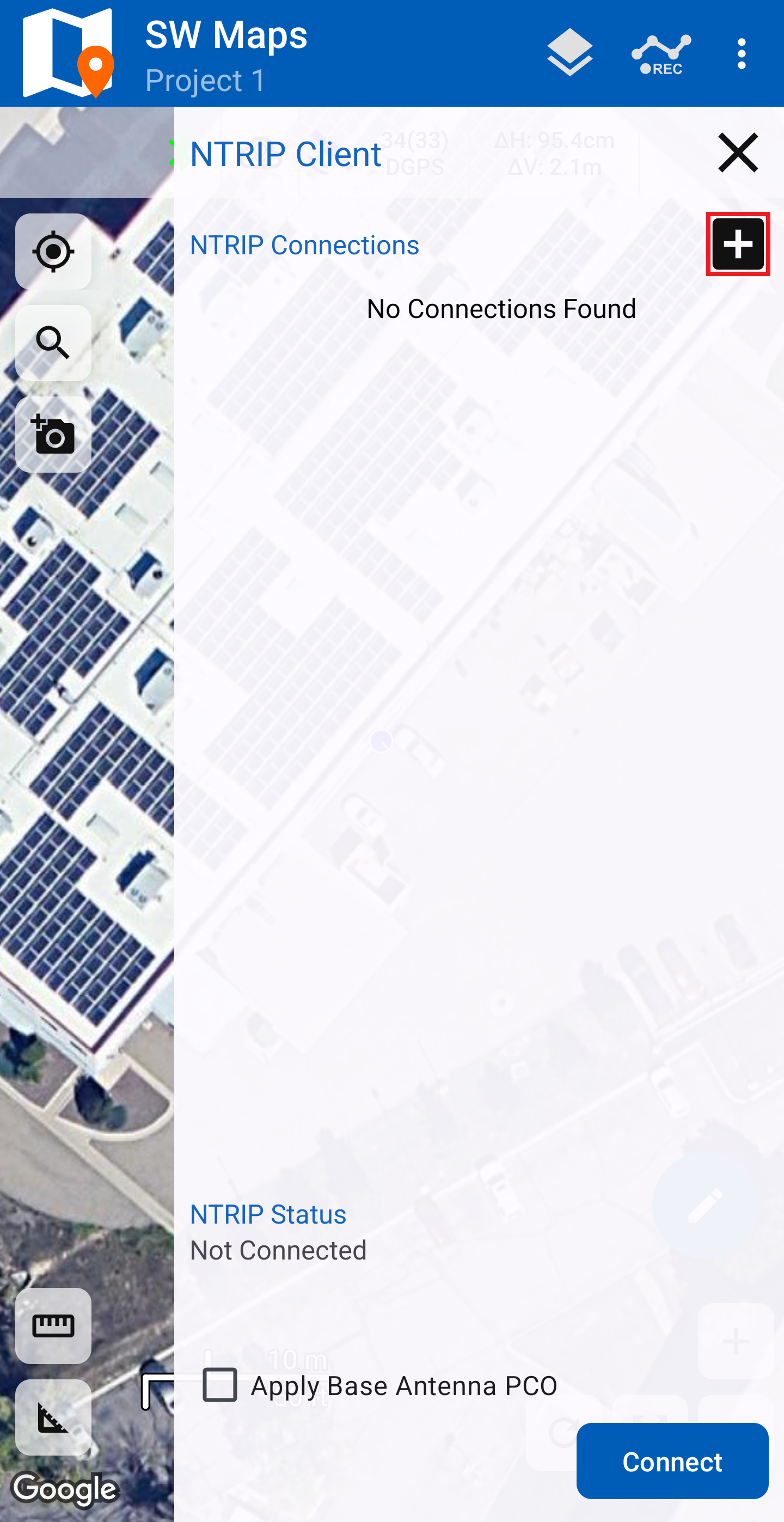
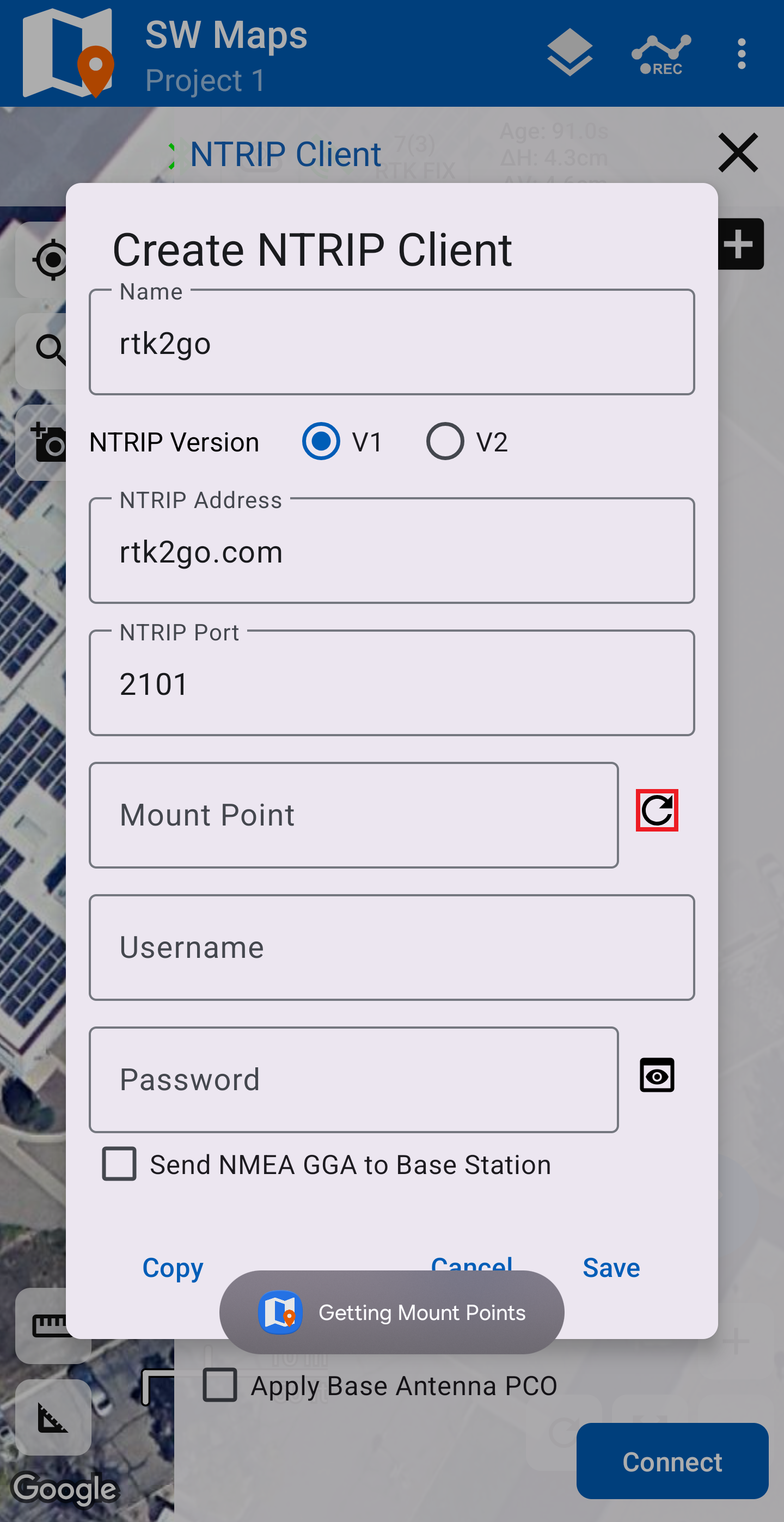
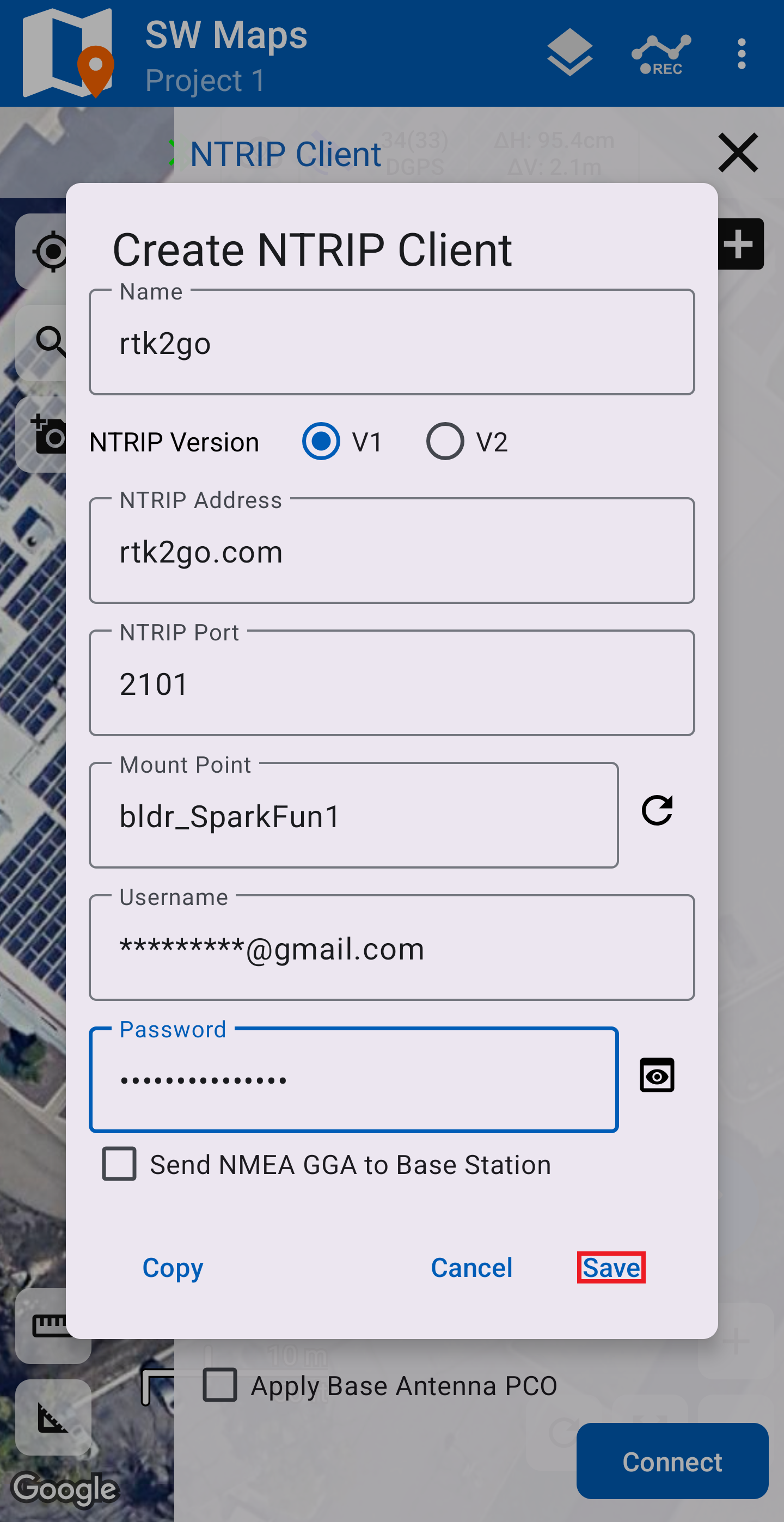
Users may need to select a Mount Point. After the Address and Port have been configured, click on the () refresh icon to access the list of available mount points. Some service may also require the Username and Password credentials to be configured, before the list of mount points can be accessed.
If this is your first time creating an NTRIP connection, you will be prompted to create one, click on the Yes button. Otherwise, click on the () plus icon next to NTRIP Client to create a new connection. Enter the connection details and credentials for your NTRIP server. To retreive a list of mount points from the NTRIP server, click on the () refresh button after the credentials have been entered. Then, select a mount point and save the configuration by clicking on the Save button.
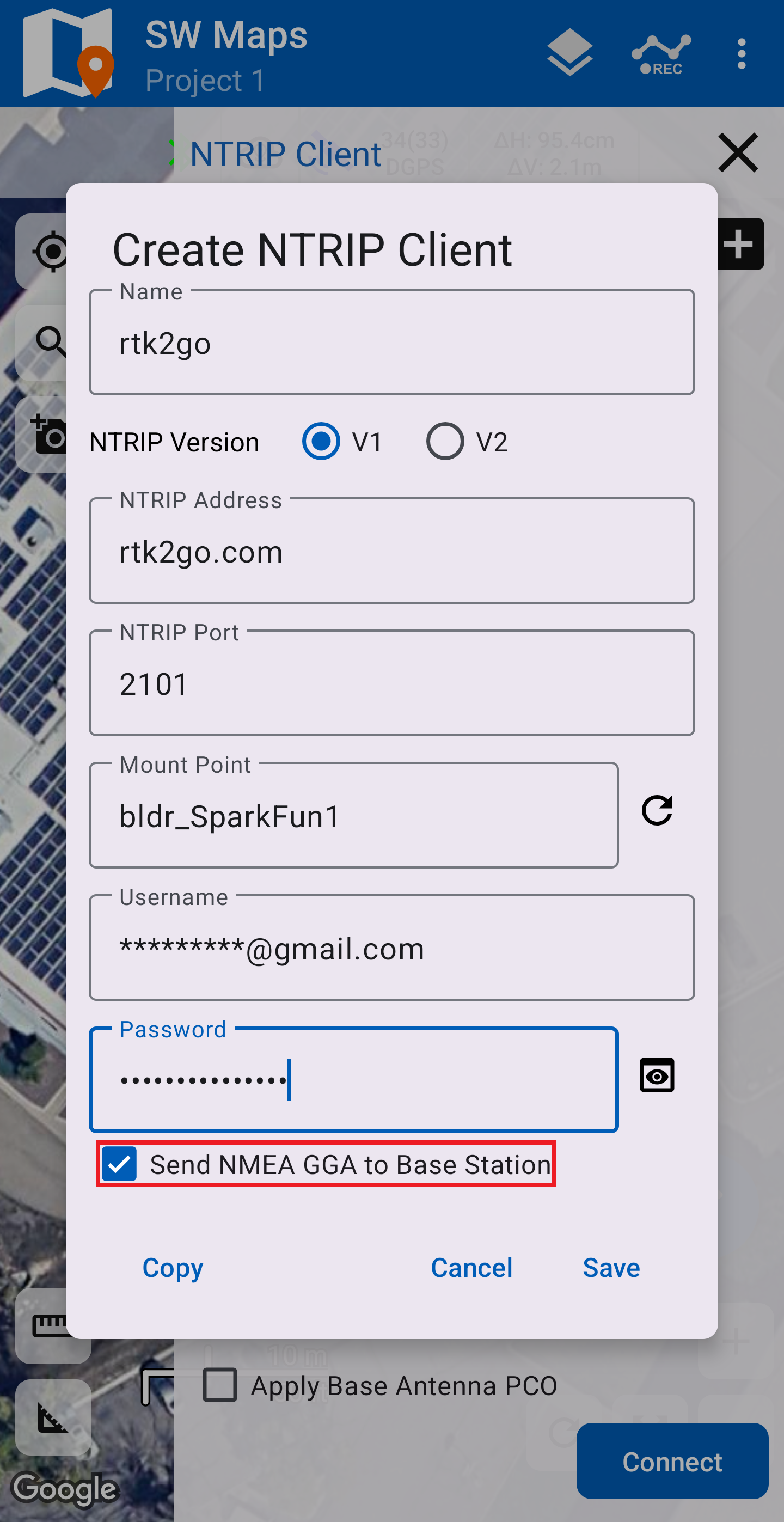
GGA messages for the NTRIP server
Depending on the NTRIP server, users may need to enable the GGA messages to be sent to the caster. In our experience, these messages are required to be sent ~10-20 seconds.
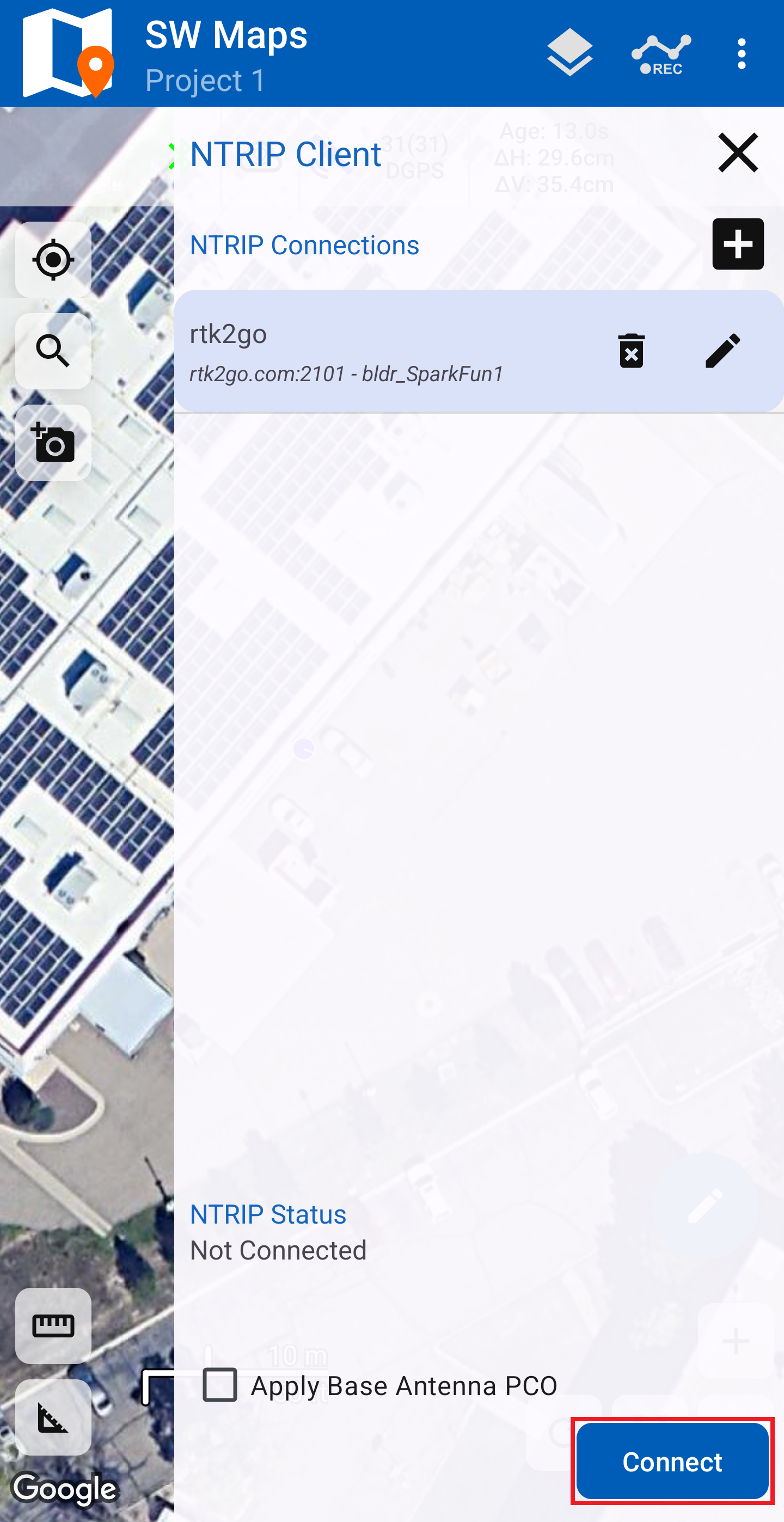
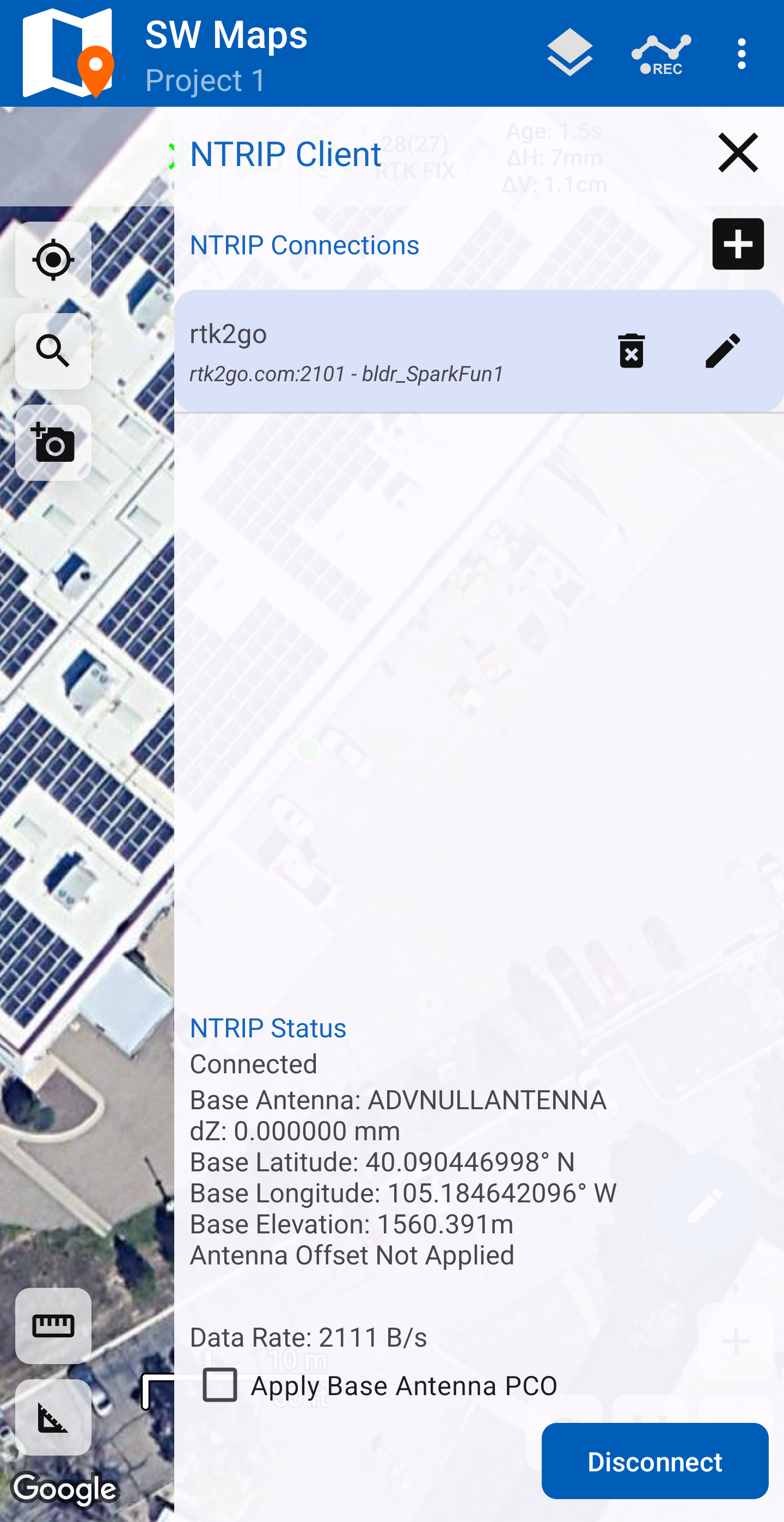
Once the configuration is saved, the NTRIP server should be listed in the NTRIP Client menu. Click on the NTRIP server followed by the Connect button. When connected, the NTRIP caster's information will be displayed below along with the data transfer. SWMaps will then transfer the RTK correction data from the NTRIP server and pass it to your FPX over Bluetooth BLE.
If you get a Connection Failed error it is likely that username and/or password was incorrect. Otherwise, you double check if you need to enable GGA messages for the NTRIP server.
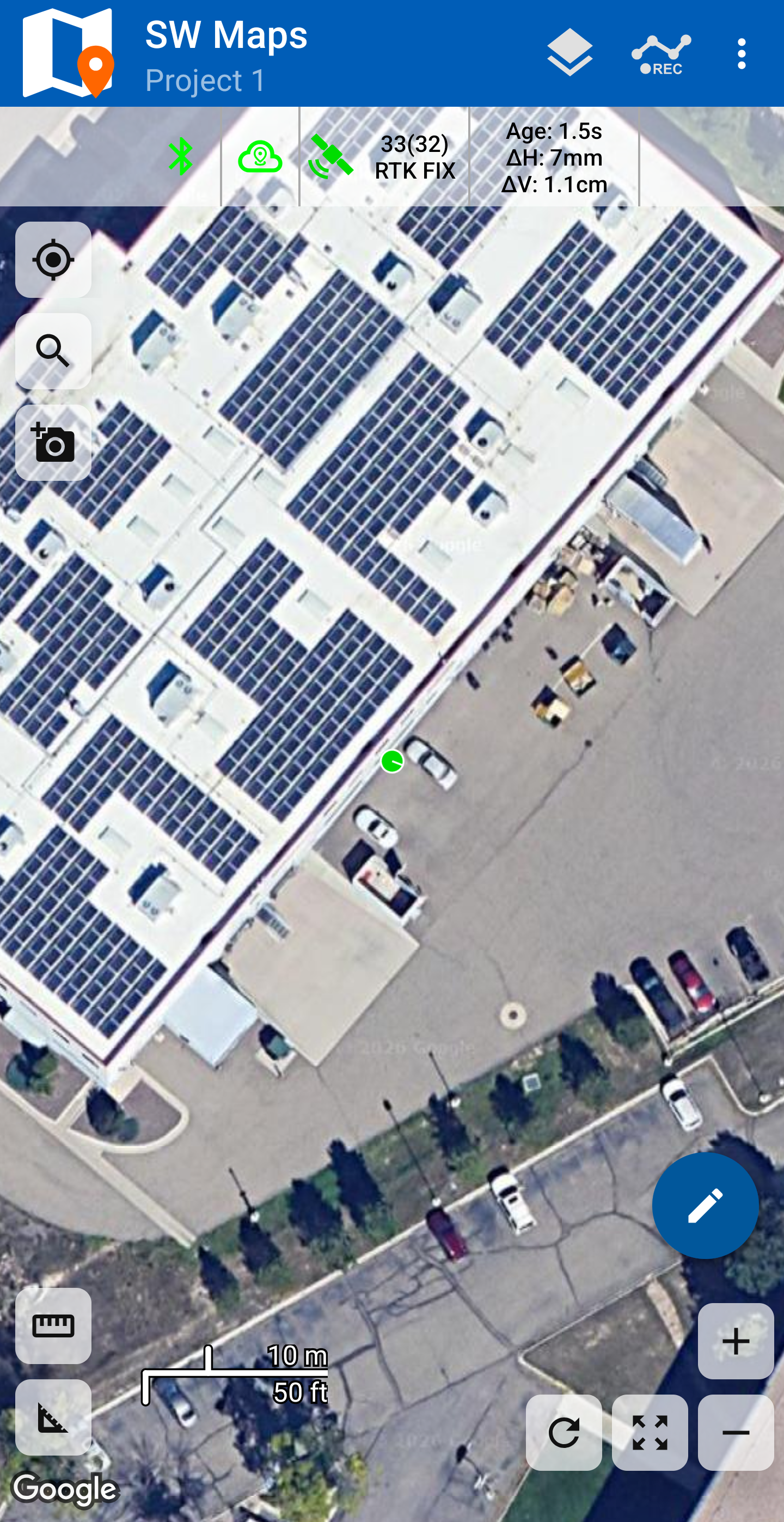
In the main screen, the indicators at the top should have all turned green, indicating that the FPX is paired, the NTRIP client is receiving data, and that the FPX has an RTK fix. For more details about the location status, users can click on the satellite icon.
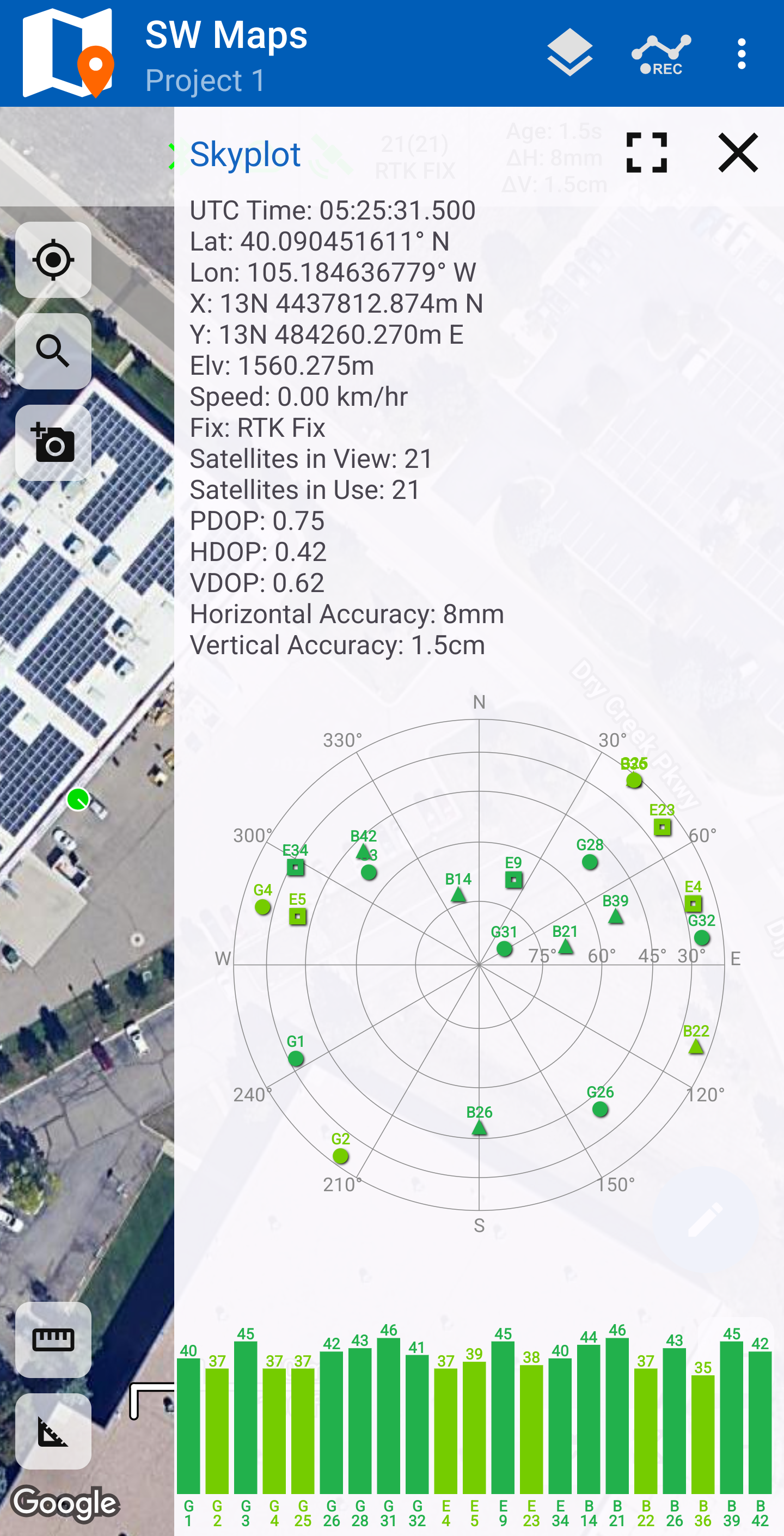
You can open the GNSS Status sub-menu from the main menu to view the current data. This menu is also accessible by clicking on the () satellite icon from the main display.
Use With Other GIS Apps
With SW Maps operating the NTRIP client, the FPX's position can be utilized in another GIS app. Simply open another GIS app and connect to the FPX listed under the Bluetooth devices.