The mosaic-T module is sensitive to ESD. Use a proper grounding system to make sure that the working surface and the components are at the same electric potential.
As recommended by the manufacturer, we highly encourage users to take the necessary precautions to avoid damaging their module.
We have intentionally kept the ESP32 firmware as simple as possible - it only disciplines the TCXO oscillator and controls the OLED display. The SparkFun RTK Firmware or SparkFun RTK Everywhere firmware will not run on this product. The intention is that you can easily develop your own firmware for the GNSSDO(+) if the SparkFun firmware does not meet your needs.
The /Firmware/Binaries folder contains the firmware binaries.
You can update or reload the firmware using the SparkFun RTK Firmware Uploader.
You can of course modify the hardware too, should you want to. The design is completely open-source.
Hardware Overview
In this section, we walk you through the hardware design, interfaces, I/O connections, power options and more.
Power Options
The mosaic-T and the ESP32 both required 3.3V power. To simplify the power circuitry, the four power sources are combined into a common 5V rail which then feeds individual 3.3V regulators for the mosaic-T and the ESP32.
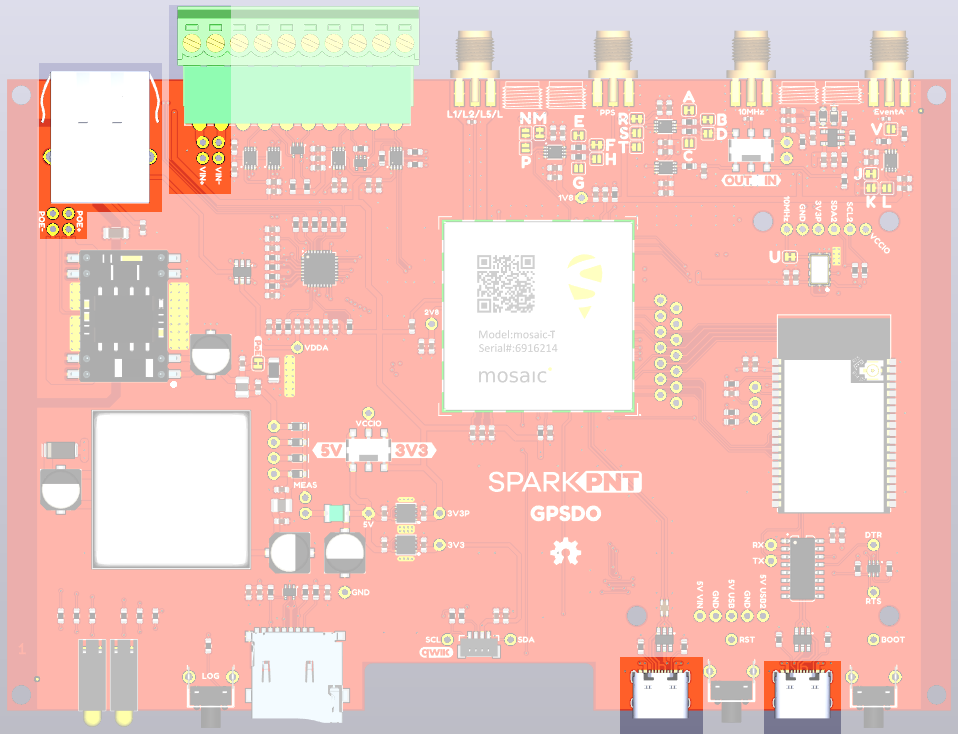
The GNSSDO can be powered individually or in combination, with any of the following:
USB Ports- 5V; delivered via theMOSAIC CONFIGand/orESP32 CONFIGUSB-C connectors.Power-over-Ethernet- Range: 36 to 57V; delivered via theMOSAIC ETHERNETRJ45 MagJack connector.External DC Power- Range: 9 to 36V; delivered via theVIN+andVIN-screw cage terminals.
Powering the GNSSDO+ takes a little more thought and care. The double-oven oscillator in the GNSSDO+ draws more current than a standard USB (2.0) port can provide. You need to ensure that you use the provided 65W Power Delvery Wall Adapter if you are going to power the GNSSDO+ from USB. Also, the GNSSDO+ includes a Power Path priority circuit. From highest to lowest, the Power Path priorities are:
Power-over-Ethernet- Range: 36 to 57V; delivered via theMOSAIC ETHERNETRJ45 MagJack connector.External DC Power- Range: 9 to 36V; delivered via theVIN+andVIN-screw cage terminals.CONFIG ESP32 USB Port- 5V from a Power Delivery Wall Adapter; delivered via theCONFIG ESP32USB-C connector.CONFIG MOSAIC USB Port- 5V from a Power Delivery Wall Adapter; delivered via theCONFIG MOSAICUSB-C connector.
If you have the CONFIG ESP32 USB Port connected to a standard USB (2.0) port, it will not be able to provide enough current. And due to the Power Path priority, it will not preferentially draw power from CONFIG MOSAIC USB Port. Your options are:
- Provide power via
Power-over-EthernetorExternal DC Powersince these have higher priority - Install a power switch in the
CONFIG ESP32 USB Portcable to disconnect its power, forcing the GNSSDO+ to draw Power Delivery power from theCONFIG MOSAIC USB Port.
If you have CONFIG MOSAIC USB Port connected to a standard USB (2.0) port, ensure the Power Delivery Wall Adapter is connected to CONFIG ESP32 USB Port. The Power Path priority will ensure power is drawn from the CONFIG ESP32 USB Port.
Consult page 9 of the GNSSDO+ schematic for more details
If you want to measure the board's current draw, you can open the MEAS jumper and measure the current via a pair of breakout pads (see the Jumpers section).
Diodes are used to combine and protect the power sources from each other. Also, a 2A resettable fuse (green) provides additional protection.
For more details, users can reference the GNSSDO schematic, GNSSDO+ schematic and the datasheets of the individual components on the board.
- USB-C Connectors
- Power-over-Ethernet (PoE)
- External DC Power (VIN)
The mosaic-T and ESP32 both have USB-C connections. These USB ports can be used to power the GNSSDO during the initial configuration when the mosaic-T or ESP32 are connected to a computer. For GNSSDO+, ensure you are using the provided Power Path Wall Adapter as described above.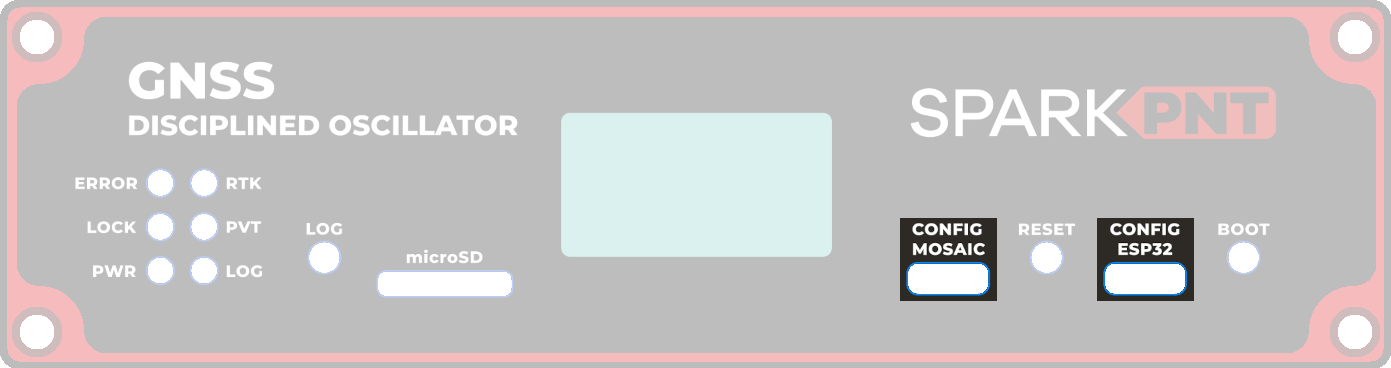
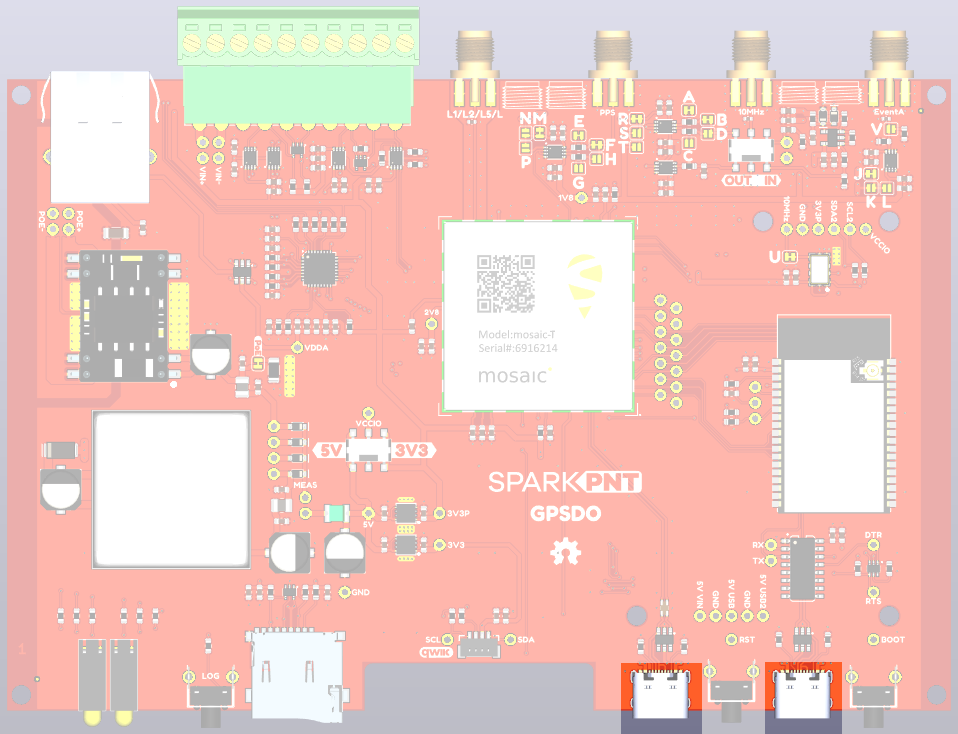
The CH340 allows the ESP32-WROVER to communicate with a computer/host device through the USB-C connection. This allows the ESP32 to show up as a device on the serial (or COM) port of the computer. Users will need to install the latest drivers for the computer to recognize the CH340 (see USB Driver section).
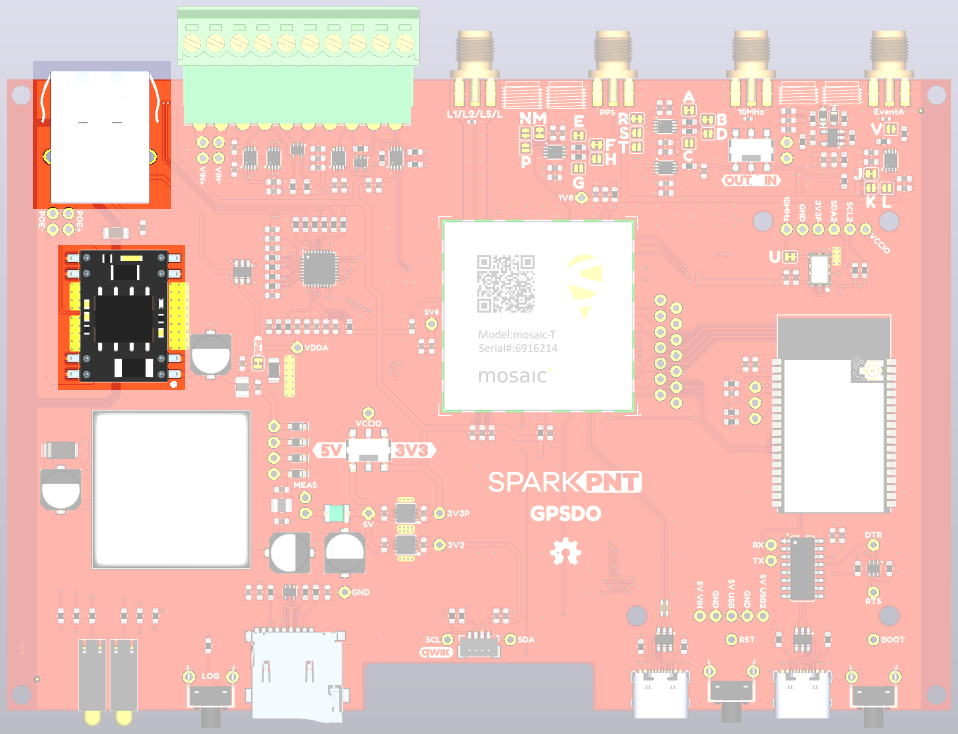
The mosaic-T Ethernet port supports Power-over-Ethernet (PoE), allowing the GNSSDO(+) to be powered by the network. This is very useful when the GNSSDO(+) is mounted remotely - perhaps in a weatherproof box up on the roof. Data and power can be delivered through a single cable, avoiding the need for a separate power connection.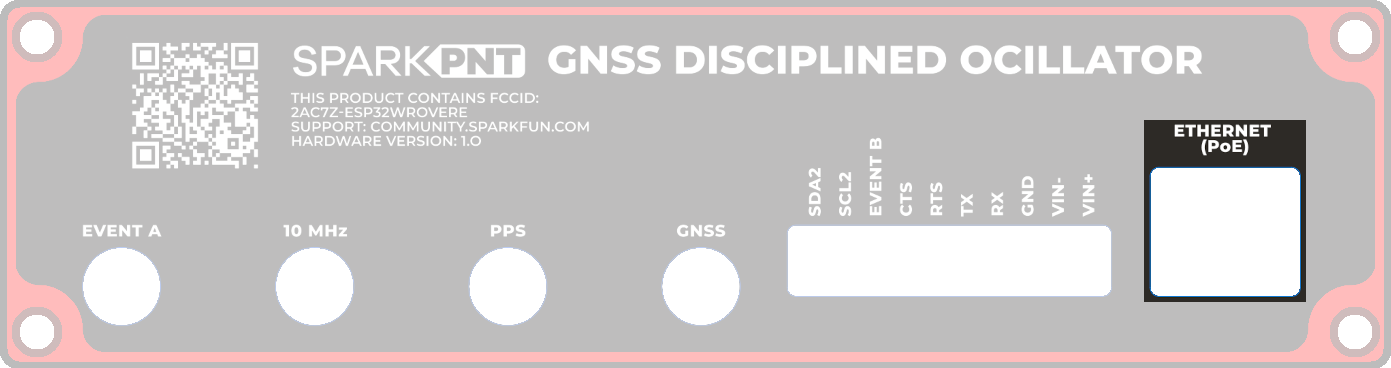
The GNSSDO(+) includes a fully-isolated DC-DC converter, for applications where you may want to power the unit from a vehicle. The DC-DC converter accepts DC voltages between 9V and 36V, regulating this down to 5V. The converter is fully isolated to 1.5kV and operates with ~90% efficiency.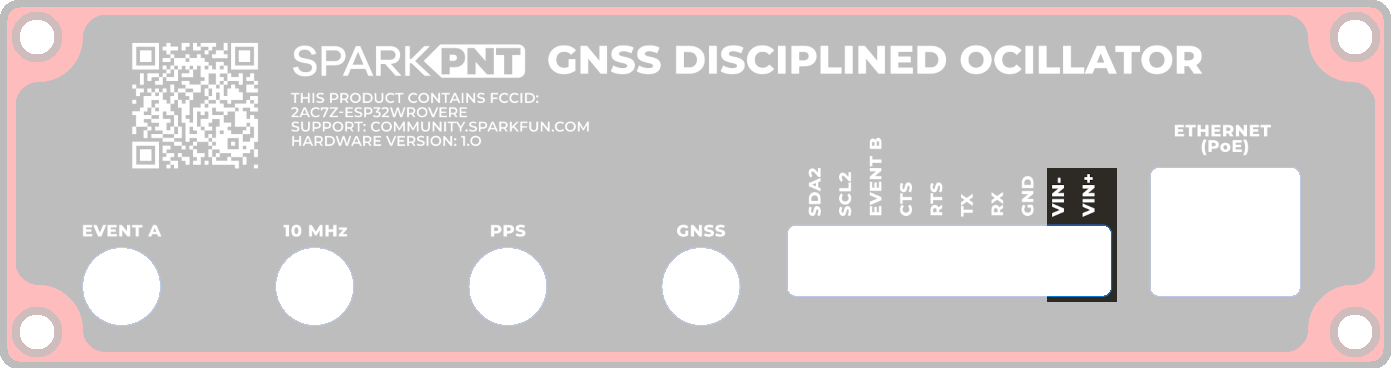
VIN+ and VIN- screw terminal pins for the external DC power input.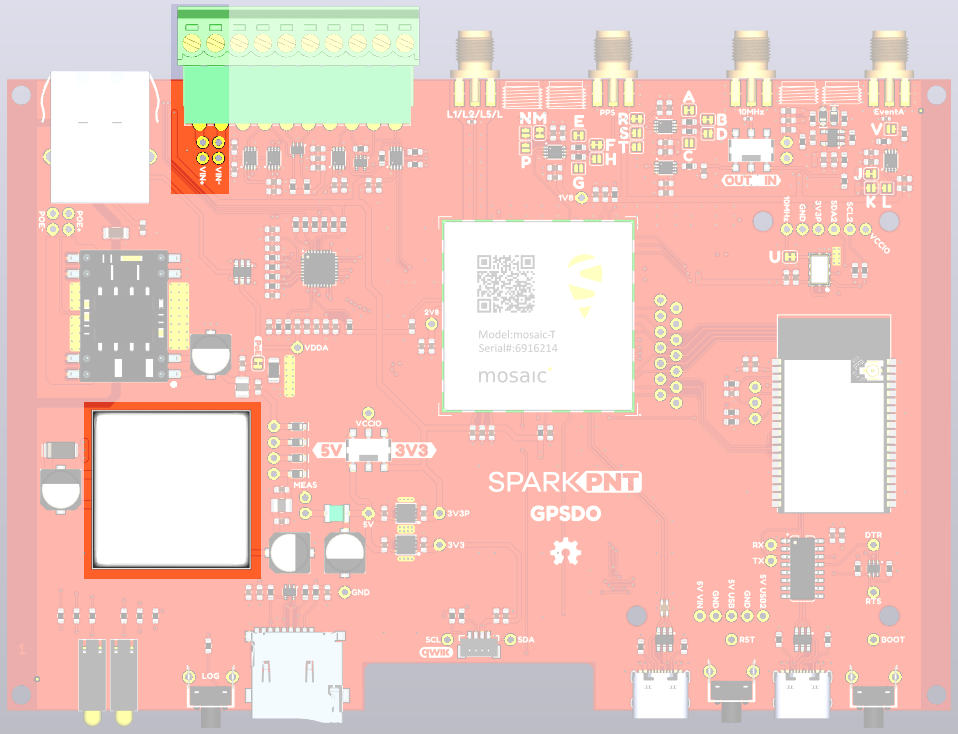
For 12V or 24V vehicle power:
- Connect 12V or 24V to the
VIN+screw cage terminal - Connect 0V (chassis) to the
VIN-screw cage terminal
Additionally, make sure that the power source from the vehicle is not directly tied to the vehicle's battery, Always On, or accessory circuits. Otherwise, users will risk draining the battery while the engine is off.
We recommend locating the ignition on or switched power circuit, which is only powered when the key is in the On position and the engine is running.
The On position, is where a key normally rests after the engine is started. However, users can still move the key from the Off position and into the On position without starting the engine. In this case, the alternator is not running and keeping the battery charged.
Modern eco-efficient vehicles may automatically shut down the engine if the vehicle is idling too long. Therefore, cutting off the vehicle's alternator that keeps the battery charged. Luckily, most vehicles with this automatic start/stop technology will monitor the battery's voltage and restart the engine when required. With this in mind, users may want to initially monitor their battery voltage, in case their vehicle isn't "so smart" 😅.
If desired, users can link VIN- to the adjacent GND screw cage terminal. However, this will bypass the voltage isolation and could introduce an unwanted ground loop, particularly if the GNSS antenna ground (shield, 0V) is also connected to the chassis.
mosaic-T
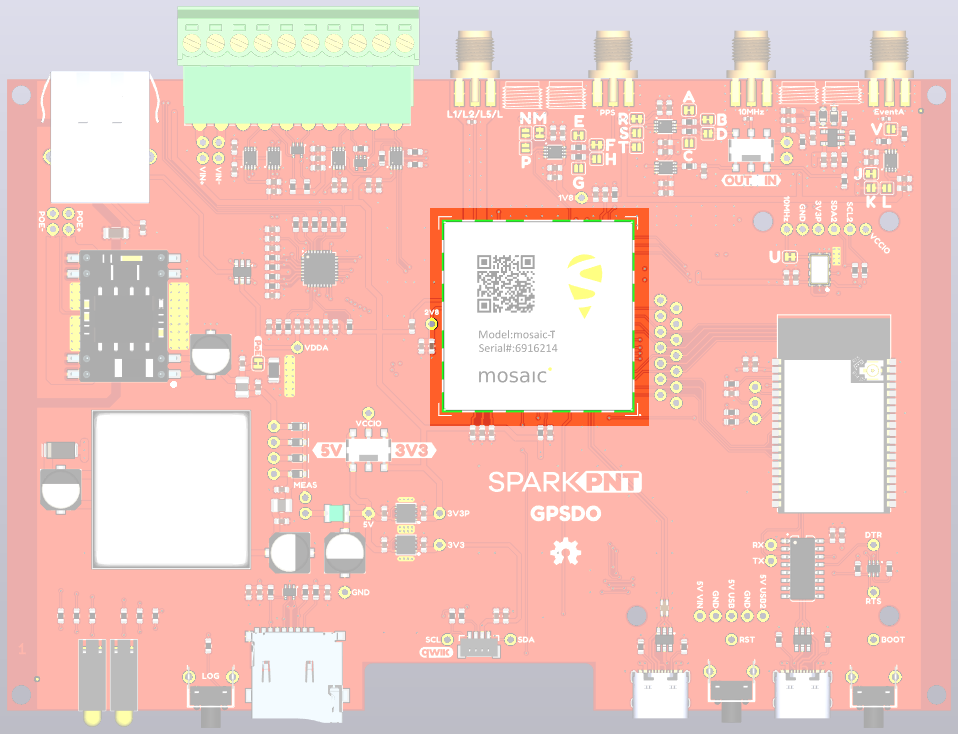
The heart of our product is of course the mosaic-T GNSS module from Septentrio. It is a very sophisticated chip with multiple interfaces: UARTS, USB and Ethernet. On GNSSDO, the GPIO1 and GPIO2 pins are available as 0.1" test points should you need access to them. On GNSSDO+, GP1 and GP2 are available on the 10-way screw cage connector.
ESP32-WROVER
The ESP32 processor is there to control (discipline) the 10 MHz TCXO oscillator and the OLED display. We have deliberately kept the ESP32 firmware as simple as possible. The intention is that you can write your own firmware using the Espressif IDF or Arduino IDE if you need to.
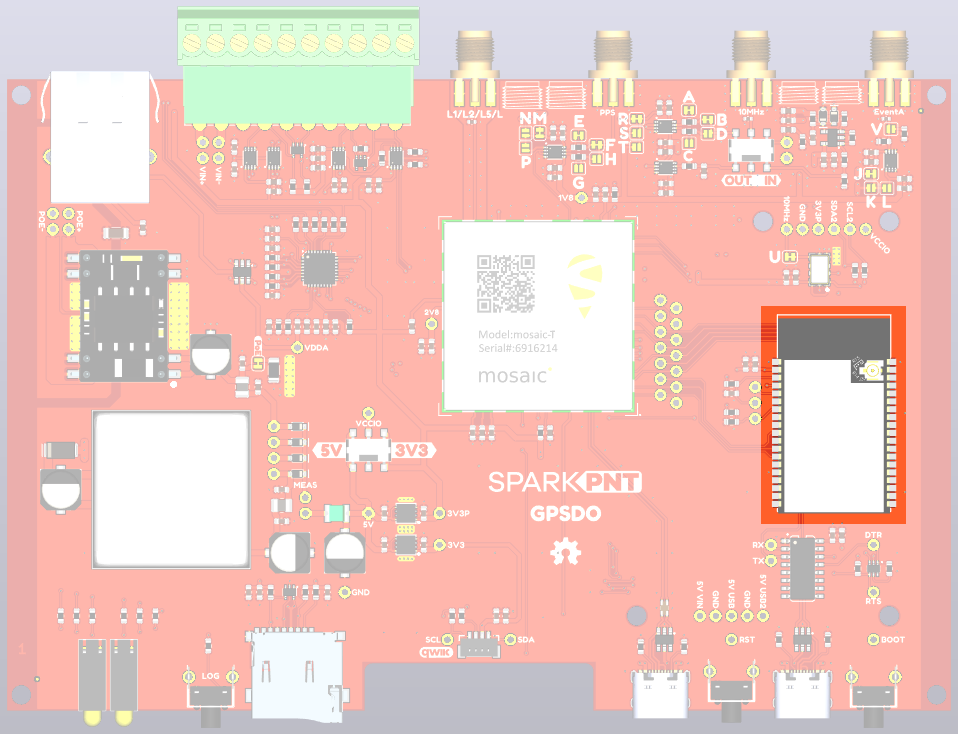
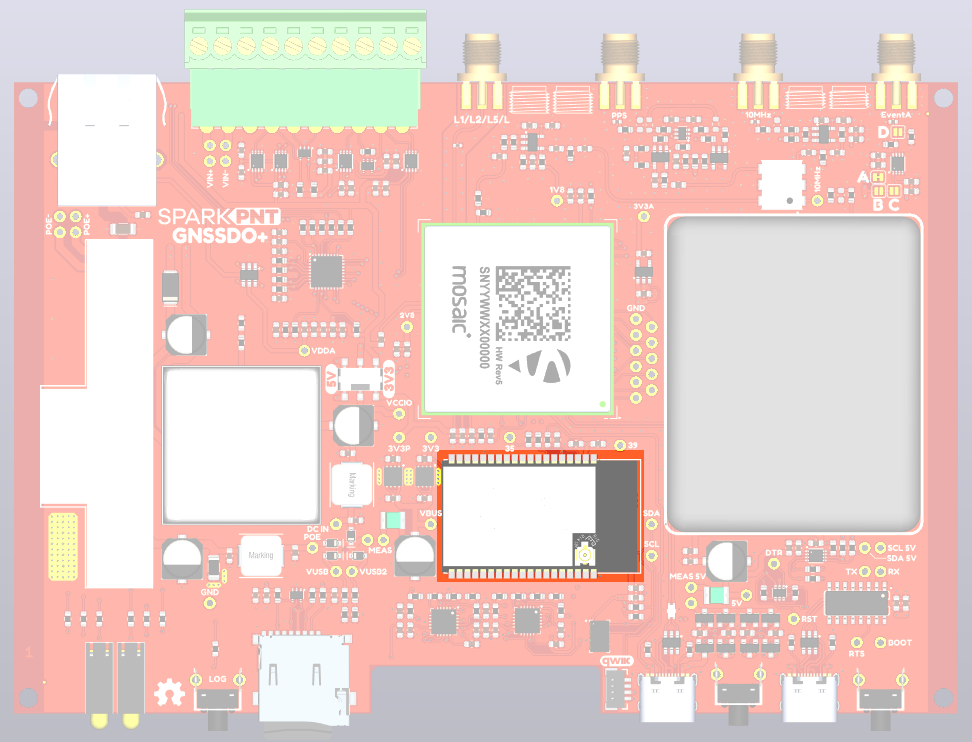
Think of the ESP32 as a co-processor, or riding shotgun... The mosaic-T COM1, COM3 and COM4 UARTs are linked to the ESP32, allowing the two to communicate directly without needing an Ethernet link. In our firmware, the PVTGeodetic and ReceiverTime messages are output on COM1. The ESP32 displays some of their content on the I2C OLED display, and then uses the content to discipline the TCXO oscillator. See Oscillator for more details.
We have intentionally kept the ESP32 firmware as simple as possible. The intention is that users can easily develop their, own firmware for the GNSSDO(+) using the Espressif ESP IDF or the Arduino IDE if the SparkFun firmware does not meet their needs.
The /Firmware/Binaries folder contains the firmware binaries.
You can update or reload the firmware using the SparkFun RTK Firmware Uploader.
The ESP32-WROVER-IE antenna is not connected. If you write your own firmware and want to use BT/WiFi connectivity, you will need to attach your own antenna to the u.FL connector on the ESP32 module.
Ethernet PHY Interface
The mosaic-T has a KSZ8041NLI Ethernet PHY interface, connected using a Reduced Media-Independent Interface (RMII).
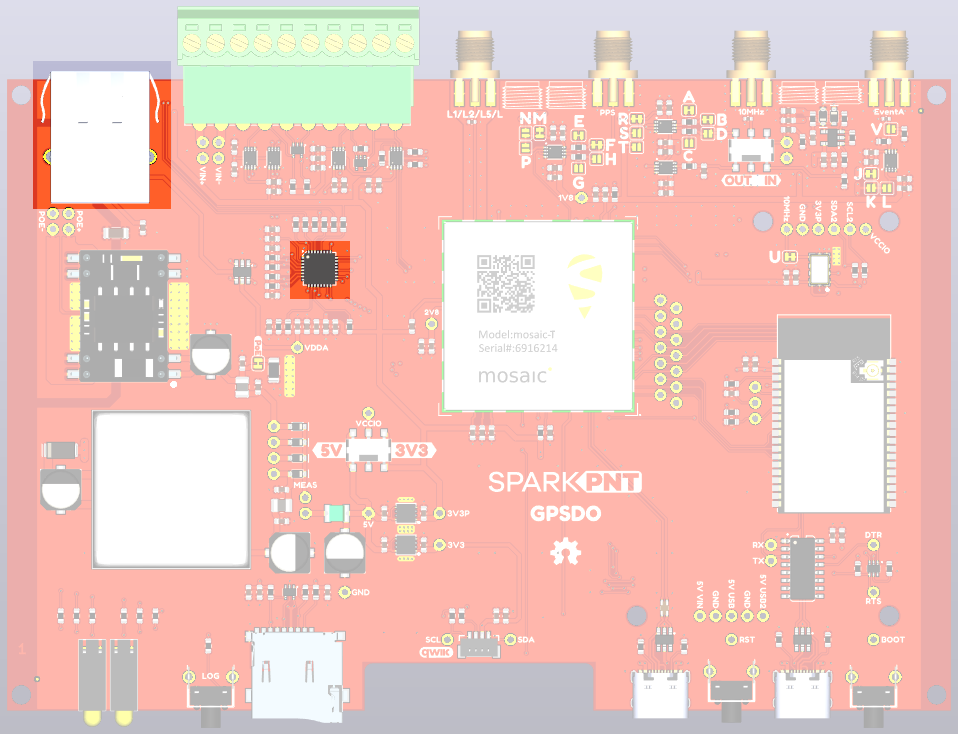
Check the Ethernet interface is enabled. It may be disabled. Connect via the CONFIG MOSAIC USB-C port and open 192.168.3.1 on a web browser. Check the Communication \ Ethernet sub-page.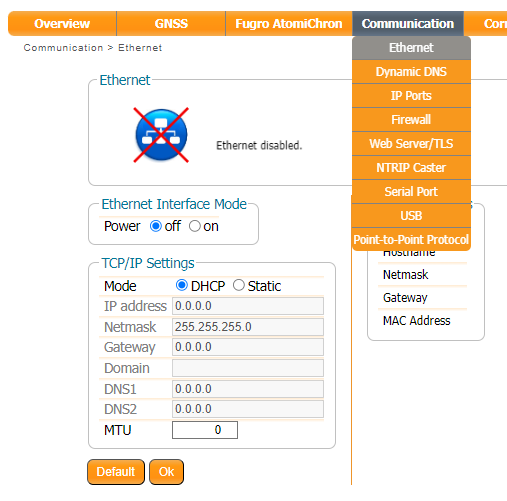
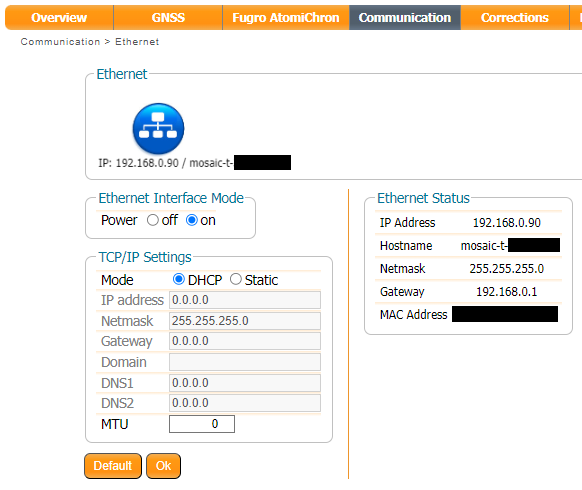
By default, the mosaic-T Ethernet port is configured for Dynamic Host Configuration Protocol (DHCP). It expects the router / Ethernet switch to provide it with an IP address. If the IP address is all zeros (0.0.0.0), check that your router has DHCP enabled. Most do.
If you need a static IP address, you can configure this through the mosaic-T's Communication \ Ethernet sub-page.
Subnet 3 is reserved for the mosaic-T's USB-C connection (Ethernet-over-USB). If your router / switch is allocating addresses using subnet 3 (192.168.3.***), please change its settings so it uses a different subnet.
USB-C Connectors
The mosaic-T and ESP32 both have USB-C connections. The MOSAIC USB port is high-speed and connected to the T through a balancing transformer. The ESP32 USB port is connected through a CH340 USB-UART IC.
The GNSSDO can draw power from either or both USB ports, in addition to Power-over-Ethernet and the DC-DC external input described above. Powering GNSSDO+ via USB takes a little more though and care. Please see the notes above.
The CH340 allows the ESP32-WROVER to communicate with a computer/host device through the USB-C connection. This allows the ESP32 to show up as a device on the serial (or COM) port of the computer. Users will need to install the latest drivers for the computer to recognize the CH340 (see USB Driver section).
µSD Socket
The µSD socket is connected directly to the mosaic-T via a one-bit SDIO interface for fast data logging. The mosaic-T supports µSD cards with a FAT32 file system (i.e. only cards up to 32GB in size).
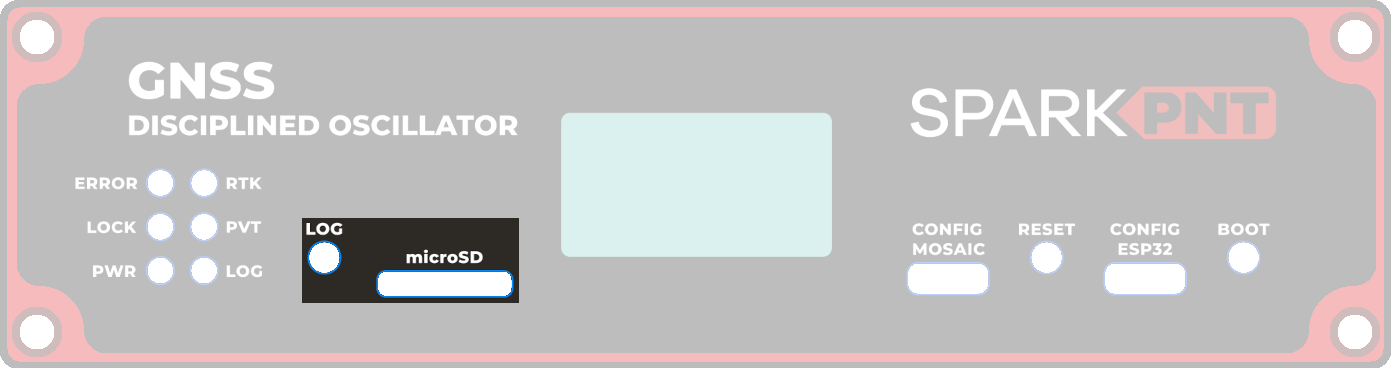
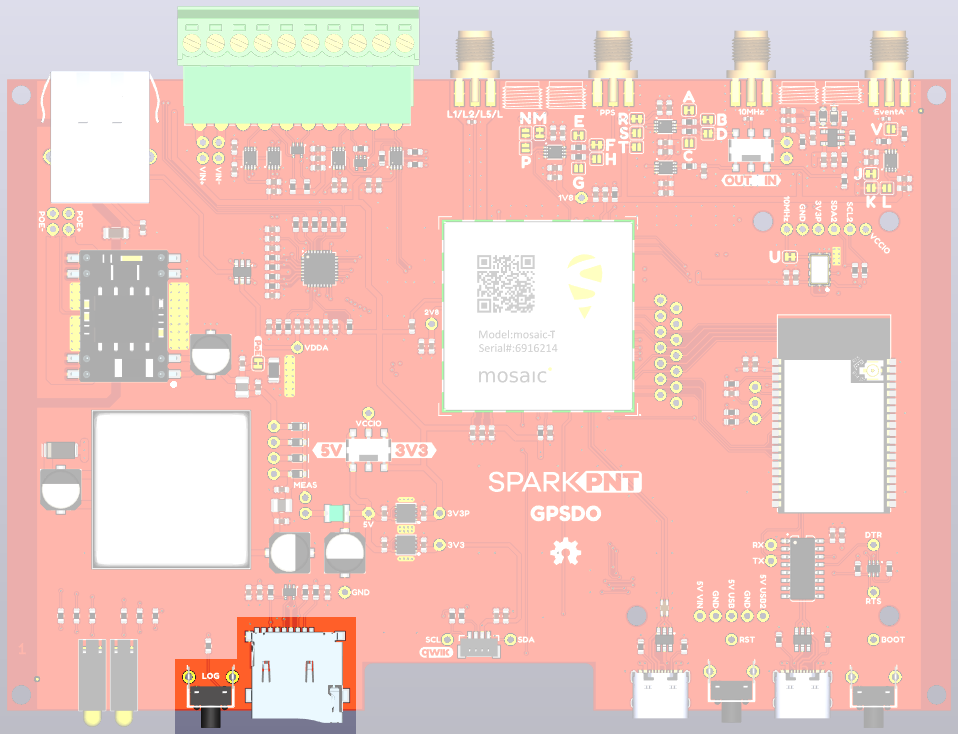
Before logging can take place, it is necessary to define a "logging stream" using the Logging page or RxTools. Streams can contain NMEA or SBF (Septentrio Binary Format) data; SBF can contain RTCM and/or RINEX.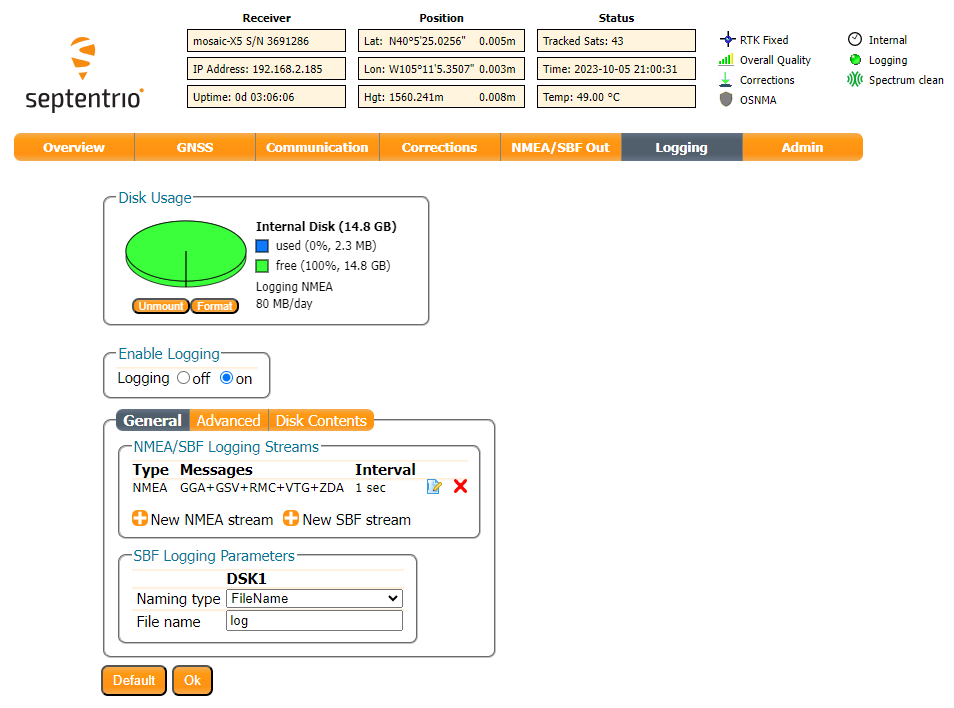
Once the stream is defined, users can control the data logging operation through the LOG button.
- A short press of the LOG button (<5s) toggles data logging to the SD card on and off.
- The red
LOGLED will flash while logging is taking place.
- The red
- A long press, holding the LOG button for more than 5 seconds (>5s) and then releasing it, will force the board to:
- Unmount the SD card if it was mounted
- Mount the SD card if it was unmounted
SMA Connectors
The GNSSDO has robust SMA connectors for the mosaic-T GNSS antenna, Pulse-Per-Second output, 10 MHz clock signal and the Event A input.
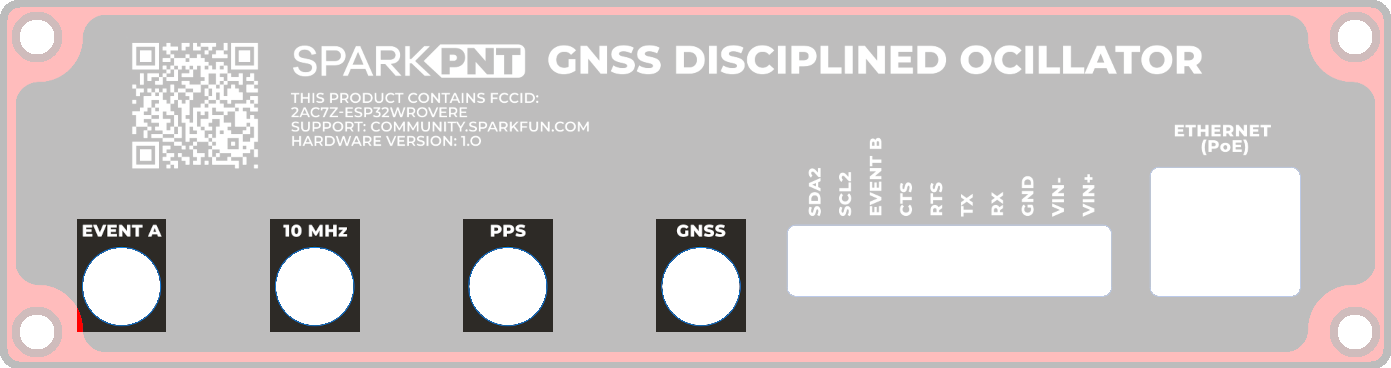
All these SMA connectors have a standard polarity. When selecting antennas and/or cables for the GNSSDO, double-check the polarity for the connections and cables.
- EVENTA
- 10MHz
- PPS
- GNSS
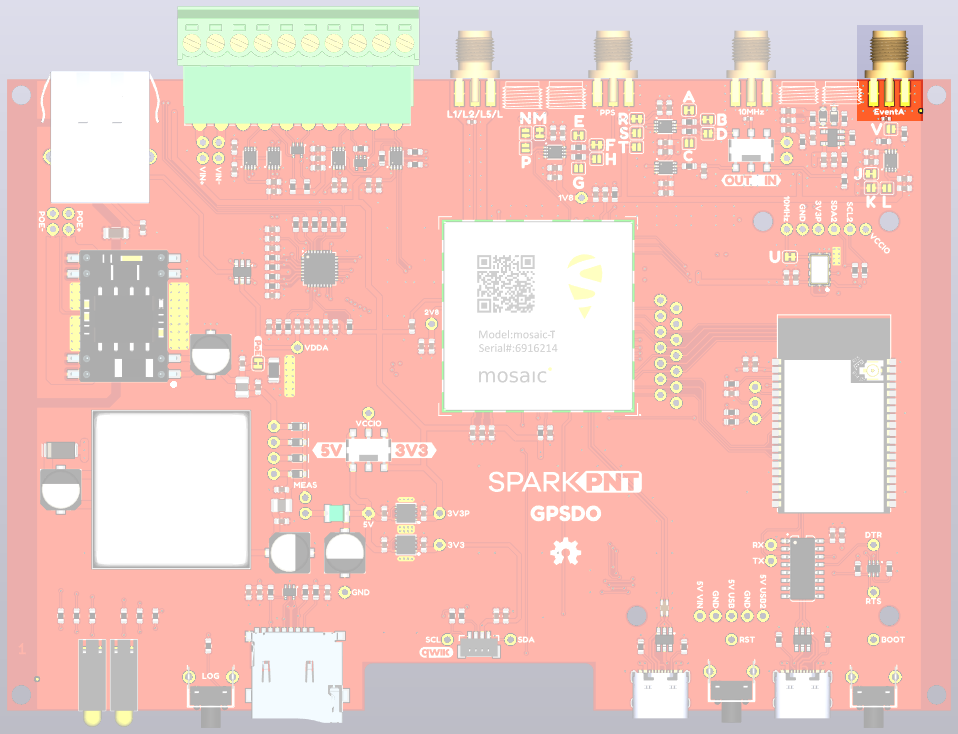
The Event A SMA connector is standard polarity. The voltage is adjustable via the VCCIO switch: 3.3V or 5V. 2.8V and 1.8V are also available via the jumper links (see the Jumpers section). The output can also be configured for 50 Ohm via the jumper links (see the Jumpers section).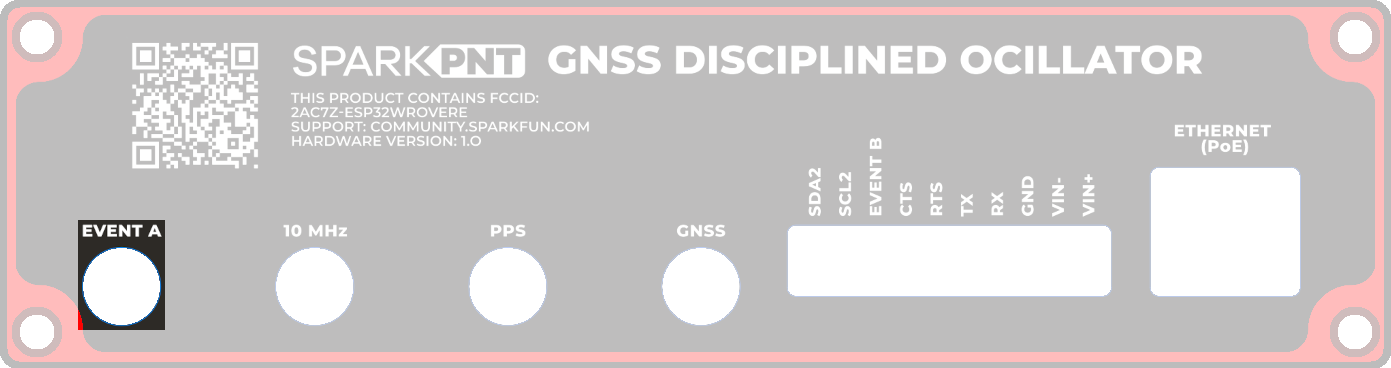
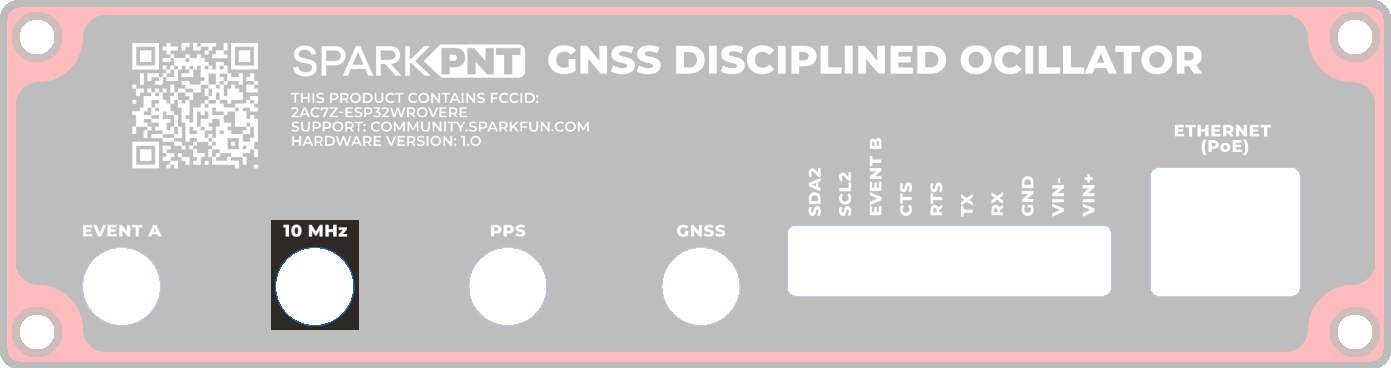
The 10 MHz SMA connector is standard polarity.
- On GNSSDO, the voltage is adjustable via the VCCIO switch: 3.3V or 5V. 2.8V and 1.8V are also available via the jumper links (see the Jumpers section). The output can also be configured for 50 Ohm via the jumper links (see the Jumpers section). Output / Input is selected via the small slide switch (see the Switches section) adjacent to the connector. When configured for input: the input impedance is 50Ω; the detection level is -14dBm; the max supported input level is +12dBm.
- On GNSSDO+, the 10MHz signal is output-only and 3.3V only.
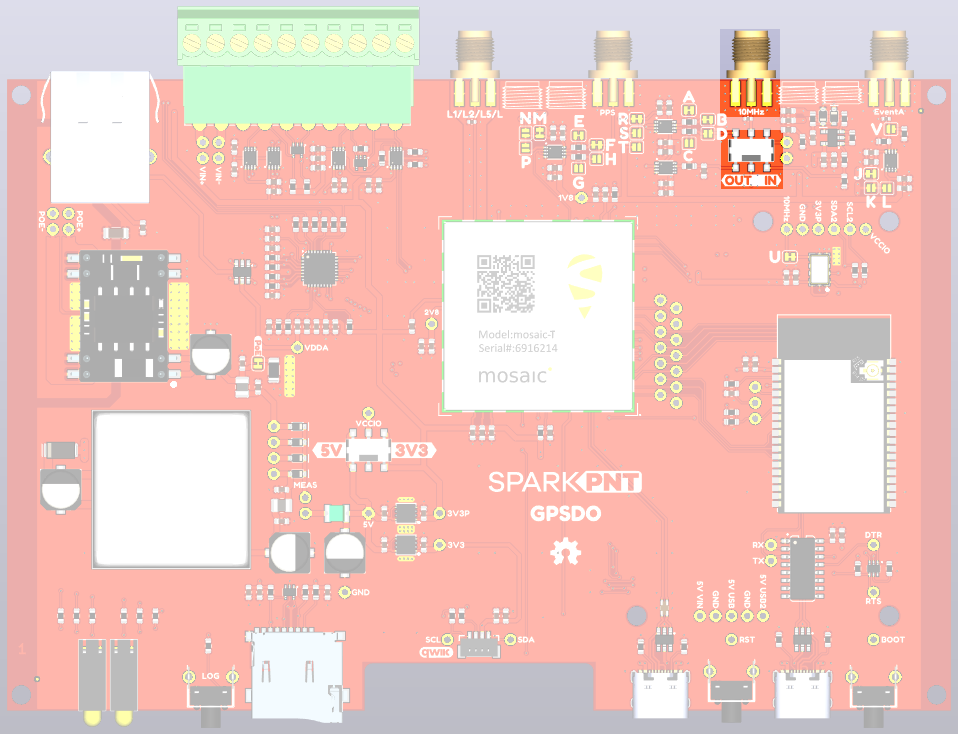
Although the mosaic-T module can either use its internal TCXO or accept an external signal as a frequency reference, the module will constantly reboot if the REF_I pin isn't provided a 10MHz sinusoidal signal and left floating. Therefore, users should only set the 10MHz switch to the IN position, only if a 10MHz clock signal can be provided; otherwise, the switch should remain in the OUT position.
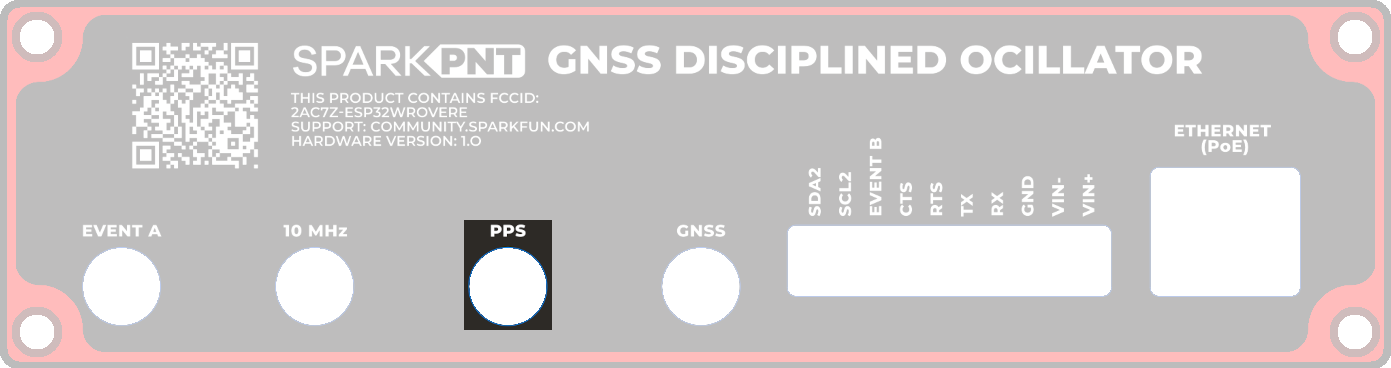
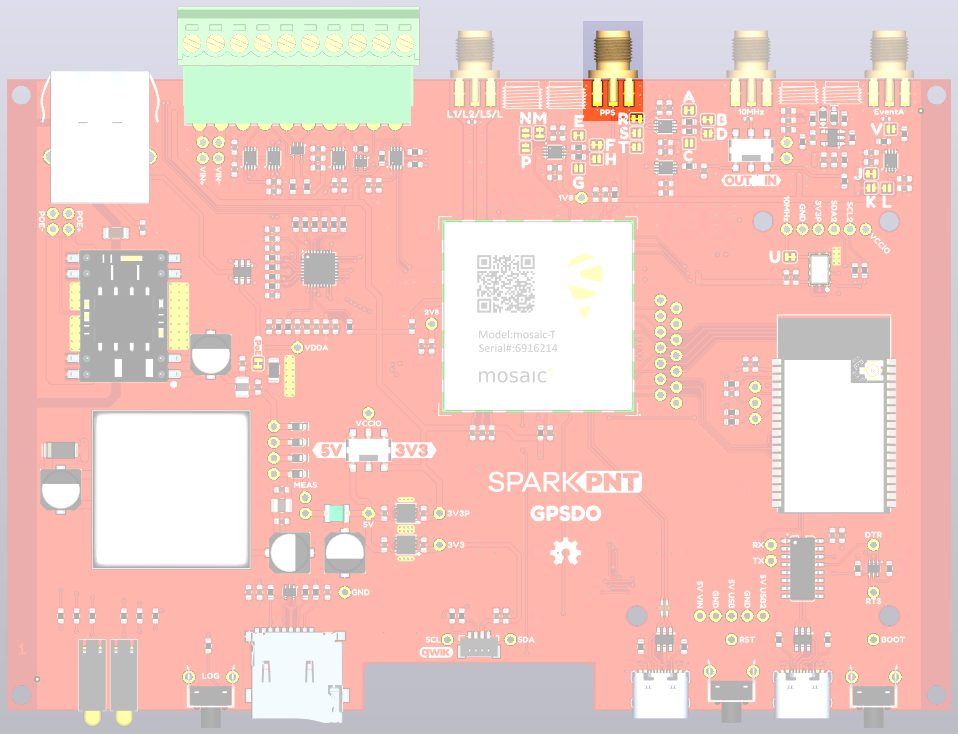
The Pulse-Per-Second SMA connector is standard polarity.
- On GNSSDO, the voltage is selectable via the VCCIO switch: 3.3V or 5V. 2.8V and 1.8V are also available via the jumper links (see the Jumpers section). The output is DC-coupled. The output can be configured for 50 Ohm output via the jumper links (see the Jumpers section).
- On GNSSDO+, PPS is 3.3V only. The PPS output is aligned to the 10MHz clock to ensure its accuracy.
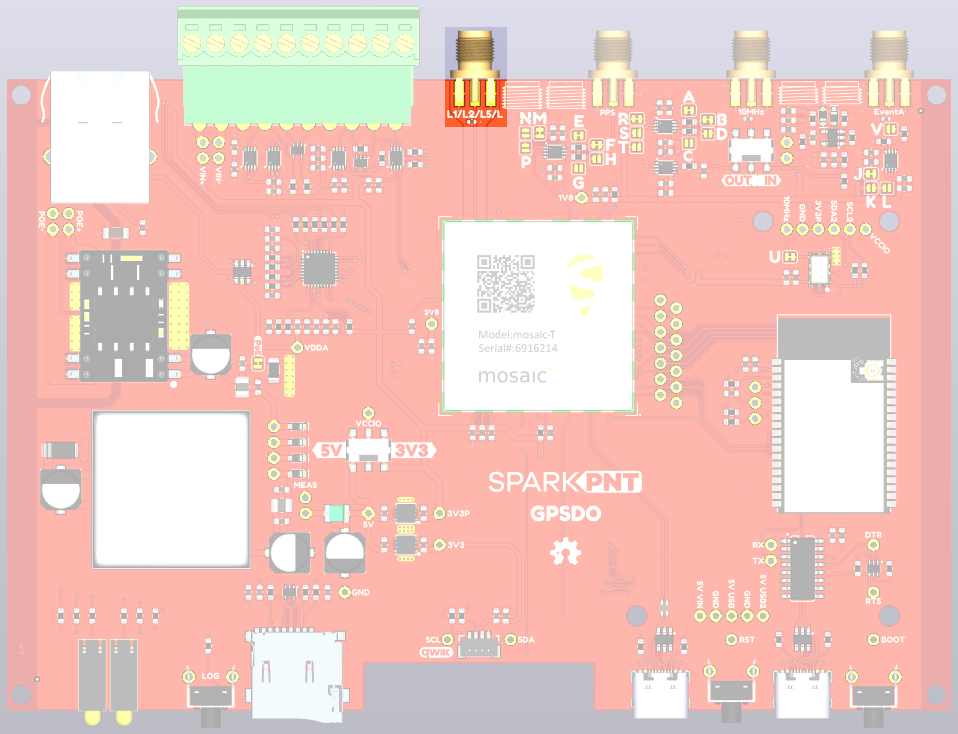
The mosaic-T GNSS SMA connector is standard polarity and provides 3.3V power for an active antenna.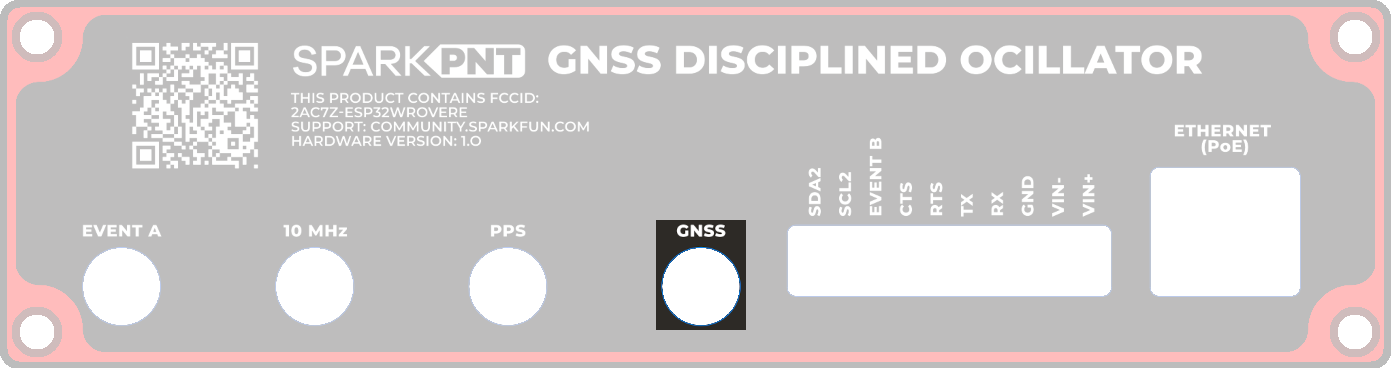
Input/Output Terminals
The GNSSDO is equipped with a 10-way 3.5mm screw cage terminal connector.
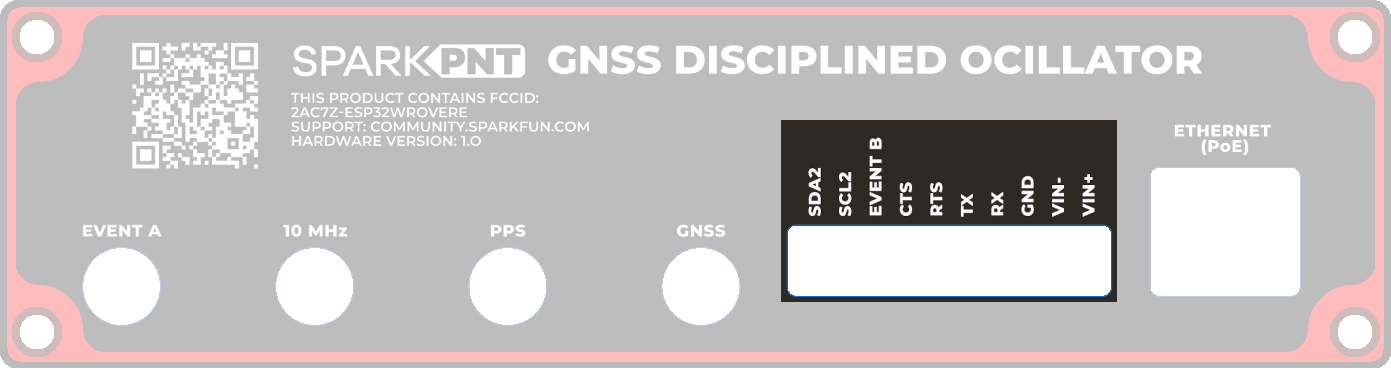
These terminals are described in the tabs below. For more information on the I/O terminals, you can refer to the GNSSDO schematic and the GNSSDO+ schematic.
- External Power
- GND
- mosaic-T COM2
- CTS
- EVENT B
- SCL2 & SDA2
- GP1 & GP2
The VIN+ and VIN- terminals allow the GNSSDO to be powered by an external DC power source - typically a 12V / 24V vehicle battery.
| Terminal | Function |
|---|---|
| VIN+ | External voltage: Min: 9V; Max: 36V |
| VIN- | Ground / Chassis / 0V |
The DC-DC converter in the GNSSDO provides 1.5kV isolation between VIN+/VIN- and 5V/GND. There is no direct electrical connection between VIN- and GND.
If desired, users can link VIN- to the adjacent GND screw cage terminal. However, this will bypass the voltage isolation and could introduce an unwanted ground loop, particularly if the GNSS antenna ground (shield, 0V) is also connected to the chassis.
Ground / 0V or logic-low reference.
The DC-DC converter in the GNSSDO provides 1.5kV isolation between VIN+/VIN- and 5V/GND. There is no direct electrical connection between GND and VIN-.
If desired, users can link GND to the adjacent VIN- screw cage terminal. However, this will bypass the voltage isolation and could introduce an unwanted ground loop, particularly if the GNSS antenna ground (shield, 0V) is also connected to the chassis.
The mosaic-T UART COM2 connections are connected as follows:
| Terminal | Function | Notes |
|---|---|---|
| RX | COM2 UART Receive - Input | |
| TX | COM2 UART Transmit - Output | |
| RTS | COM2 UART Request To Send - Output | The module drives this pin low when ready to receive data |
| CTS | COM2 UART Clear To Send - Input | Must be driven low when ready to receive data from the module |
The COM2 I/O voltage is set by the VCCIO voltage selection switch.
The RX and CTS inputs have weak (100K) pull-ups to VCCIO.
The CTS terminal can be configured as a VCCIO power output by soldering the jumper closed on the PCB.
The CTS terminal can be configured as a VCCIO power output by soldering the jumper closed on the PCB.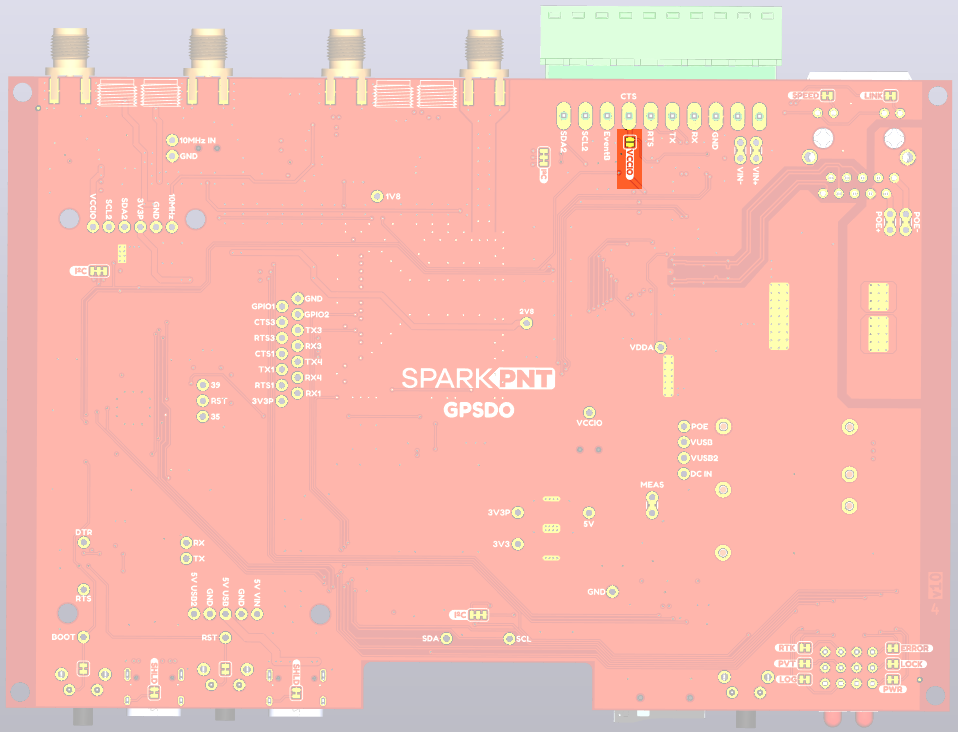
Soldering the jumper closed will place the mosaic-T COM2 CTS into the high (not ready) state. Flow control (hardware handshaking) is not possible when the jumper is closed. Flow control is disabled by default. If needed, flow control can be (re)disabled through the web interface or by sending (e.g) scs, COM2, baud115200, bits8, No, bit1, none
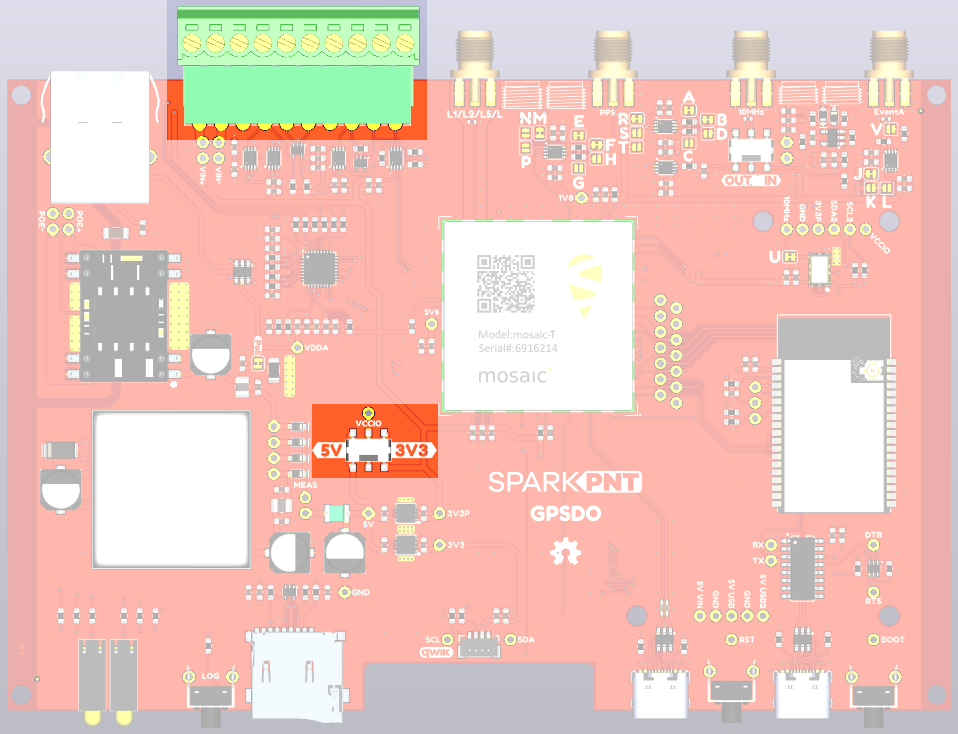
The VCCIO voltage can be set to 3.3V or 5V via the small internal slide switch highlighted below: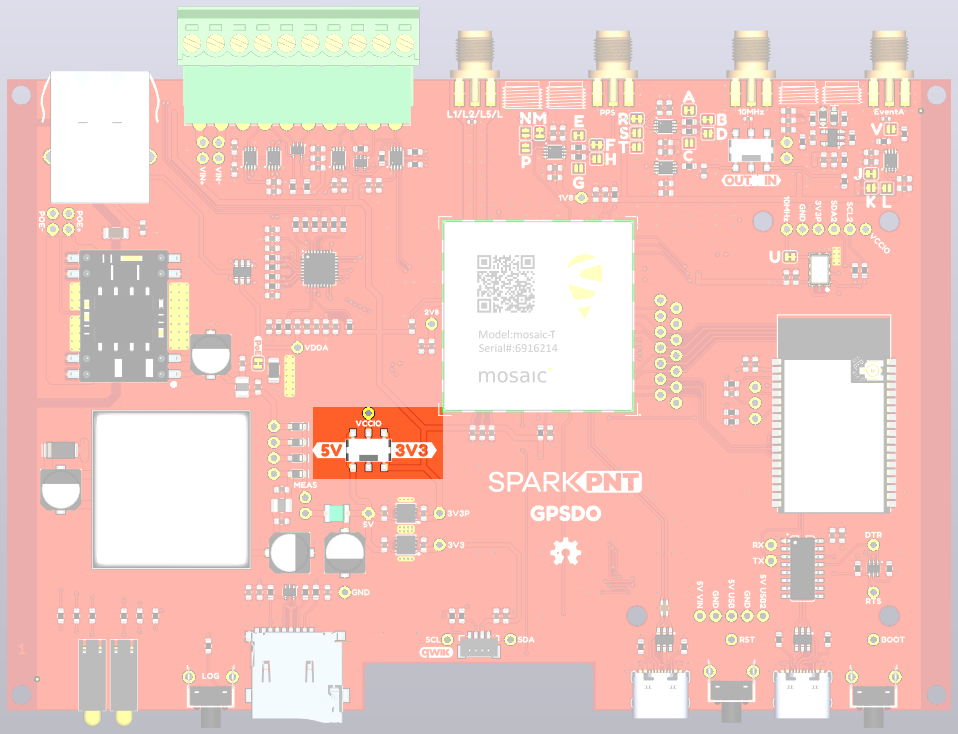
The CTS terminal can then be used as a power output or logic-high references. Likewise, the GND terminal can be used for power return or as logic-low references.
| Terminal | Function |
|---|---|
| CTS | 3.3V or 5V power output or logic-high reference |
| GND | Ground / 0V or logic-low reference |
The default position of the VCCIO switch is 3.3V.
The CTS and GND pins could be used to power (e.g.) a LoRa module. When VCCIO is 3.3V, we recommend limiting the current draw from VCCIO to 200mA maximum. The upstream 3.3V regulator is rated at 600mA but it also provides power for the mosaic-T and Ethernet PHY. When VCCIO is set to 5V, the current draw can be higher - the suggested maximum is 500mA.
The mosaic-T EVENTB input can be used to mark or timestamp external events:
| Terminal | Function |
|---|---|
| EVENTB | Event B : Input |
The EVENT B voltage level is set by the VCCIO voltage selection switch.
The EVENT B input is pulled low internally. Pull up to VCCIO to trigger an event.
An easy way to observe the events is with RxTools \ RxControl \ Expert Console (under Tools) \ ExEvent tab: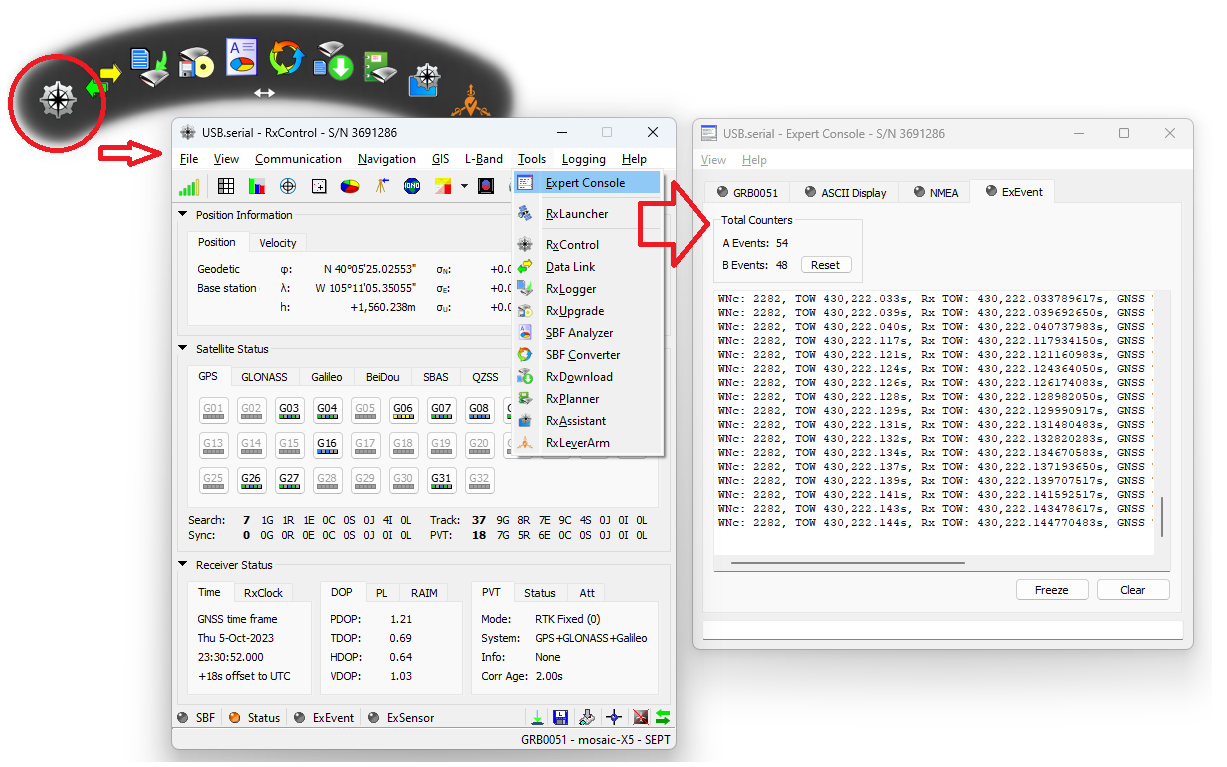
SCL2 & SDA2 are only available on GNSSDO.
The SCL2 and SDA2 screw terminals provide access to the TCXO I2C bus, allowing the user to connect an external configurable TCXO if desired. The I2C voltage level is set by the VCCIO switch: 3.3V or 5V. The provided firmware supports the SiTime SiT5358, SiT5811 and the Rakon STP3593LF; the user will need to modify the firmware to support additional osciillators.
| Terminal | Function |
|---|---|
| SCL2 | I2C Clock : Bidirectional |
| SDA2 | I2C Data : Bidirectional |
The I2C voltage is set by the VCCIO voltage selection switch.
GP1 & GP2 are only available on GNSSDO+.
The GP1 and GP2 screw terminals provide access to the mosaic-T GP output signals, allowing the user to use them to configure external devices or for (e.g.) data / state logging. The output voltage level is set by the VCCIO switch: 3.3V or 5V.
| Terminal | Function |
|---|---|
| GP1 | GP1 : Output-only |
| GP2 | GP2 : Output-only |
The output voltage is set by the VCCIO voltage selection switch.
Switches
There are two miniature slide switches on the GNSSDO PCB:
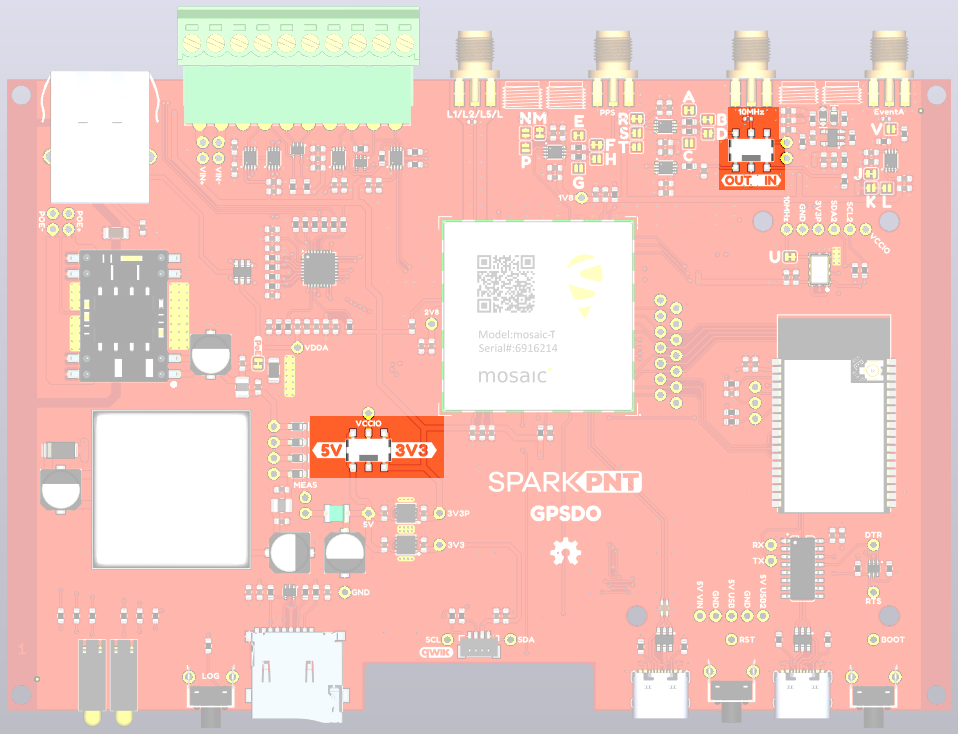
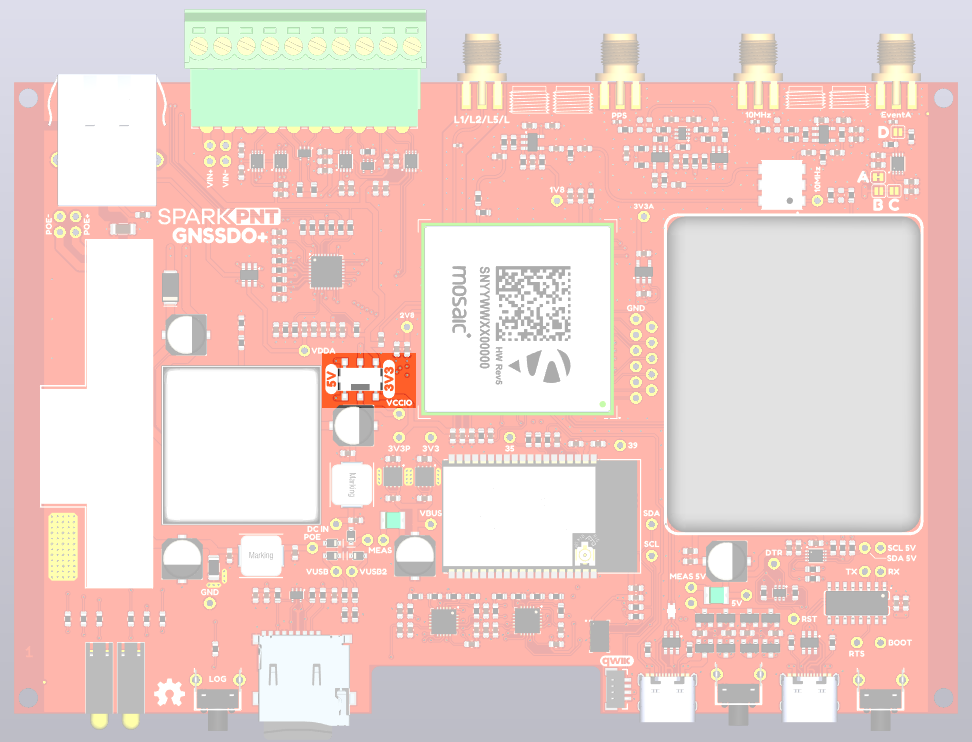
But only one on the GNSSDO+ PCB:
The mosaic-T module can either use its internal TCXO or accept an external signal as a frequency reference. However, the module will constantly reboot if the REF_I pin isn't provided a 10MHz sinusoidal signal and left floating. Therefore, users should only set the GNSSDO 10MHz switch to the IN position, only if a 10MHz clock signal can be provided; otherwise, the switch should remain in the OUT position.
Additionally, switching between an external and internal frequency reference must occur when the mosaic-T is powered off, or the module must be reset after switching states.
-
VCCIO: This switch sets the voltage of the Input Output Terminals (COM2 UART, Event B, SCL2 & SDA2 (GNSSDO), GP1 & GP2 (GNSSDO+))- The I/O voltage can be set to 3.3V (default) or 5V.
-
10MHz: This switch changes the function of the 10MHz SMA connectortipThis switch is only available on GNSSDO. The GNSSDO+ 10MHz SMA is output-only.
- When set to
OUT(default):- The SMA connector will output a 10MHz "CMOS" disciplined clock signal
- The signal voltage is set by the VCCIO voltage selection switch
- When set to
IN:- The user must apply a clock signal from an external 10MHz oscillator; otherwise, the mosaic-T module will constantly reset
- The input impedance is 50Ω
- The detection level is -14dBm
- The max supported input level is +12dBm
- When set to
Status LEDs
There are six status LEDs on the GNSSDO(+):
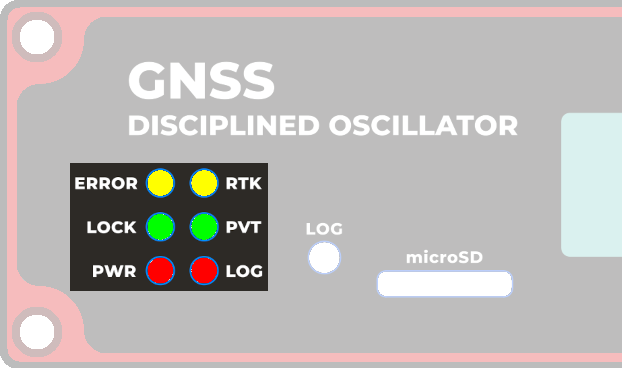
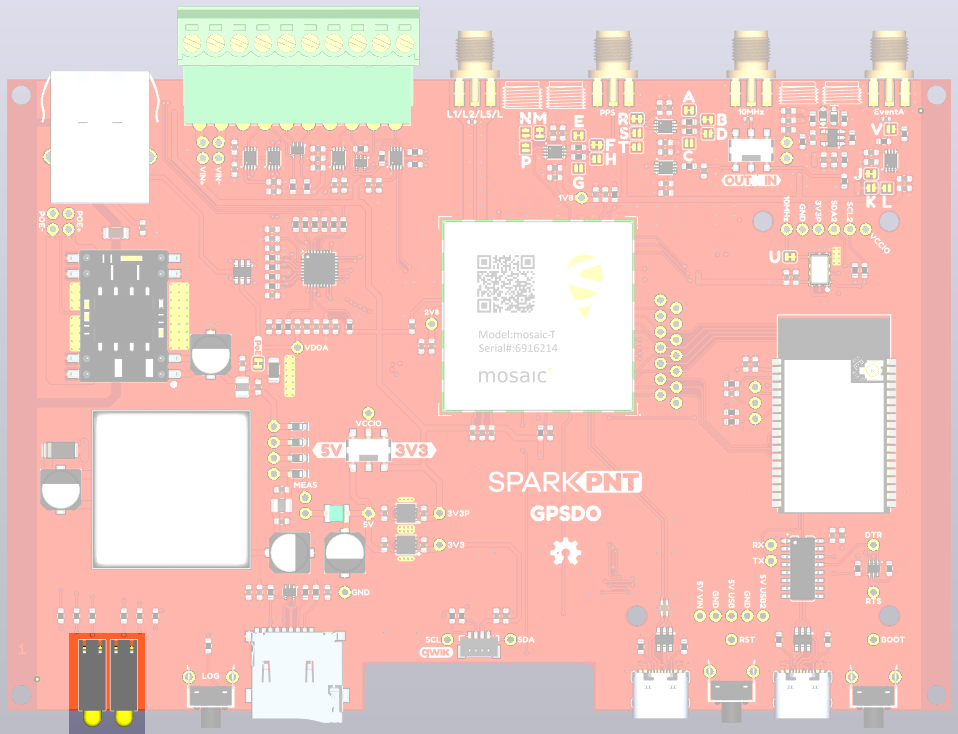
PWR- Power (Red)- Illuminates when power is applied
LOG- µSD Logging (Red)- Solid Red - µSD card is mounted
- Blinking Red - Data is being logged
- Off - µSD is dismounted or not present
LOCK- Oscillator Lock (Green)- The TCXO is locked to the correct frequency - as reported by PVTGeodetic RxClkBias
- Connected to ESP32 GPIO pin 33
PVT- Position Velocity Time (Green)- Solid Green - The mosaic-T has valid Position, Velocity and Time
- Off - Satellite signal not present or acquired
ERROR- GNSS Error (Yellow)- The GNSS Error status - as reported by PVTGeodetic Error
- Connected to ESP32 GPIO pin 32
RTK- Real-Time Kinematic (Yellow)- This LED has little or no functionality on the GNSSDO(+) as the mosaic-T uses PPP, not RTK
- Internally, it is connected to the mosaic-T GPLED2 pin
- It can be configured for (e.g.) TRACKLED if desired
OLED Display
The GNSSDO(+) has a 128x64 pixel OLED display, controlled by the ESP32 via I2C. After some initial diagnostic messages, the display will show position, time and other data from the mosaic-T PVTGeodetic, ReceiverTime and IPStatus SBF blocks.
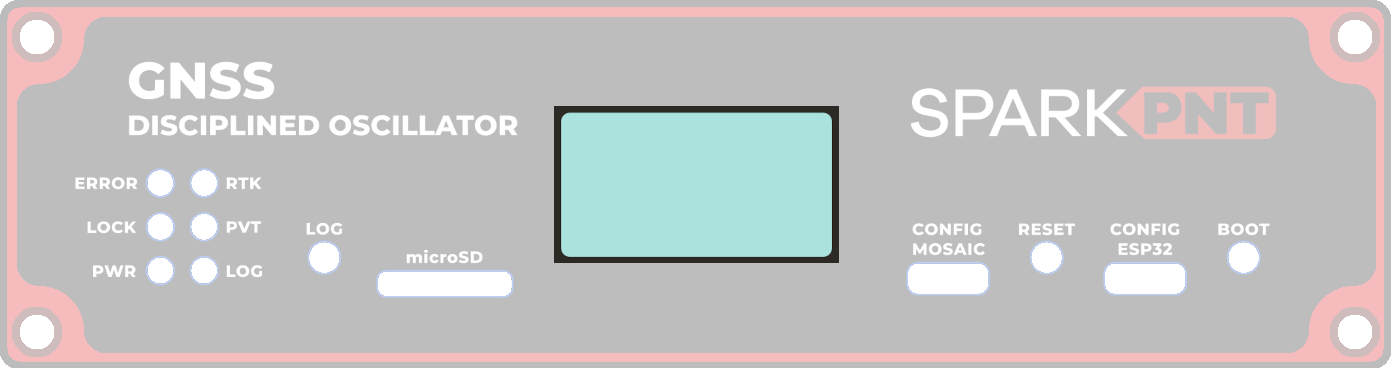

- Date & Time : YYYY/MM/DD HH:MM:SS from ReceiverTime
- IP : nnn.nnn.nnn.nnn from IPStatus IPAddress
- When TCP console access is enabled, the TCP port number is also displayed.
- Lat : Latitude from PVTGeodetic (Degrees)
- Long : Longitude from PVTGeodetic (Degrees)
- Sys : TimeSystem from PVTGeodetic
- GPS, Galileo, GLONASS, BeiDou, QZSS, Fugro
- Error : Error from PVTGeodetic
- None, Measurements, Ephemerides, DOP, Residuals, Convergence, Outliers, Export, Differential, Base, Ambiguities
- Fine : FINETIME from ReceiverTime
- False, True
- PPS : Indicates if the Pulse-Per-Second signal is being generated
- Off, On
- PPS is only generated once the RxClkBias has achieved the required accuracy
- Bias : RxClkBias from PVTGeodetic (ms/us/ns)
The display is updated on arrival of the ReceiverTime message. You may see a small lag between the display and the actual time system time, but it will be minimal.
Buttons
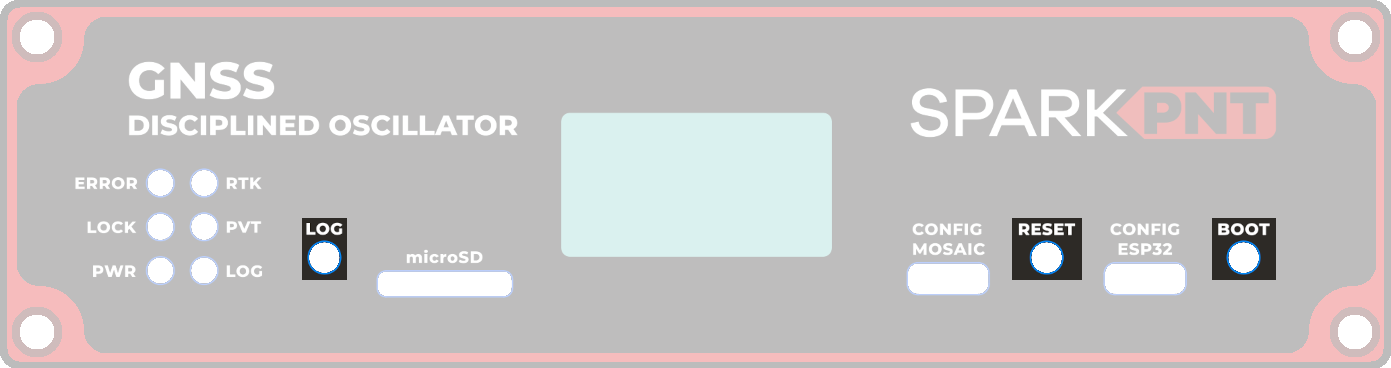
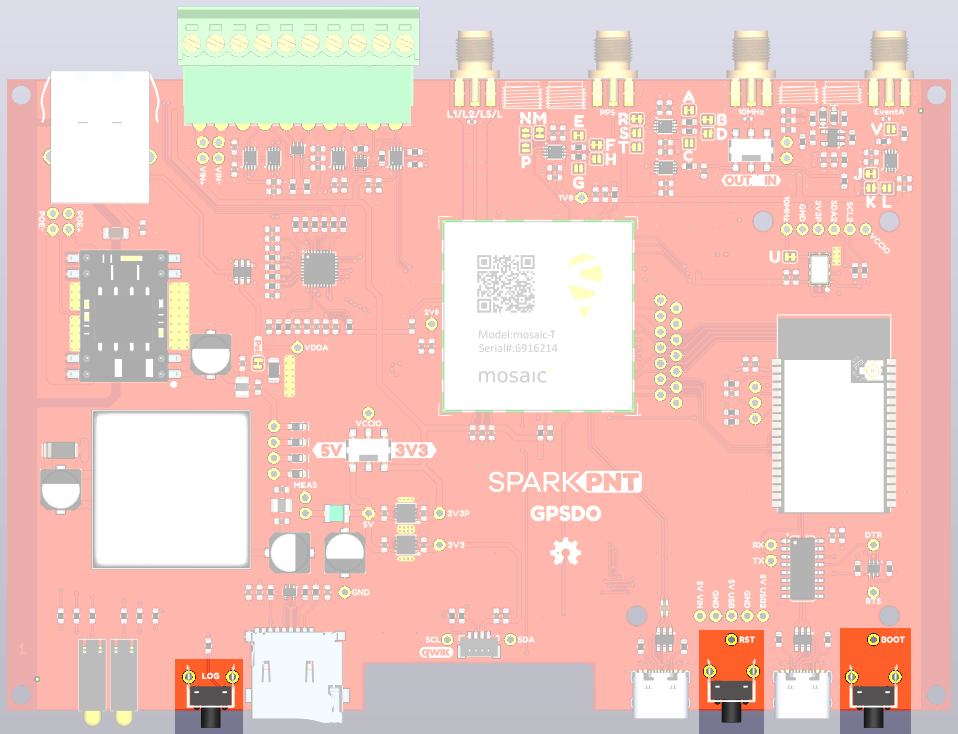
There are three buttons on the GNSSDO(+): RESET, BOOT, and LOG.
-
mosaic-T: Data Logging
-
Once a logging stream is defined, users can control the data logging operation through the LOG button.
- A short press of the LOG button (<5s) toggles data logging to the SD card on and off.
- The red
LOGLED will flash while logging is taking place.
- The red
- Holding the LOG button for more than 5 seconds (>5s) and then releasing it, will force the board to:
- Unmount the SD card if it was mounted
- Mount the SD card if it was unmounted
- The SD card must be mounted to allow data logging by the mosaic-T
- When the SD card is unmounted, it is accessible as a mass storage device via the
CONFIG MOSAICUSB-C interface- Files can be read and written over USB while the SD card is unmounted
- You can enter commands using the
Admin \ Expert Consoleto:- Change what happens when the disk is full
- Change how the files are named
- Change the mounting / unmounting of the disk
- Consult section 3.2.20 of the Firmware Reference Guide for more details
Instructional Video - A short press of the LOG button (<5s) toggles data logging to the SD card on and off.
-
-
ESP32: Reset
- The RESET button allows users to reset the firmware running on the ESP32-WROVER module without disconnecting the power.
-
ESP32: Boot Control
- The BOOT button can be used to force the ESP32 into the serial bootloader. Holding down the BOOT button, while connecting the GNSSDO(+) to a computer through its USB-C connector or resetting the board will cause it to enter the Firmware Download mode. The ESP32 will remain in this mode until it power cycles (happens automatically after uploading new firmware) or the RESET button is pressed.
- Hold the BOOT button down.
- Reset the MCU.
- While unpowered, connect the board to a computer through the USB-C connection.
- While powered, press the RESET button.
- Release the BOOT button.
- After programming is completed, reboot the MCU.
- Press the RESET button.
- Power cycle the board.
- The BOOT button can be used to force the ESP32 into the serial bootloader. Holding down the BOOT button, while connecting the GNSSDO(+) to a computer through its USB-C connector or resetting the board will cause it to enter the Firmware Download mode. The ESP32 will remain in this mode until it power cycles (happens automatically after uploading new firmware) or the RESET button is pressed.
Jumpers (GNSSDO)
Check out our Jumper Pads and PCB Traces tutorial for a quick introduction!
There are several jumpers on the GNSSDO PCB which can be used to (e.g.) disable the LEDs or allow measurement of the board's current draw.
- Top
- Bottom
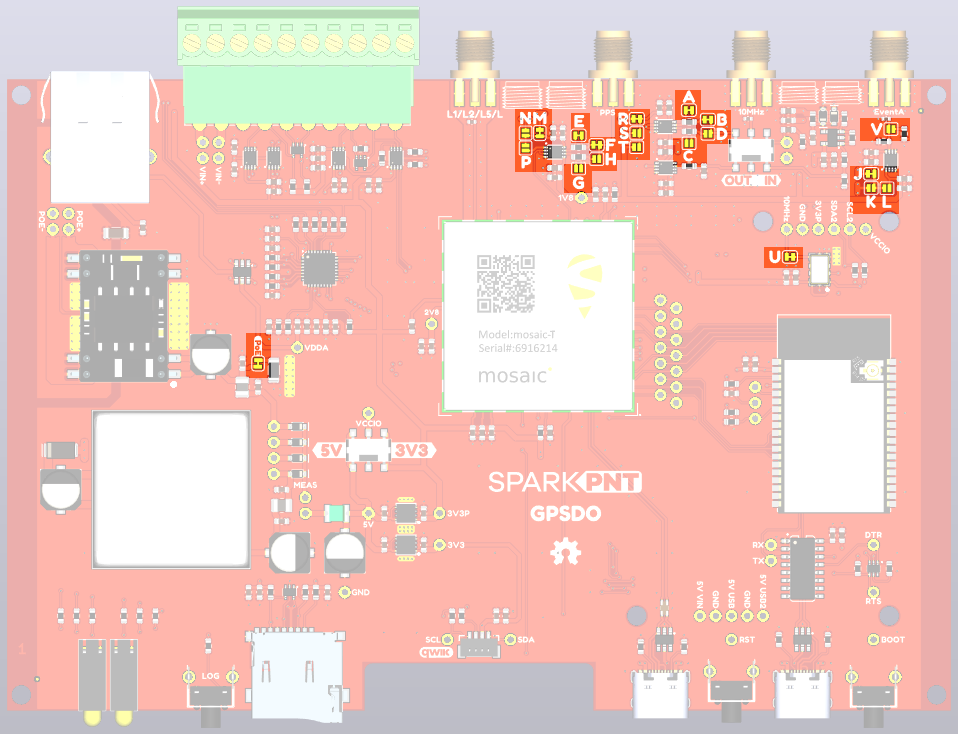
- POE - This jumper can be used to disconnect the Power-over-Ethernet (PoE) module 50Ω load.
- The PoE module has a minimum load of 200mA. We included the 50Ω load to ensure this is met. If you can ensure this by other means, open this jumper to disconnect the load.
- Voltage Configuration: A-V
- The jumper links A-V can be used to configure the voltage levels and impedance of the SMA connections. Please refer to the schematic for additional information.
- To configure the 10MHz output for 50 Ohms: open jumper A and close jumper D.
- Jumper A is closed by default. Open it to select 50 Ohms for the 10MHz output.
- Jumper B is closed by default. It could be used to isolate the gate driving the 10MHz output. Advanced use only.
- Jumper C is open by default. It could be used to select the alternate gate for the 10MHz CMOS output. Advanced use only.
- Jumper D is open by default. Close it to select 50 Ohms for the 10MHz output.
- To configure the PPS output for 50 Ohms: open jumper E and close jumper H.
- Jumper E is closed by default. Open it to select 50 Ohms for the PPS output.
- Jumper F is closed by default. It could be used to isolate the gate driving the PPS output. Advanced use only.
- Jumper G is open by default. It could be used to select the alternate gate for the PPS CMOS output. Advanced use only.
- Jumper H is open by default. Close it to select 50 Ohms for the PPS output.
- Jumpers J,K,L configure the voltage of the Event A input.
- Jumper J is closed by default. It selects VCCIO as the Event A input voltage.
- Jumper K is open by default. Open jumper J and close jumper K to configure Event A for 2.8V.
- Jumper L is open by default. Open jumper J and close jumper L to configure Event A for 1.8V.
- Jumpers M,N,P configure the voltage of the PPS output.
- Jumper M is closed by default. It selects VCCIO as the PPS output voltage.
- Jumper N is open by default. Open jumper M and close jumper N to configure PPS for 2.8V.
- Jumper P is open by default. Open jumper M and close jumper P to configure PPS for 1.8V.
- Jumpers R,S,T configure the voltage of the 10MHz output.
- Jumper R is closed by default. It selects VCCIO as the 10MHz output voltage.
- Jumper S is open by default. Open jumper R and close jumper S to configure 10MHz for 2.8V output.
- Jumper T is open by default. Open jumper R and close jumper T to configure 10MHz for 1.8V output.
- Jumper U can be used to isolate the on-board 10MHz TCXO.
- Open jumper U when connecting an alternate TCXO via the breakout pads on the PCB. Advanced use only.
- To configure the Event A input for 50 Ohms: close jumper V.
- Jumper V is open by default. Close it to select 50 Ohms for the Event A input.
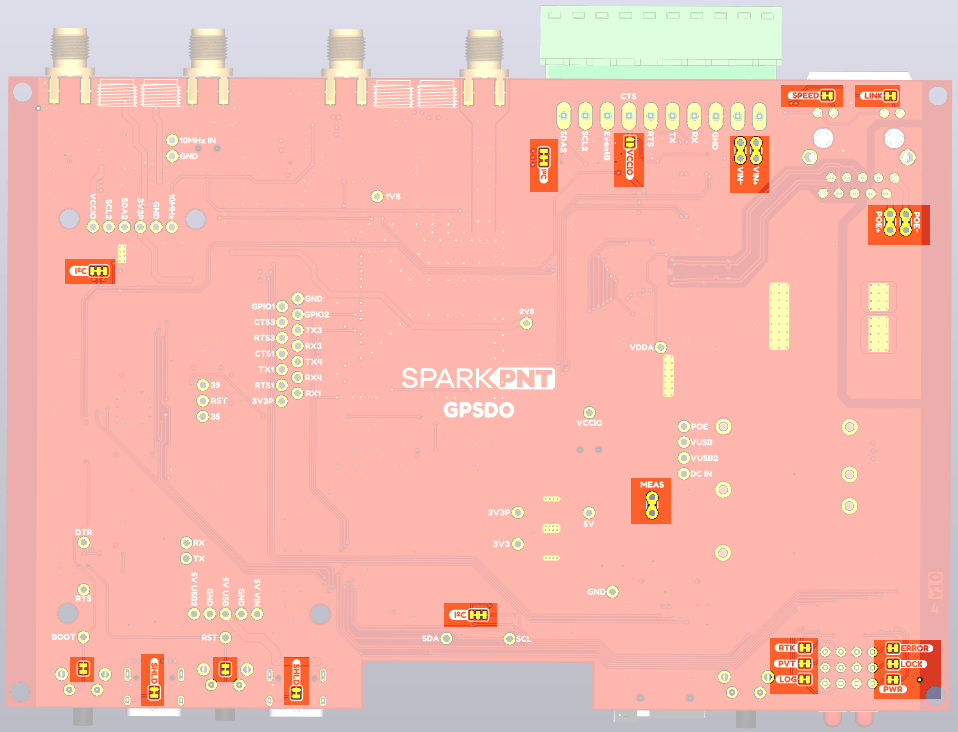
- LED Jumpers
- LINK - open this jumper to disable the Ethernet Link LED.
- SPEED - open this jumper to disable the Ethernet Speed LED.
- RTK - open this jumper to disable the mosaic-T Real-Time Kinetic LED.
- PVT - open this jumper to disable the mosaic-T Position Velocity Time LED.
- LOG - open this jumper to disable the mosaic-T Log LED.
- ERROR - open this jumper to disable the GNSS error LED.
- LOCK - open this jumper to disable the TCXO lock LED.
- PWR - open this jumper to disable the Power LED.
- Button Jumpers
- BOOT - open this jumper to disconnect the ESP32 BOOT pushbutton.
- RESET - open this jumper to disconnect the ESP32 RESET pushbutton.
- SHLD (x2) - open these jumpers to isolate the USB-C connector shield from GND.
- I2C (x2) - open these dual jumpers to disconnect the pull-ups for the I2C buses.
- Note: there are separate jumpers for the two I2C buses: OLED (Qwiic); and the SiTime TCXO.
- VIN+ and VIN-
- Open these jumpers if you wish to isolate (disconnect) the external DC power terminals. The breakout pads can then be used to feed in power from an alternate source.
- POE+ and POE-
- Open these jumpers if you wish to isolate (disconnect) the Power-over-Ethernet pins on the MOSAIC Ethernet magjack. The breakout pads can then be used to feed in power from an alternate source.
- VCCIO
- The VCCIO jumper can be soldered closed to connect the CTS screw terminal to VCCIO. CTS can then be used as a power output. The voltage is set by the VCCIO slide switch.
- MEAS
- Open the MEAS jumper if you wish to measure the total current drawn by the GNSSDO(+), or (e.g.) wish to add an ON/OFF switch. The breakout pads can then be used to attach a multimeter or a mechanical power switch.
- MEAS is upstream of the two 3.3V regulators and downstream of the four power source combination and protection diodes.
Jumpers (GNSSDO+)
Check out our Jumper Pads and PCB Traces tutorial for a quick introduction!
There are several jumpers on the GNSSDO+ PCB which can be used to (e.g.) disable the LEDs or allow measurement of the board's current draw.
- Top
- Bottom
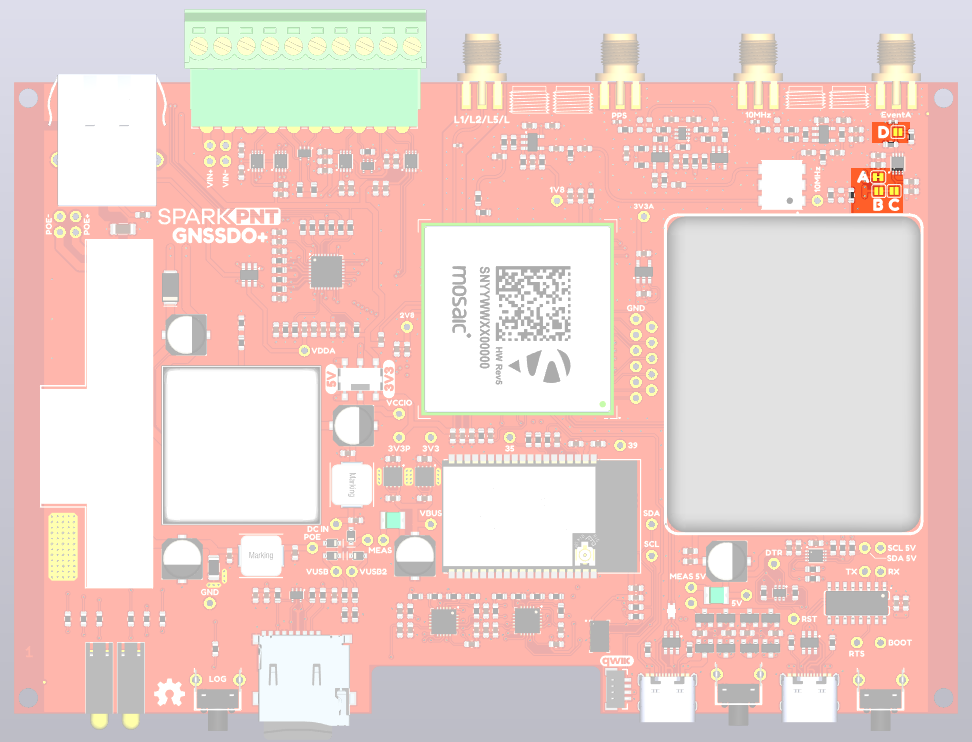
- Voltage Configuration: A-D
- The jumper links can be used to configure the voltage levels and impedance of the SMA connections. Please refer to the schematic for additional information.
- Jumpers A,B,C configure the voltage of the Event A input.
- Jumper A is closed by default. It selects VCCIO as the Event A input voltage.
- Jumper B is open by default. Open jumper A and close jumper B to configure Event A for 2.8V.
- Jumper C is open by default. Open jumper A and close jumper C to configure Event A for 1.8V.
- To configure the Event A input for 50 Ohms: close jumper D.
- Jumper D is open by default. Close it to select 50 Ohms for the Event A input.
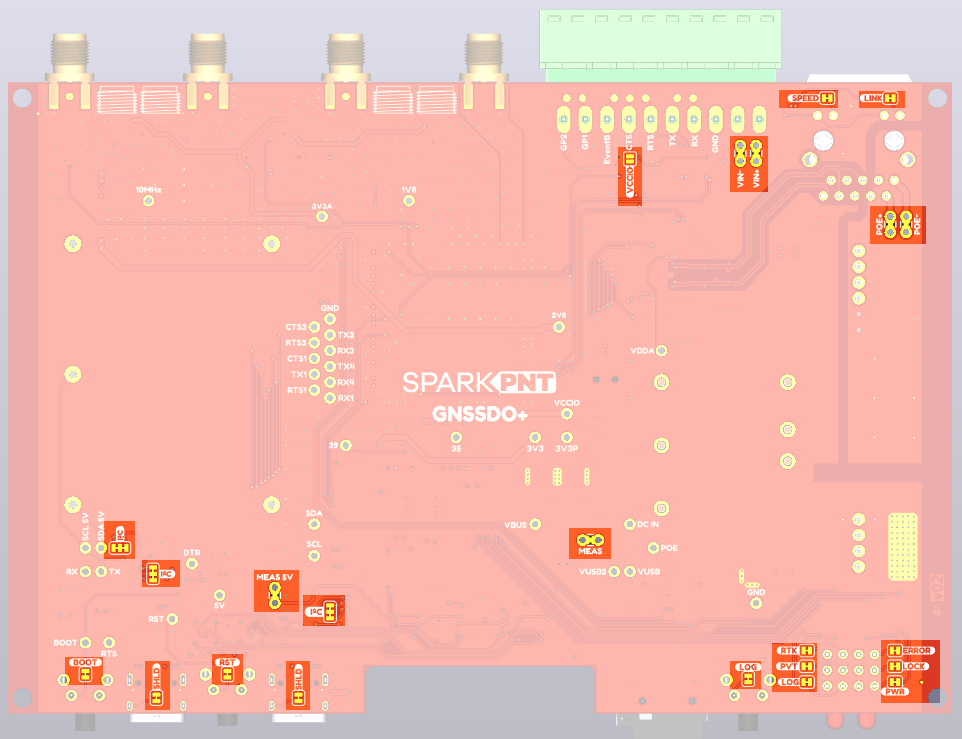
- LED Jumpers
- LINK - open this jumper to disable the Ethernet Link LED.
- SPEED - open this jumper to disable the Ethernet Speed LED.
- RTK - open this jumper to disable the mosaic-T Real-Time Kinetic LED.
- PVT - open this jumper to disable the mosaic-T Position Velocity Time LED.
- LOG - open this jumper to disable the mosaic-T Log LED.
- ERROR - open this jumper to disable the GNSS error LED.
- LOCK - open this jumper to disable the TCXO lock LED.
- PWR - open this jumper to disable the Power LED.
- Button Jumpers
- BOOT - open this jumper to disconnect the ESP32 BOOT pushbutton.
- RESET - open this jumper to disconnect the ESP32 RESET pushbutton.
- SHLD (x2) - open these jumpers to isolate the USB-C connector shield from GND.
- I2C (x2) - open these dual jumpers to disconnect the pull-ups for the I2C buses.
- Note: there are separate jumpers for the two I2C buses: OLED (Qwiic); and the oscillator. On GNSSDO+, there are more jumpers for the 5V level-shifted oscillator I2C signals.
- VIN+ and VIN-
- Open these jumpers if you wish to isolate (disconnect) the external DC power terminals. The breakout pads can then be used to feed in power from an alternate source.
- POE+ and POE-
- Open these jumpers if you wish to isolate (disconnect) the Power-over-Ethernet pins on the MOSAIC Ethernet magjack. The breakout pads can then be used to feed in power from an alternate source.
- VCCIO
- The VCCIO jumper can be soldered closed to connect the CTS screw terminal to VCCIO. CTS can then be used as a power output. The voltage is set by the VCCIO slide switch.
- MEAS
- Open the MEAS jumper if you wish to measure the total current drawn by the GNSSDO(+), or (e.g.) wish to add an ON/OFF switch. The breakout pads can then be used to attach a multimeter or a mechanical power switch.
- MEAS is upstream of the two 3.3V regulators and downstream of the four power source combination and protection diodes.
- On GNSSDO+: there is a separate, additional MEAS jumper for the OCXO Power Path circuit. Open this to switch / measure the current drawn by the OCXO. Note: this could be 1.5A on startup from cold.