Quick Start: USB Setup - CONFIG MOSAIC
The mosaic-T has a built-in high-speed USB port which supports Ethernet-over-USB and two additional UART COM ports. To take advantage of this interface, you first need to install Septentrio's USB driver.
You can not power the GNSSDO+ from a standard USB (2.0) port. It requires more current than a standard port can deliver.
Please ensure the provided 65W power delivery wall adapter is connected to the GNSSDO+ CONFIG ESP32 USB port to deliver the power.
1 - Connect the GNSS antenna
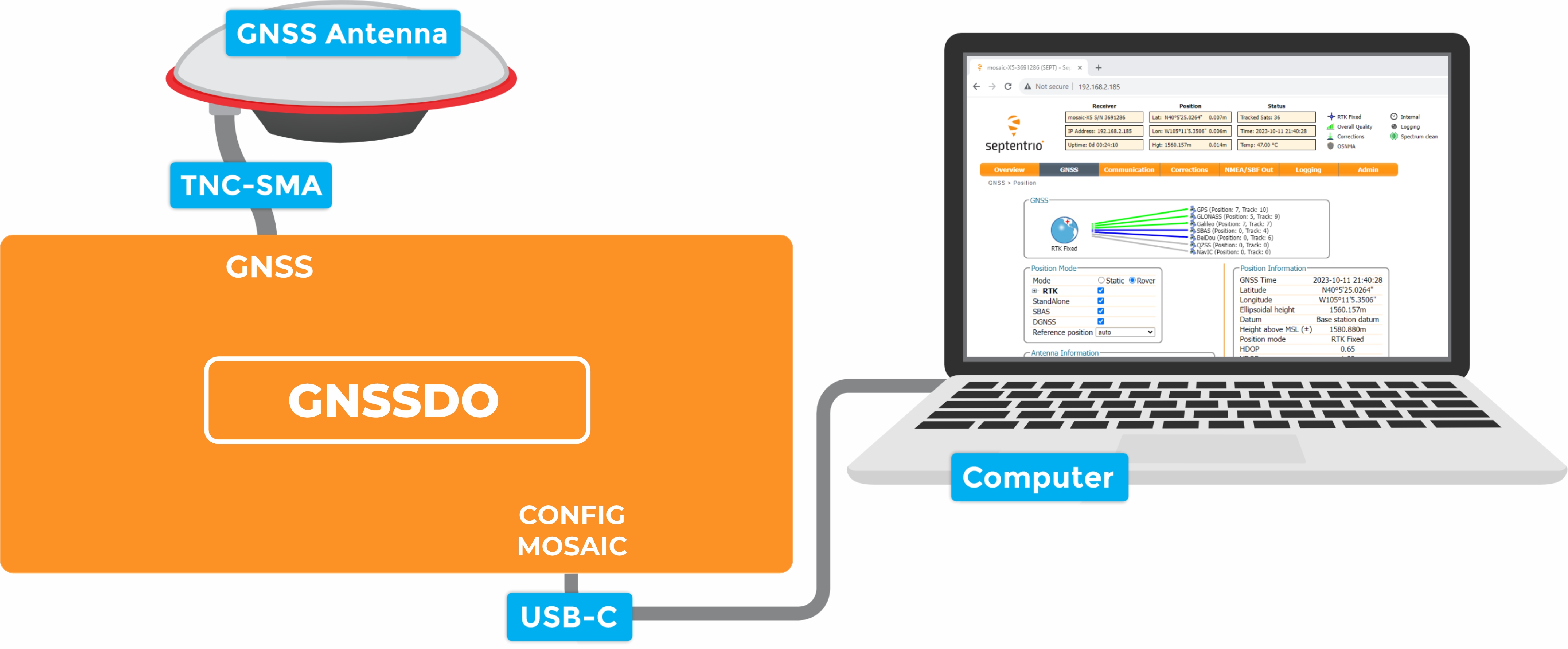
- Inside your SparkPNT GNSSDO(+) kit, you will find the L1/L2/L5 GNSS "UFO" antenna. It has a TNC connection. Use the supplied TNC-SMA cable to connect the antenna to the
GNSSSMA connection on the GNSSDO(+). - The antenna needs a clear view of the sky. If you are working indoors, put the antenna outside and pass the cable through a window. (Insulating double-glazed windows have a coating which can block the GNSS signal.)
- Make sure the antenna is securely mounted to a structure so that it cannot be moved.
2 - Download and install Septentrio RxTools
- The Septentrio mosaic-T Resources page has download links for the mosaic-T datasheet, firmware, firmware guide, hardware manual, how-to videos and the RxTools support tool suite.
- RxTools includes the USB driver for the mosaic-T module plus several tools, which you can use to control and configure the mosaic-T, forward data, log data, analyze the log files, convert the log files to other formats, and configure the module for use with other GIS software.
- Download and install RxTools.
3 - Connect the GNSSDO(+) to your computer
- Use the supplied USB-C cable to connect the
CONFIG MOSAICport to your computer.
4 - Open the web page
- Open a web browser on your computer and navigate to
192.168.3.1to view the mosaic-T's internal web page.
You can now use the RxTools suite to take full advantage of the sophisticated mosaic-T.
The following sections will help if your GNSSDO(+) is not working as expected:
The red power PWR LED will light up when the GNSSDO(+) has power. If the PWR LED is off, make sure the USB cable is connected.
The OLED display will only show position information (Lat, Long, Alt etc.) once a satellite signal has been acquired. If you see only an IP address on the display, check the SMA to TNC cable is connected correctly and that the antenna is outside with a clear view of the sky. Use a male-female SMA extension cable if needed to increase the cable length.
If you can not see the mosaic-T's internal web page at 192.168.3.1, please check that your computer / tablet / phone is connected correctly to the USB-C port.
Subnet 3 is reserved for the mosaic-T's USB-C connection (Ethernet-over-USB). If your computer is simultaneously connected to an Ethernet or WiFi network that also uses subnet 3 (192.168.3.***), please change the network settings so it uses a different subnet.