Enabling GNSS Signals
Supported GNSS Signals
The mosaic-X5 module is capable of receiving most of the GNSS signals from the various frequency bands of each constellation. By default, the module is only configured to track and receive signals (marked in green, in the table below) from specific satellites and frequency bands. Whereas, the signals marked in grey are also supported by the module, but each signal needs to be enabled before they can be utilized for (differential) positioning or output RTK correction data as well. Meanwhile, any signals colored in red and striked out are not supported by the mosaic-X5 module; likely due to their proprietary nature, existence outside the module's frequency range, or are under development/recently implemented.
| Frequency Band | |||||||||||||||
|---|---|---|---|---|---|---|---|---|---|---|---|---|---|---|---|
| L5/E5 | L2 | L6/E6 | L1/E1 | S | |||||||||||
GNSS Constellation | GPS | L5 | L2PY | L2C | L1CA | L1PY | |||||||||
| GLONASS | L3 | L2P | L2CA | L1CA | |||||||||||
| Galileo | E5a | E5b | E6BC | E1BC | |||||||||||
| Beidou | B2a | B2b | B2I | B3I | B1I | B1C | |||||||||
| SBAS | L5 | L1 | |||||||||||||
| QZSS | L5 | L2C | L1CA | L1C | |||||||||||
| Navic | L5 | ||||||||||||||
- Supported; Enabled by default
- Supported; Not enabled by default
-
Not supported
Enabling Signal Reception
Below, are instructions to configure the mosaic-X5 module to receive any of the supported GNSS signals that aren't enabled by default. Here, we will focus specifically on enabling the GPS L5 band, but others signals can also be enabled in these steps.
Web Interface
Currently, the GPS-L5 service is pre-operational and marked as "unhealthy"; therefore, extra configuration steps are required to enable this frequency band.
From the Admin tab, click on Expert Control from the drop-down menu. Then, navigate through the Control Panel > Navigation > Receiver Operation > Masks menus to find the Discard unhealthy satellites setting. Set both the Tracking and PVT options to off, from their drop-down menus.
Through the web interface, users will need to access the advanced settings of the configuration menu by clicking on the Expert Control option from the Admin tab's drop-down menu. Then, navigate through the Control Panel > Navigation > Advance User Settings menus:
> Tracking > Signal Tracking : Enable GPSL5 signal tracking

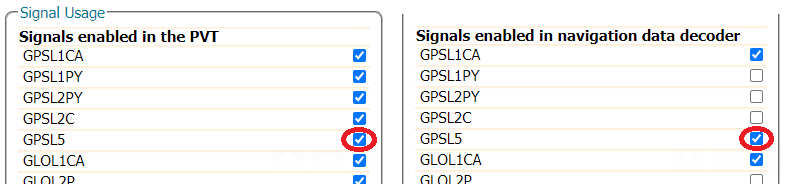
> PVT > Signal Usage - Enable GPSL5 in both the PVT and navigation data decoder sections
Make sure to click the OK button at the bottom of each page, where you are making changes to update the current configuration. Also, don’t forget to save it to boot, if you want the configuration to persist when you cycle power.
Command Interface
GPS-L5 SignalSince the GPS-L5 service is currently pre-operational and marked as "unhealthy", it takes some extra configuration steps to enable the GPS-L5 frequency band and corrections.
setHealthMask, Tracking, offsetHealthMask, PVT, off
setSignalTracking, +GPSL5setSignalUsage, +GPSL5, +GPSL5
Output L5 Corrections
Below, are instructions for outputting RTK corrections for the GPS L5 frequency band, from the SXM-E.
The SXM-E must be configured to receive those GNSS signals (see instructions above); otherwise, it won't have any data to provide the corrections with.
Web Interface
From the drop-down menu of the Corrections tab of the web interface, select Corrections > Corrections Output to bring up the corrections output settings. On this page, locate the Advanced Settings menu, where users can define the data intervals and formatting. Clicking on this will prompt a security dialog box to pop up, click the Proceed button to make changes to these settings. RTK corrections for the GPS L5 frequency band are only available in the RTCMv3 messages; therefore, users will need to select the RTCMv3 tab.
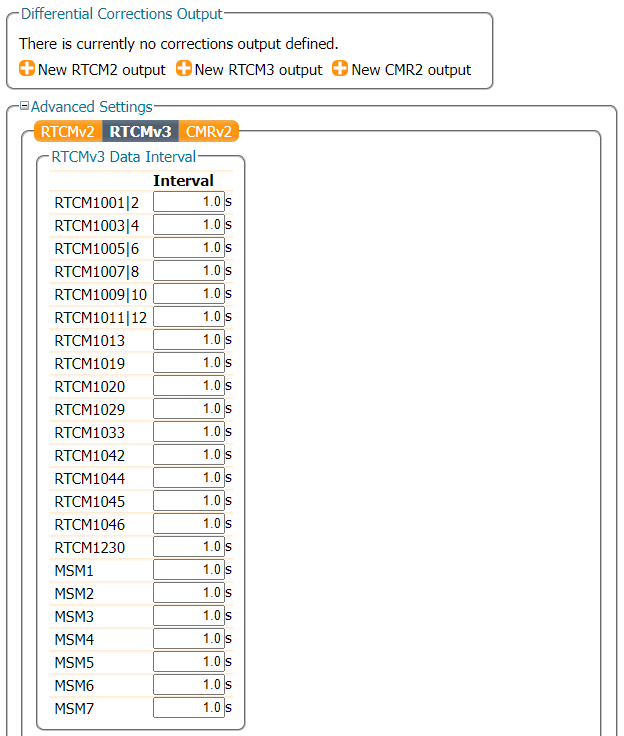
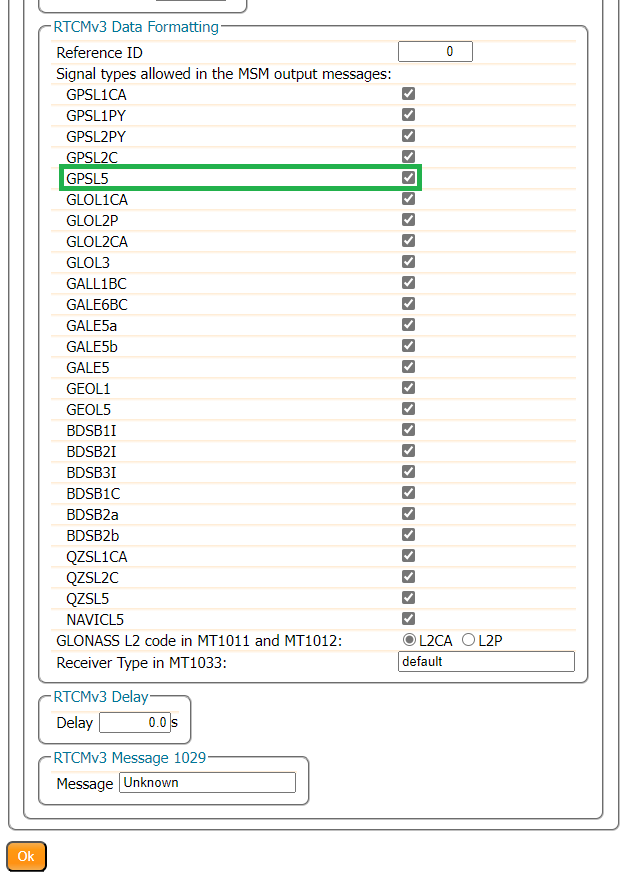
Scroll down to the RTCMv3 Data Formatting section, select the box next to the GPSL5 to enable the RTK corrections for the GPS L5 frequency band. In the example below, we have enable all the available signals to be included in the MSM output messages.
Make sure to click the OK button at the bottom of each page, where you are making changes to update the current configuration. Also, don’t forget to save it to boot, if you want the configuration to persist when you cycle power.
Command Interface
setRTCMv3Formatting, 0, +GPSL5