This quick start guide will get you started in 10 minutes or less. For the full product manual, please proceed to the Equipment Overview.
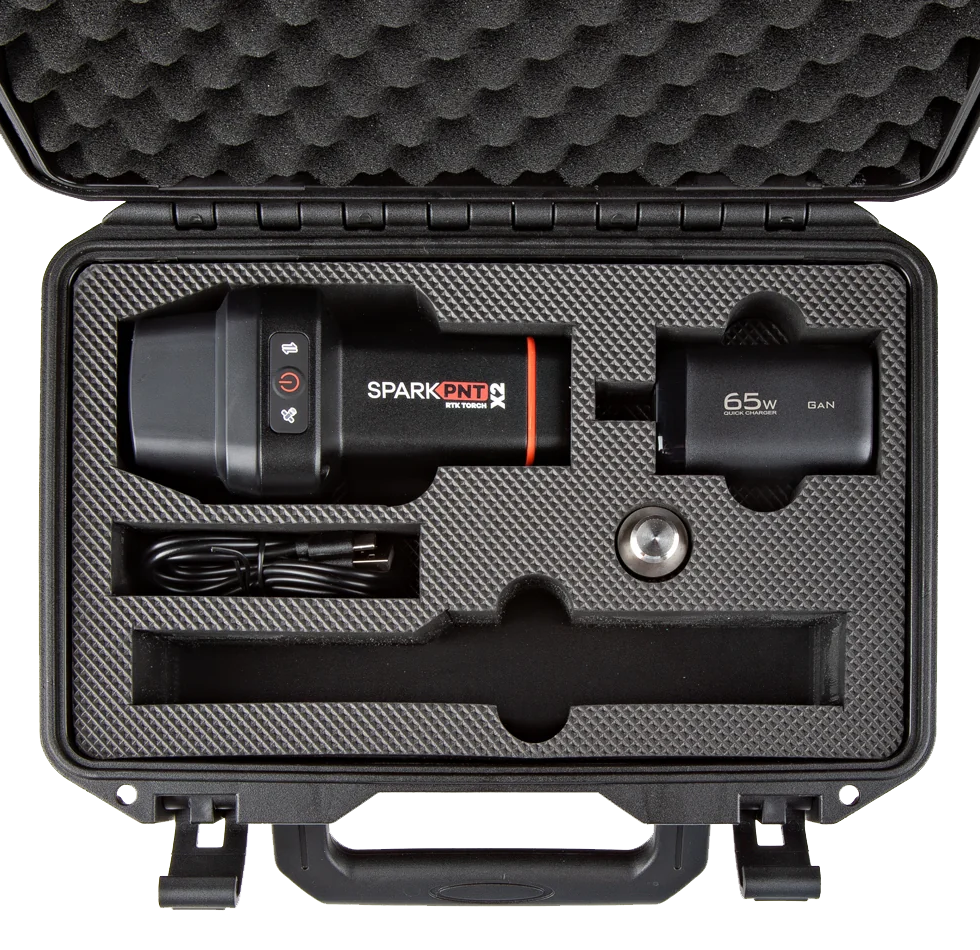
For the purposes of this quickstart, you will only need a standard surveying pole, or camera monopod. No other parts (LoRa antenna, USB cable, etc.) are needed.
Download SW Maps. This may not be the GIS software you intend to do your data collection, but SW Maps is free and makes sure everything is working correctly out of the box.
Download SW Maps for Android
Attach the TX2 to a 5/8" 11-TPI standard surveying pole or to a monopole using the included 5/8" to 1/4" thread adapter if needed.
TX2 attached to surveying pole
Turn on the TX2 device by pressing the () power button for 3 to 4 seconds until a beep is heard and the two front LEDs illuminate.
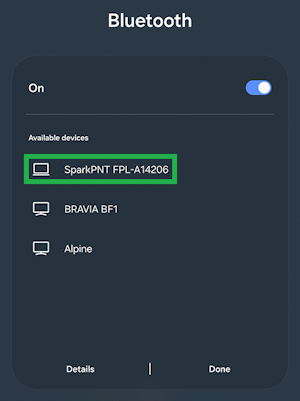
From your cell phone, open Bluetooth settings and pair it with a new device. You will see a list of available Bluetooth devices. Select the SparkPNT TX2-######; where, ###### is the last four digits of the device's MAC address and will vary depending on the device.
Bluetooth devices on Android
Once paired, open SW Maps. Select New Project and give your project a name like RTK Project.
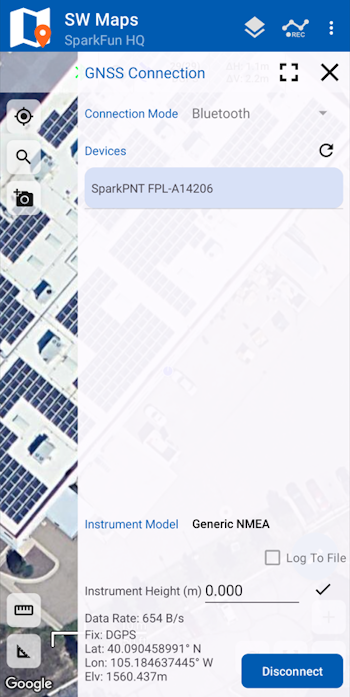
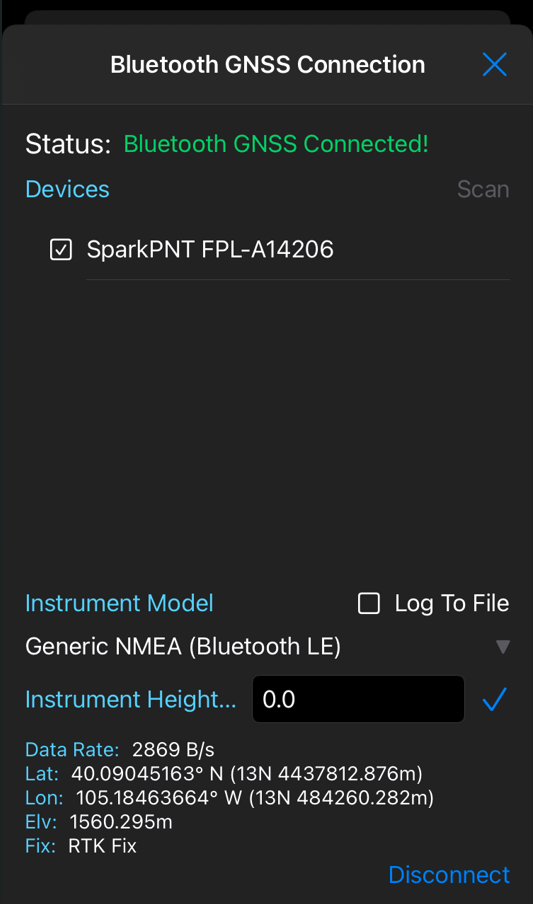
Press the SW Maps icon in the top left corner of the home screen and select Bluetooth GNSS. You should see the SparkPNT TX2-###### in the list. Select it. Confirm that the Instrument Model is SparkFun RTK, then press the Connect button in the bottom right corner. SW Maps will show a warning that the instrument height is 0m. That's ok.
Open Receiver Settings
Connect to the TX2 over Bluetooth
Once connected, have a look at the Connection icon () on the front of the device. You should see the LED turn solid. You're connected!
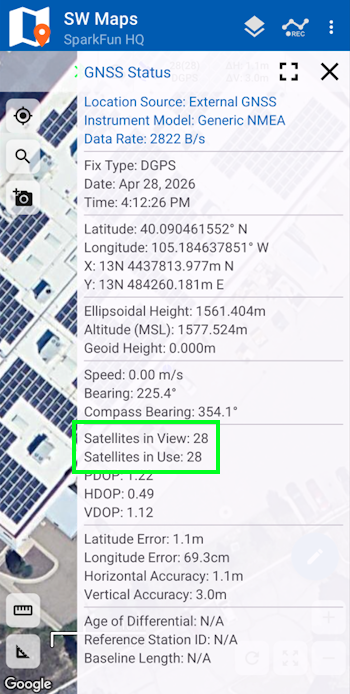
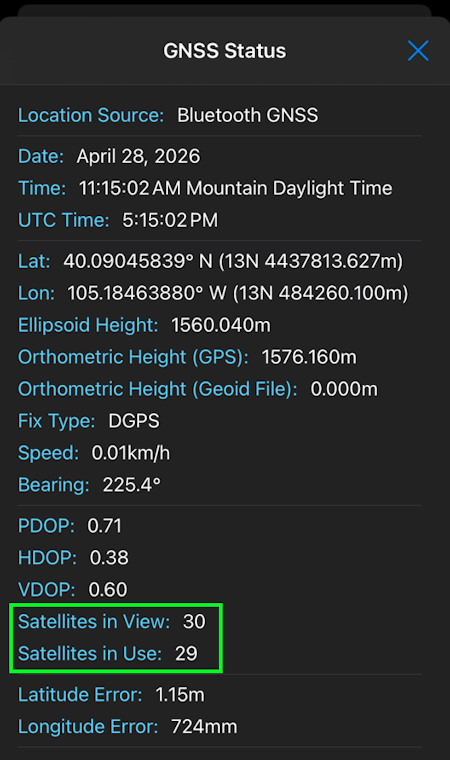
Now move the TX2 outside with a clear view of the sky. GNSS doesn't work indoors or near windows. Press the SW Maps icon in the top left corner of the home screen and select GNSS Status. Within about 30 seconds you should see 10 or more satellites in view (SIV).
The higher the SIV (number of satellites in view), the better. We regularly see 30 or more satellites, at SparkPNT. The horizontal positional accuracy (HPA) will start at around 10 meters and begin to decrease. The lower the HPA, the more accurate your position. This accuracy is around 2m in normal mode.
SW Maps showing SIV
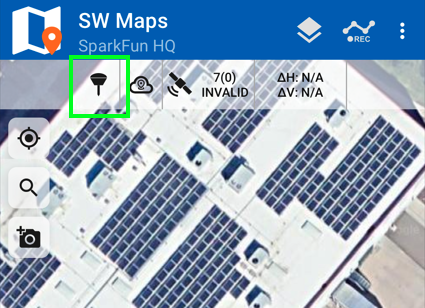
Press the target icon in the top-left corner of the map to view your position.
You can now use your TX2 to measure points with meter accuracy. If you need extreme accuracy (down to 8mm) continue reading the Corrections section.
Download SW Maps for iOS. This may not be the GIS software you intend to do your data collection, but SW Maps is free and makes sure everything is working correctly out of the box.
Download SW Maps for iOS
Attach the TX2 to a 5/8" 11-TPI standard surveying pole or to a monopole using the included 5/8" to 1/4" thread adapter if needed.
TX2 attached to surveying pole
Turn on the TX2 by pressing the () power button for 3 to 4 seconds until a beep is heard and the two front LEDs illuminate.
Open SW Maps. Select New Project and give your project a name like RTK Project.
Press the SW Maps icon in the top left corner of the home screen and select Bluetooth GNSS. You should see the SparkPNT TX2-###### in the list. Select it. Confirm that the Instrument Model is SparkFun RTK, then press the Connect button in the bottom right corner. SW Maps will show a warning that the instrument height is 0m. That's ok.
Open Receiver Settings
Connect to the TX2 over Bluetooth
Once connected, have a look at the Connection icon () on the front of the device. You should see the LED turn solid. You're connected!
Now put the device outside with a clear view of the sky. GNSS doesn’t work indoors or near windows. Press the SW Maps icon in the top left corner of the home screen and select GNSS Status. Within about 30 seconds you should see 10 or more satellites in view (SIV) (see above). More SIV is better. We regularly see 30 or more SIV. The horizontal positional accuracy (HPA) will start at around 10 meters and begin to decrease. The lower the HPA the more accurate your position. This accuracy should be below 1m in normal mode.
SW Maps showing SIV
You can now use your TX2 to measure points with meter accuracy. If you need extreme accuracy (down to 8mm) continue reading the Corrections section.
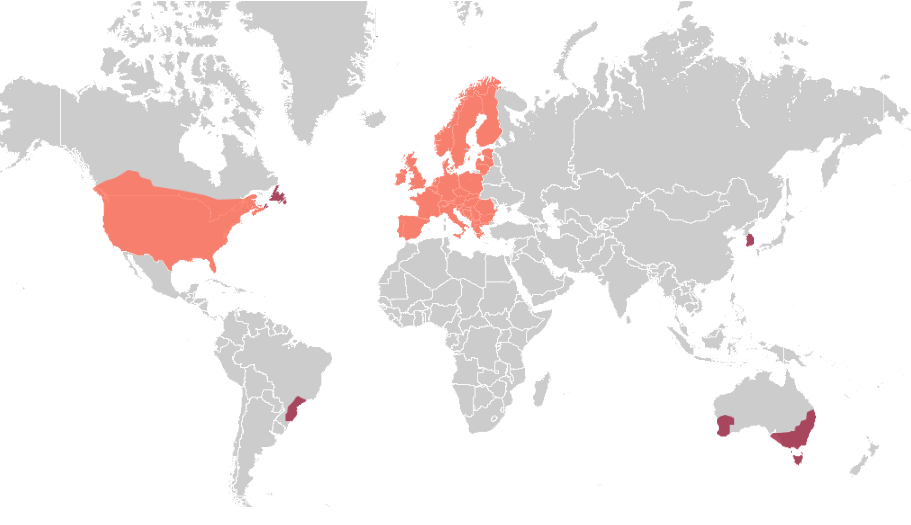
To get millimeter accuracy we need to provide the TX2 with correction values. See Corrections Sources for a breakdown of the options and the pros and cons of each. For this quickstart, we'll be showing how to use PointPerfect Flex for $15 a month.
PointPerfect Flex over NTRIP requires a set of user name, password, and mount point credentials. Please register here to setup a monthly subscription. Most device purchases come with a trial month if you want to try it out.
An NTRIP Client is a small app that connects to the corrections server to get the corrections. Most GIS apps have an NTRIP Client built in.
The easiest way is to use the service is with a cell phone. For this example, we'll use a phone with SW Maps but any GIS app with a built-in NTRIP Client (most do) can connect to PointPerfect.
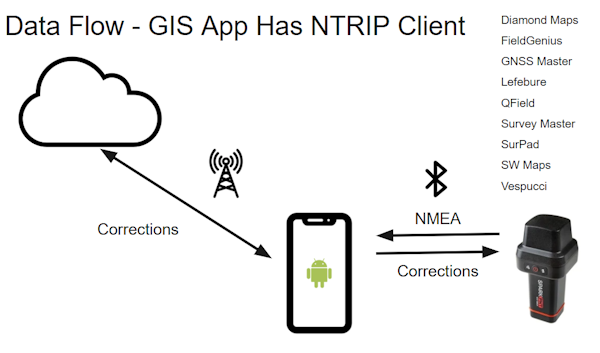
How corrections flow from NTRIP to Bluetooth
In the above image, the phone is running the NTRIP Client and the corrections are downloaded from the internet using the phone's cellular connection. Those connections are sent over Bluetooth to the TX2. The TX2 gets a high-precision solution and transmits the GPS location back to the phone over Bluetooth. The phone displays the location in an app allowing work to be done.
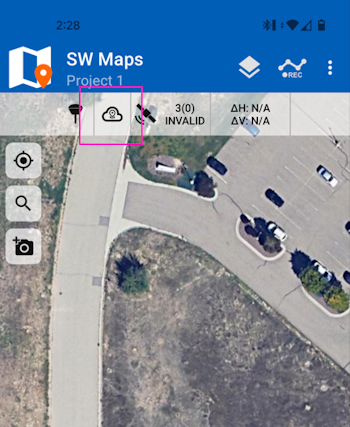
Opening NTRIP Client settings
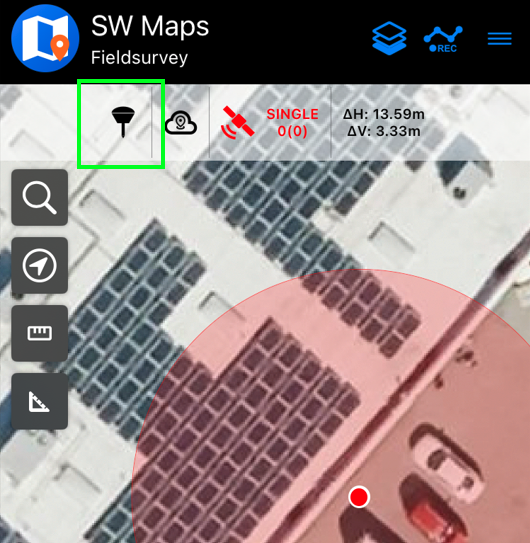
Above, in SW Maps select the NTRIP Client. This is the small cloud icon.
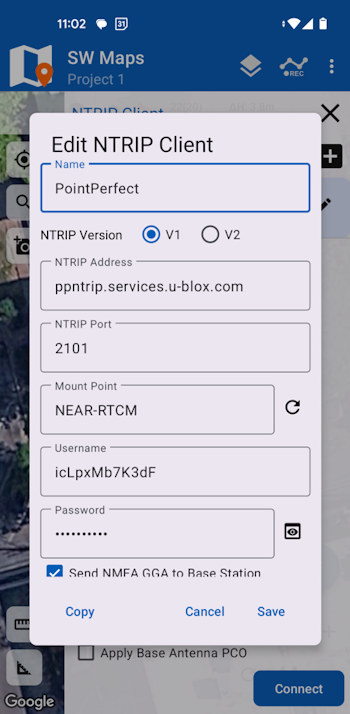
Entering NTRIP credentials
In the NTRIP Client detail window, enter the following information:
NTRIP Version: V1
NTRIP Server: ppntrip.services.u-blox.com
NTRIP Port: 2101
Mount Point: NEAR-RTCM
Username: (provided when service was set up)
Password: (provided when service was set up)
Send NMEA GGA to Base Station: Please confirm this option is checked
The information can be copy/pasted from email or manually entered. Be careful to enter the data correctly. Once the credentials are entered, click Save and then Exit the NTRIP Client details window.
Open Receiver Settings
Next, if the GNSS receiver is not already connected, turn on the TX2 and connect to it over Bluetooth by clicking on the receiver button (shown above).
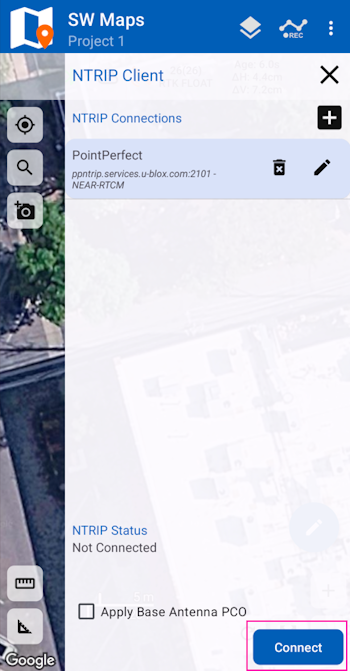
List of NTRIP Clients and connect button
Once the receiver is connected, tap the NTRIP Client (cloud) icon again to open the menu. A list of clients will be shown, select the one you just entered and click 'Connect'.
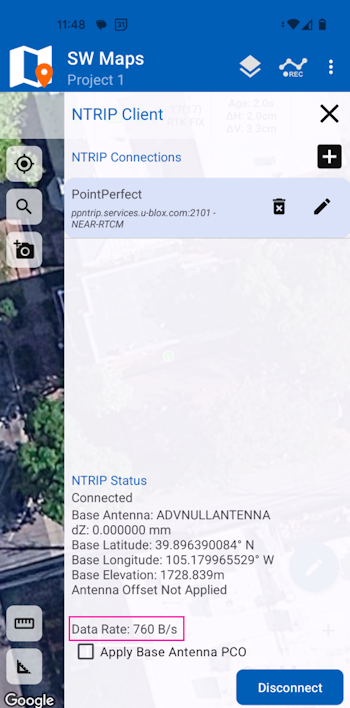
Data rate is more than 0 bytes per second
Confirm that the Data Rate section shows more than 0 bytes per second over a few seconds. The number will bounce around, but every second a few hundred bytes of correction data should be downloaded and sent to the TX2 over Bluetooth. This indicates the NTRIP connection was successful.
Success! RTK Fix!
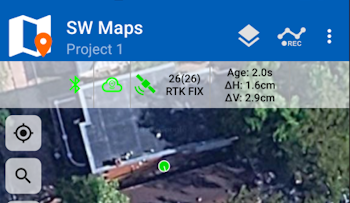
Close the NTRIP Client window returning to the main app screen and proceed outdoors and get a clear view of the sky. Above we see a successful high-precision RTK Fix with 16mm horizontal accuracy. Now you can proceed with GIS work.
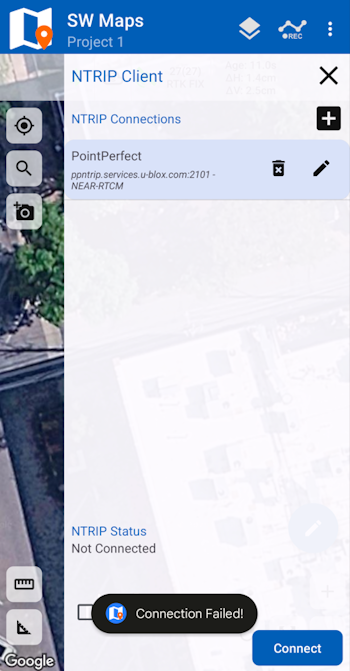
NTRIP connection failure due to incorrect credentials
Above, if you get a 'Connection Failed' error it is likely that username or password was incorrect. Double check you credentials and try again.
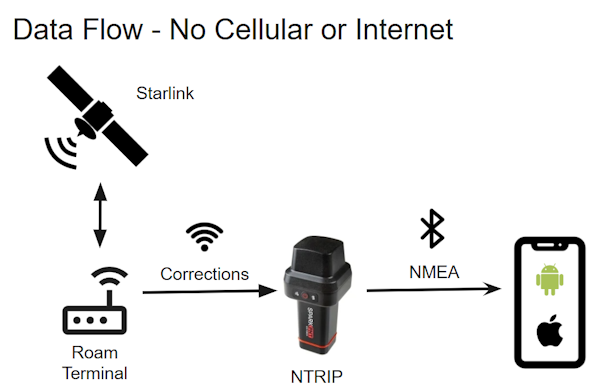
What if you don't have cellular connectivity? Corrections can be obtained over any internet connection. Starlink Roam or Eutelsat KONNECT can provide internet over satellite. Once WiFi is available at the job site the TX2 can be configured to connect to WiFi and get the corrections over its built-in NTRIP Client. See the NTRIP Client docs for more information.
How corrections flow using WiFi and Starlink to Bluetooth
High-precision GNSS works best with a clear view of the sky; it does not work indoors or near a window. GNSS performance is generally not affected by clouds or storms. Trees and buildings can degrade performance but usually only in very thick canopies or very near tall building walls. GNSS reception is very possible in dense urban centers with skyscrapers but high-precision RTK may be impossible.
The location reported by the TX2 is the location of the antenna element; it's not the location of the pointy end of the stick. Lat and Long are fairly easy to obtain but if you're capturing altitude be sure to do additional reading on ARPs (antenna reference points) and how to account for the antenna height in your data collection software. The TX2's APC is 128.95mm. More information on the APC is here.
An internet connection is required for most types of RTK. RTCM corrections can be transmitted over other types of connections (such as serial telemetry radios). See Correction Transport for more details.