Configure with Browser
During browser configuration, the device will serve a webpage that is viewable from a desktop, laptop, or cell phone. This is available by connecting to its WiFi access point (AP). For advanced configurations, a desktop is recommended. For quick in-field changes, a cell phone works great.
Access the Configuration Settings
To configure the device settings from a browser, follow these steps:
- Power on the TX2
- Once the device has started press the Power Button twice within 1 second (double tap).
- The device will beep twice indicating it is waiting for incoming connections.
- Connect to WiFi network named
RTK Config.noteUpon connecting, your phone may warn you that this WiFi network has no internet. That's ok. Stay connected to the network and open a browser. If you still have problems turn off the Mobile Data setting, so that the phone does not default to its cellular connection for internet access and only connects to the device.
- You should be automatically re-directed to the configuration page but if you are not, open a browser (Chrome is preferred) and type
https://rtk.localURL address into the address bar.http://rtk.local/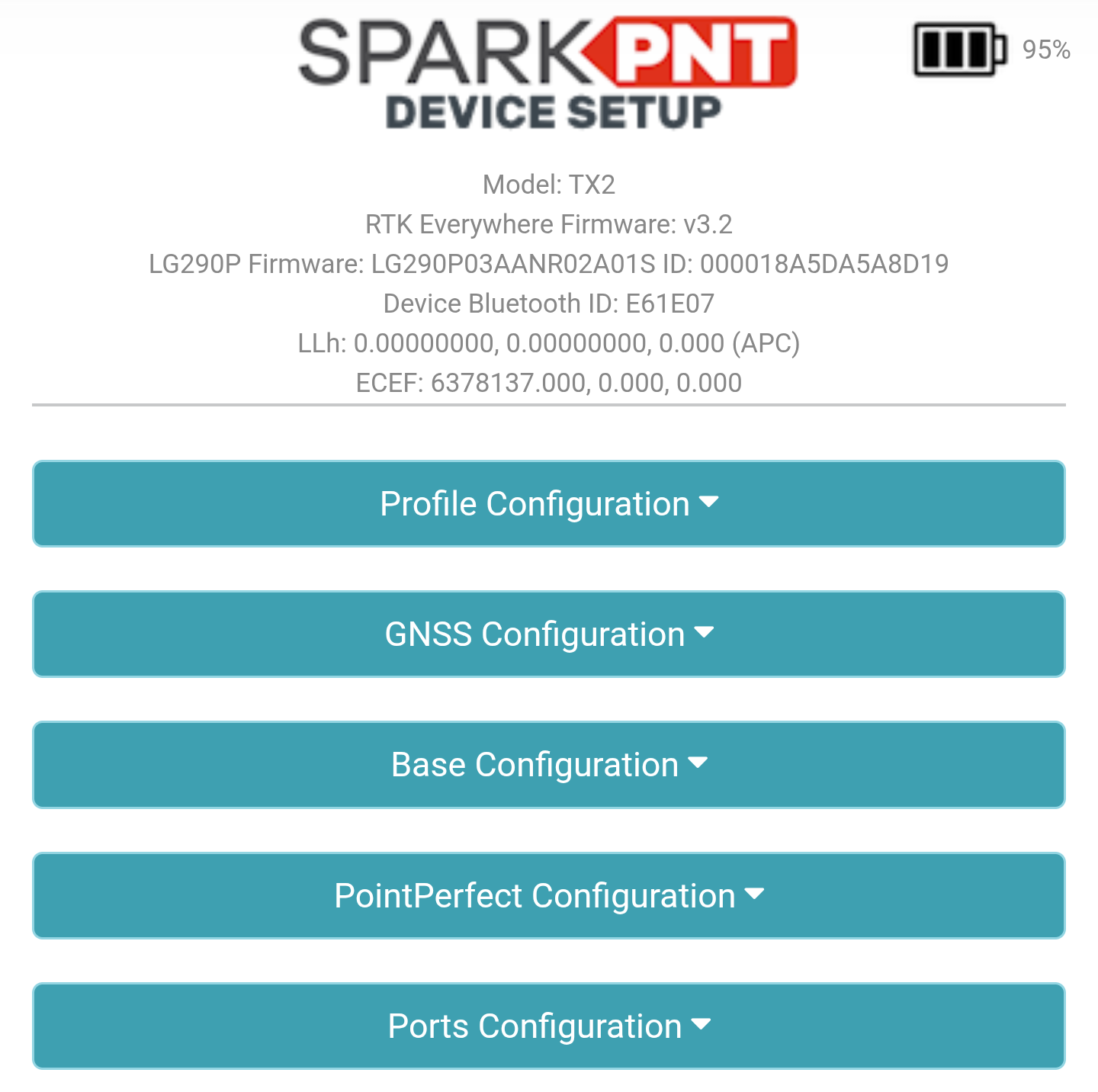
Browser with the configuration webpage.
Device Information
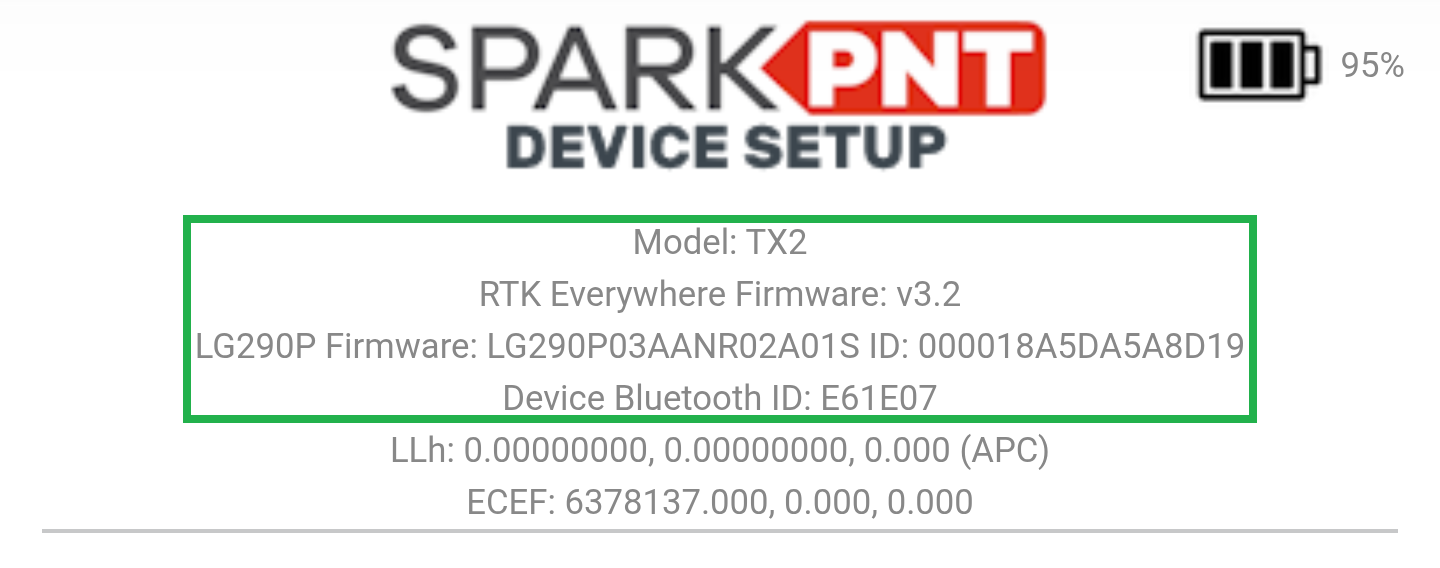
At the top of the webpage, basic information about the device will be displayed. Including the device model, firmware version, firmware version of the GNSS module, Bluetooth MAC address, and position. This can be helpful when troubleshooting or requesting new features.
Change a Setting

Profile Configuration menu.To change a setting, click on the category tab to open or close that section. Clicking on the information icon () will provide a brief description of the setting's options.
For more information about the available device settings and the configuration options, please refer to the Configuration Settings section.
Saving and Exit
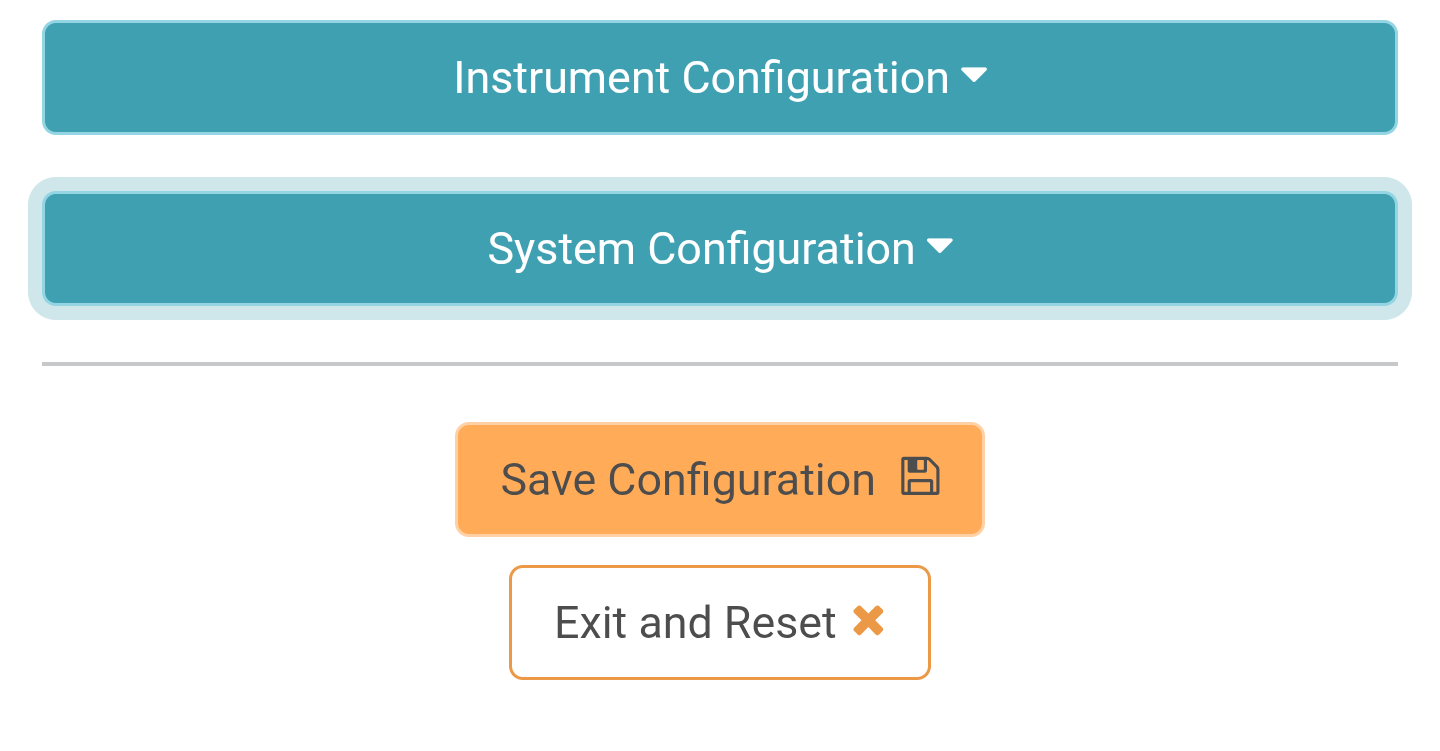
Save Configuration and Exit and Reset buttons at the bottom of the webpage.Once the settings are input, please press the Save Configuration button. This will validate any settings, show any errors that need adjustment, and send the settings to the unit. The page will remain active until the user presses the Exit and Reset button, at which point the unit will exit WiFi configuration. Then, reset into to whichever mode was selected in the System Configuration tab's System Initial State drop-down menu (i.e. Base, Rover, or NTP).