Firmware Updates
There are two firmware components on each device. The firmware for the GNSS receiver and the firmware for the device.

SparkPNT will release new firmware to add and improve functionality for users. The firmware can be upgraded through an internet connection using the OTA method. However, this does require that a WiFi connection be configured on the device.
The Firmware Update menu allows users to check for and install updates. Turning on Automatic firmware updates will cause the device to periodically check and install updates when they become available. This can be helpful for remote stations that cannot have manual interventions.
Updating ESP32 Firmware
The ESP32 firmware is the main firmware in all RTK devices. The firmware version number is displayed in a variety of places:

The firmware is shown at the top of the WiFi config page.
From time to time SparkFun will release new firmware for the RTK product line to add and improve functionality. For most users, firmware can be upgraded over WiFi using the OTA method.
- OTA Method: Connect over WiFi to SparkFun to download the latest firmware over-the-air. This can be done using the WiFi AP Config Mode, but also requires a local WiFi network.
- WiFi Method: Load the firmware over WiFi when the device is in WiFi AP Config Mode.
Updating Firmware Over-The-Air

Firmware can be updated in the System Configuration section of the WiFi Config page. Automatic firmware updates is supported over WiFi, which makes checking and upgrading a unit simple. The polling period is specified in minutes and defaults to once a day. The automatic firmware update only checks for and installs the current SparkFun released firmware versions over top of any:
- Older released versions (continual upgrade)
- Locally built versions (newer or older, restore to released version)
Updating Firmware From WiFi

Firmware may be manually uploaded to the unit by clicking on Upload BIN, selecting the binary such as RTK_Surveyor_Firmware_v3_x.bin and pressing upload. The unit will automatically reset once the firmware upload is complete.
Updating LG290P Firmware
The LG290P is the GNSS receiver used in the TX2. The following describes how to update the firmware on the LG290P.
-
Download the latest LG290P firmware. As of writing, the LG290P firmware is v2.01. See the RTK Postcard repo for the latest firmware.
-
Download and install QGNSS v2.x. QGNSS is the software created by Quectel to configure and view output from Quectel GNSS modules.
-
Open QGNSS and connect to your device by, selecting LG290P(03) from the drop-down menu for Model. Then, select COM port A of the CH342, set the baud rate to 230400, and press
OKto connect to the TC+X2.
Select the model, COM port, and baud rate tipIf the baud rate doesn't work, users may need to factory reset the RTK everywhere firmware to reconfigure the baud rate of the LG290P to the default settings.
-
To upload firmware to the LG290P, navigate from the Tools drop-down menu and select the Firmware Update option (Tools > Firmware Update).
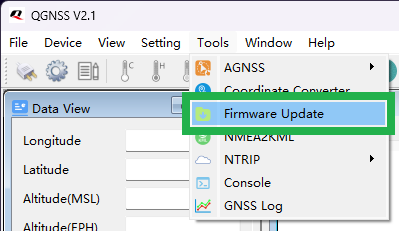
Open the Firmware Update tool -
Select the firmware file to upload, by clicking on the button. (This should be the
*.binfile, located is inside the*.zipfile that was downloaded in Step 1.)
Select the firmware file -
Before the firmware can be uploaded, the LG290P must be reset to synchronize the module with the firmware upload process. Click on the reboot button in the toolbar.

Reboot the LG290P tipFor the TX2, we recommend users relocate the Firmware Update window as close to the reboot button as possible. In our experience, the start button must be pressed immediately after pressing the reboot button; otherwise the process fails.
-
Press the start arrow in the Firmware Update window immediately after clicking the reboot button.

Start the Firmware Update Process -
The update process takes a little over a minute. Once completed, close QGNSS and power cycle the RTK Postcard.

Firmware version shown in System Menu -
Upon power-up, the firmware will be updated. Open the System Menu to confirm the firmware version.