Connectivity
In order to get corrections or configure the device, users should pair the device with their phone. Double-tap the Power button (press twice, within 1 second) to connect to your device.
BLE
To provide RTK corrections from an NTRIP caster (or server), view the device's position in real-time, and manage datapoints, it is best to utilize a 3rd party app on a mobile device. Users can then, pair the SparkPNT TX2 to their mobile device with a BLE connection.
For a Bluetooth connection, follow these steps:
- Power the device on.
- Hold the Power button for more than 3 seconds. It will beep once, indicating it has turned on.
- Once the device has powered up; double-tap the Power button (press twice, within 1 second).
- The device will beep twice indicating it is waiting for incoming connections.
- On your mobile device, connect to BLE device named
SparkPNT TX2.
Pairing from an Android device. 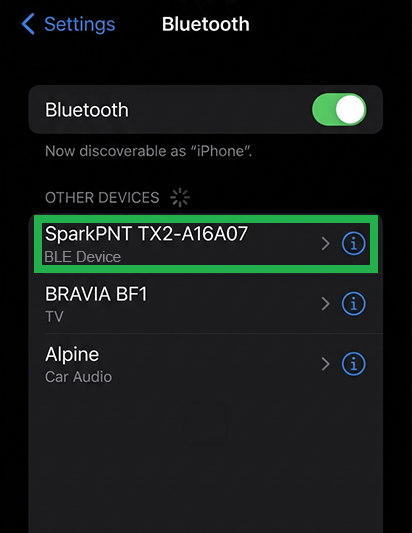
Pairing from an iOS device. - Once pair, you be able to access the device in your favorite GIS app.
WiFi
To change the configuration settings of the SparkPNT TX2, it is easiest to connect to the device's WiFi access point and pull-up the configuration webpage. Once connected, users can access the configuration webpage from a browser using the https://rtk.local URL address.
To get into browser configuration, follow these steps:
- Power the device on.
- Hold the Power button for more than 3 seconds. It will beep once, indicating it has turned on.
- Once the device has powered up; double-tap the Power button (press twice, within 1 second).
- The device will beep twice indicating it is waiting for incoming connections.
- On your mobile device, connect to WiFi network named
RTK Config. Upon connecting, your phone may warn you that the WiFi network is not connected to the internet. This is normal; stay connected and open a browser.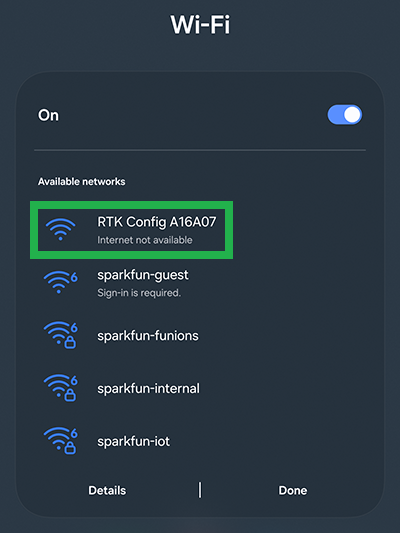
Connecting from an Android device. 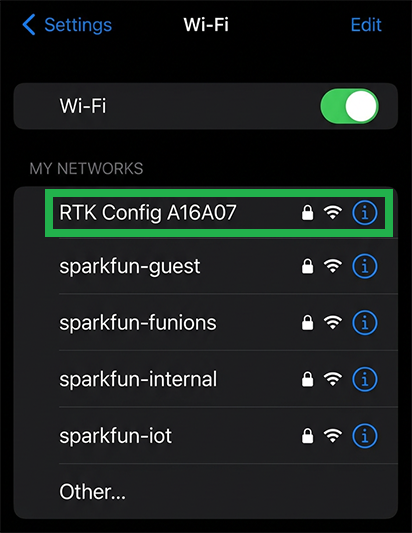
Connecting from an iOS device. warningIf you have problems, try disabling mobile/cellular data on your mobile device. The device or browser might be using the cellular connection for its internet access; however, we want to disable this setting to ensure that your mobile device remains on the WiFi access point for the browser.
- Once the browser is opened, you should be automatically re-directed to the configuration webpage. If not, open a browser (Chrome is preferred) and type
http://rtk.localinto the address bar.
https://rtk.local/http://rtk.local/
Browser with rtk.localwebpage.