GNSS Master
GNSS Master is a great utility when a given GIS app does not have an NTRIP Client or a way to connect over Bluetooth. GNSS Master connects to a RTK device over Bluetooth (or Bluetooth BLE) as well as any correction source (NTRIP, PointPerfect, even USB Serial), and then acts as the phone's location using Mock Location.
Most GIS apps will not need GNSS Master or Mock Location enabled and this section can be skipped.
Read how to Enable Mock Location.
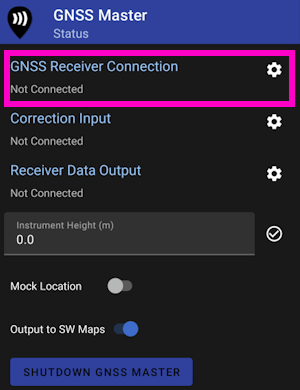
From the GNSS Master main screen, select GNSS Receiver Connection.

Pick the RTK device to connect to from the list, then click Connect. The Data Rate should increase indicating data flowing from the RTK device to the GNSS Master app. Click the back button to return to the main screen.
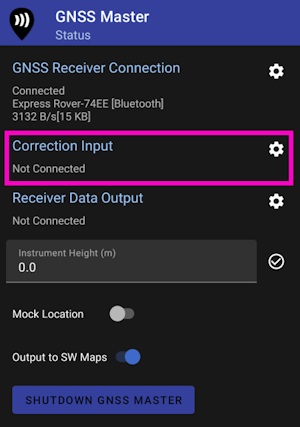
Select Correction Input to setup an NTRIP Client.
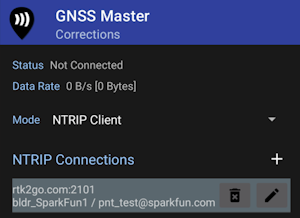
This is one of the powerful features of GNSS Master - multiple connections can be entered. This is helpful if you regularly switch between locations or NTRIP Casters and your GIS software only allows entry of a single NTRIP source. GNSS Master supports corrections from NTRIP Casters but also PointPerfect and a direct serial connection to a GNSS receiver. This can be really helpful in advanced setups.
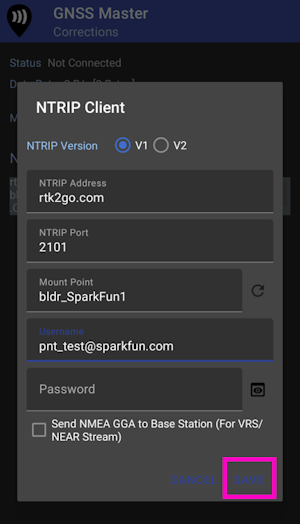
Enter your NTRIP Client information then click SAVE.
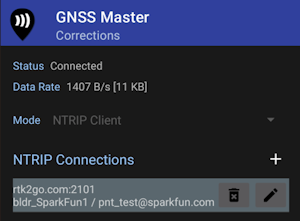
Once connected the Data Rate should increase above 0 bytes per second. Return to the home screen by hitting the back button.
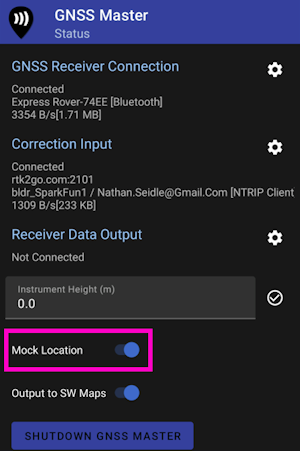
Enable mock location. If GNSS Master throws an error, re-enable GNSS Master as your Mock Location provider in Developer Options.
Once enabled, any GIS app that selects Internal or Phone Location as its source will instead be fed the high precision NMEA being generated by the RTK device connected over Bluetooth.