SurPad
SurPad is an Android app available as a free trial for 30-days. It's loaded as an APK (rather than through Google Play).
Be sure your RTK device has been paired over Bluetooth to your phone.
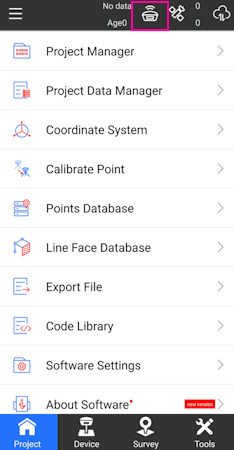
Create a project and get to the home screen. Shown above, click on the GNSS receiver icon.
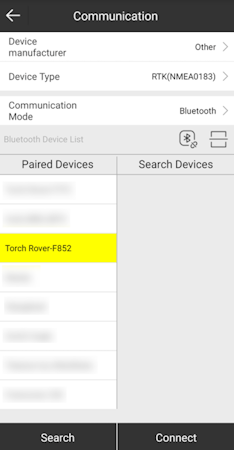
Set the Device manufacturer to Other, Device type to RTK(NMEA0183), and Communication Mode to Bluetooth. Select the SparkFun RTK device that you would like to connect to on the Paired Devices list and then click Connect.
Once connected to the device a Debug button will appear. This is one of the nice features of SurPad: Running debug will allow you to inspect the NMEA coming across the link.
Once done, press the back arrow (top left corner) to return to the home screen.
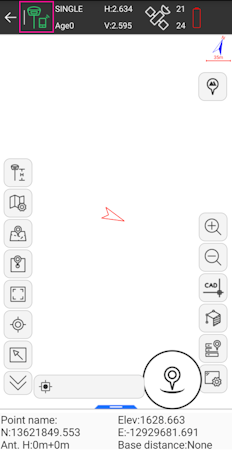
Above: From the home screen press the Survey button at the bottom, then Point Survey to bring up the map.
In the top left corner, press the green hamburger + cell phone icon. This will open the NTRIP settings.
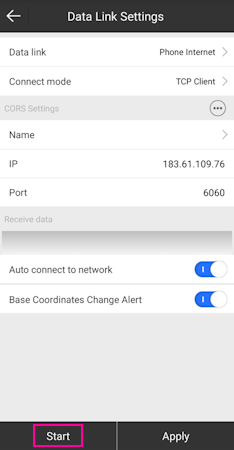
Change the Connect Mode from TCP Client to NTRIP. If you are unable to edit or change the Connect Mode from TCP Client be sure the TCP Client is stopped by pressing the Stop button in the lower left corner (located in the same spot as the highlighted Start).
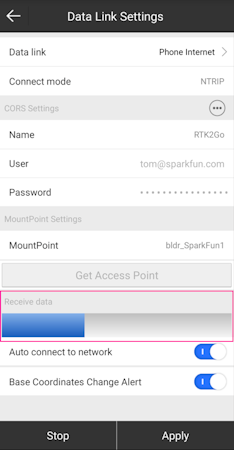
Enter the information for your NTRIP caster. In the above example, we are connected to the SparkFun base station on RTK2Go. For RTK2Go you will need to enter a valid email address for a user name but a password is not required.
Click on Start and you should see the Receive data progress bar (highlighted above) increase each second indicating a connection. Once complete, press Apply to return to the map.
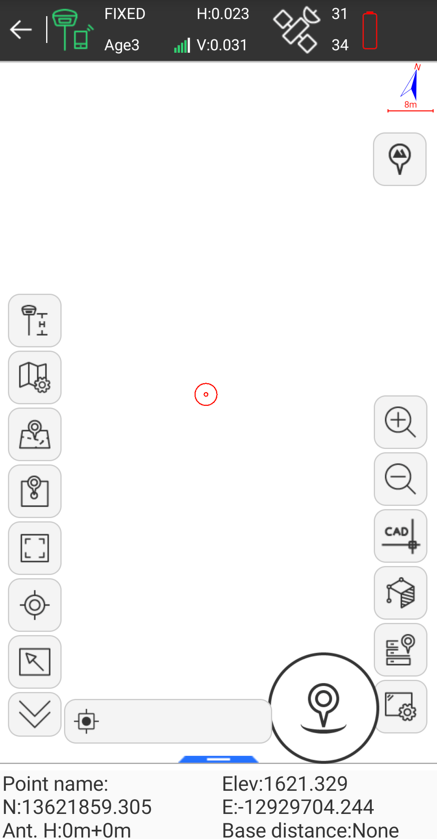
Above: After a few moments, the RTK device should move to RTK Float, then RTK Fix. You can see the age of the RTCM data in the upper bar, along with the horizontal (23mm) and vertical (31mm) accuracy estimates. Now you can begin taking points.