QField
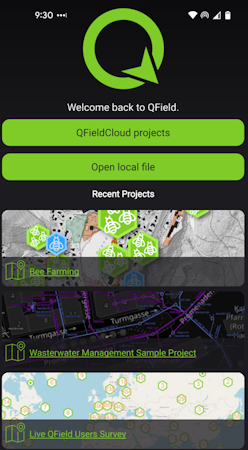
QField is a free iOS app that runs QGIS.

First, configure the RTK device to output only the following NMEA messages:
- GPGGA
- GPGSA
- GPGST
- GPGSV
QField currently does not correctly parse other messages such as GPRMC, or RTCM. These messages will prevent communication if they are enabled.
QField connects to the RTK device over TCP. In other words, the RTK device needs to be connected to the same WiFi network as the device running ArcGIS. Generally, this is an iPhone or iPad. In the above image, the device will attempt to connect to iPhone (a cell phone hotspot) when WiFi is needed.
The iOS hotspot defaults to 5.5GHz. This must be changed to 2.4GHz. Please see Hotspot Settings.

Click on QFieldCloud projects to open your project that was previously created on the QField Cloud or skip this step by using one of the default projects (Bee Farming, Wastewater, etc).
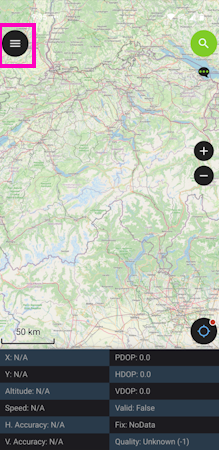
From the main map, click on the hamburger icon in the upper left corner.
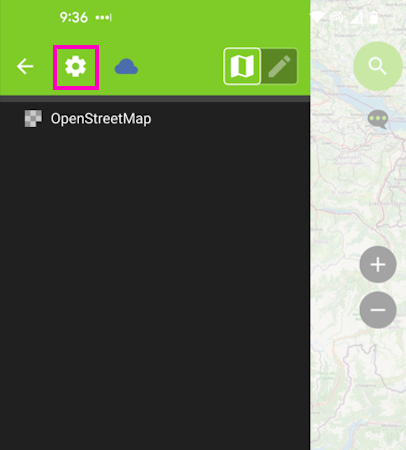
Click on the gear to open settings.
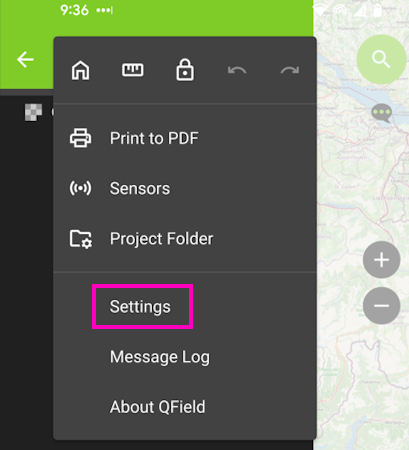
Click on the Settings menu.
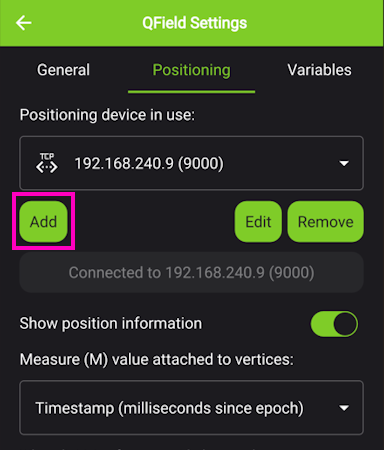
From the Positioning menu, click Add.
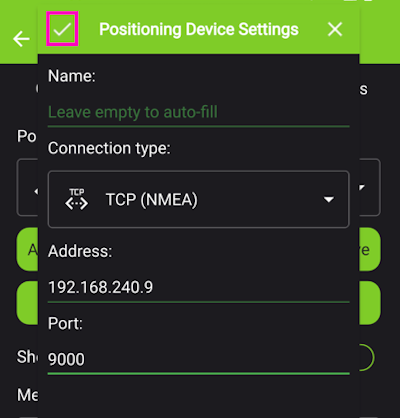
Select TCP as the connection type. Enter the IP address of the RTK device and the port number. Finally, hit the small check box in the upper left corner (shown in pink above) to close the window.
Once this information is entered, QField will automatically attempt to connect to that IP and port.
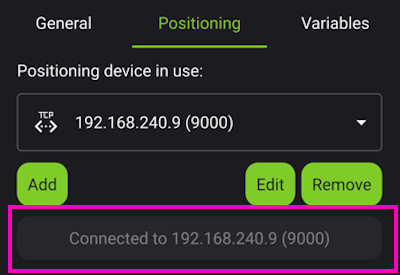
Above, we see the port is successfully connected. Exit out of all menus.
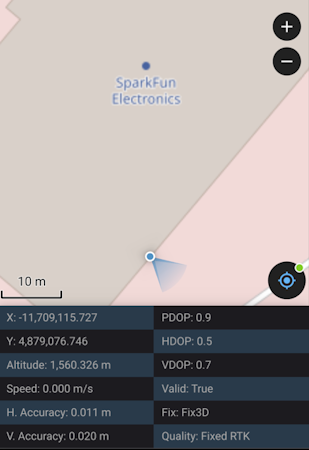
Returning to the map view, we see an RTK Fix with 11mm positional accuracy.